Manage Your Password
This page covers how to set, change, or reset your account password.
Set Your Password#
If you signed up using a third-party provider such as Google, no password is set for your account by default. You can set one from your account settings at any time.
-
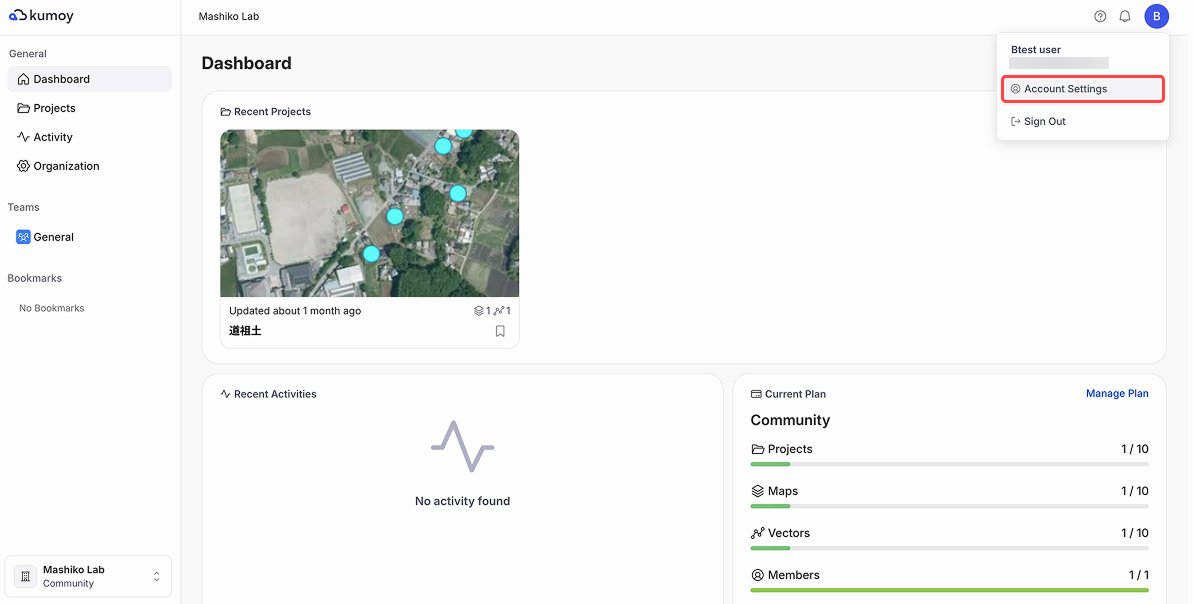
Log in to Kumoy, then click Account Settings at the top right of the dashboard.
-
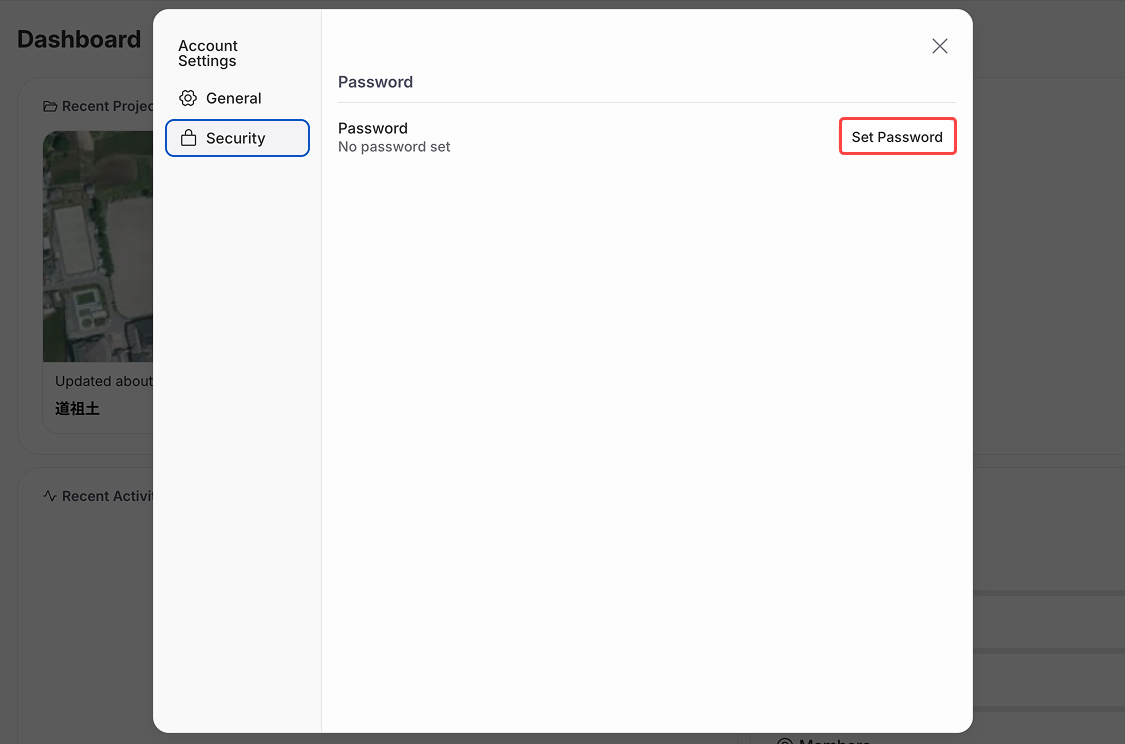
Go to the Security tab and click Set password.
-
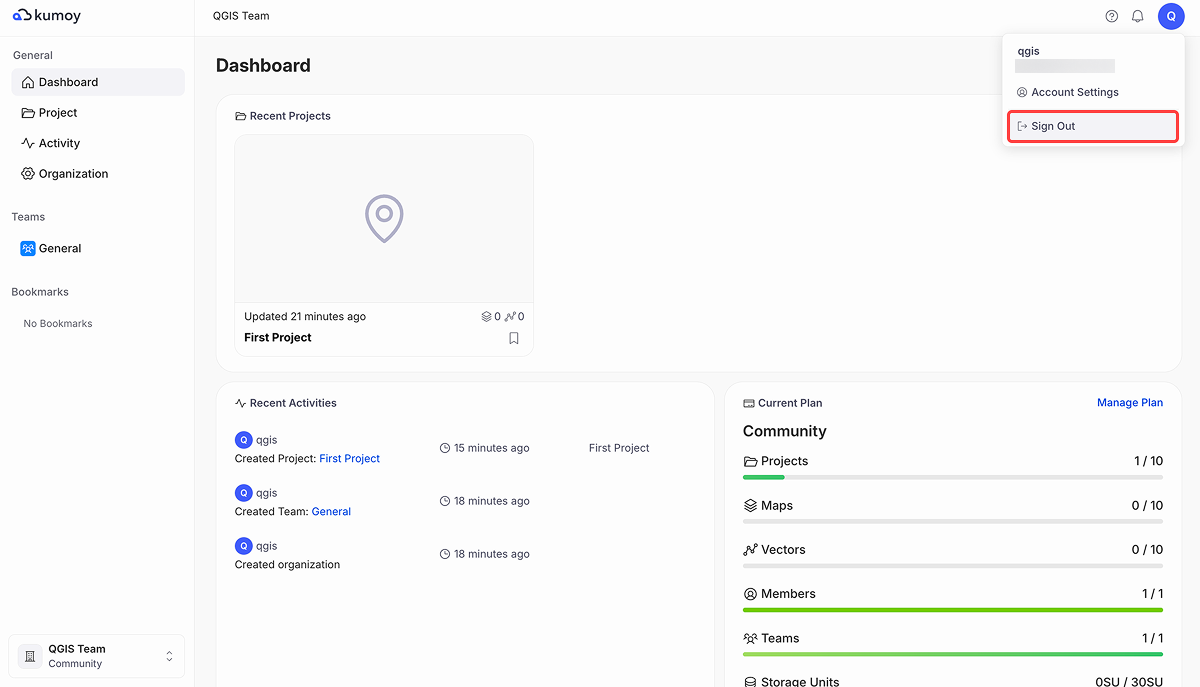
Kumoy sends you an email with a link to set your password. Before opening the link, log out of your current session.
-
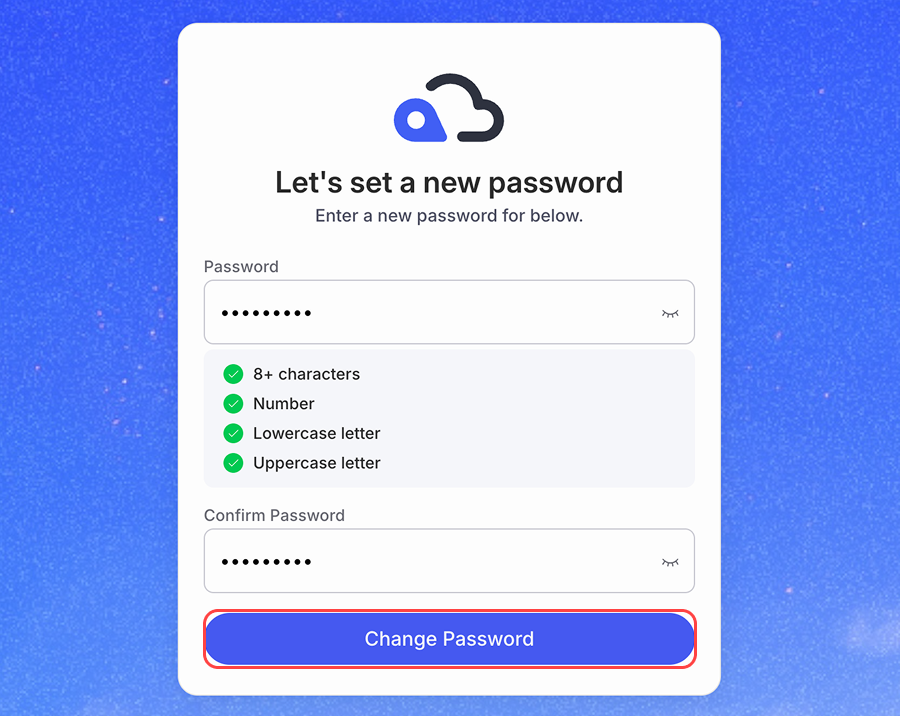
Open the email, click the link to set your password, then enter your new password.
Change Your Password#
If you already have a password and want to update it, you can change it from your account settings.
-
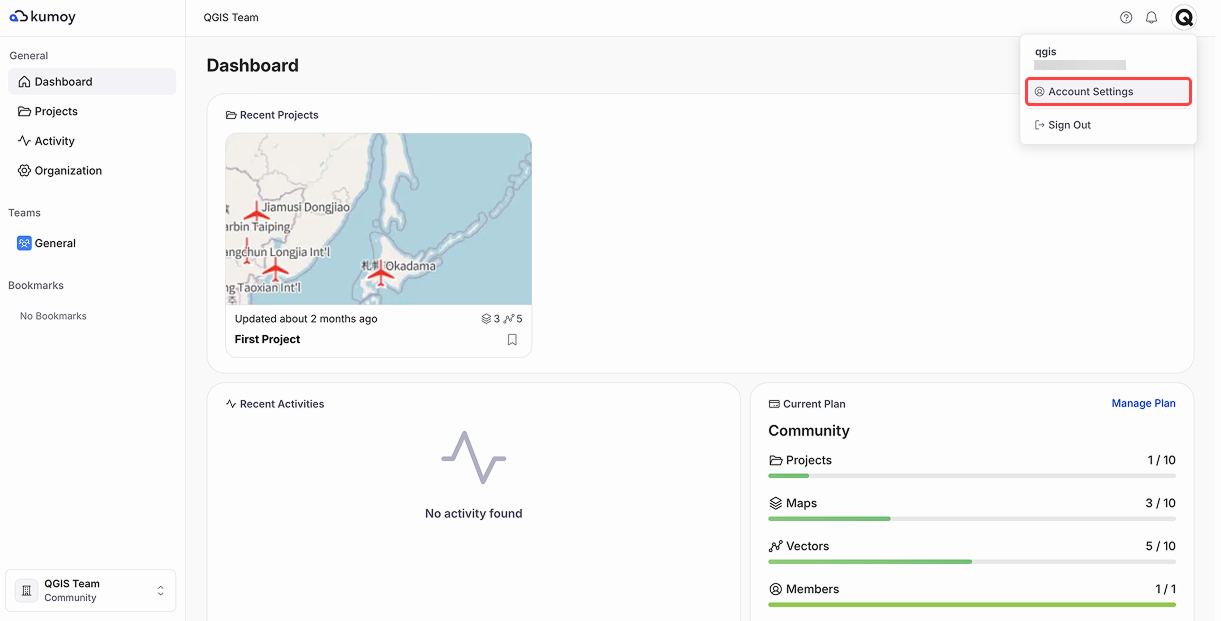
Click Account Settings at the top right of the dashboard.
-
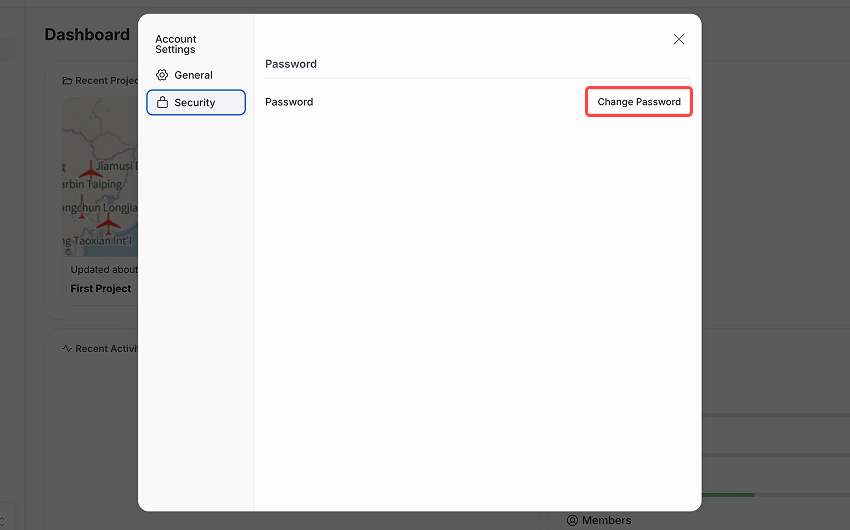
On the Security tab, click Change Password.
-
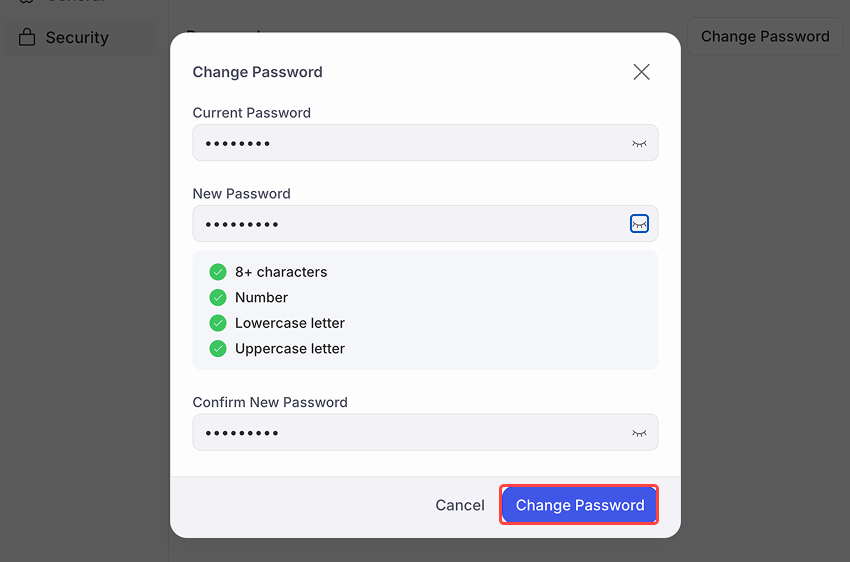
Enter your new password, then click Change Password.
Reset a Forgotten Password#
NoteUsers who signed up before April 13, 2026, and have not logged in since then may be required to reset their password.
We apologize for the inconvenience. Follow the steps below to reset your password.
If you've forgotten your password, you can reset it from the login page.
-
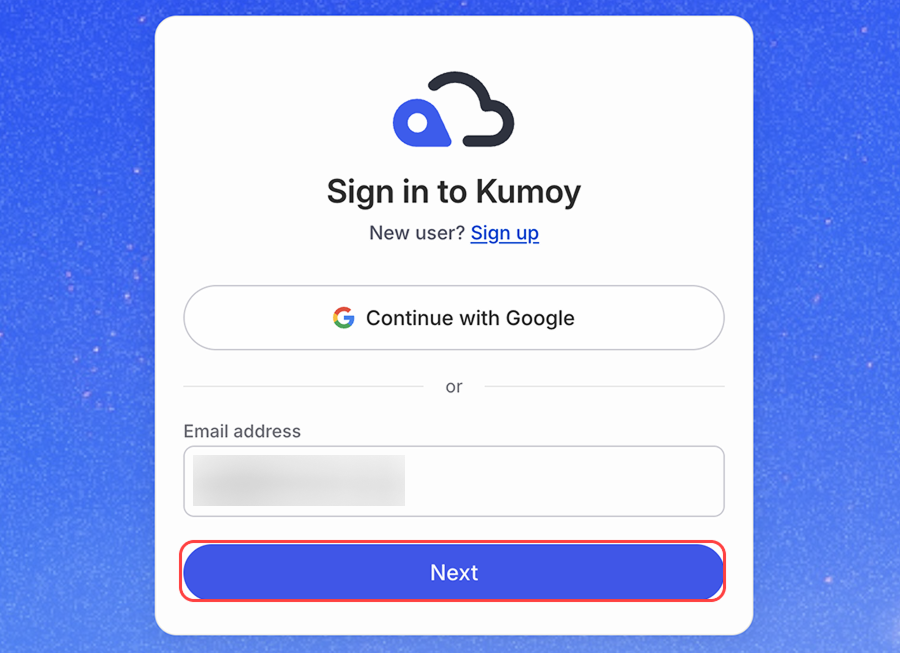
Go to the login page, enter your email address, then click Next.
-
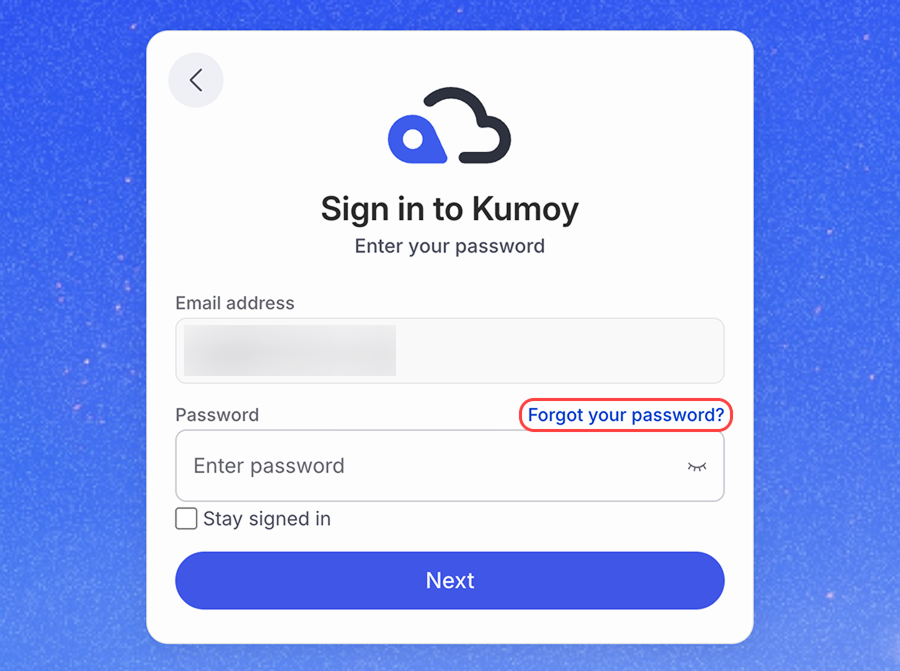
On the password entry page, click Forgot your password?.
-
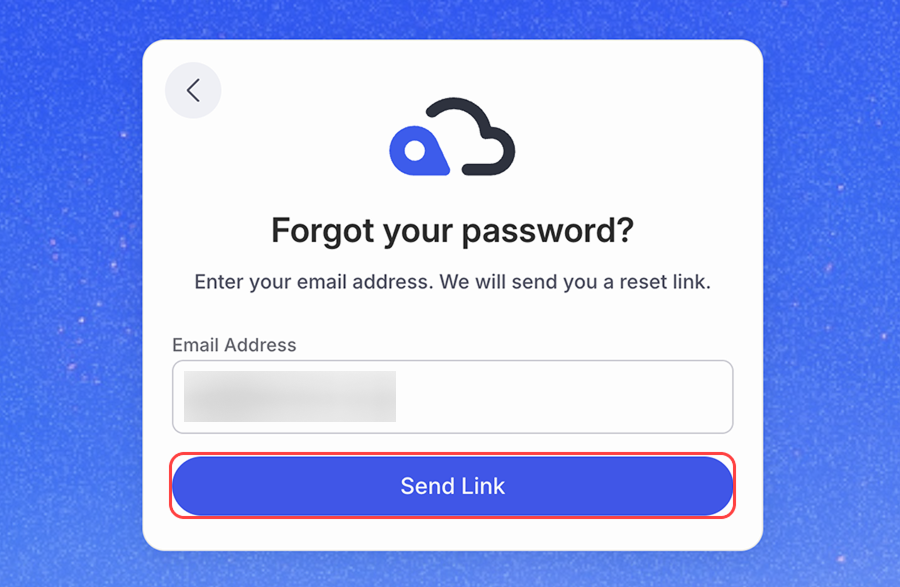
Check the email address for the account you want to reset, then click Send Link.
-
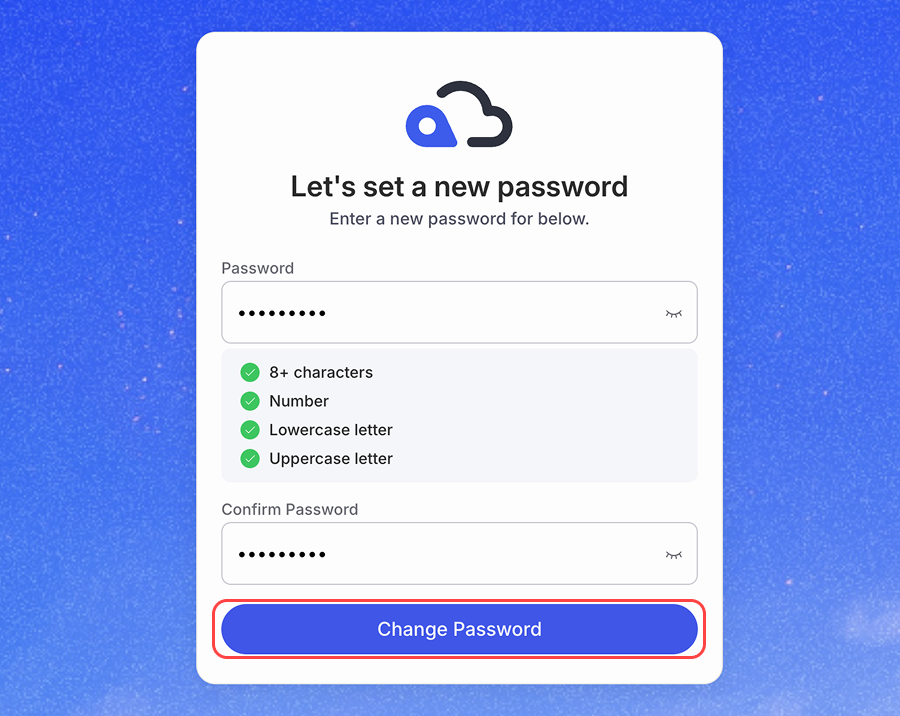
Open the email you received, click the password reset link, and enter your new password.
Last update: Oct 7, 2026 23:52:25