Upload Vectors and Rasters
You can upload existing vector and raster data from QGIS to Kumoy. Both can be uploaded with a processing tool or by converting a layer already loaded in QGIS directly to a Kumoy layer.
For data specifications, capacity, coordinate reference systems, and processing limitations, see Data Specifications and Limits.
Upload Vector and Raster Layers to Kumoy#
NoteThis page uses a vector layer as an example, but you can upload a raster layer by following the same steps.
Using the processing tools, you can upload local vector and raster layers to Kumoy.
Upload a Vector or Raster Layer#
-
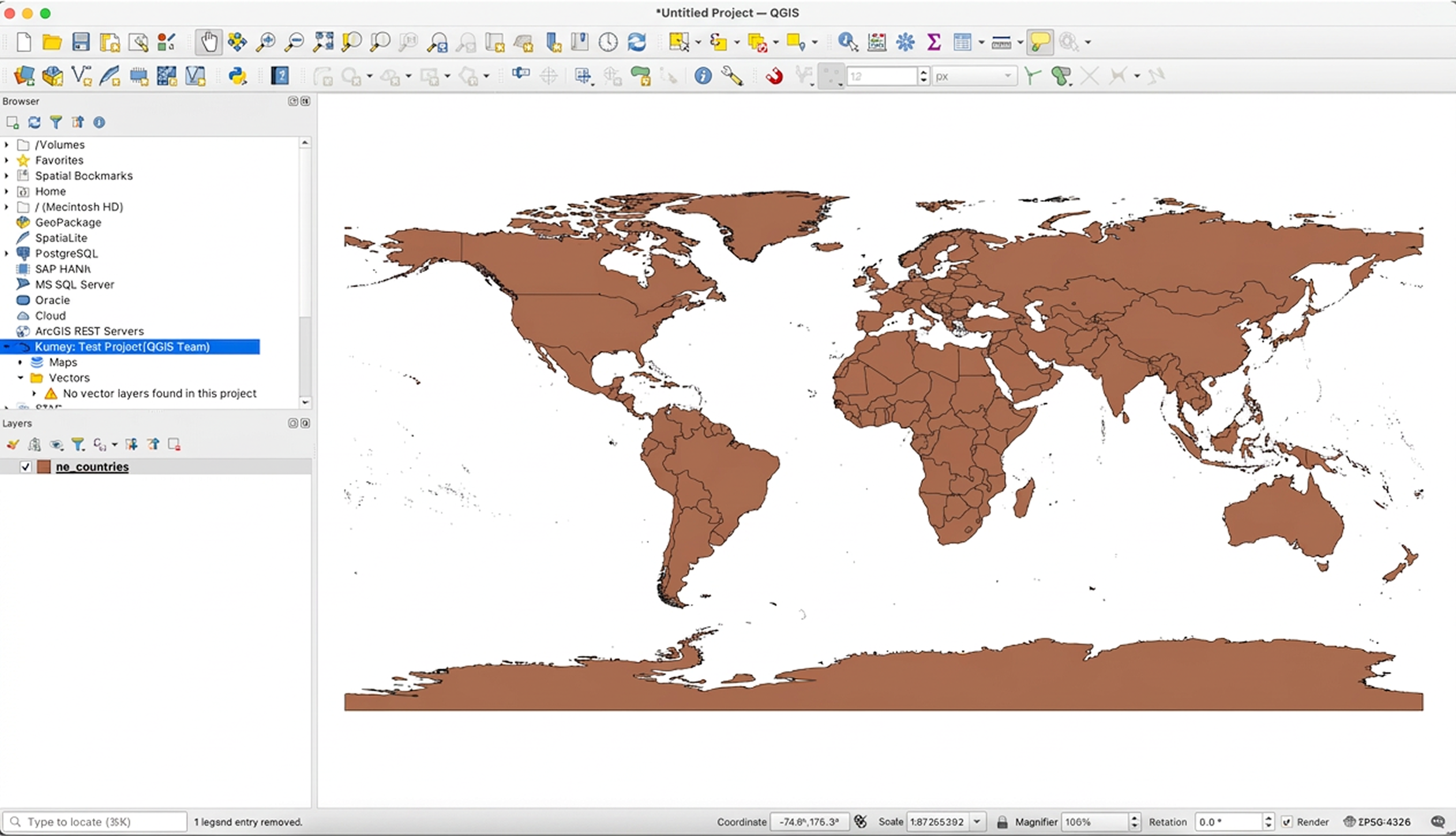
Add a vector layer to QGIS.
-
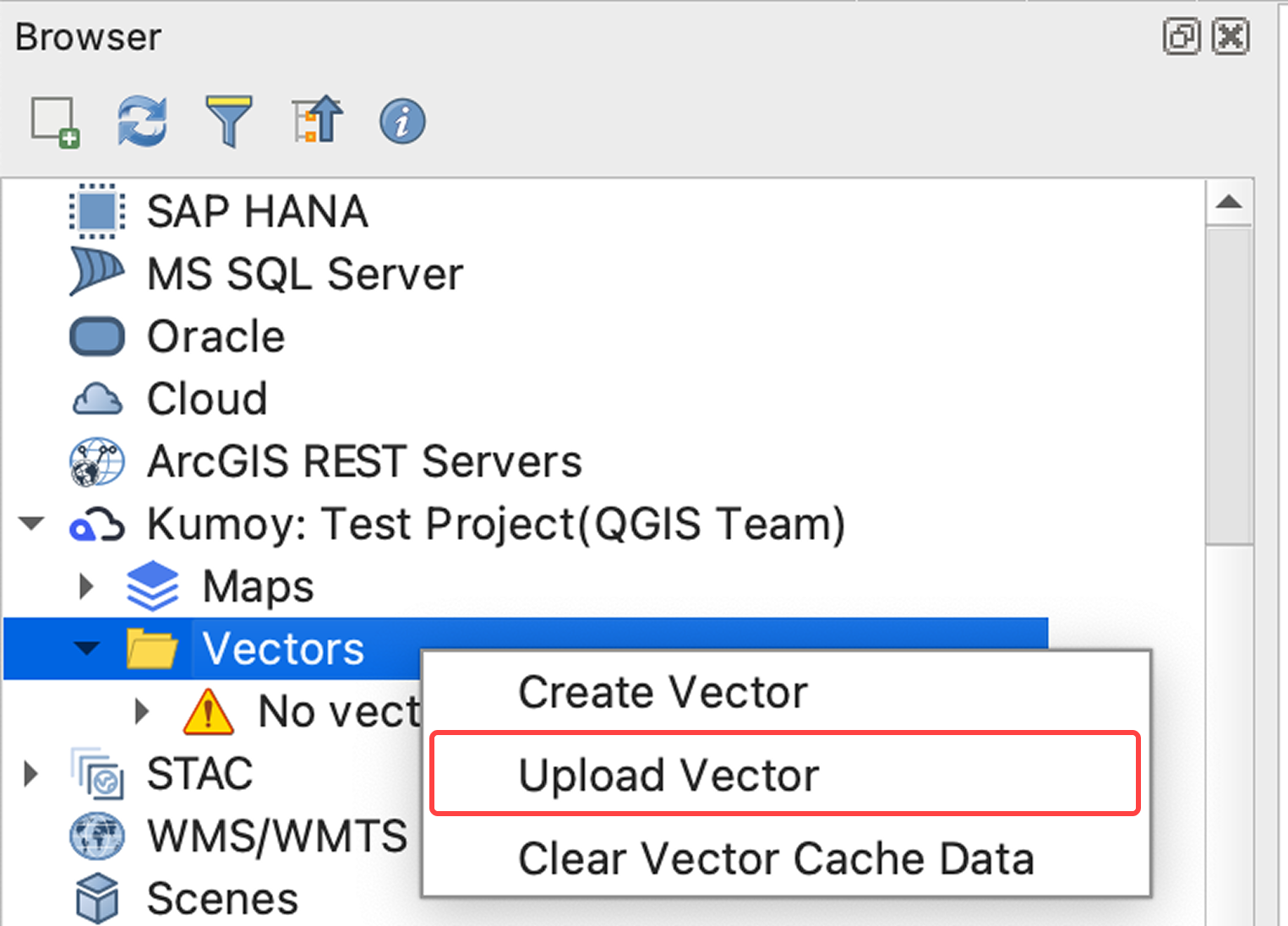
Right-click the vector in the Browser panel and select Upload.
-
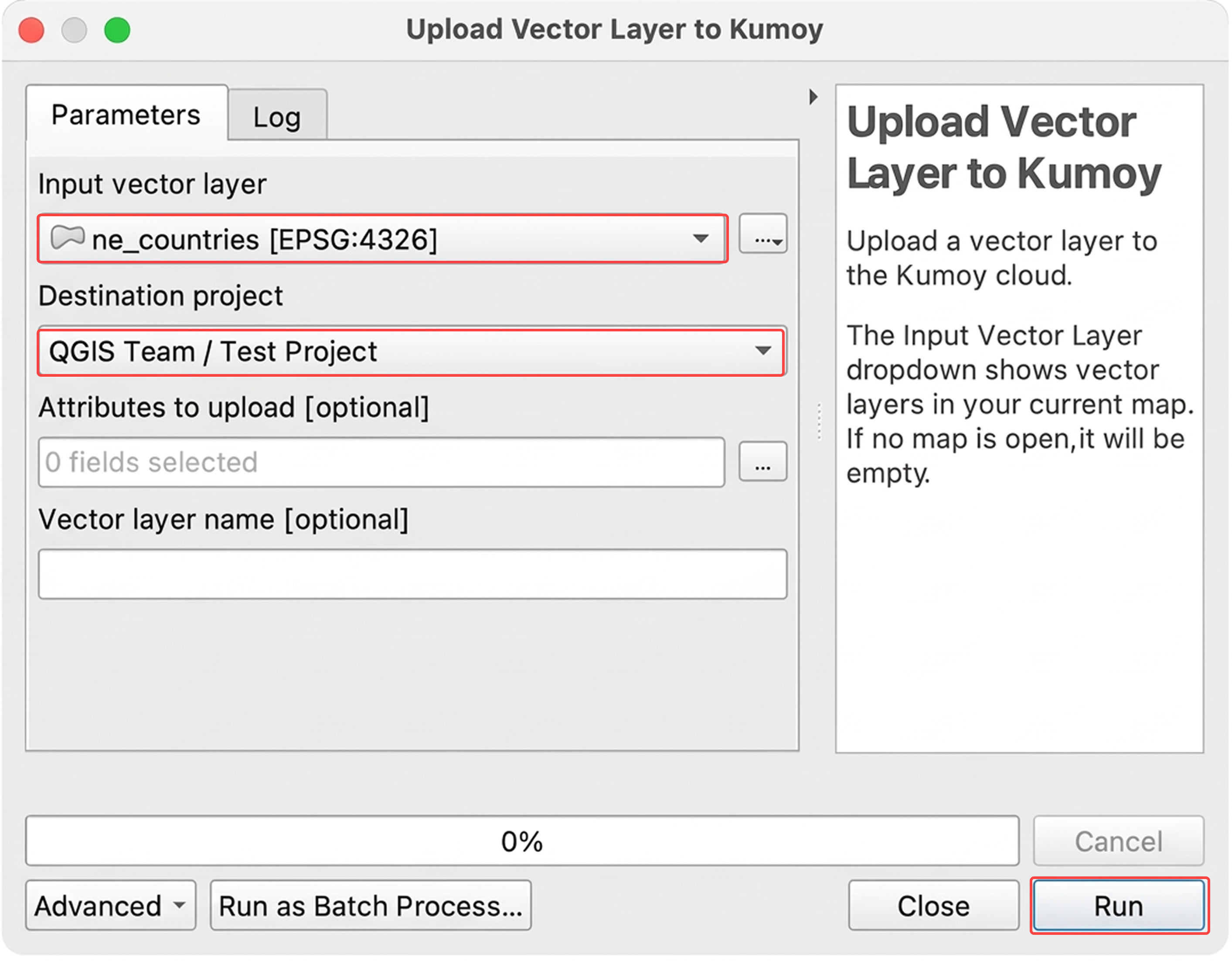
In the dialog, select the Input vector layer to upload and the Destination project, then click Run.
You can also select which attributes to include and rename the layer.
-
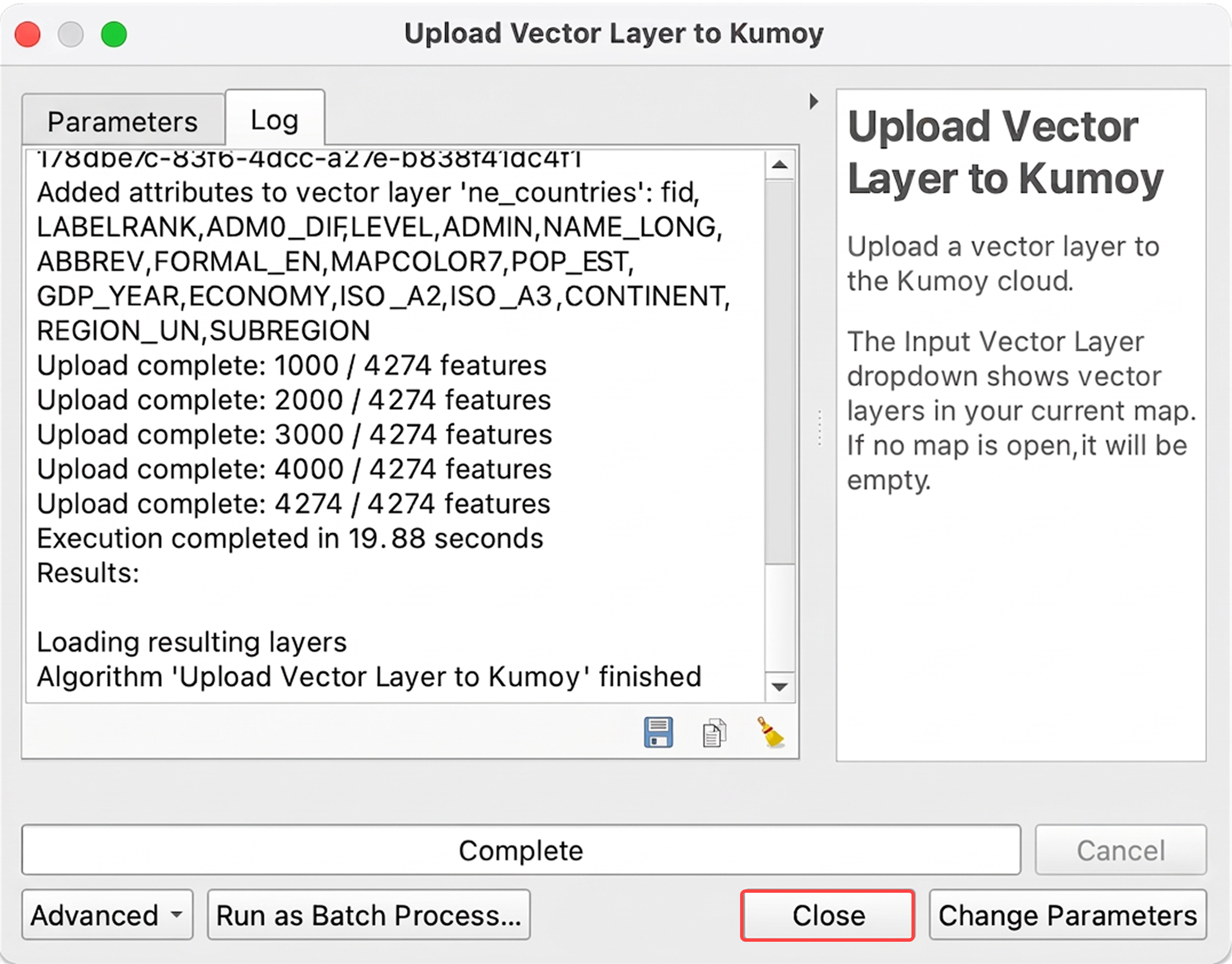
Once the upload is complete, click Close.
-
The uploaded layer will appear under Vectors in the Browser panel.
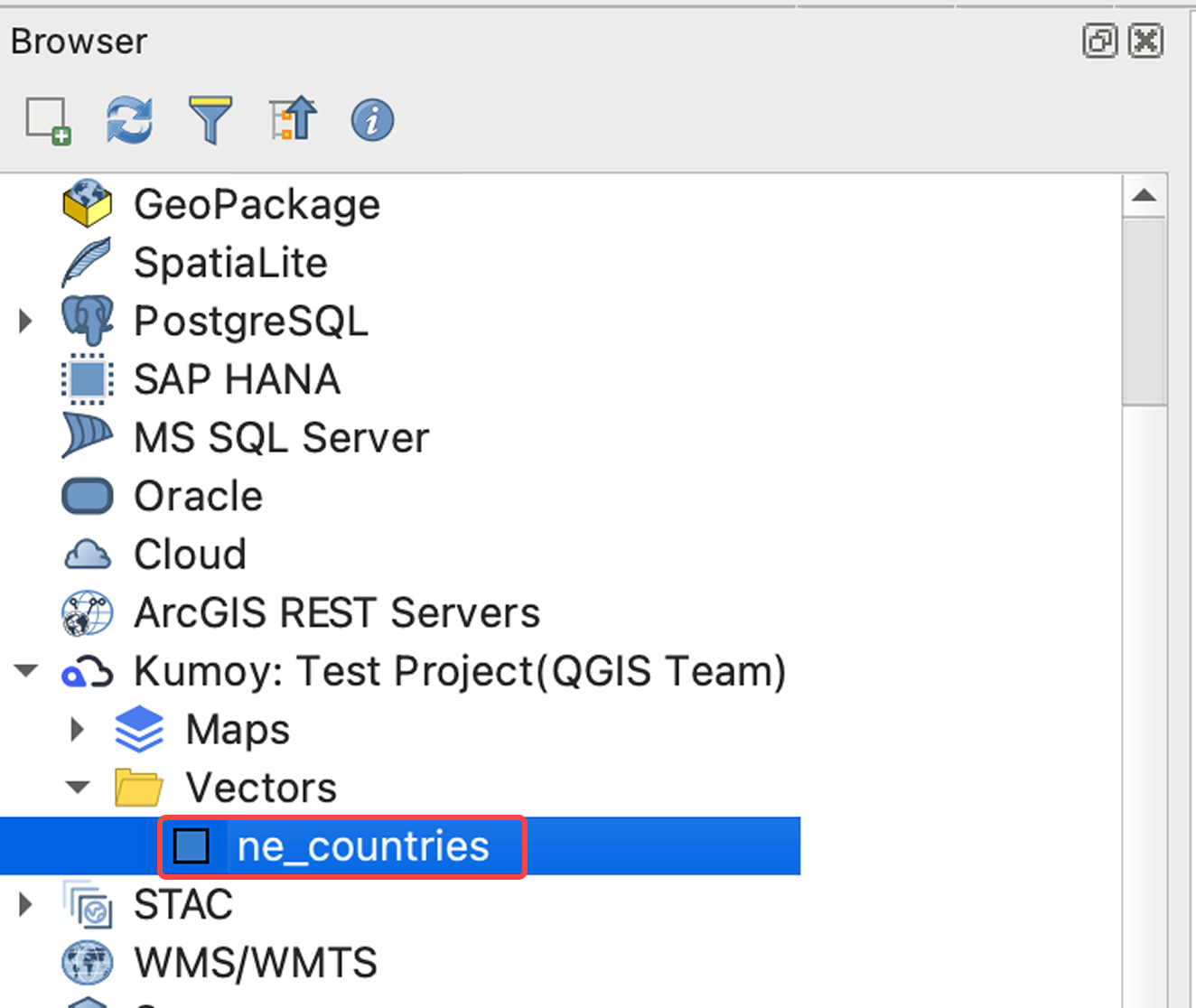
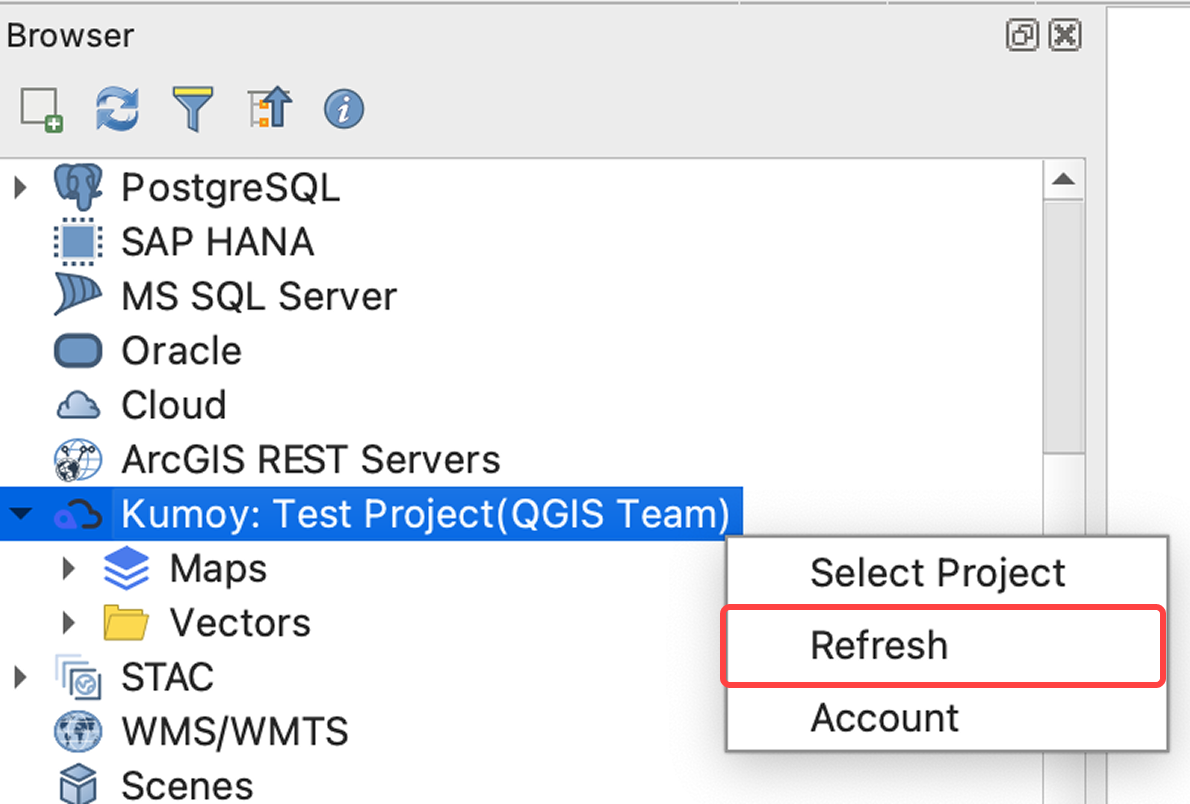
TipAfter an upload, the Browser panel usually refreshes automatically. If it doesn't, right-click Kumoy and select Refresh.
Add a Vector or Raster to QGIS#
Uploaded Kumoy vectors and rasters can be added to QGIS.
-
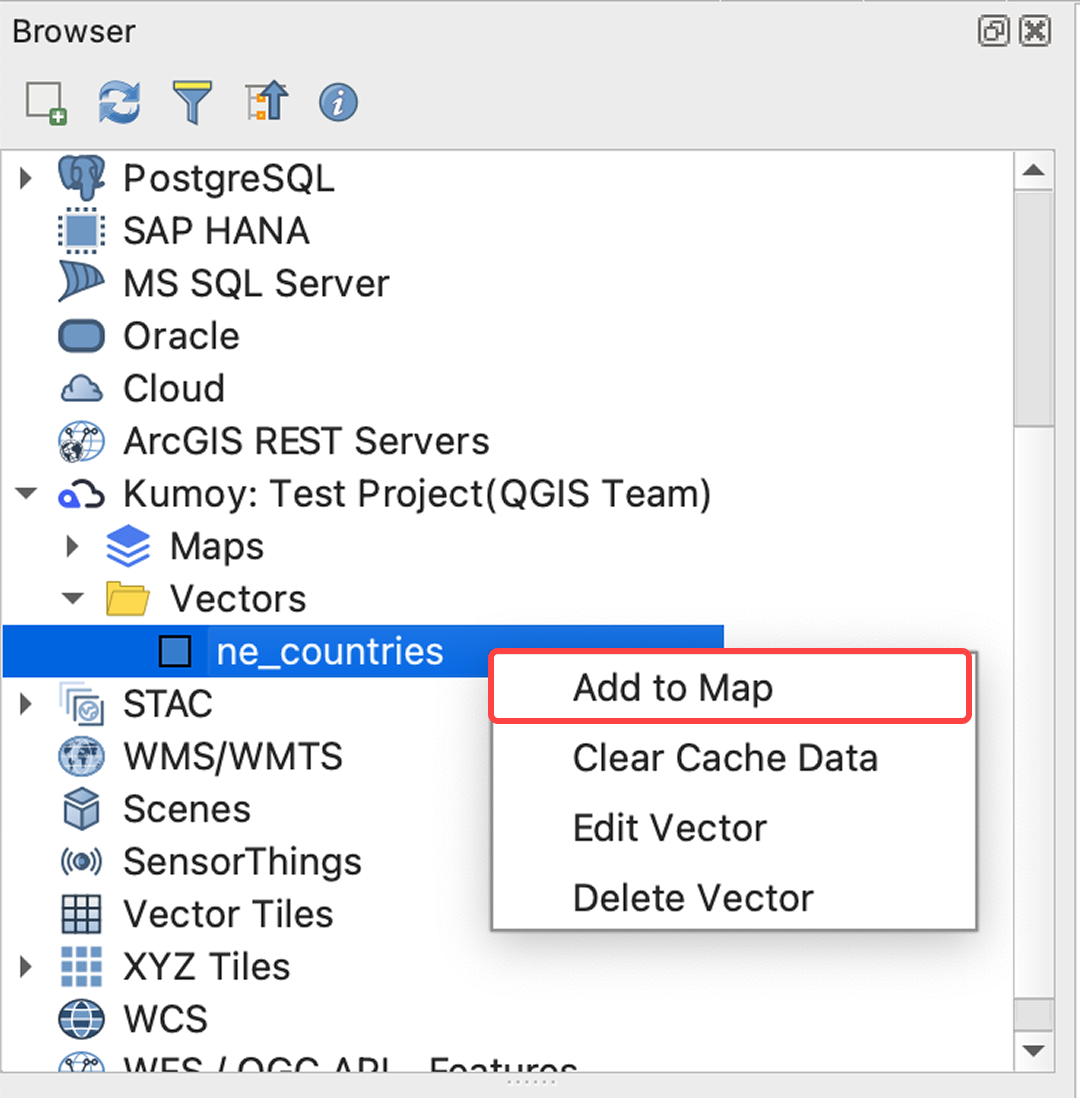
Right-click the data you want to add in QGIS and select Add to map. You can also double-click to add it.
-
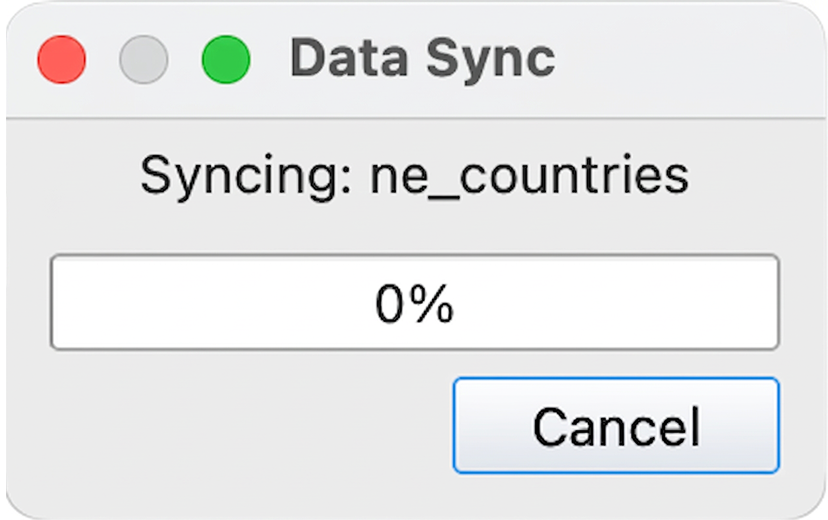
The first time you add a layer, Kumoy syncs it with the cloud. This may take a moment depending on the size of your data.
-
Once the sync is complete, the layer is added to QGIS.
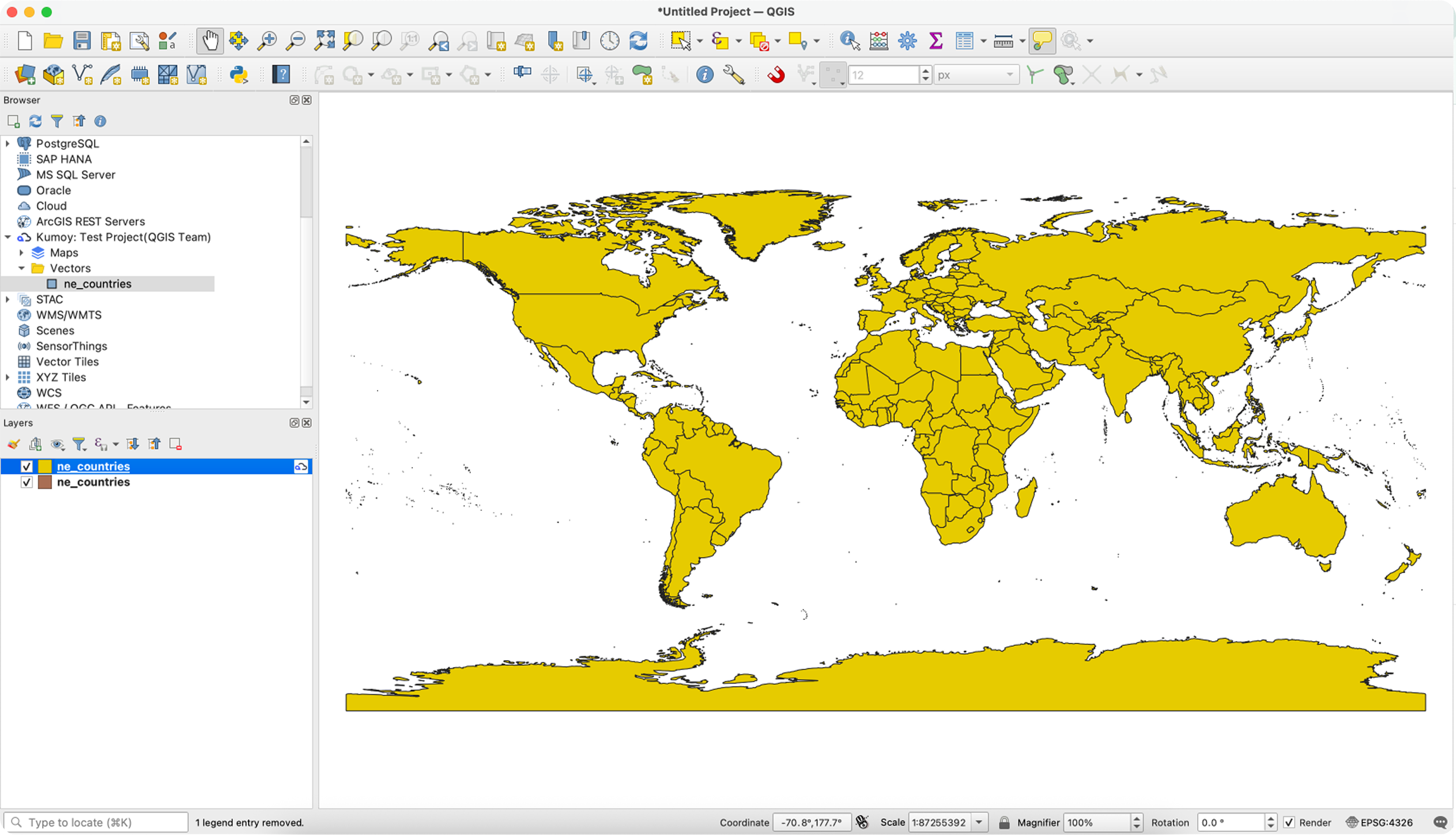
TipTo distinguish local layers from Kumoy layers, check whether the Kumoy icon is displayed in the Layers panel.
Convert to a Kumoy Layer#
Vector and raster layers already added to QGIS can be converted directly to Kumoy layers from the Layers panel.
NoteThis page uses a vector layer as an example, but you can convert a raster layer by following the same steps.
-
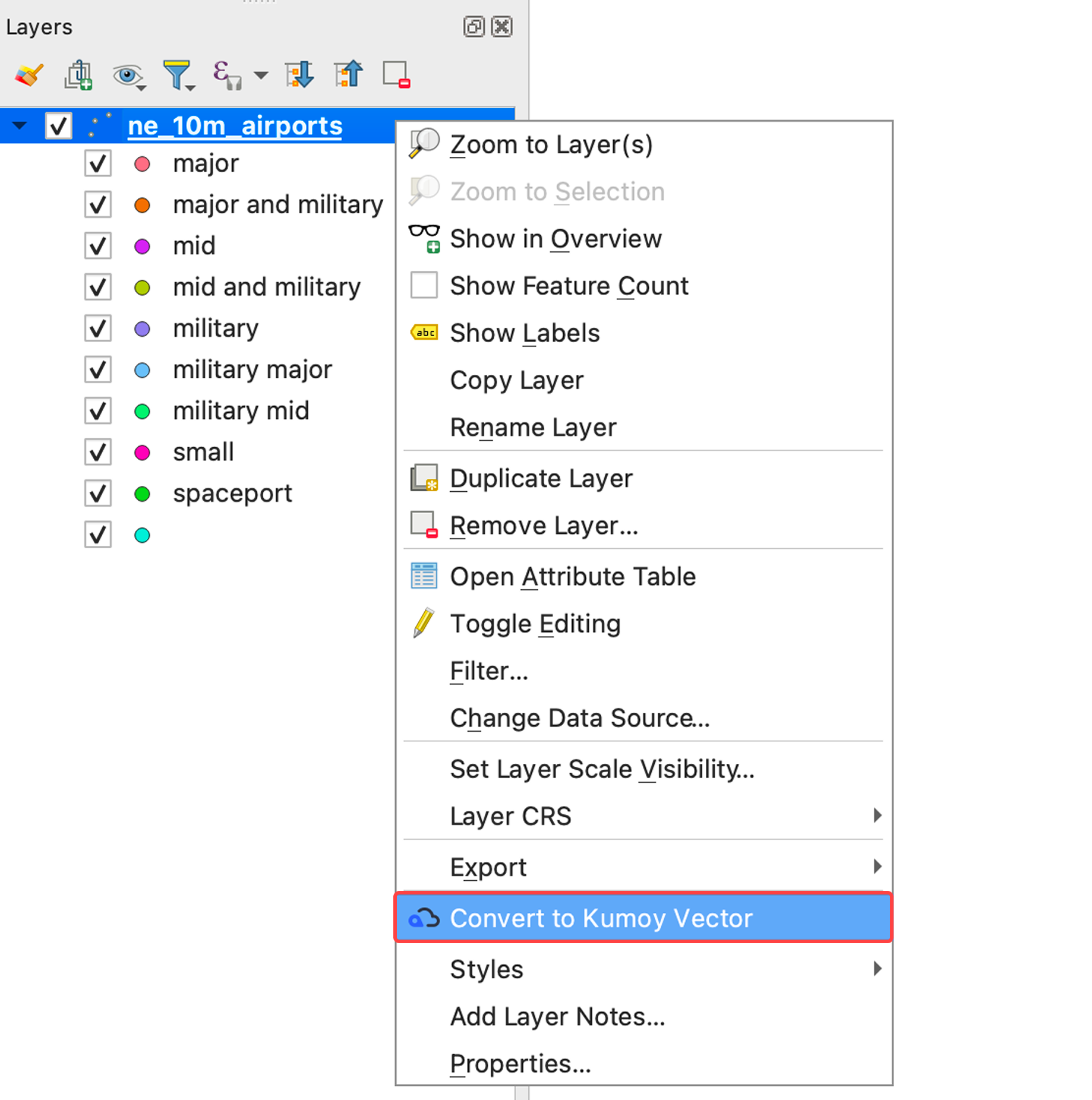
Right-click the layer you want to convert and click Convert to Kumoy Vector or Convert to Kumoy Raster.
-
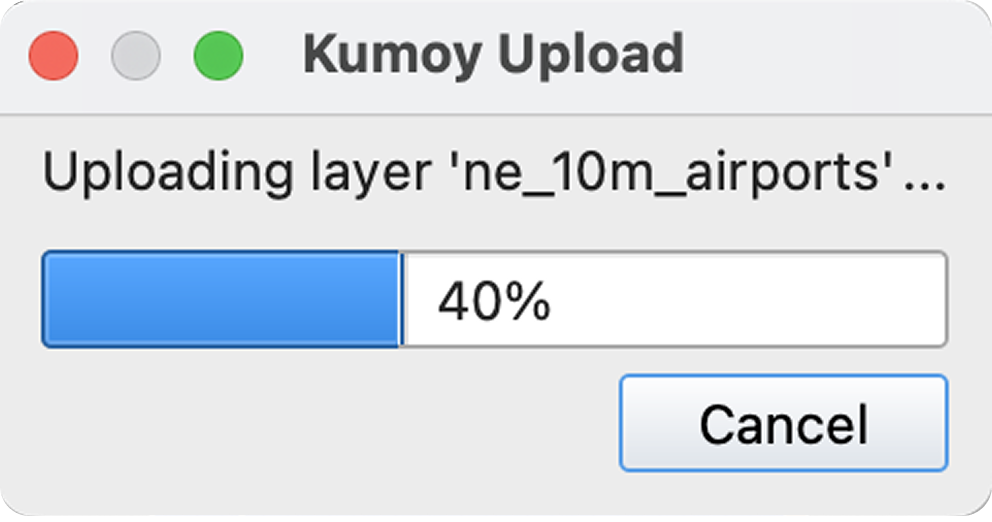
The upload process starts.
-
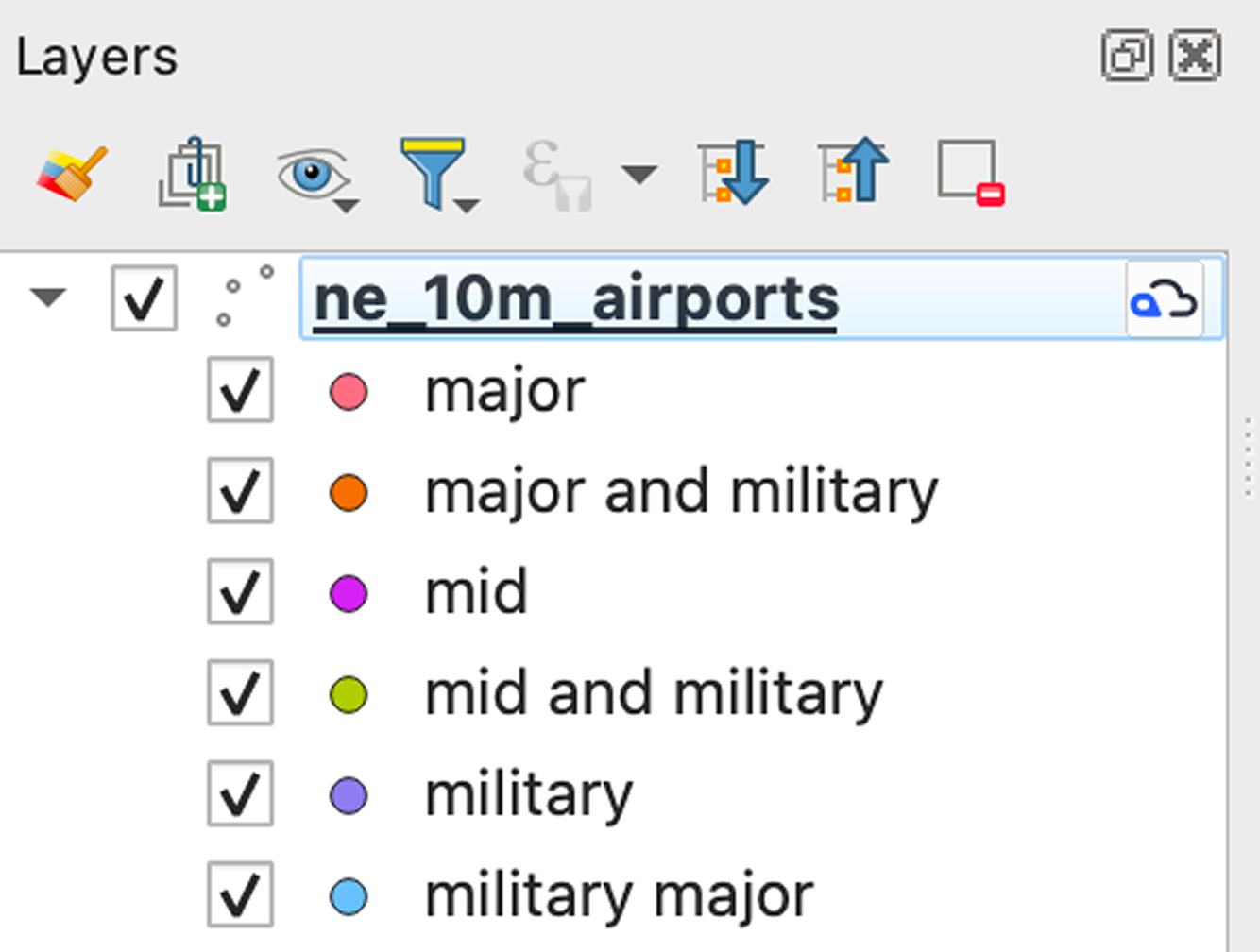
When the process is complete, the layer is converted to a Kumoy layer.
TipConverting to a Kumoy layer is useful when you want to upload a styled vector or raster layer directly to Kumoy.
Last update: Jul 27, 2026 11:35:19