Load, Save, and Delete Vectors
From the Browser panel, you can load vector data saved in Kumoy. Edits and style changes to a loaded layer can be saved back to Kumoy using the standard QGIS workflow.
Load a Vector#
-
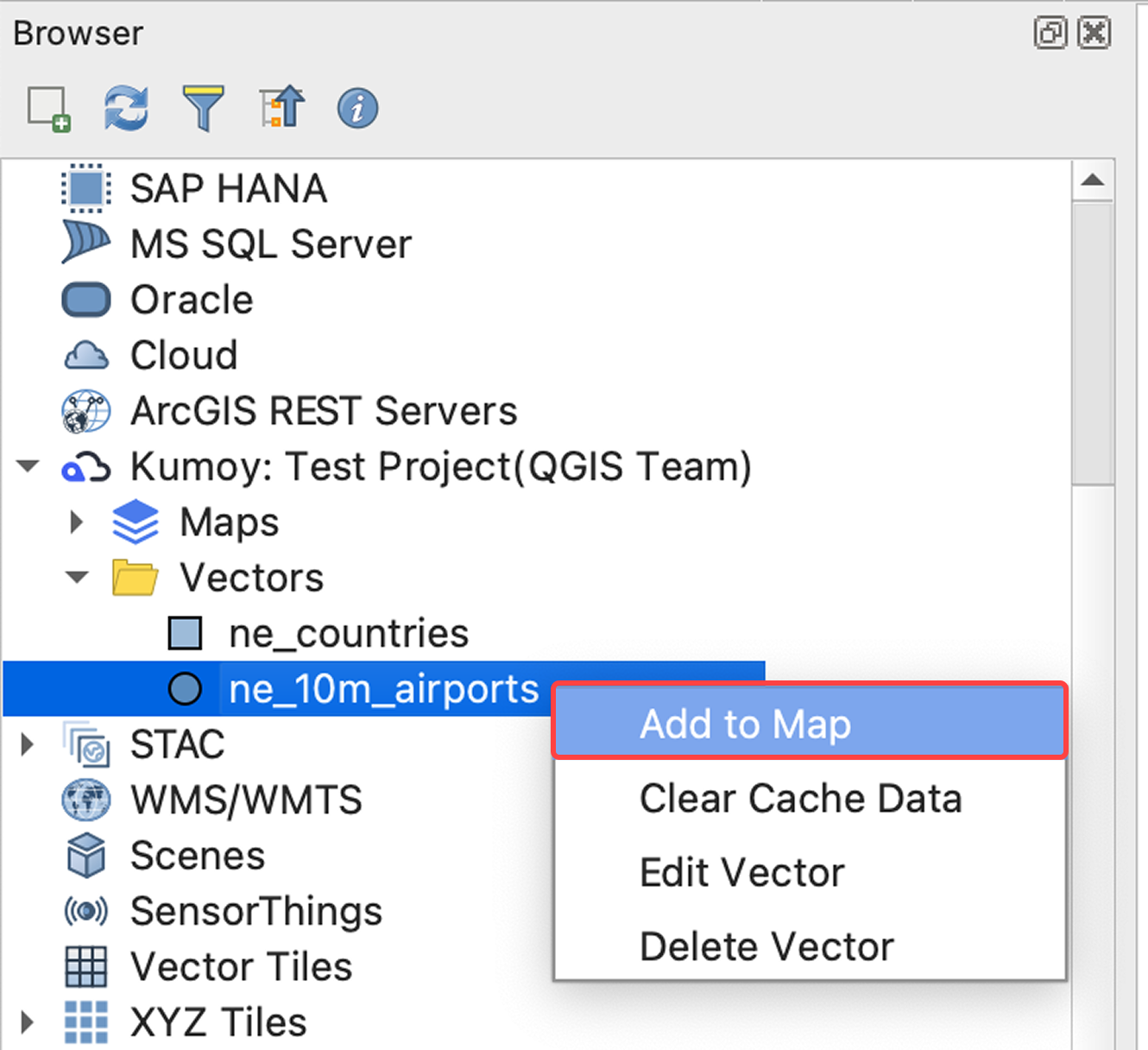
Right-click the target vector under Kumoy in the Browser panel and select Add to map. You can also double-click the vector name to add it.
-
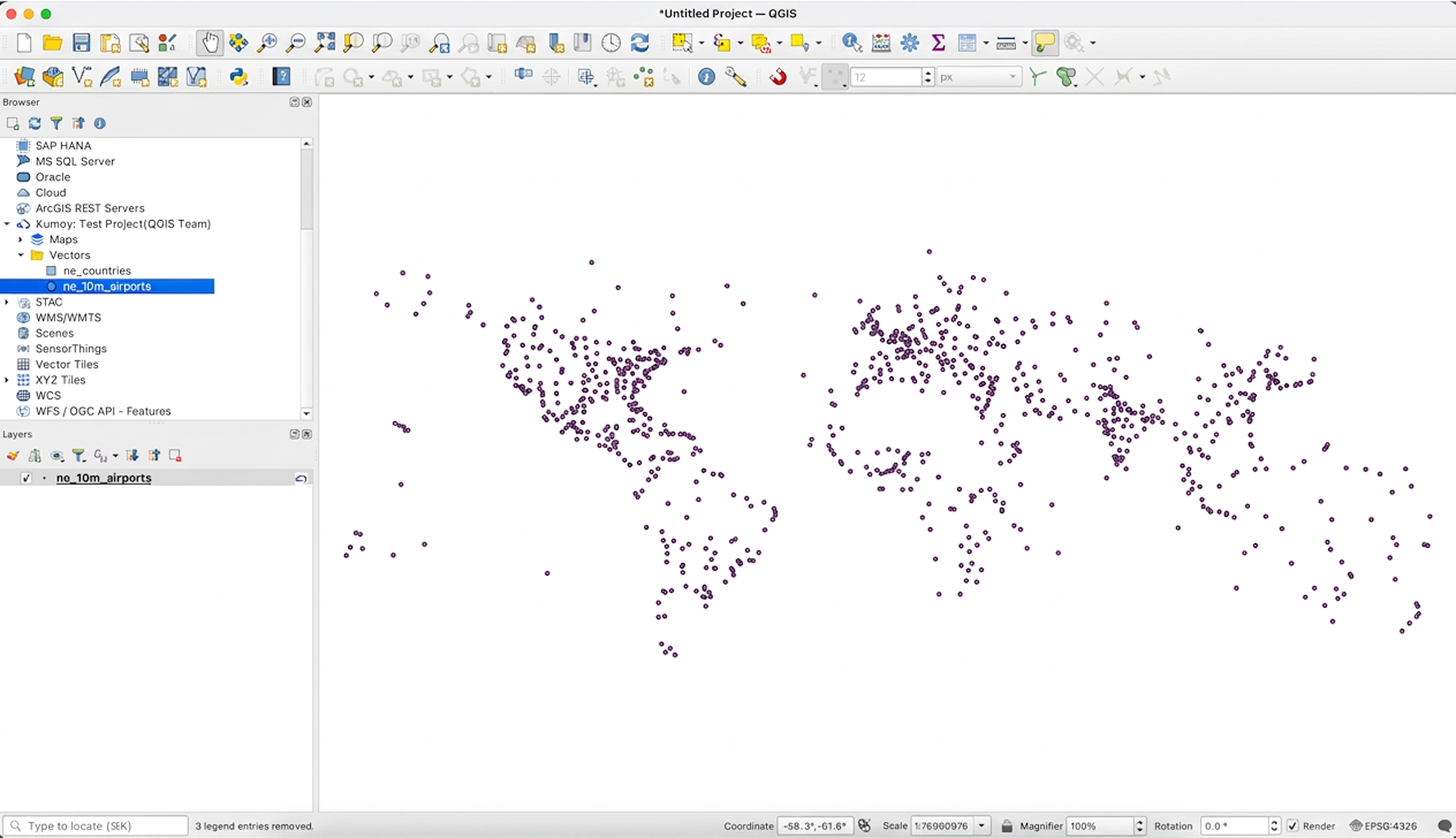
The vector layer is added to QGIS and shown on the map canvas.
Edit Vector and Save#
After editing attributes or geometry of a Kumoy vector, you can save the changes as follows.
-
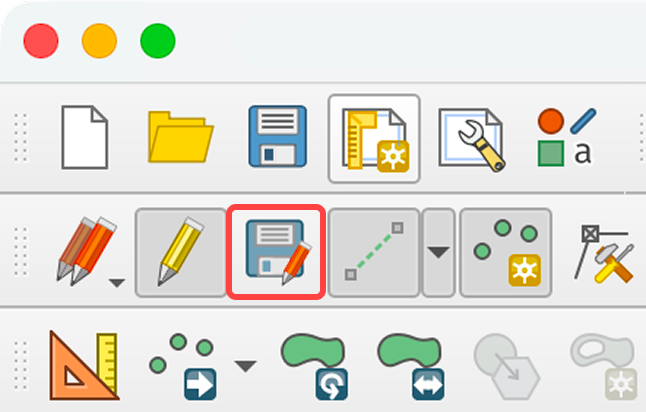
Click Save Layer Edits in the toolbar.
-
The changes are saved to Kumoy.
Delete a Vector#
CautionDeleted vectors cannot be restored. Make sure to review before proceeding.
-
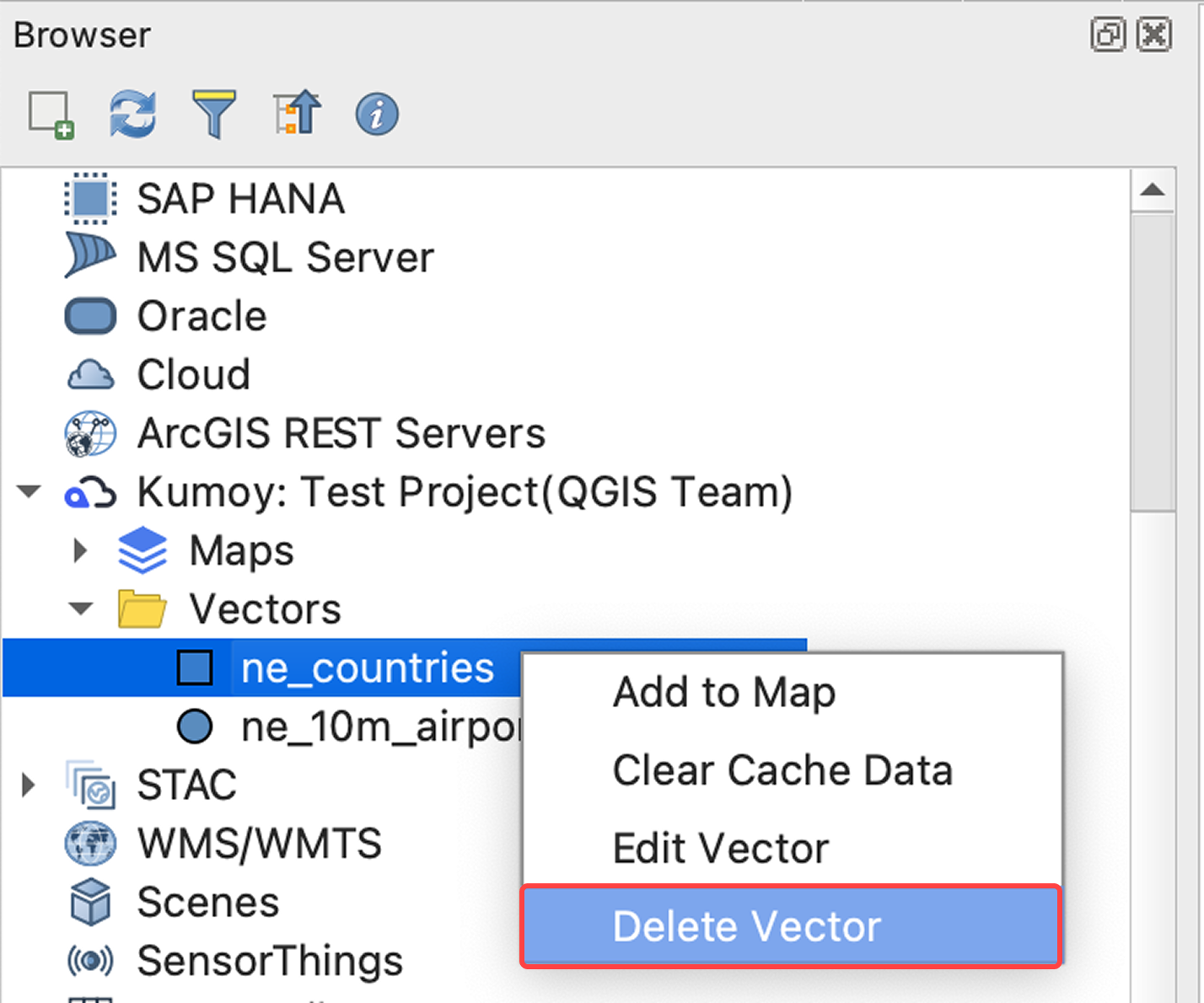
In the browser panel, right-click the target vector and select Delete Vector.
-
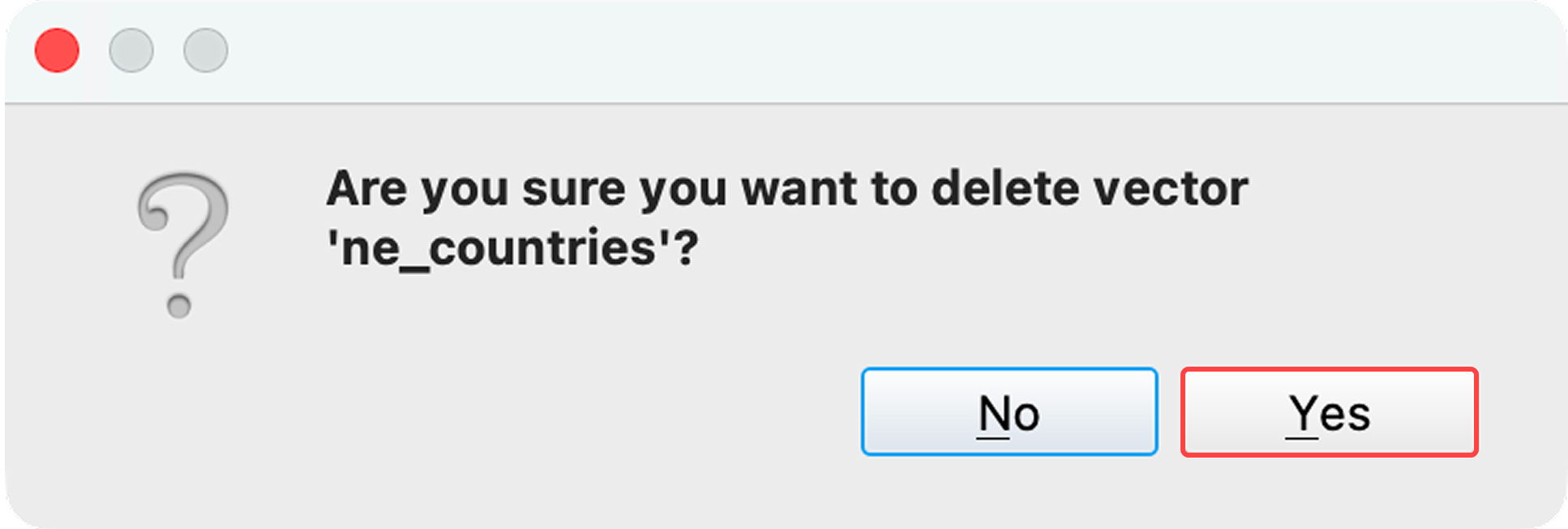
When the message "Are you sure you want to delete the vector?" appears, click Yes.
-
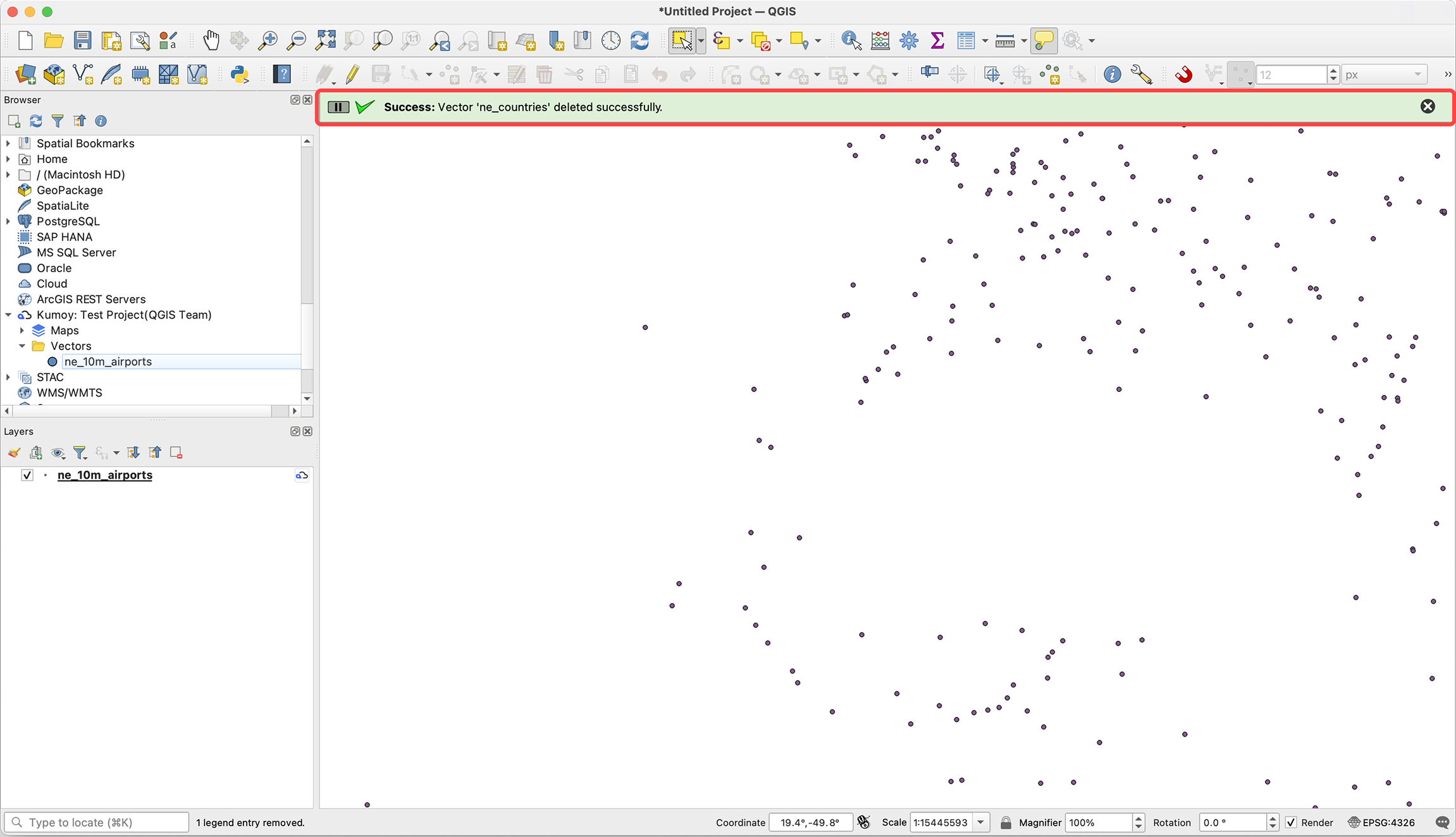
"Vector deleted successfully." appears in the message bar, and the vector is removed from the Browser panel.
Last update: Jul 27, 2026 11:35:19