Install the Kumoy Plugin for QGIS
The Kumoy plugin is available directly from the QGIS plugin repository. This page covers installation and your first login.
Install the Plugin#
-
Launch QGIS.
-
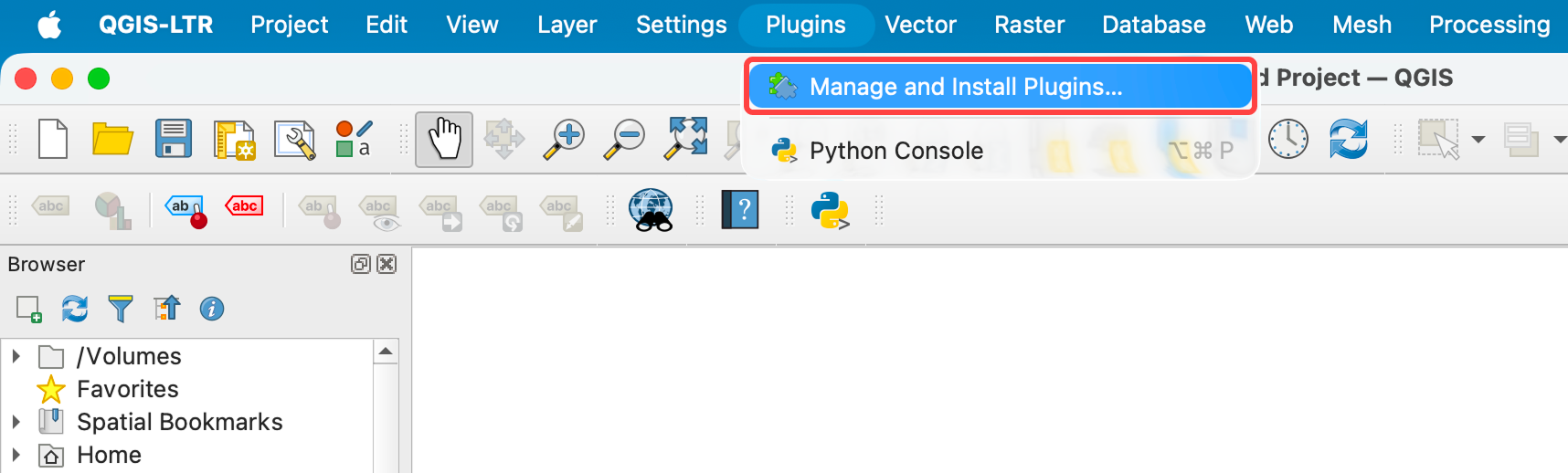
From the menu bar, select Plugins → Manage and Install Plugins.
-
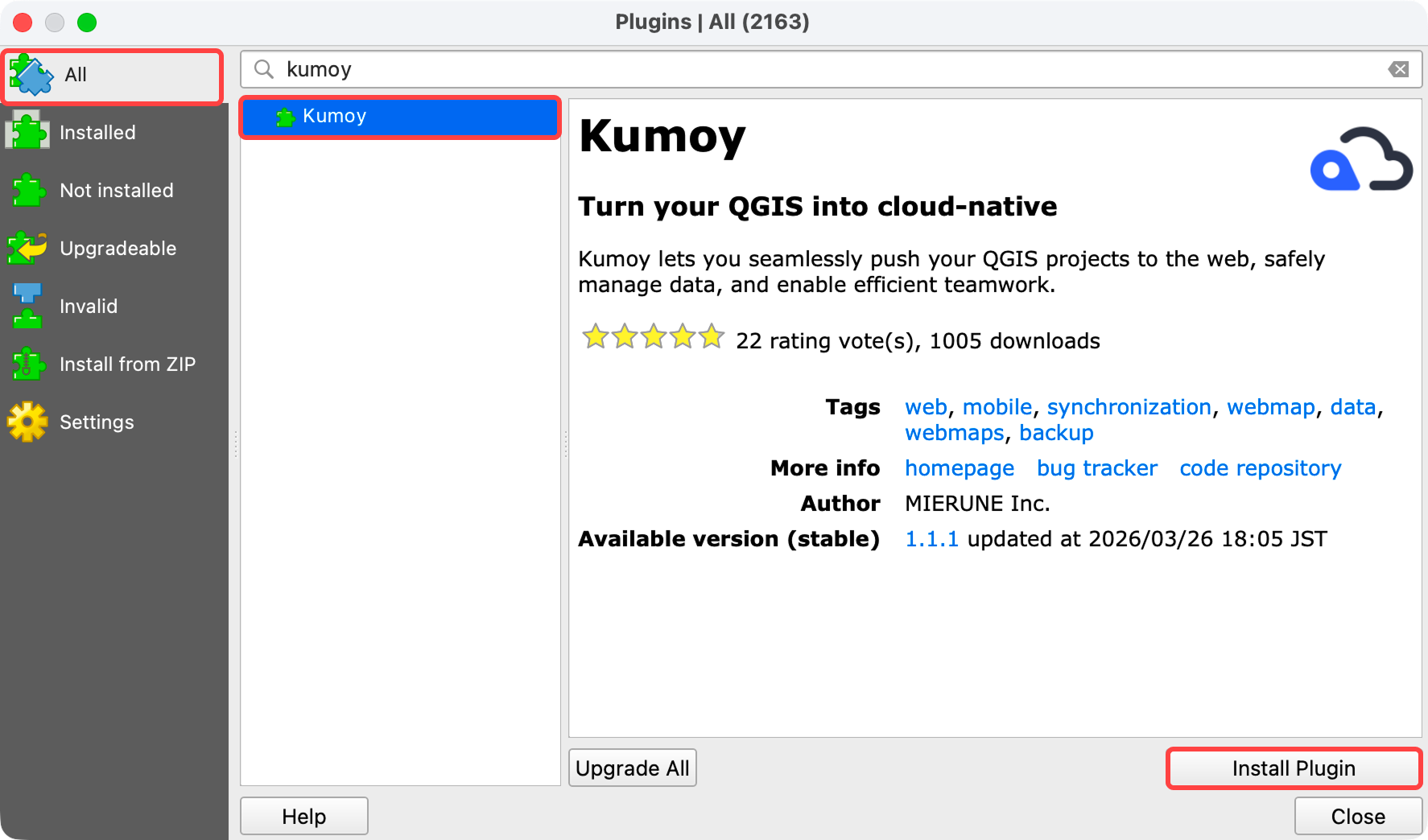
Open the All tab and type "kumoy" or "mierune" in the search bar. Select the Kumoy plugin from the list and click Install Plugin.
ImportantKumoy supports QGIS 3.40 or later. For the newest features, we recommend QGIS 3.44 or later with the Kumoy plugin updated to the latest version. On older versions, Kumoy may not appear in the plugin repository, so if you cannot find it, update QGIS to the latest version.
-
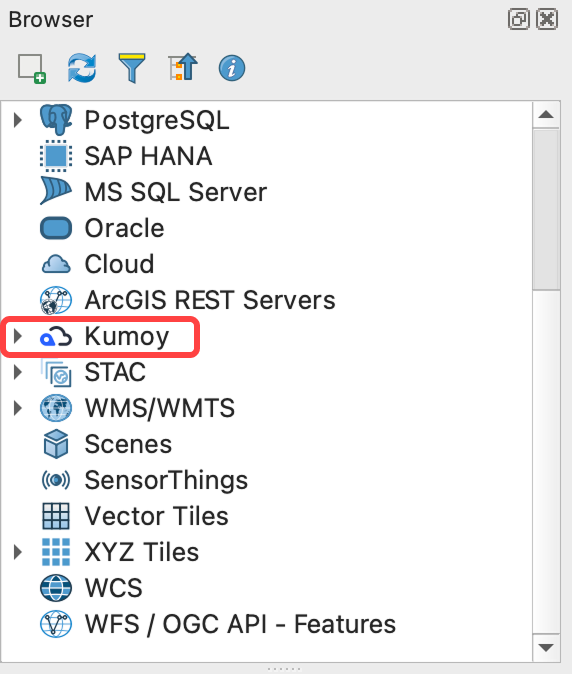
Close the plugin dialog. Kumoy now appears in the Browser panel.
TipQGIS LAB by MIERUNE has a guide on installing QGIS plugins (in Japanese):
Log in to Kumoy#
With the plugin installed, log in to your Kumoy account.
-
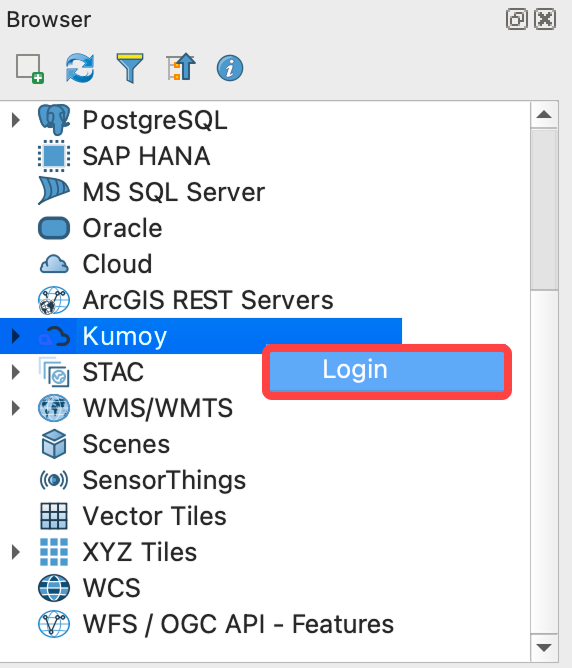
Right-click Kumoy in the Browser panel and click Login.
-
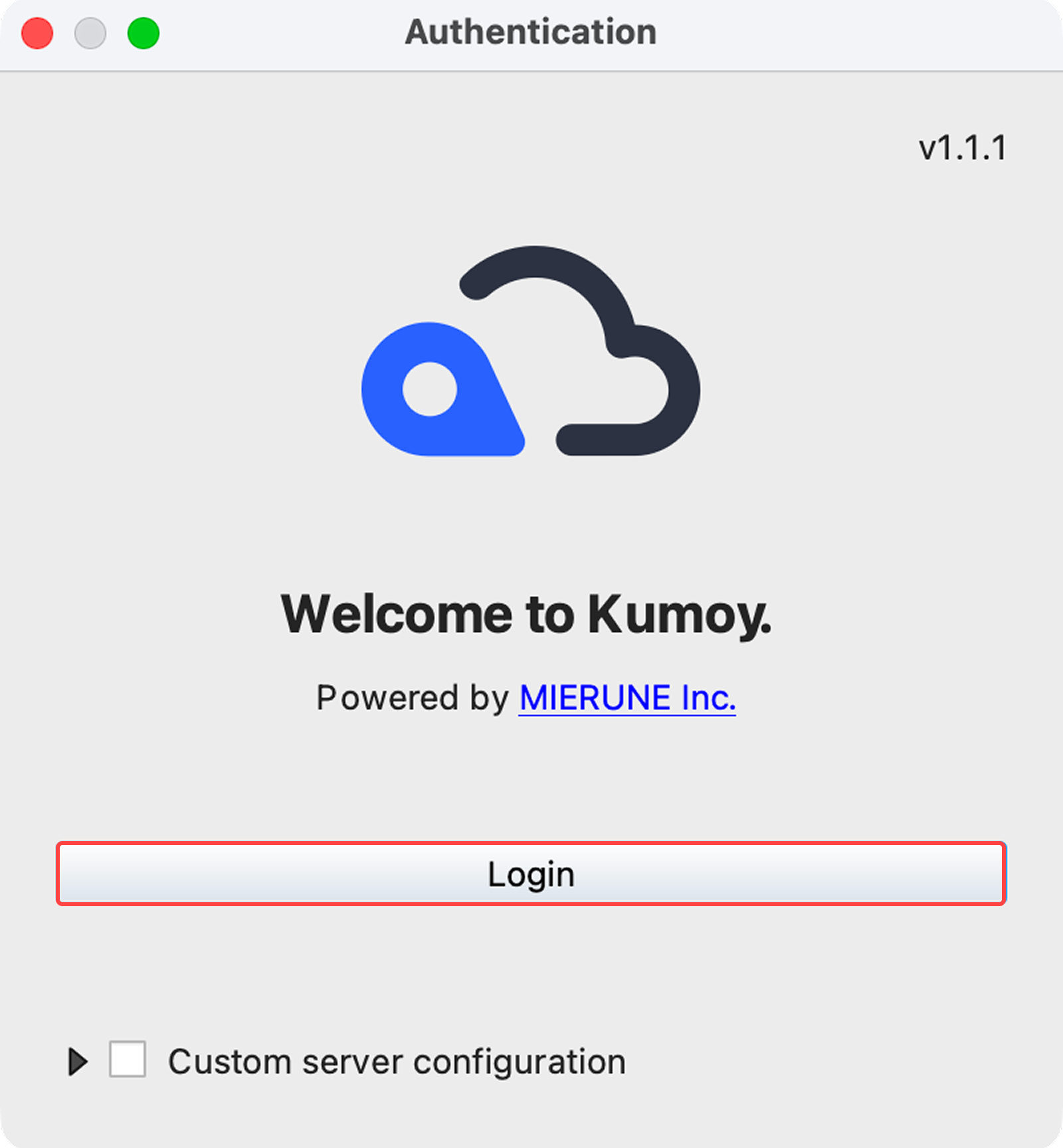
When the dialog opens, click the Login button.
-
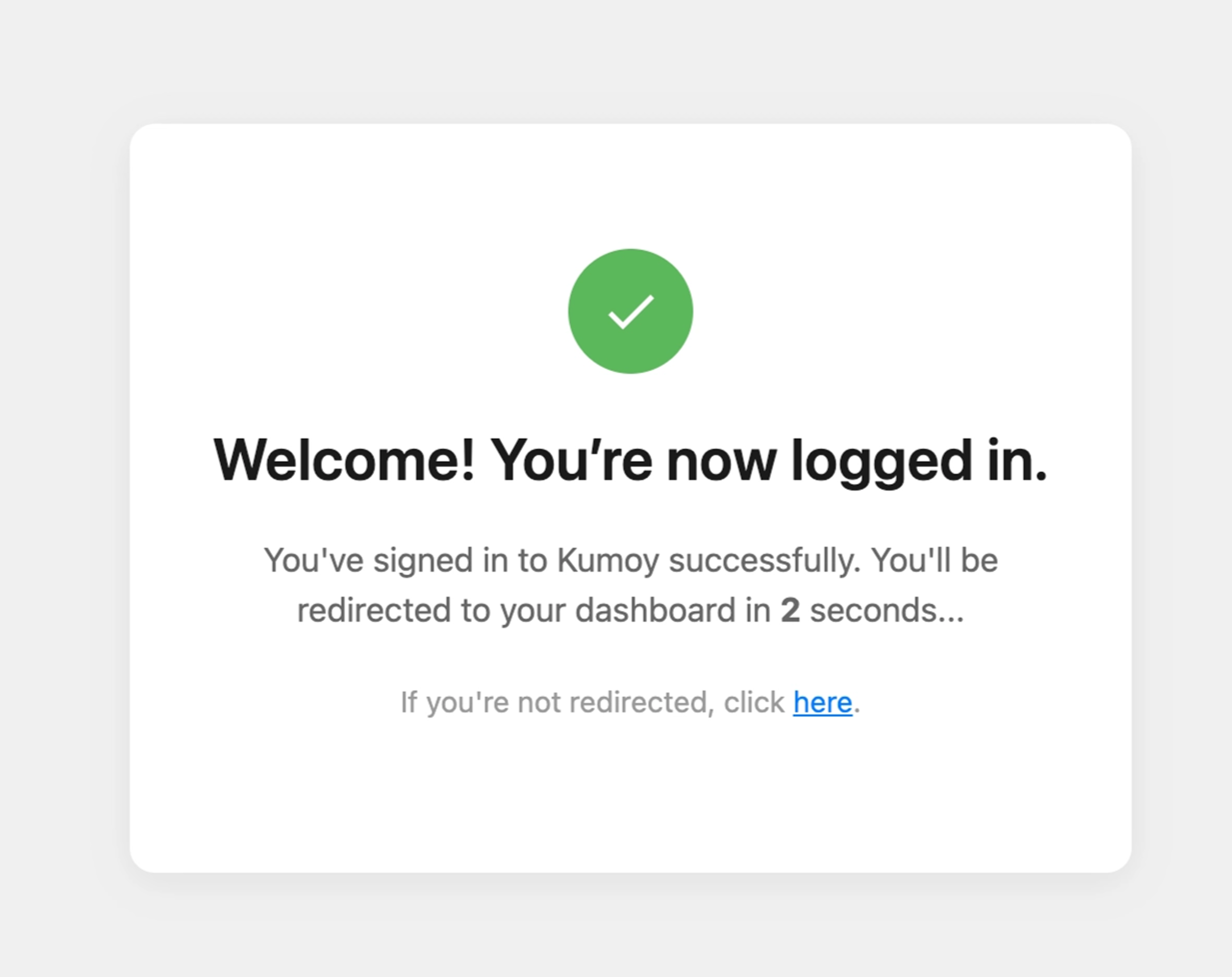
Your default browser opens and the login flow begins. If you aren't already signed in on the web, follow the on-screen prompts.
-
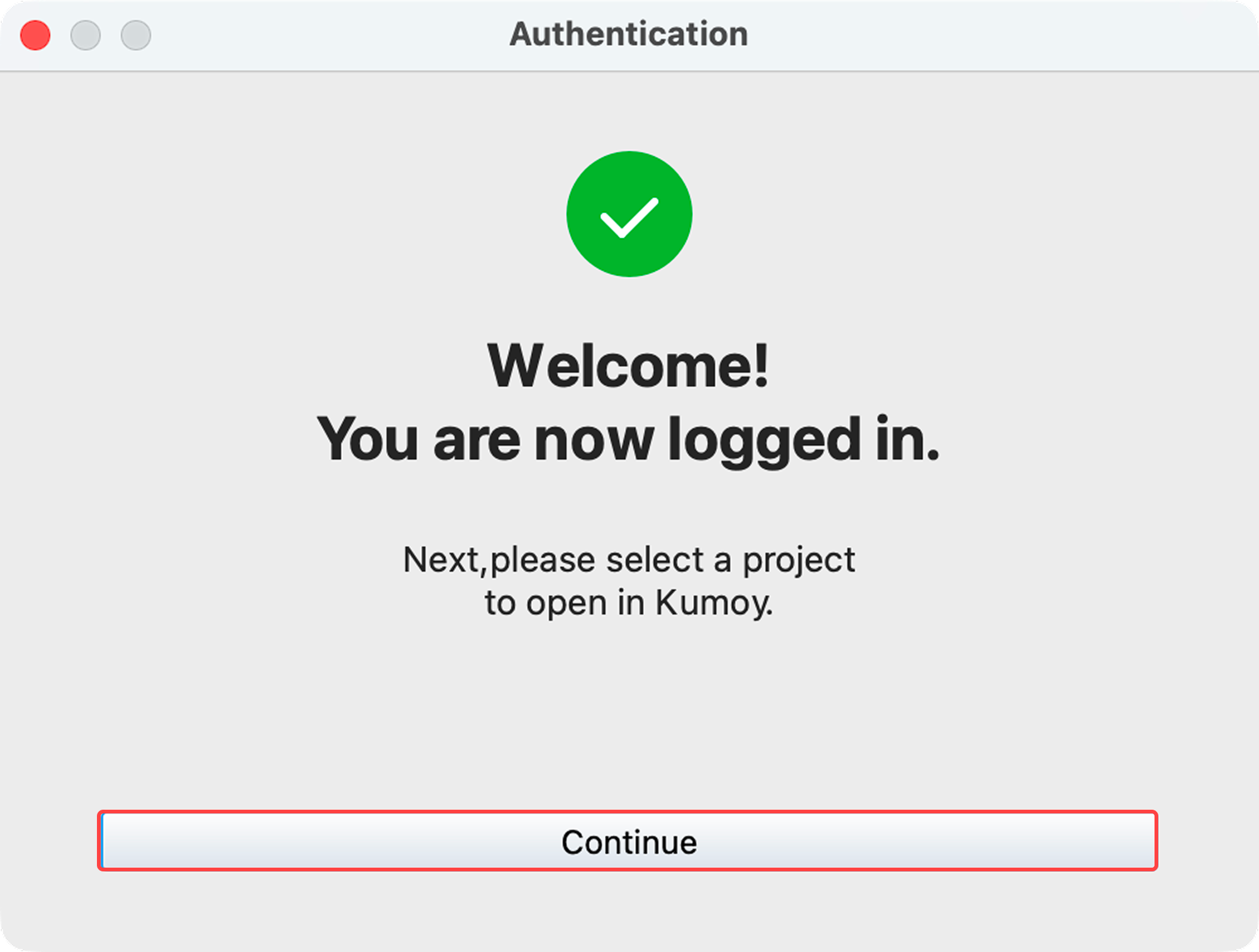
Back in QGIS, click the Continue button. The project selection dialog appears.
Next Step#
Next up: Select an Organization and Project in QGIS.
Last update: Oct 7, 2026 23:52:25