Delete an Organization
You can delete an organization only from the Kumoy web app. Only its Owner can do so.
CautionDeleting an organization does not take effect immediately. After a 30-day window, all teams, projects, vectors, rasters, maps, and member settings it contains are permanently removed and cannot be recovered. You can cancel the scheduled deletion anytime within those 30 days. Back up any data you need before the window ends.
Before You Delete#
Check the following before proceeding:
- All teams, projects, vectors, rasters, and maps in the organization are no longer needed
- No other members are currently using the organization
- Any data you want to keep has been moved elsewhere (another organization or a local environment)
ImportantIf the organization has an active subscription, deleting it automatically cancels the subscription.
After deletion, you can no longer open the subscription management screen, so review your subscription details beforehand if needed. Refer to Review and Update Billing & Payment Method for details.
Delete an Organization#
-
Log in to Kumoy as a user with Owner permissions for the organization you want to delete.
-
Select the organization to delete. For instructions on switching organizations, see Select Organization & Project.
-
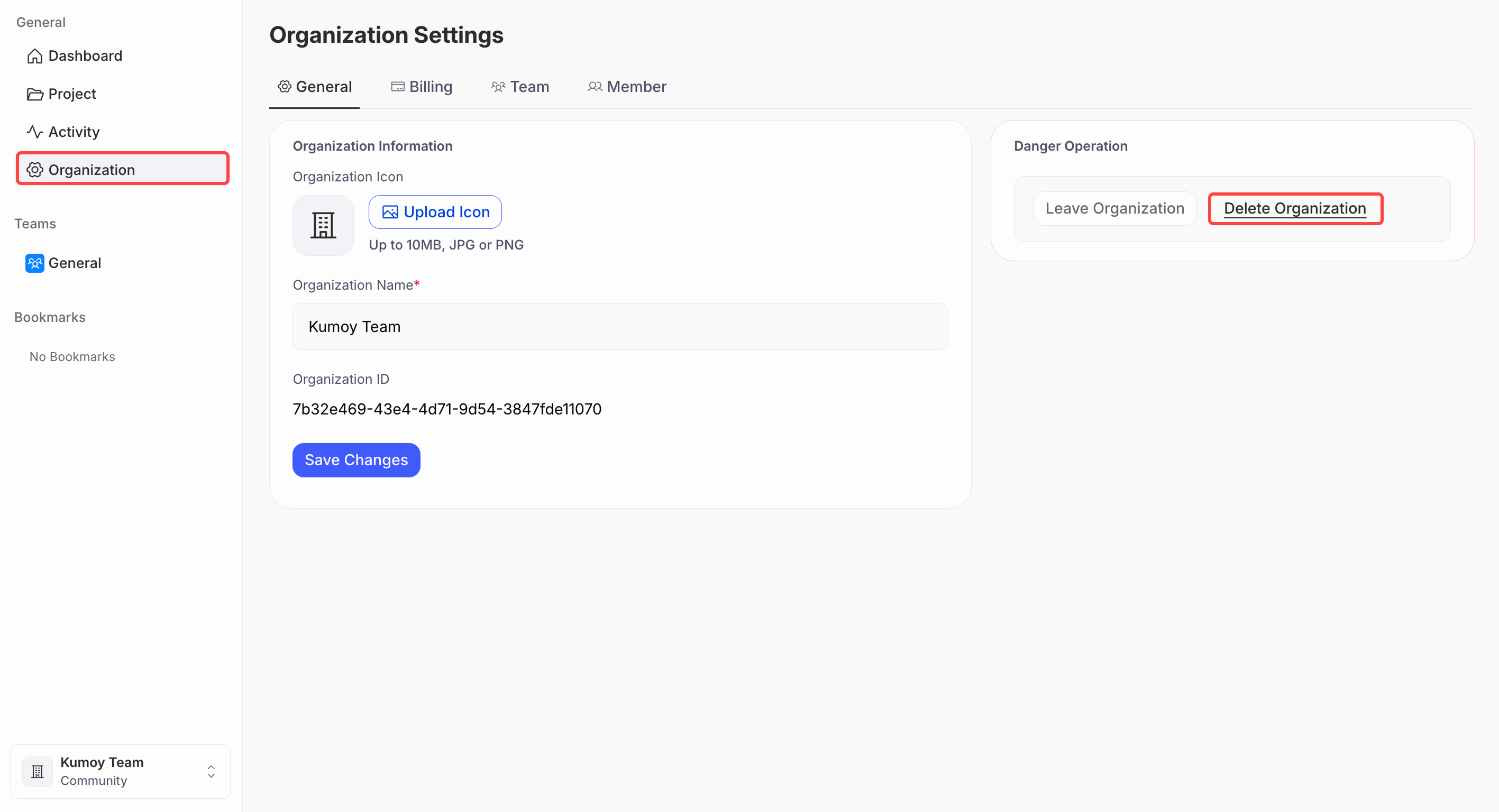
Open the Organization Settings tab and click the Delete Organization button.
-
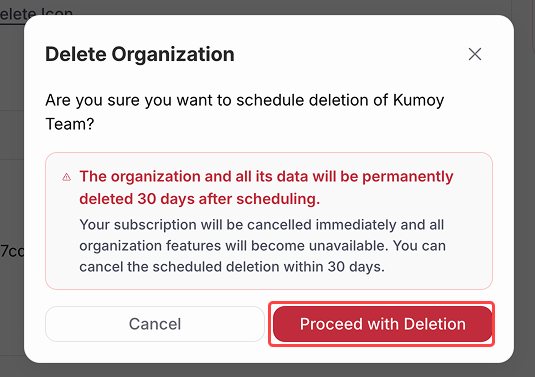
When the confirmation message appears, review it and click Proceed with Deletion.
-
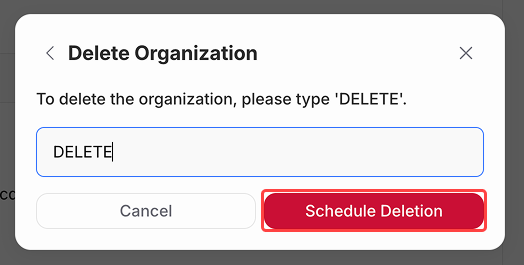
Type "DELETE" as instructed and click Schedule Deletion.
-
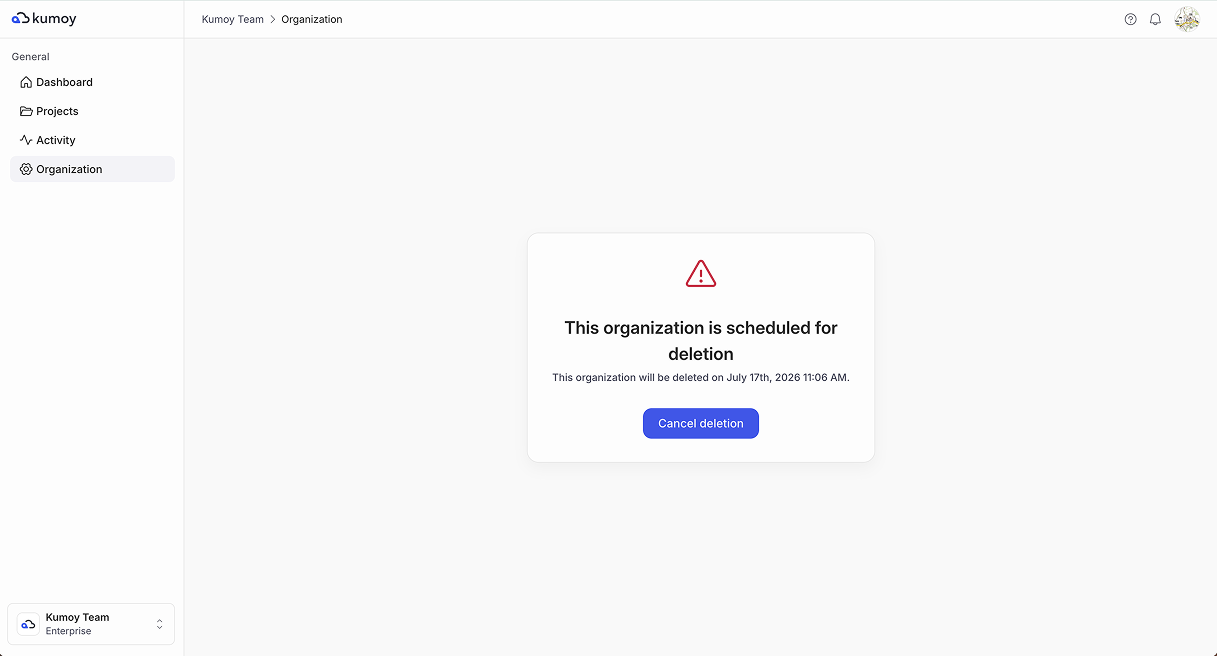
The organization is now scheduled for deletion. The screen shows the date and time when it will be permanently deleted. To stop the process, click Cancel deletion anytime within the 30-day window.
After Scheduling Deletion#
During the 30-day window:
- The organization's subscription is cancelled immediately, and all of its features become unavailable.
- The organization stays in your list and shows the scheduled-deletion screen, where you can cancel the deletion at any time.
Once the 30-day window ends, the deletion becomes permanent:
- The organization no longer appears in the organization list.
- All teams, projects, vectors, rasters, and maps that belonged to it become inaccessible.
- Member settings and permission data for all users in the organization are also deleted.
Last update: Oct 7, 2026 23:52:25