Data Attribution
You can show where your data comes from by adding credits to your map. There are two ways to do this:
- Map-level: For general credits that apply to the entire map.
- Data-level: For a specific vector dataset.
WarningMap credits give proper recognition to your data sources. When sharing your map, make sure all required copyright notes and provider names are included.
TipEnter
<a href="https://example.com">Data provider</a>in the attribution field to display “Data provider” as a clickable link.
Add Map Attribution#
To display a common attribution across the entire map, set the attribution on the map itself.
-
Log in to Kumoy and open your map on the web.
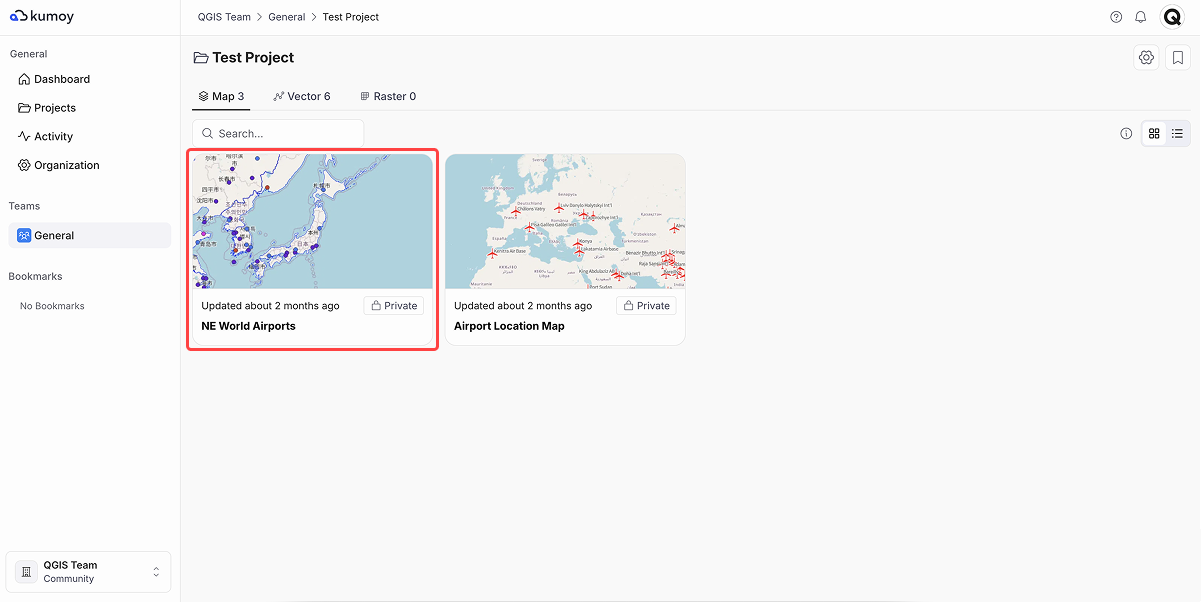
-
In the Layer Panel, click the map name and select Edit.
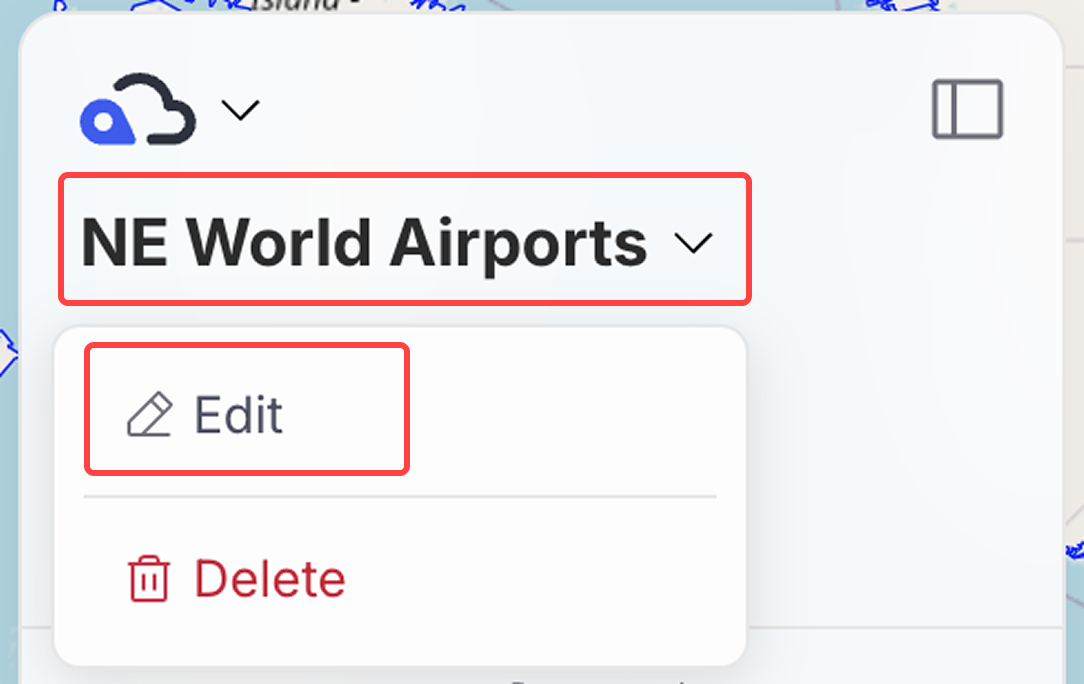
-
Fill in the attribution field and save.
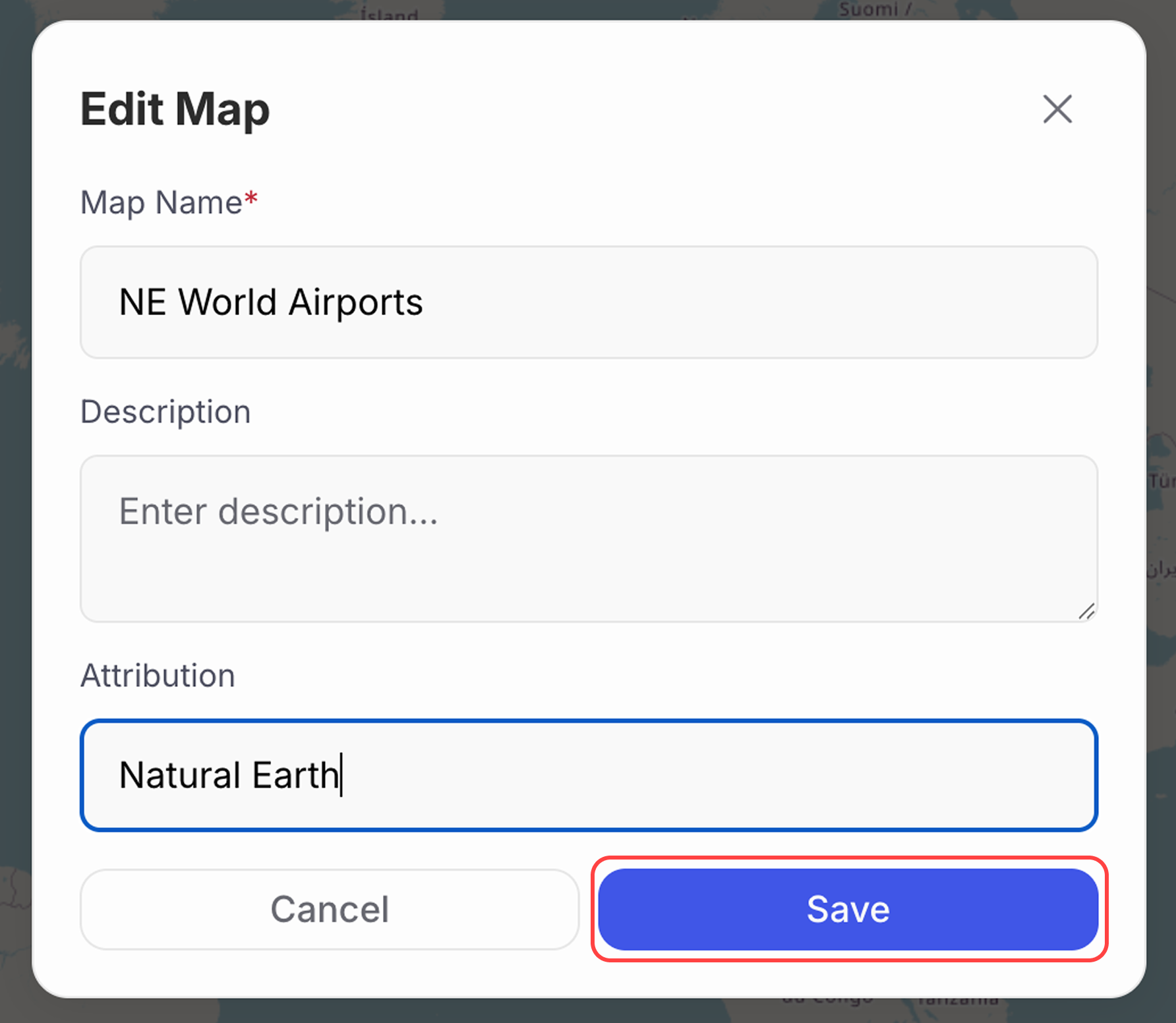
-
Click the
iicon at the bottom right of the map canvas to show the attribution you entered.
Add Data Attribution#
To credit a single dataset, add the source information to that dataset.
-
Log in to Kumoy and select your vector on the web.
-
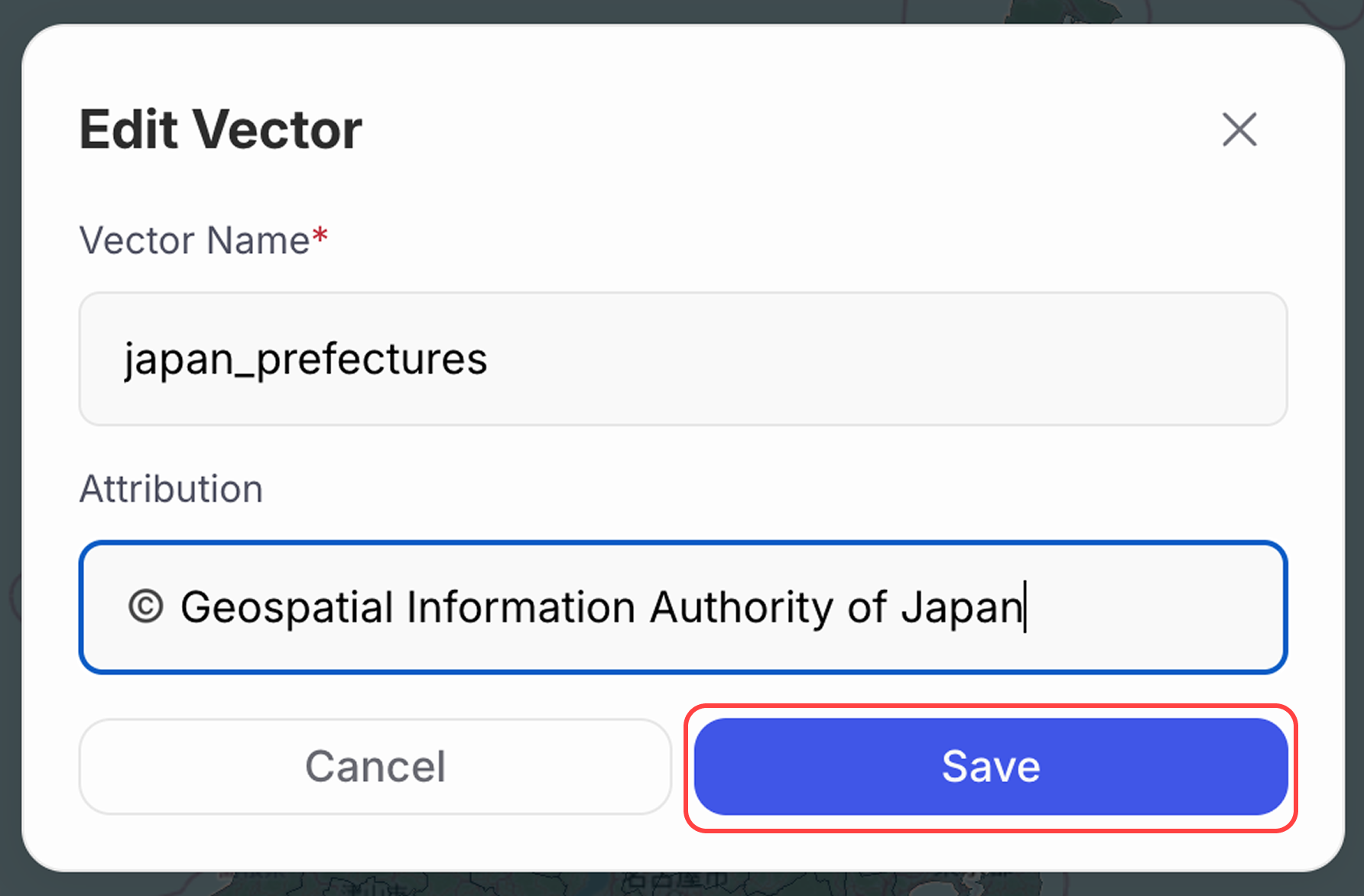
Click the vector name and select Edit.
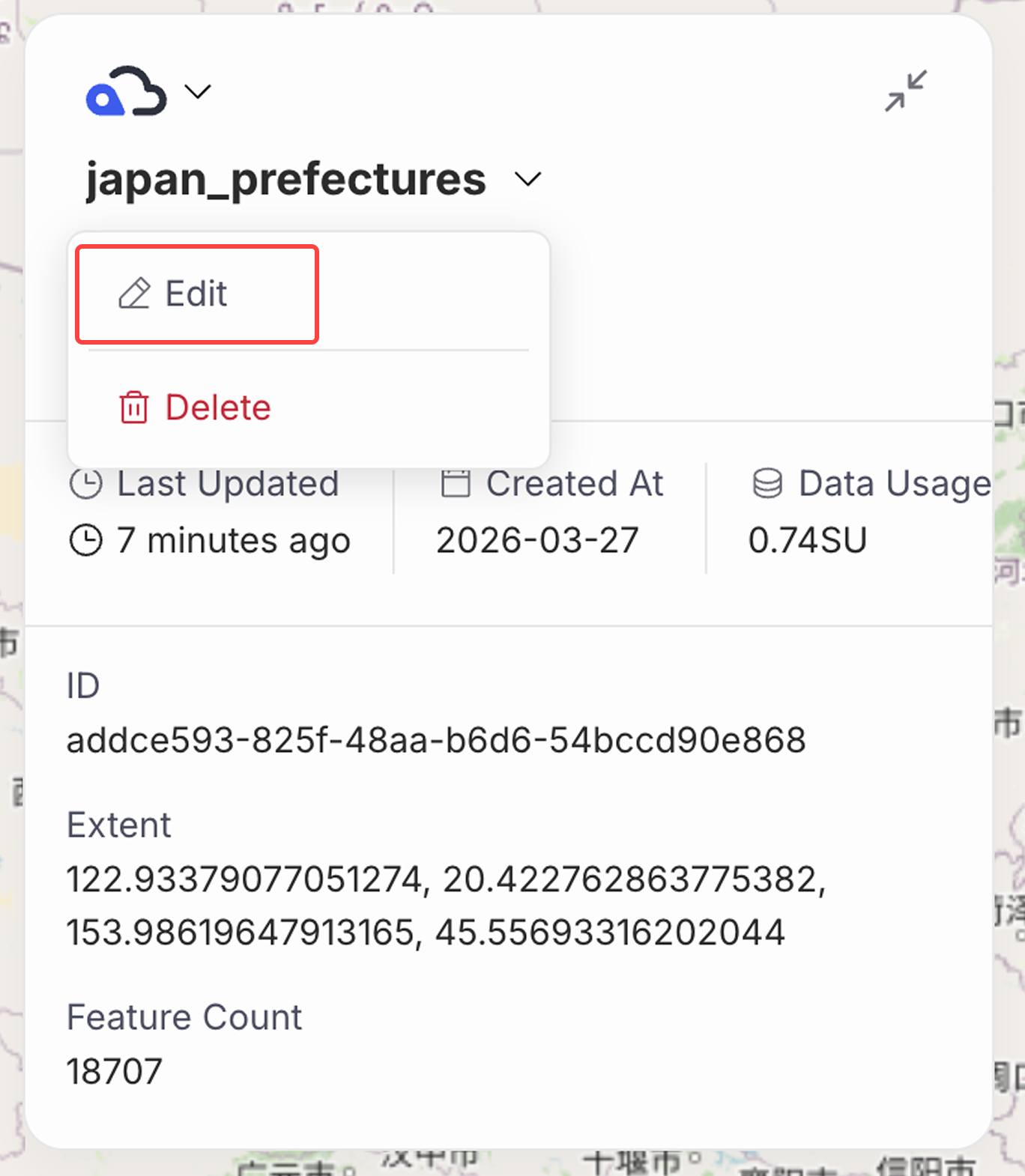
-
Fill in the attribution field and save.
-
Click the
iicon at the bottom right of the screen to view the attribution you entered.
-
When you open a map that uses this vector, the same attribution also appears on the map.

TipIf a vector's attribution isn't appearing on the map, check that its layer is visible in the Layers panel.
Last update: Oct 7, 2026 23:52:25