Manage Organization Members
This page explains how to invite organization members, change organization roles and seat types, and remove members. To add members to teams or change their team roles, see Manage Teams.
ImportantThis feature is only available on the Business plan and above. See Update Plan & Add-ons to upgrade.
Permissions Required to Manage Members#
You need Owner or Admin permissions to invite members, change organization roles and seat types, and remove members.
ImportantAn organization must always have at least one Owner.
See Seats and Roles for the difference between organization roles and seat types, and Permissions for what each organization role can do.
Invite Members#
When you invite a member to the organization, the invited user receives a notification. The member joins the organization once they accept the invitation.
Send an Invitation#
-
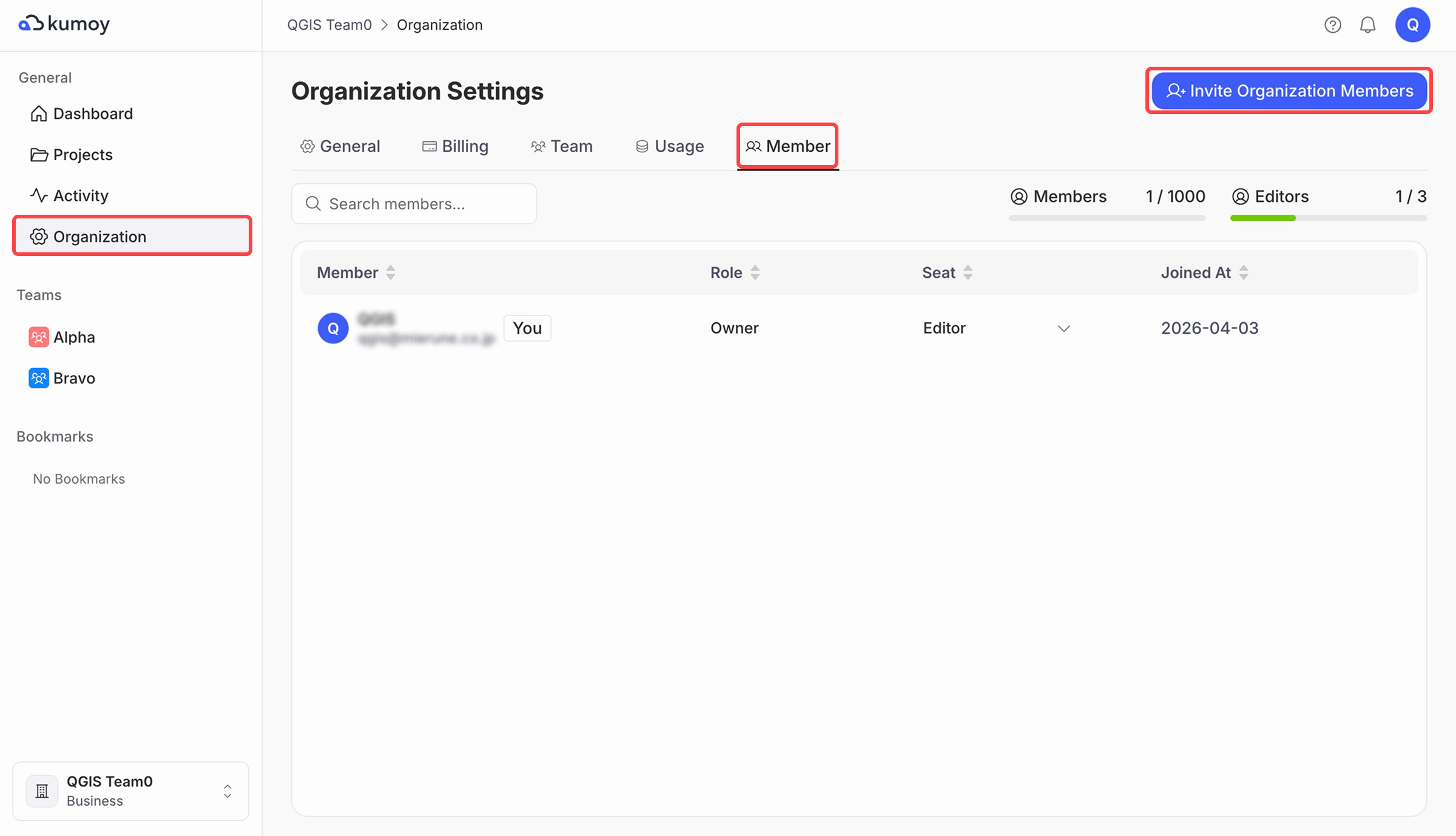
Open the Organization Settings tab, select the Members sub-tab, and click Invite member.
-
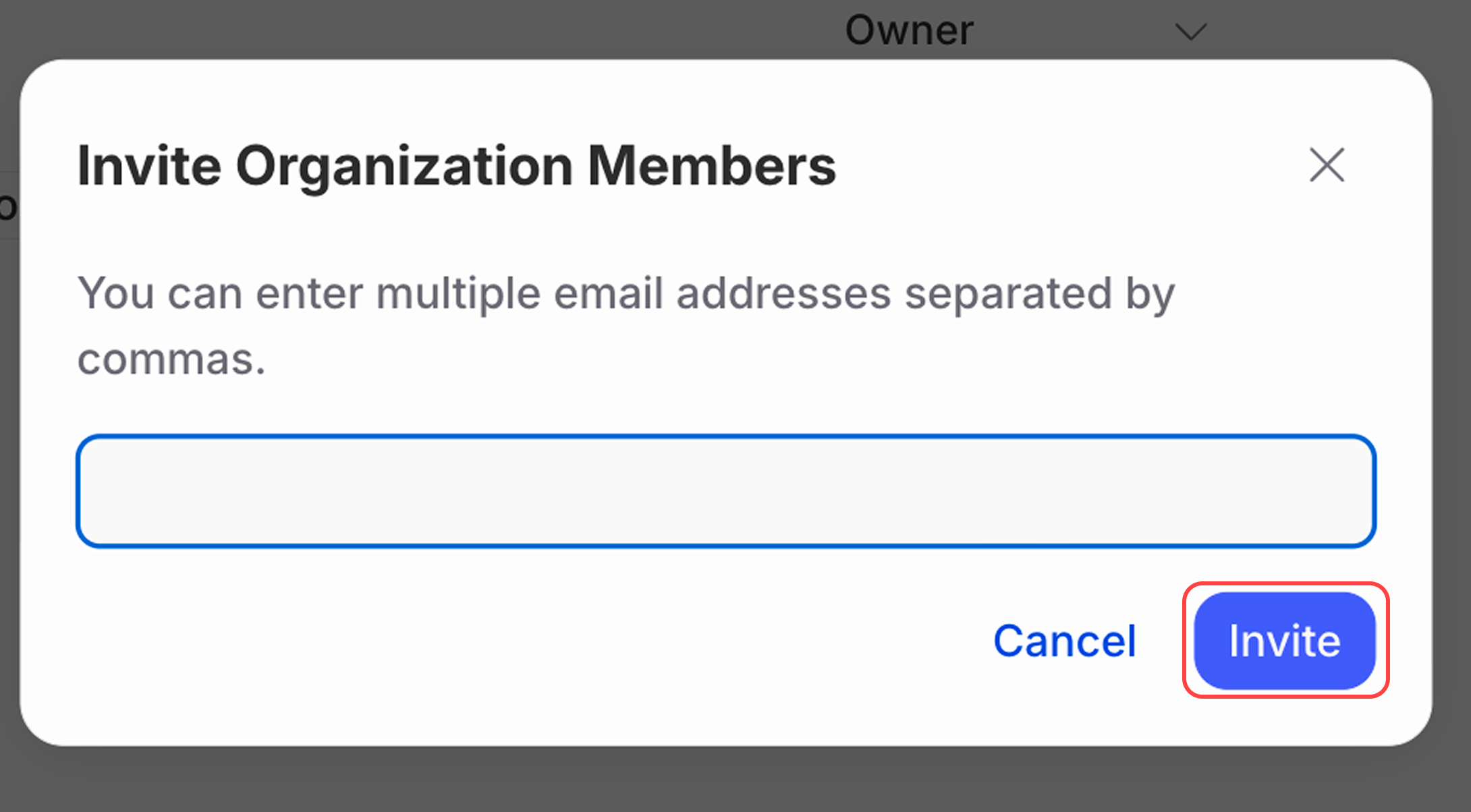
In the invite member popup, enter the email address and click Invite.
-
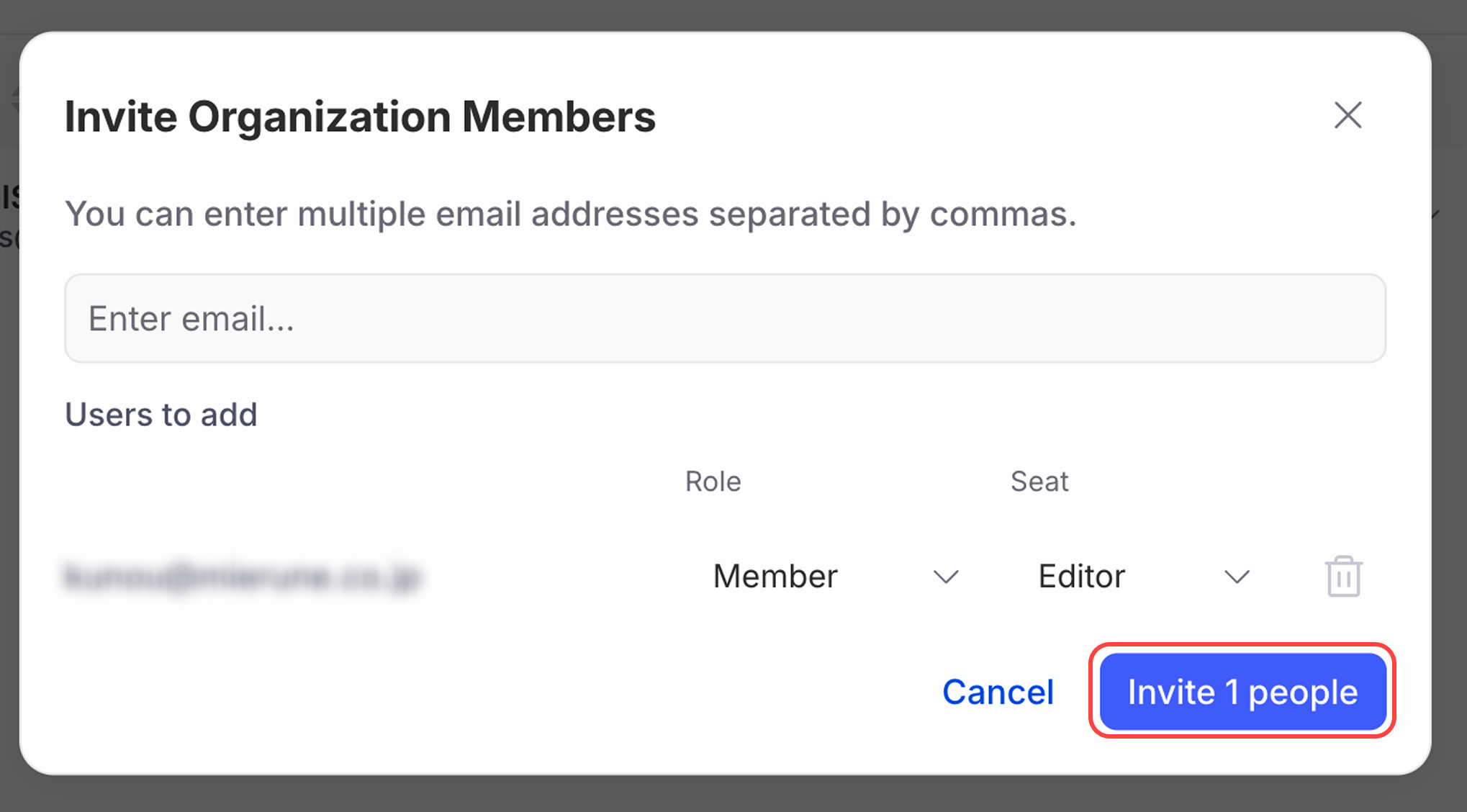
The members you're inviting appear in a list. Set their organization roles and seat types, then click Invite.
-
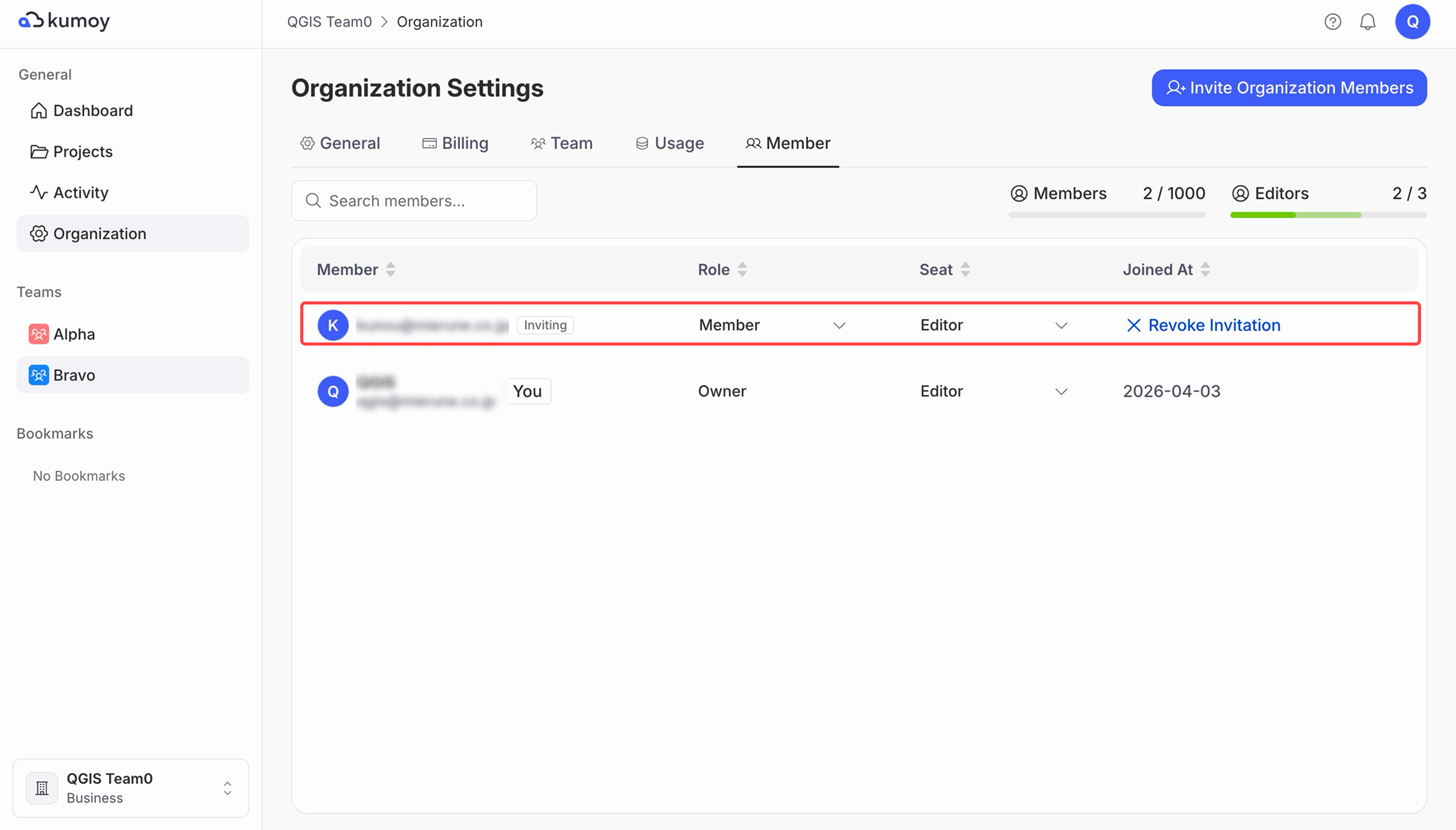
On the Members sub-tab, you can check the acceptance status of invited members or cancel an invitation.
Accept an Invitation#
-
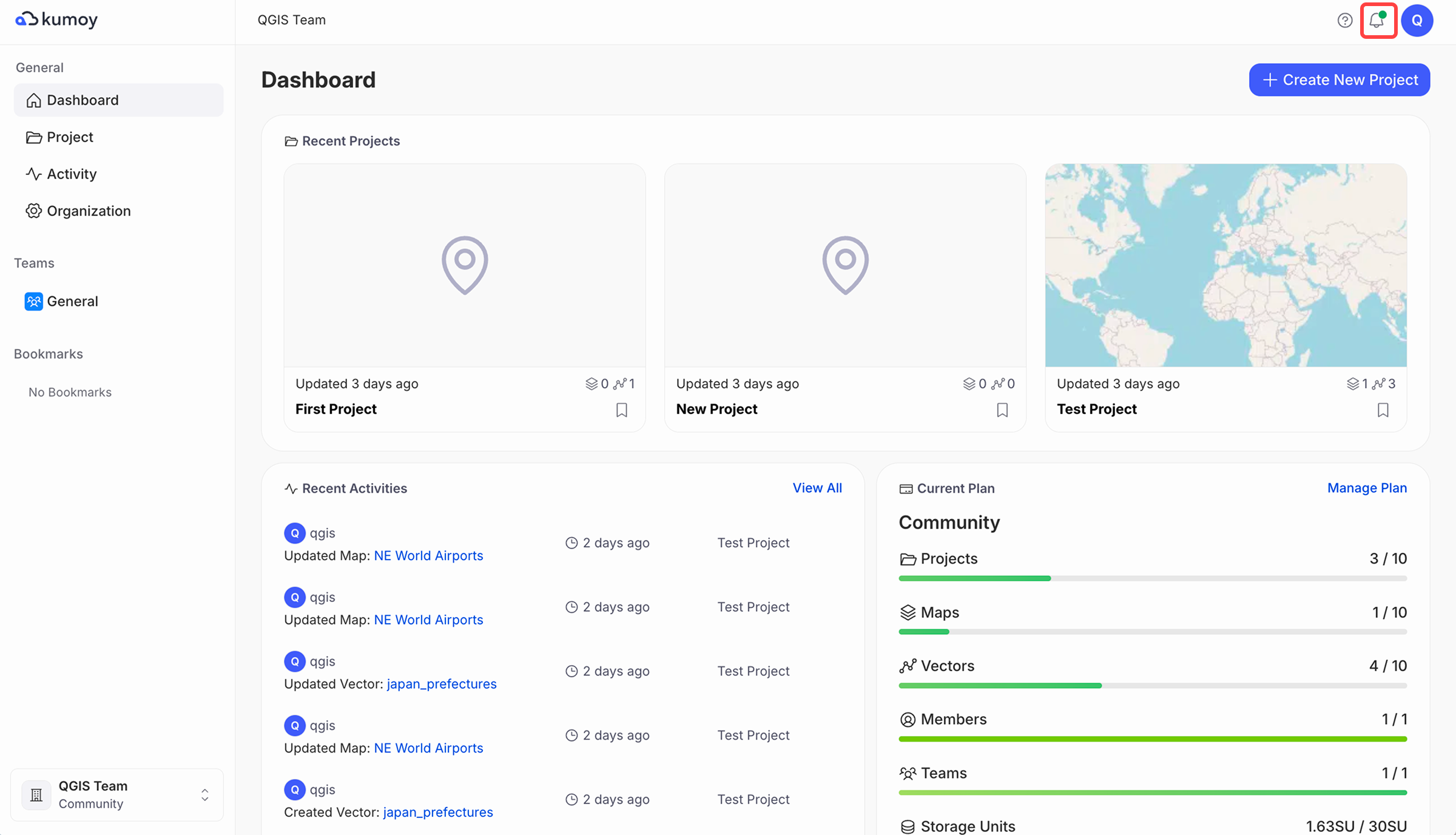
The invited user opens the Kumoy dashboard.
-
Click the Notifications button.
-
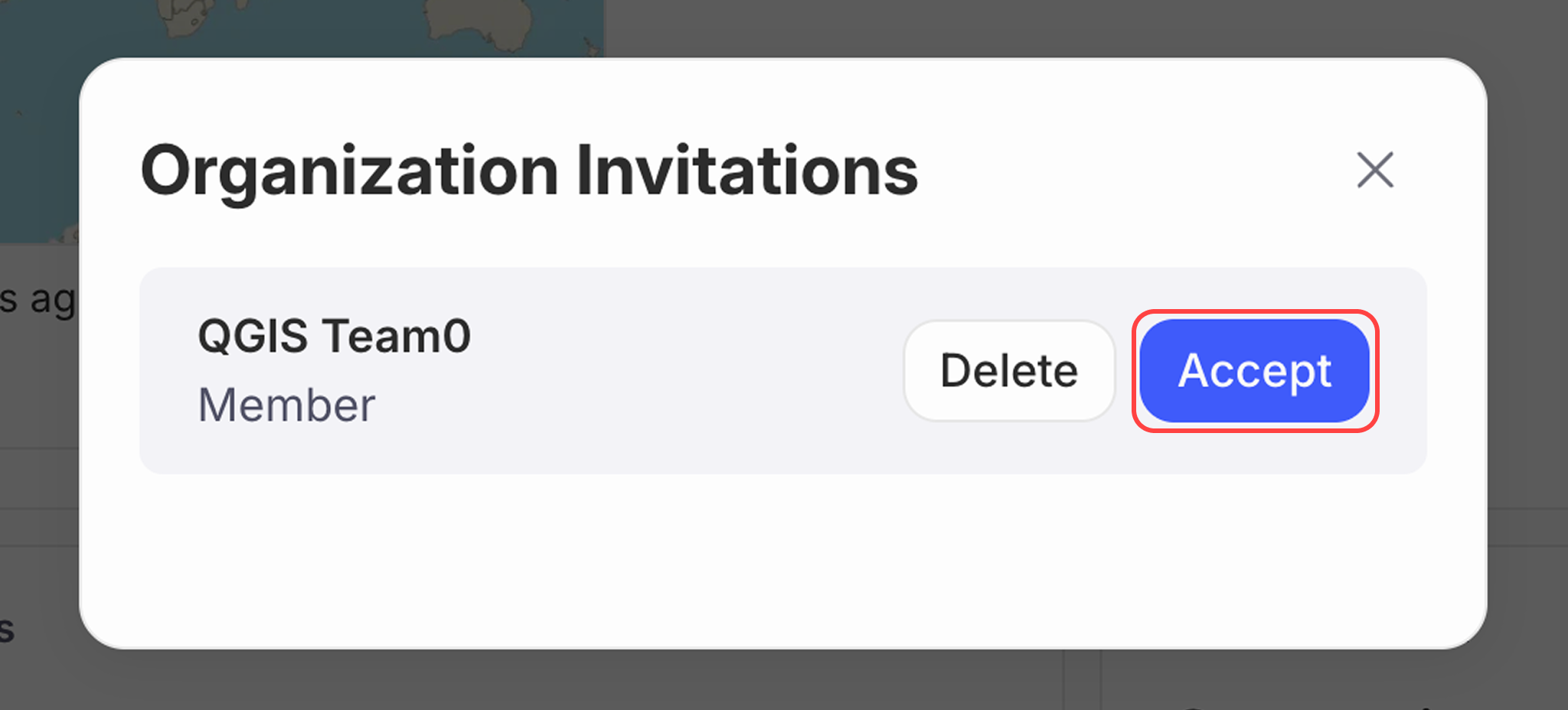
Click Accept.
-
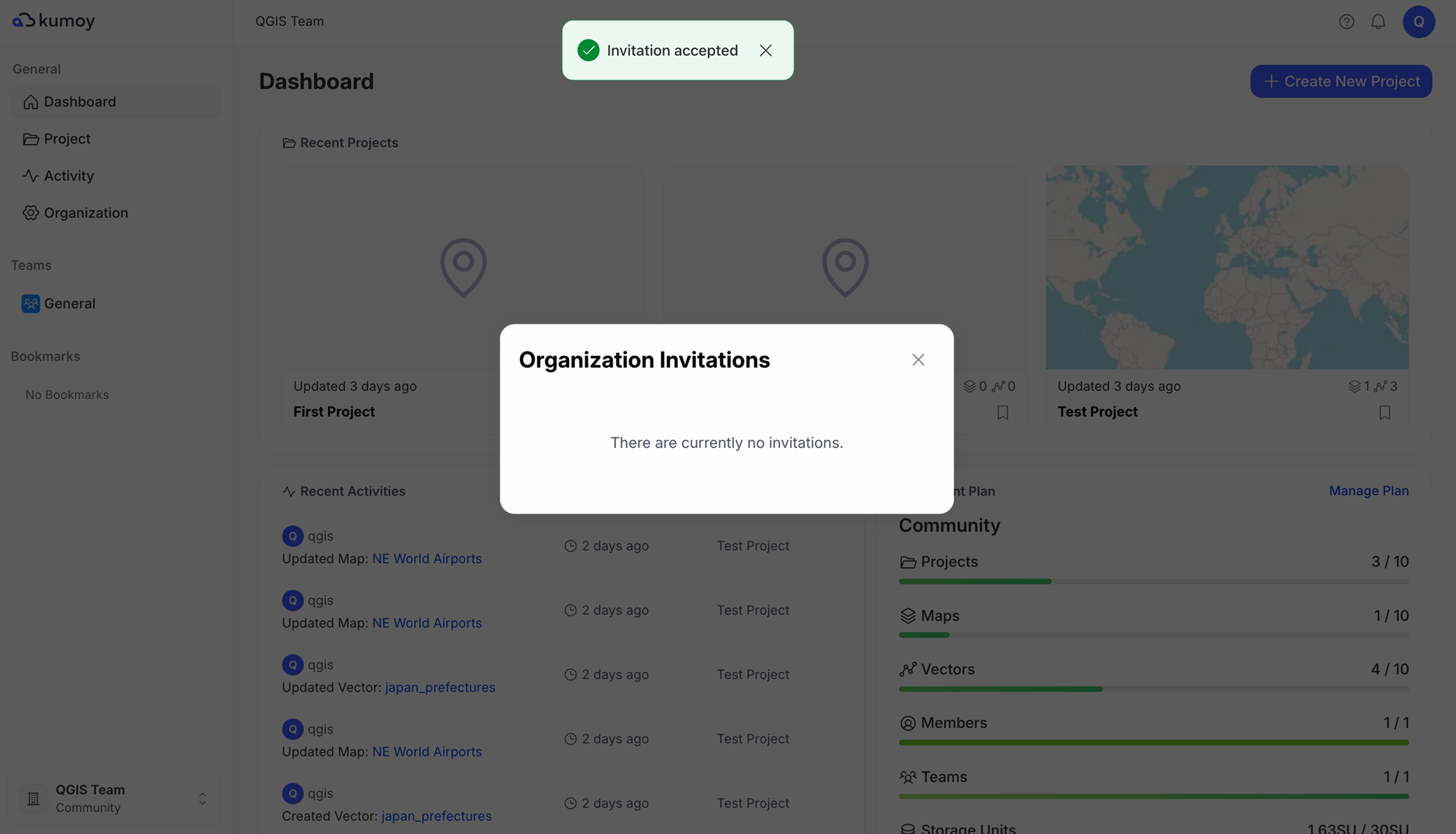
Once you accept the invitation, the organization appears on the dashboard.
NoteTo give the new member access to projects, continue by adding the member to a team.
Change Member Settings#
You can change organization roles and seat types from the Members sub-tab in Organization Settings.
Change an Organization Role#
-
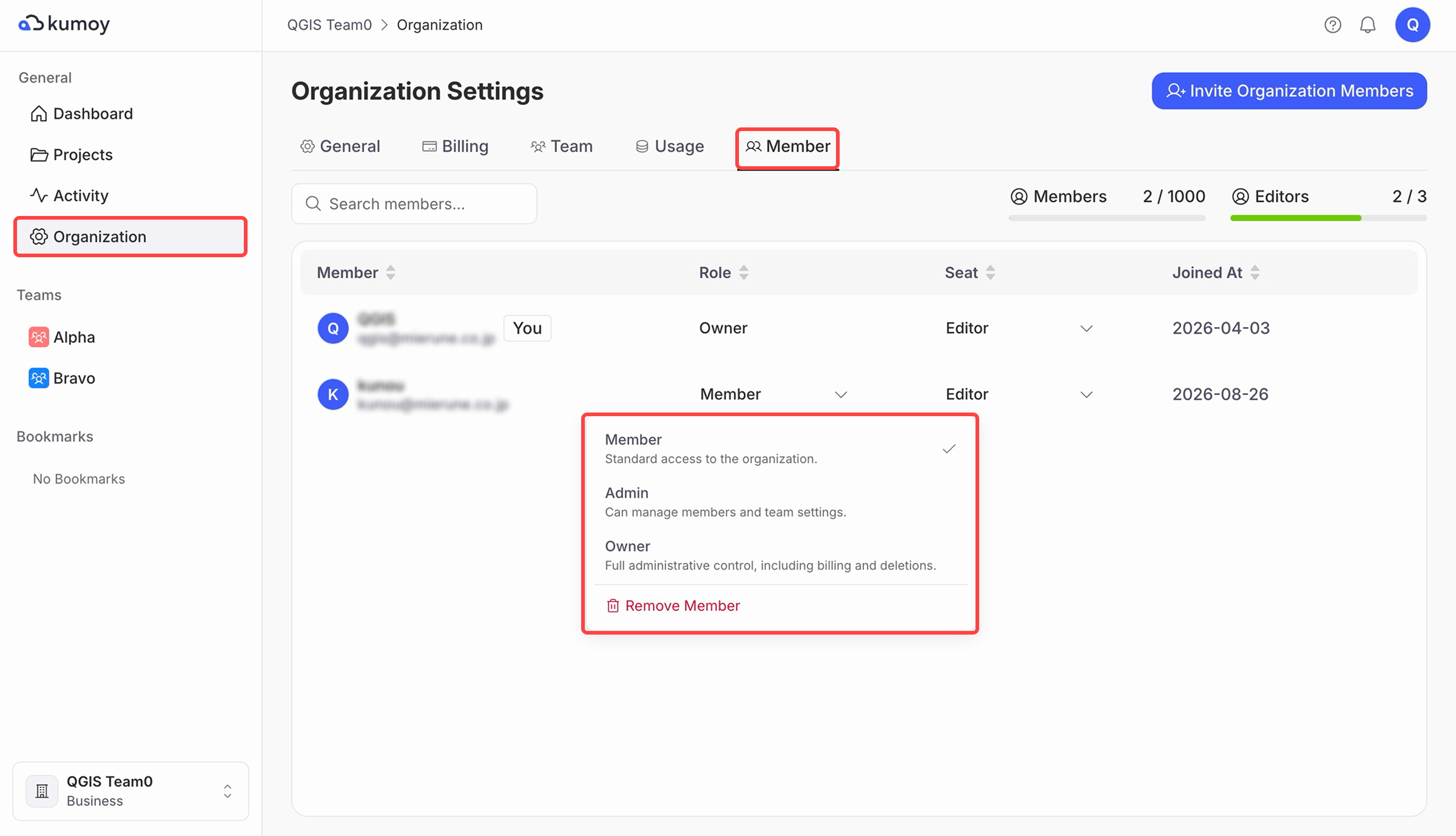
Open the Organization Settings tab and select the Members sub-tab.
-
From the member's role dropdown, select the new role.
ImportantIf you are the only Owner, you cannot change your own role.
Admins cannot assign or change the Owner role.
Change a Member's Seat Type#
-
Open the Organization Settings tab and select the Members sub-tab.
-
From the member's Seat dropdown, select the new seat type.
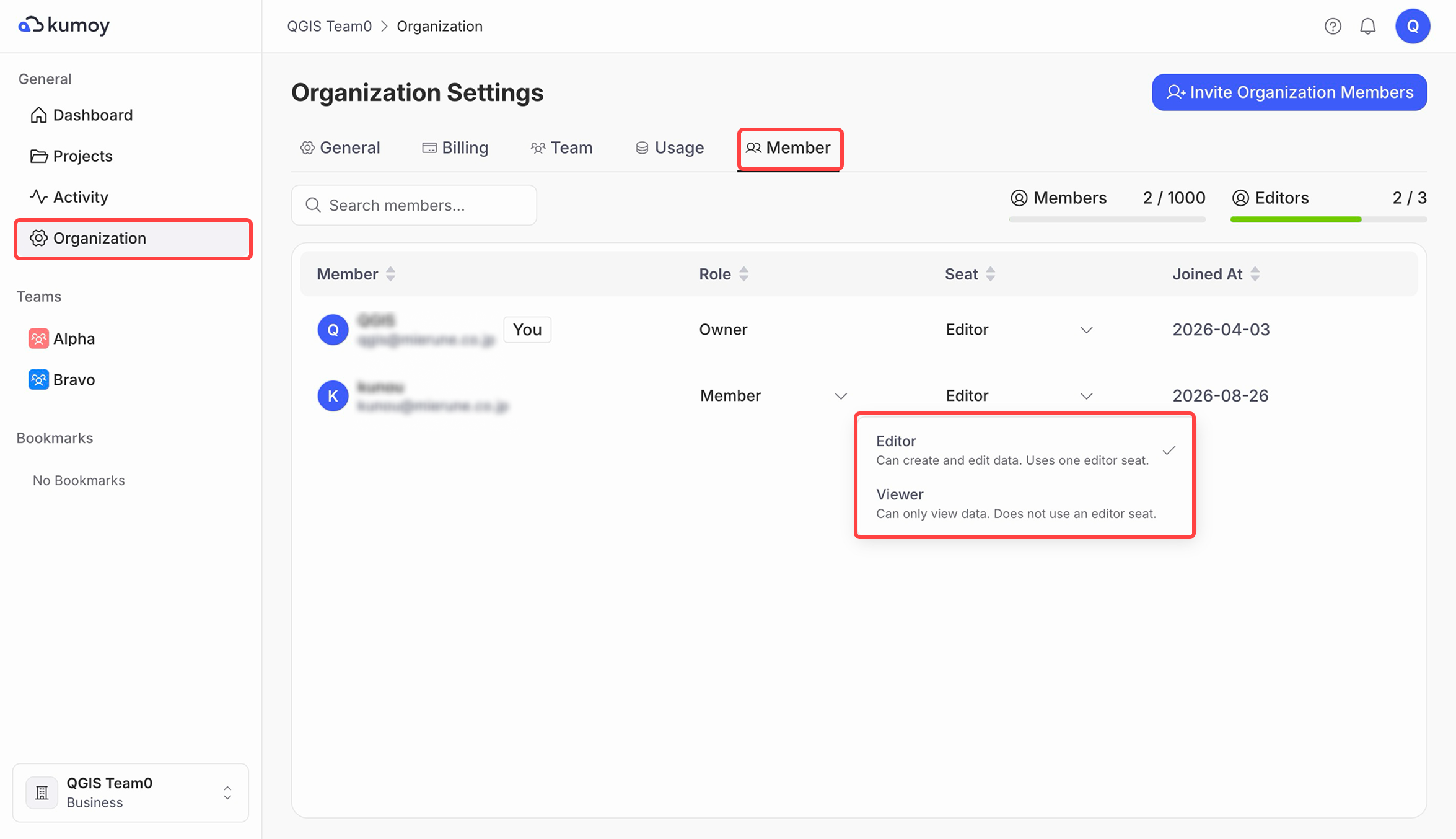
ImportantChanging a member from a Viewer seat to an Editor seat requires an available Editor seat.
When a member changes from an Editor seat to a Viewer seat, their Editor role in every team automatically changes to Viewer.
Changing a seat type does not change the member's organization role as Owner, Admin, or Member.
If no Editor seat is available, add an Editor seat (Business plan only).
Remove a Member from the Organization#
Removing a member prevents them from accessing the organization and its teams and projects. Their Kumoy account is not deleted.
-
Open the Organization Settings tab and select the Members sub-tab.
-
From the member's role dropdown, select Remove Member.
Last update: Oct 7, 2026 23:52:25