Manage Teams
A team defines which members can access which projects within an organization. Every project belongs to exactly one team, and only members of that team can work with it.
ImportantThis feature is only available on the Business plan and above. See Update Plan & Add-ons to upgrade.
Key Concepts#
Before managing teams, keep these points in mind:
- Team management covers adding and removing members, setting roles, managing associated projects, and controlling sharing scopes.
- Each project belongs to exactly one team.
- Team members can access the projects within their team.
- To keep your projects separate, manage them in different teams.
- Assign Editor only to members who need to edit and make everyone else a Viewer.
- Only members with an Editor seat in the organization can be assigned the Editor team role.
Team Roles#
A team has two roles:
| Role | What they can do | Required seat type |
|---|---|---|
| Editor | Manage projects and edit data in the team | Editor seat |
| Viewer | View web maps and data shared within the team | Editor seat or Viewer seat |
A member with an Editor seat can be a Viewer in individual teams. A member with a Viewer seat can only be a Viewer, never an Editor. See Seats and Roles for details, and Permissions for the full list of what Editors and Viewers can do.
Permissions Required to Manage Teams#
You need Owner or Admin permissions to create teams, add or remove team members, change team roles, and delete teams.
Create a Team#
-
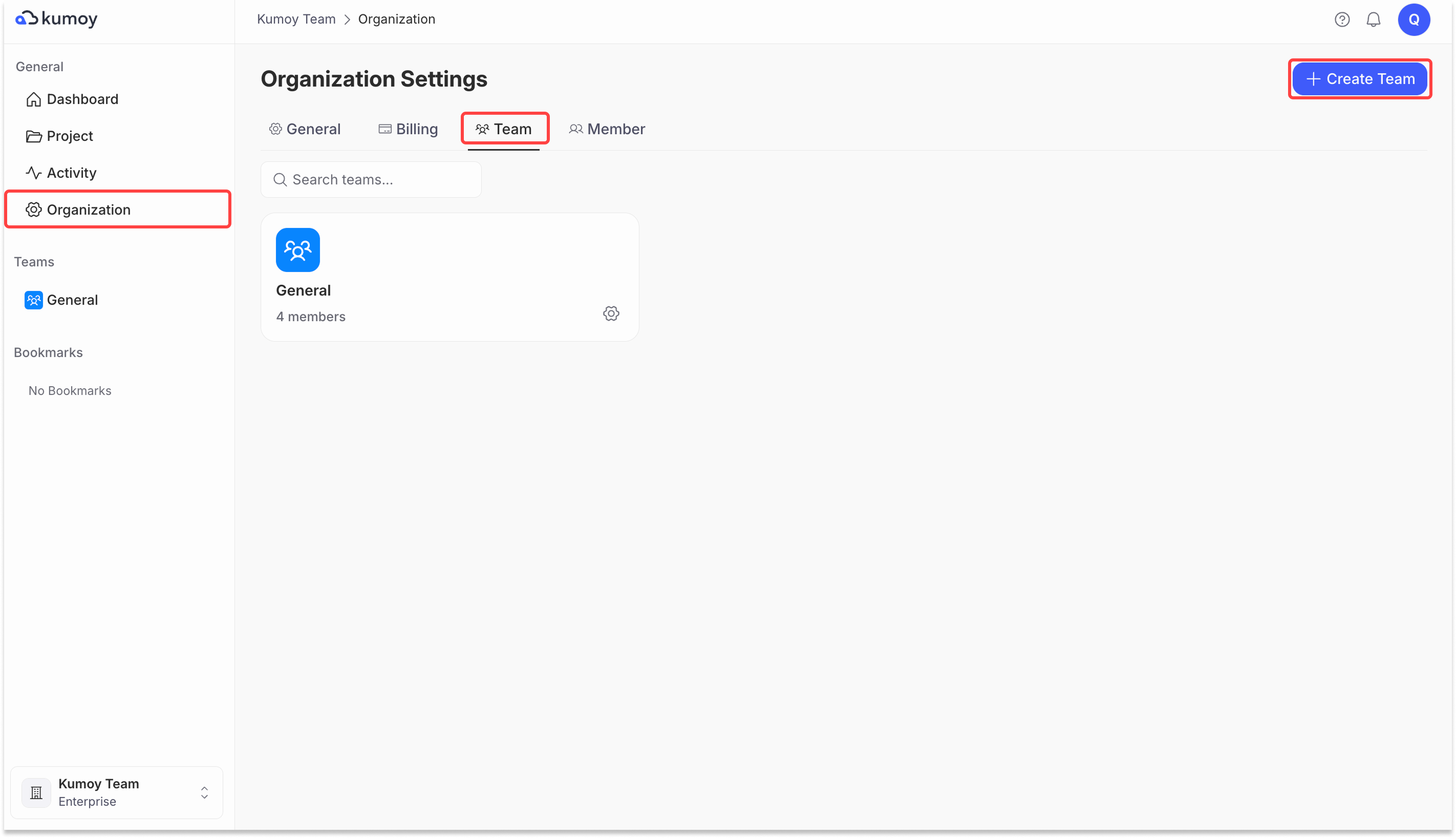
Open the Organization Settings tab, select the Teams sub-tab, and click Create Team.
-
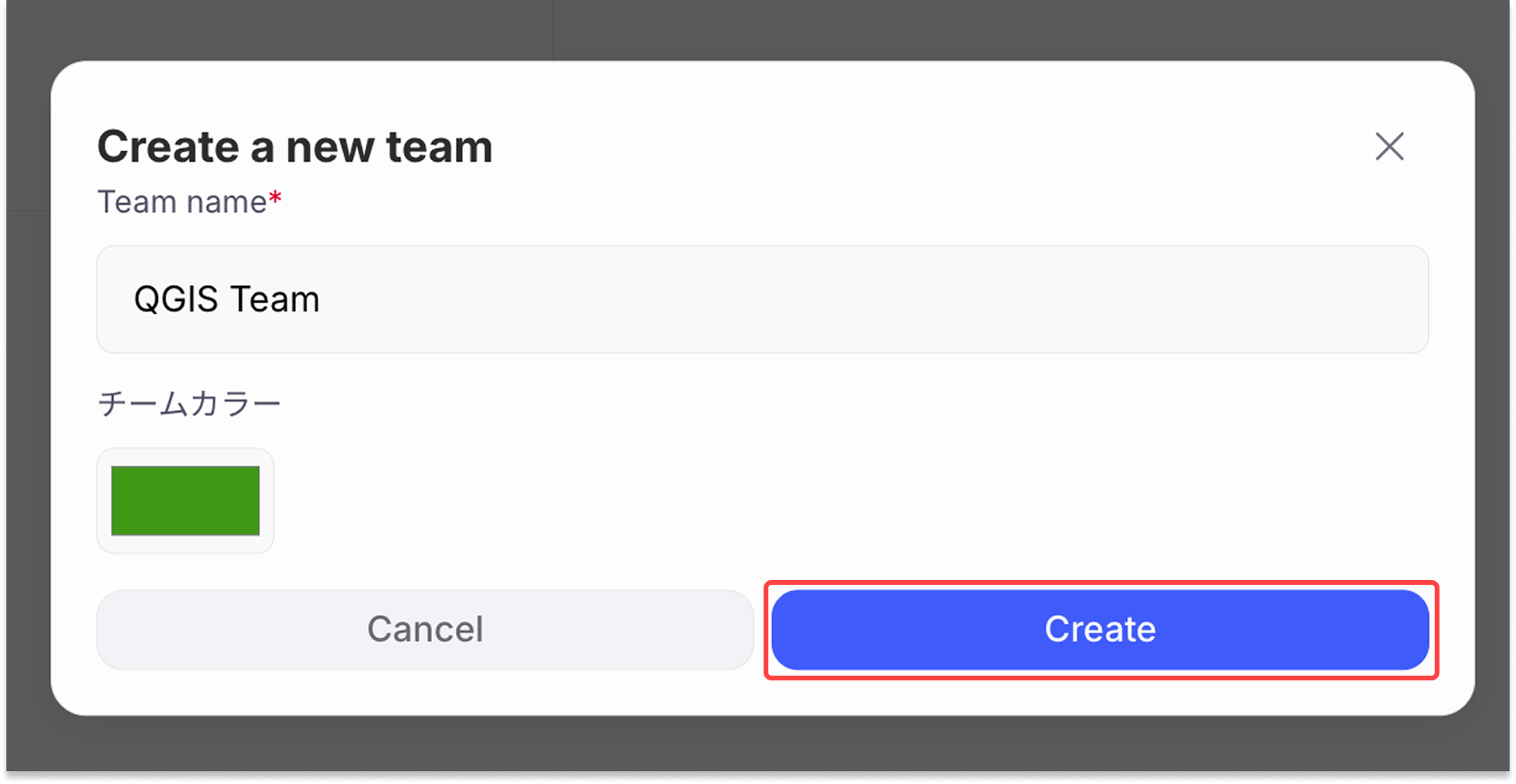
In the "Create a new team" popup, enter the team name, optionally change the team color, and click Create.
-
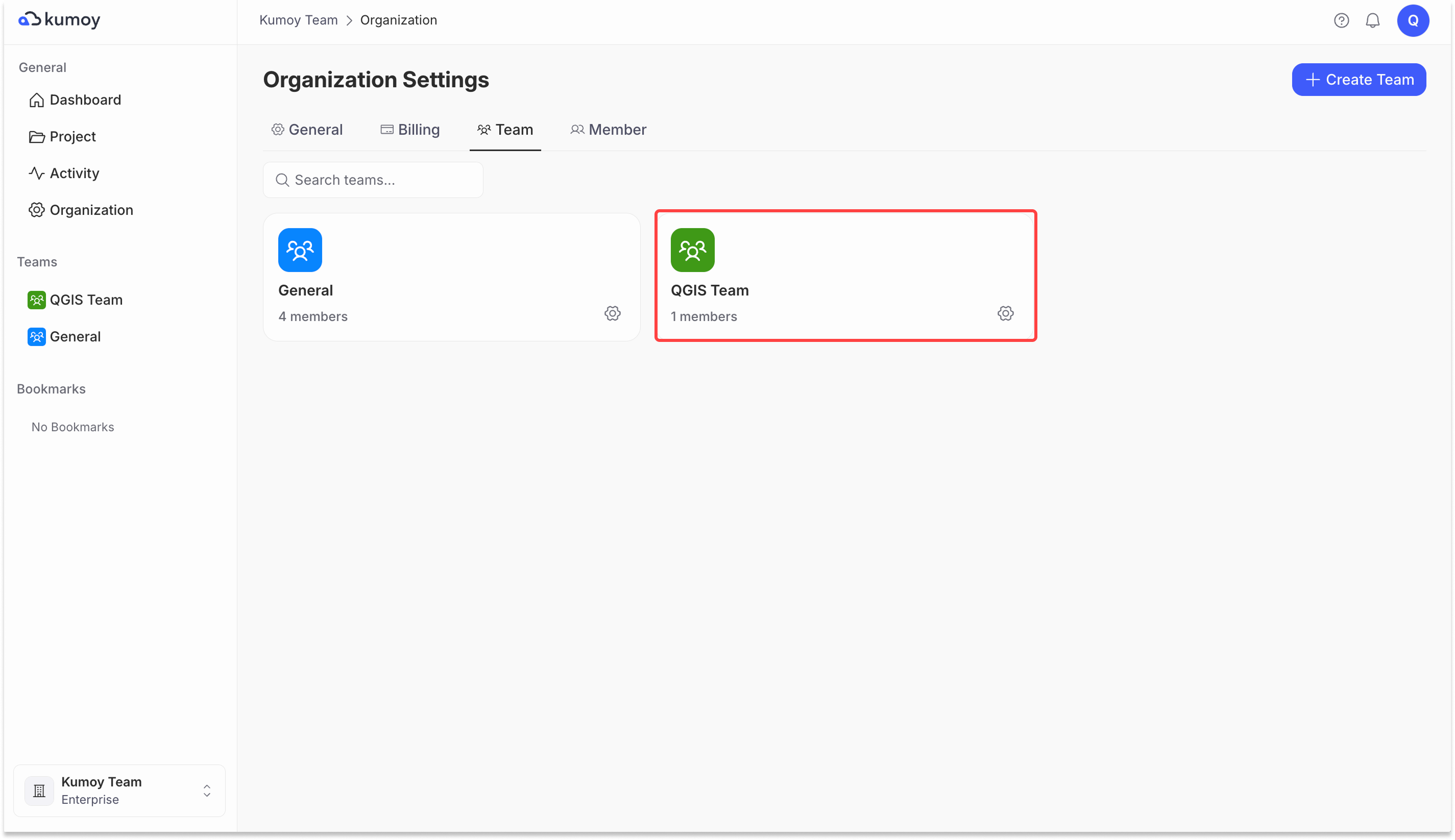
The team is created and appears in the team list.
Manage Team Members#
From the team settings screen, you can add members, change their roles, or remove them.
Add a Member#
-
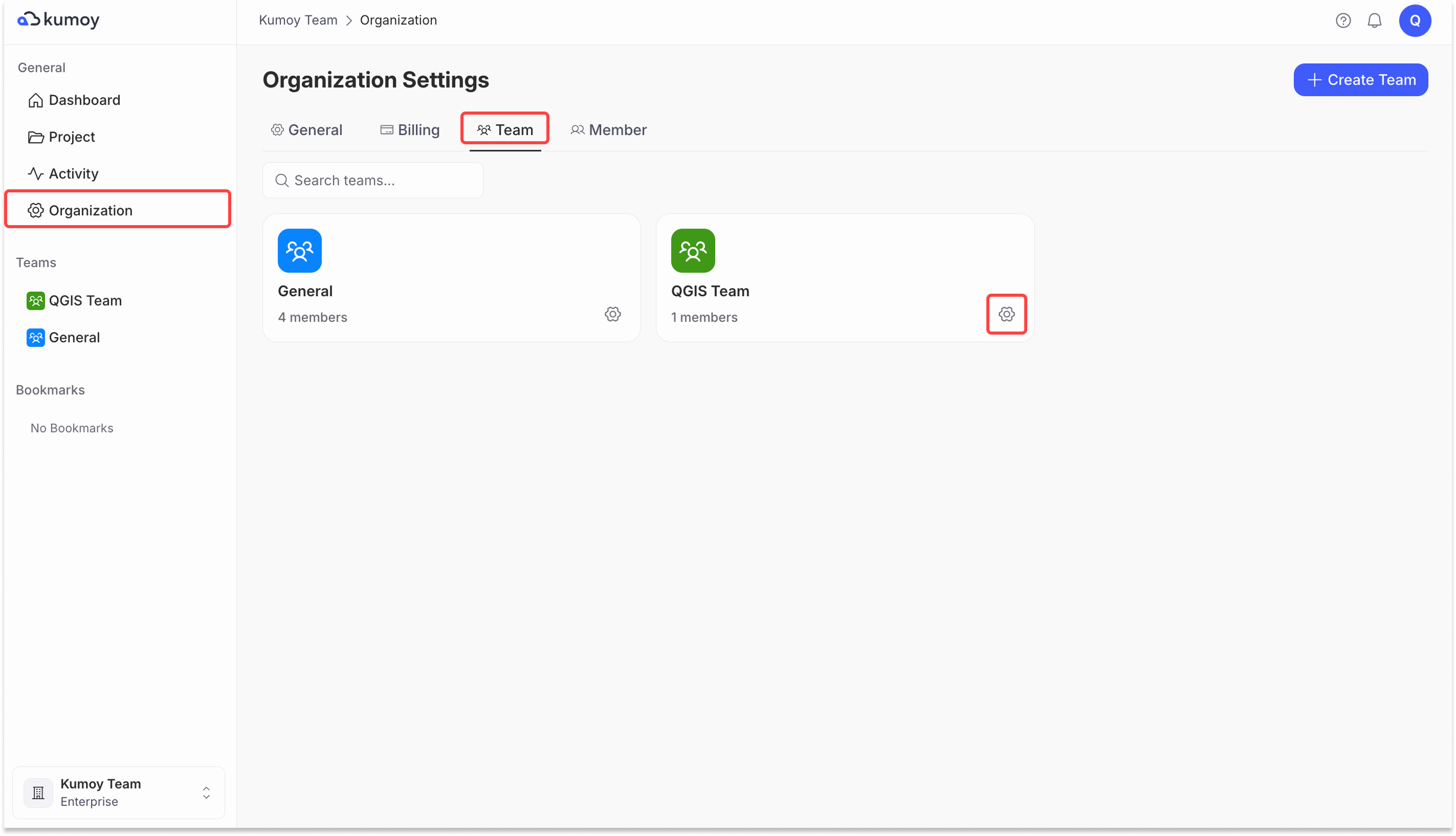
Open the Organization Settings tab, select the Teams sub-tab, and click the gear icon for the target team.
-
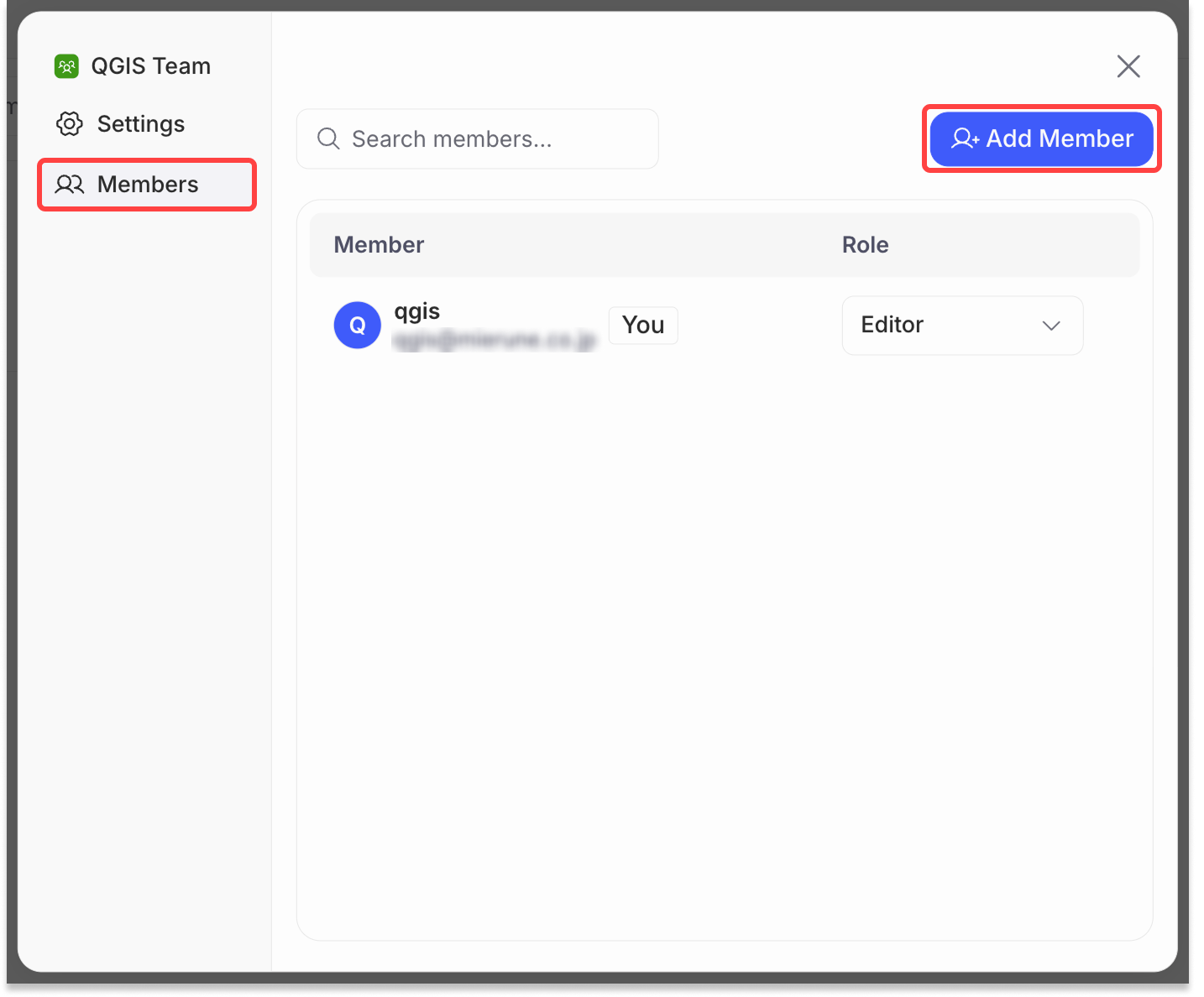
Select the Members tab and click Add member.
-
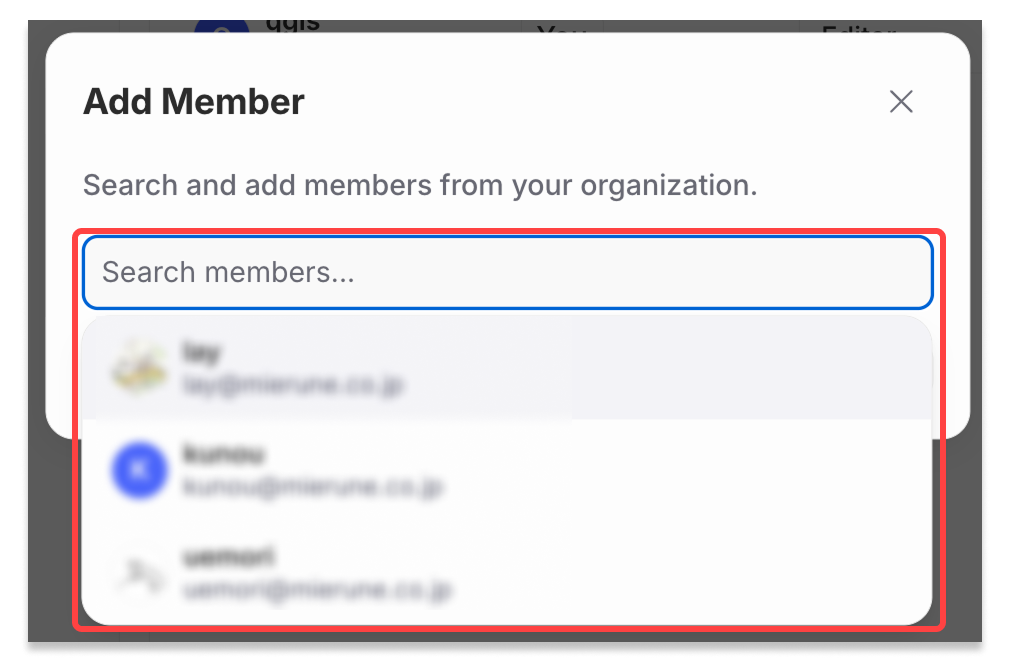
Click the input field, then select the user you want to add from the list of organization members.
-
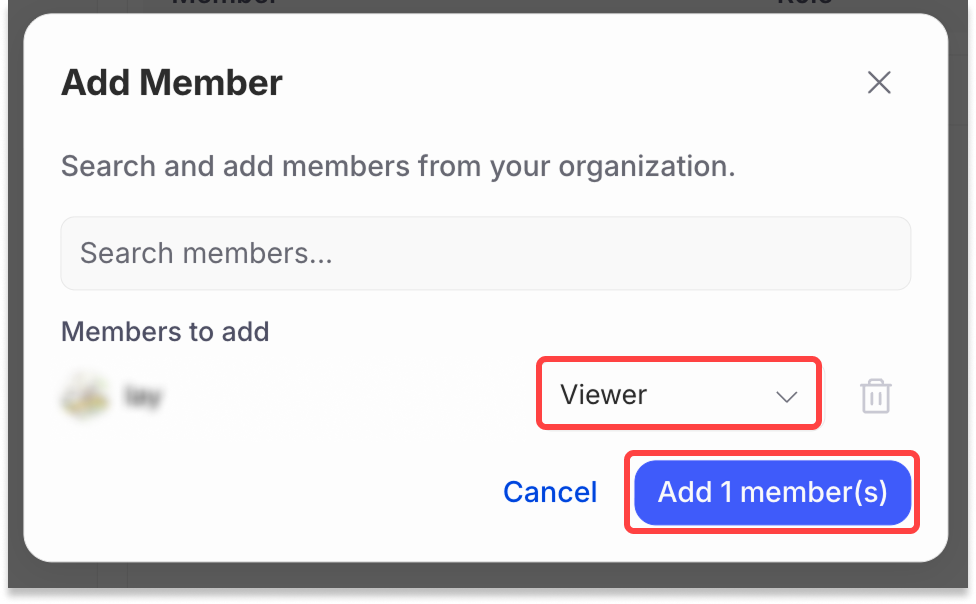
Select the member's role and click Add member. For a member with a Viewer seat, you can only select Viewer.
-
The member is added to the team.
Change a Team Role#
-
Select the Members tab on the team settings screen.
-
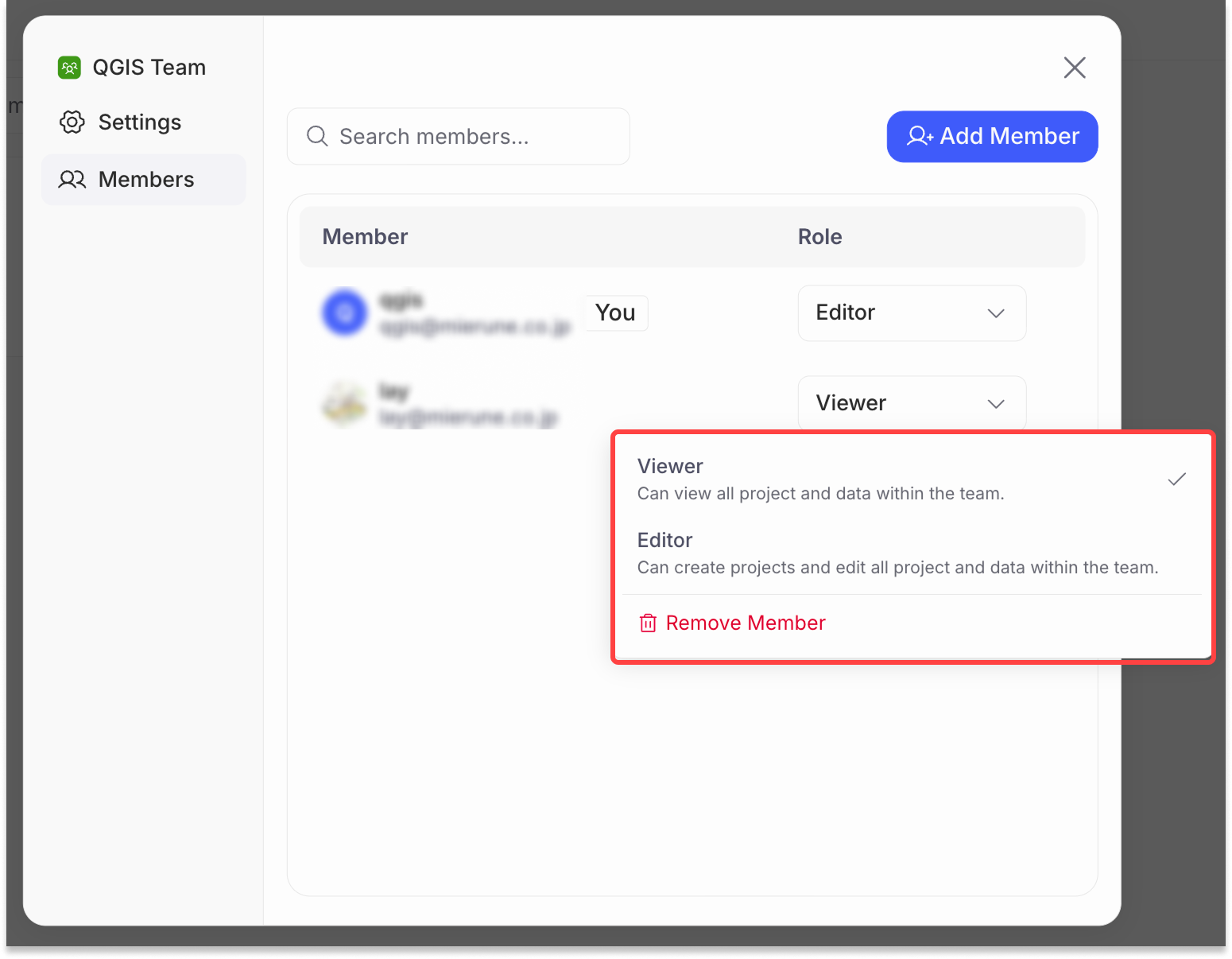
From the member's role dropdown, select the new role.
Remove a Member from the Team#
-
Select the Members tab on the team settings screen.
-
From the member's role dropdown, select Remove Member.
Delete a Team#
CautionDeleting a team cannot be undone. Back up your data beforehand if needed.
Deleting a team also deletes all projects belonging to that team.
-
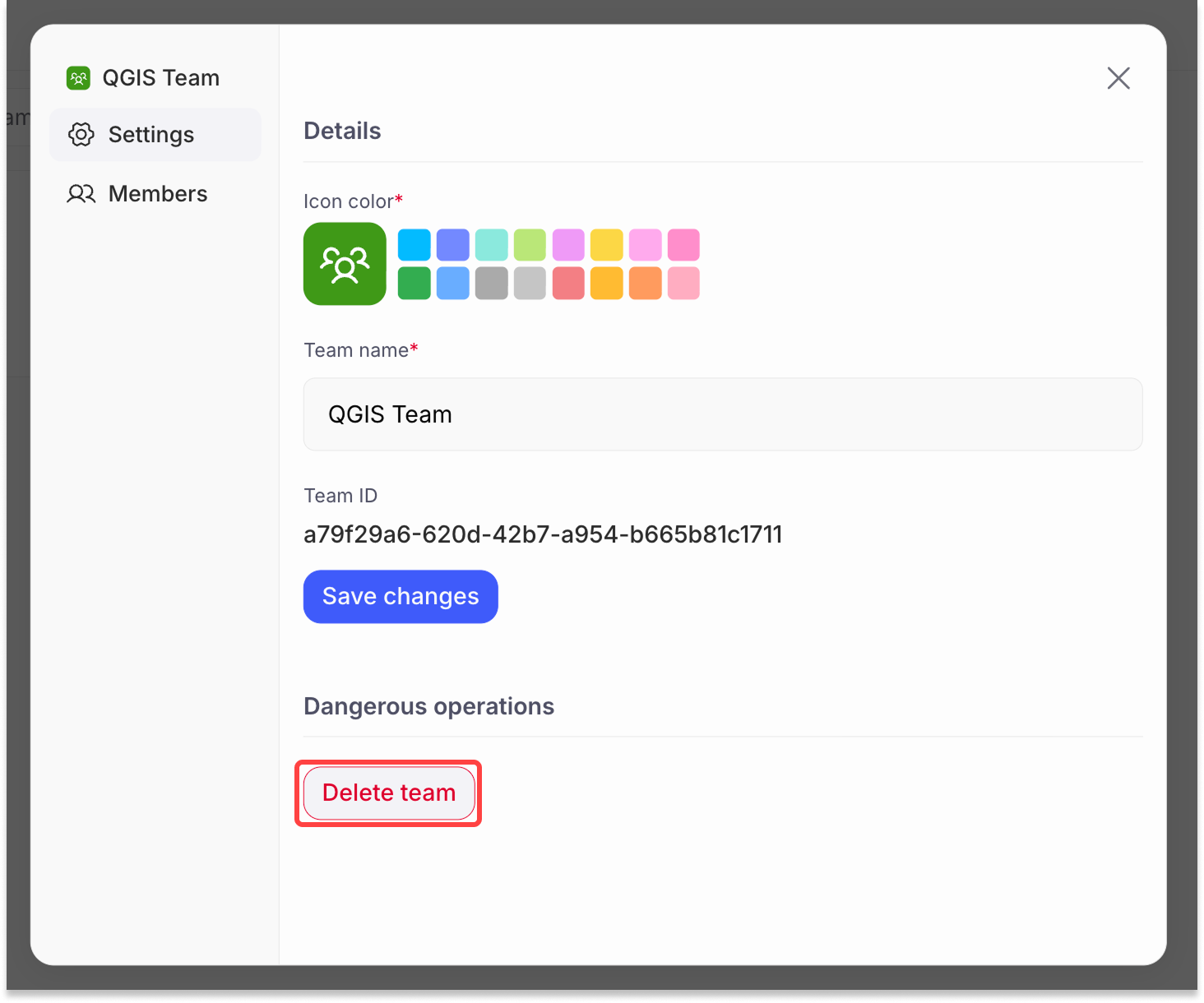
Open the Organization Settings tab, select the Teams sub-tab, and click the gear icon for the team you want to delete.
-
Click Delete team.
-
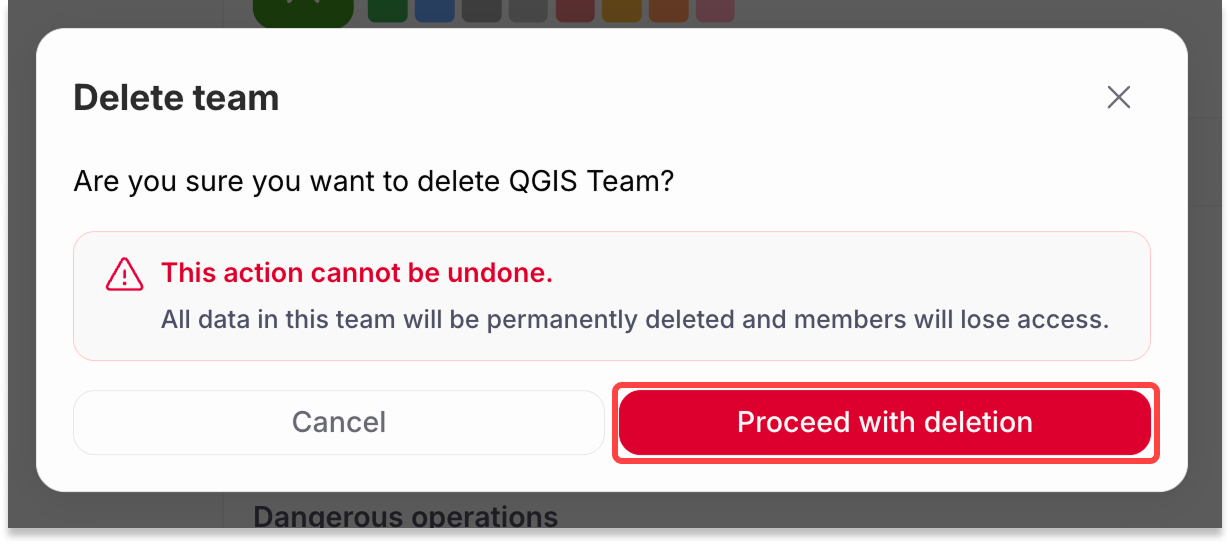
Review the popup content and click Proceed with deletion.
-
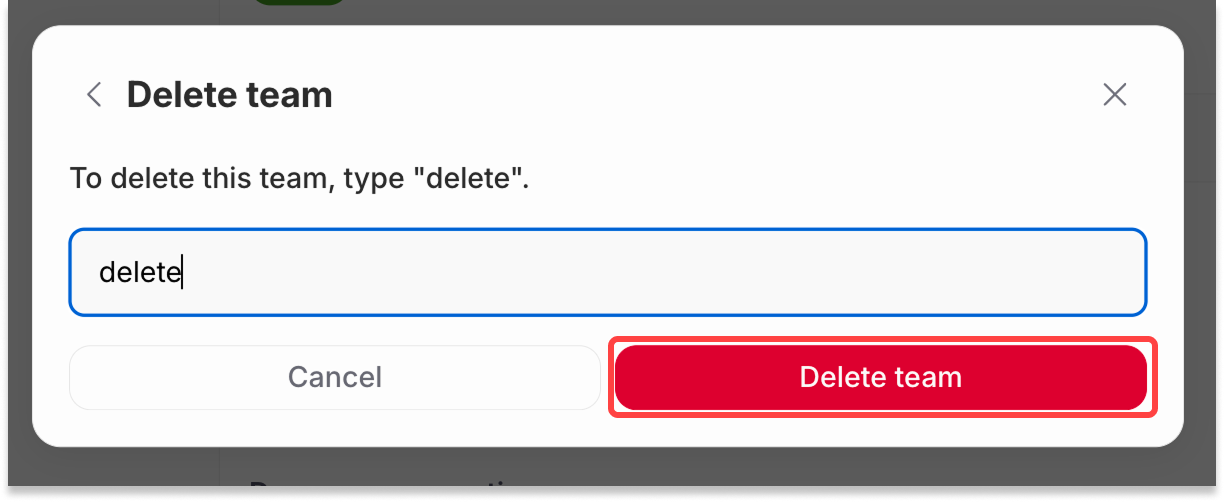
Type "delete" in the input field and click Delete team.
-
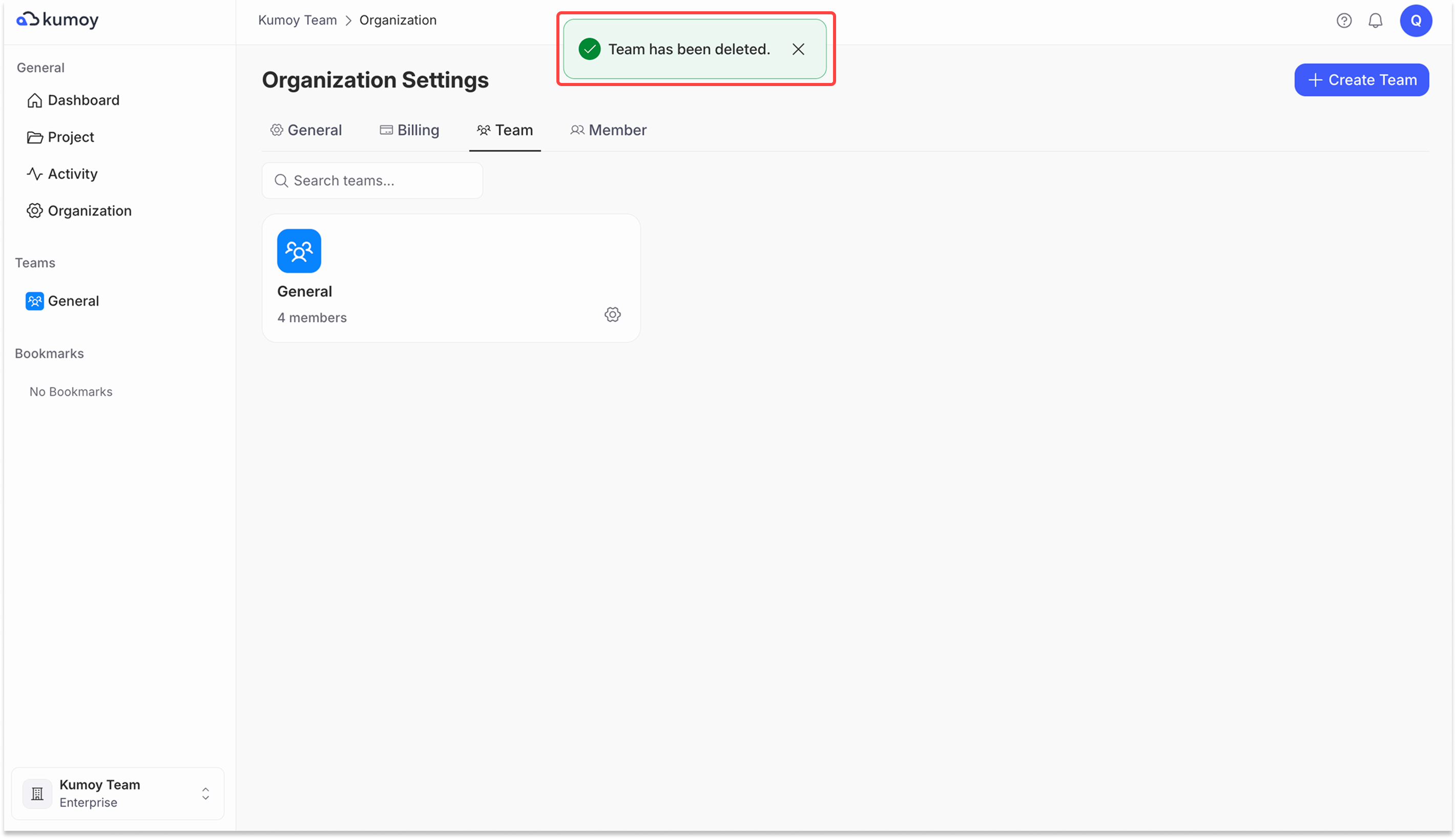
The team is deleted.
Last update: Oct 7, 2026 23:52:25