Create a New Map
A Kumoy map is a QGIS project stored in the cloud. It bundles your layers (such as Kumoy vectors, Kumoy rasters, and XYZ Tiles) together with their style settings and the map extent.
NoteCreating or editing maps in an organization requires an Editor seat and the Editor role in the team. See Seats and Roles for details.
Creating a Map#
There are two ways to create a map in Kumoy:
- Start with an empty map and add data to it
- Save an existing QGIS project file as a map
Create an Empty Map#
This workflow starts from a blank map. You then add your data and style the map however you like.
-
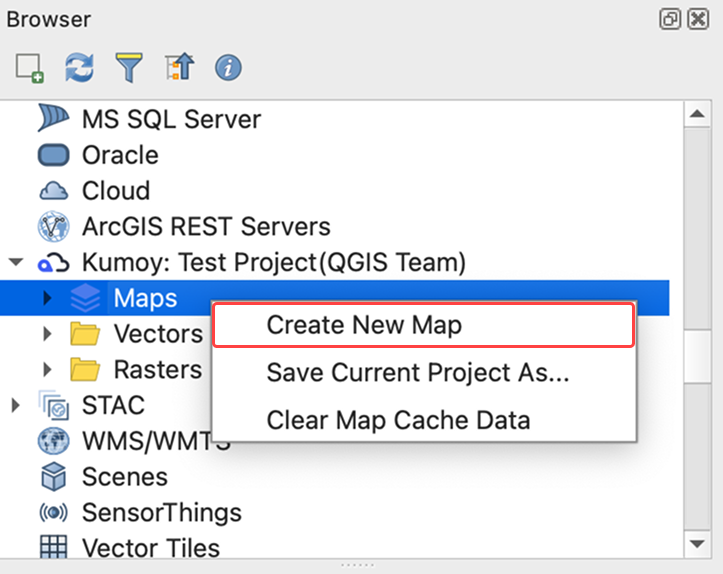
Right-click Maps in the Browser panel and click Create new map.
-
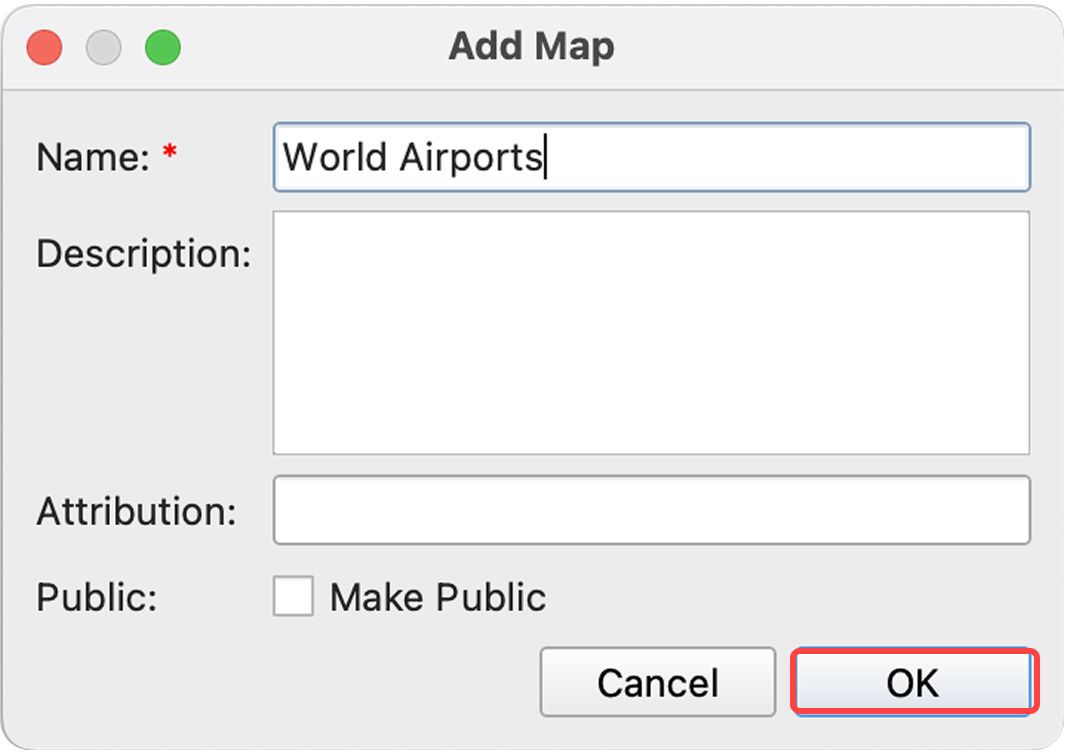
Enter the map name and other details, then click OK.
-
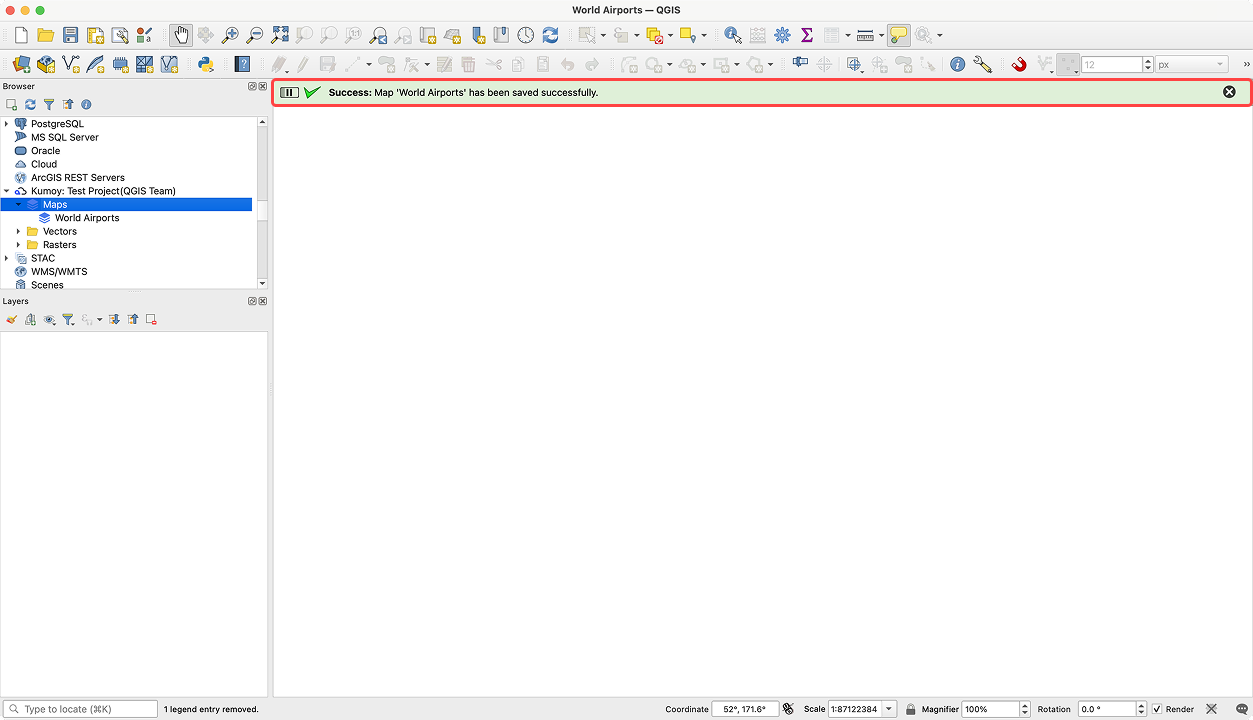
When the map is created, the message "Map saved successfully." appears in the message bar.
-
Use Create a New Vector or Upload Vectors and Rasters to add data to this map.
-
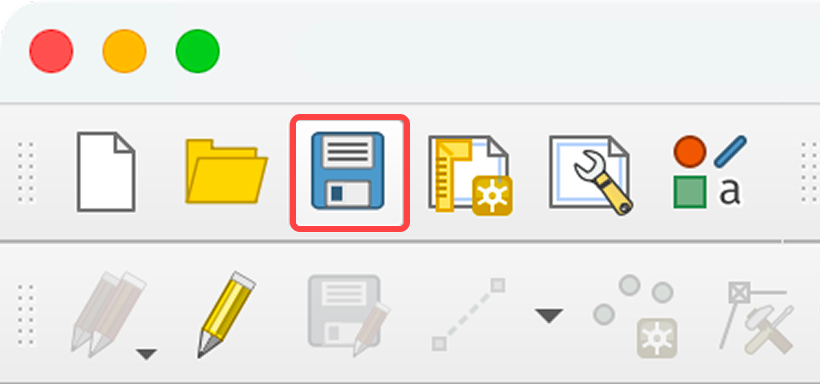
When you're done, click Save Project in the toolbar to save the map.
Save the Current Project As#
This workflow saves an existing QGIS project as a Kumoy map. If the project contains local vector or raster layers, you can convert them to Kumoy vectors and rasters when you save the project.
-
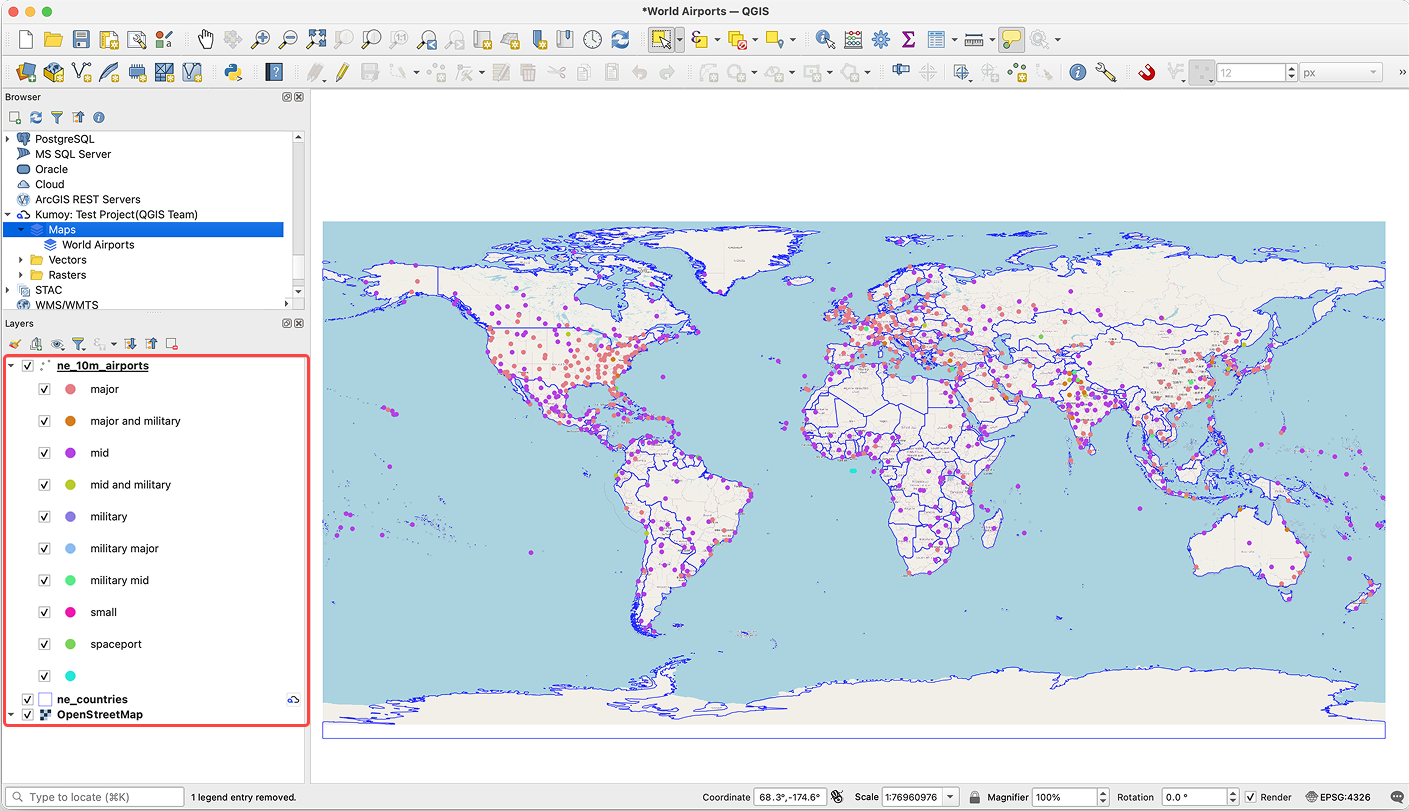
In QGIS, create a map using local vector layers, Kumoy vectors and rasters, XYZ Tiles, and other data.
The figure below shows airports (local vector), world country boundaries (Kumoy vector), and OpenStreetMap (XYZ Tiles).
-
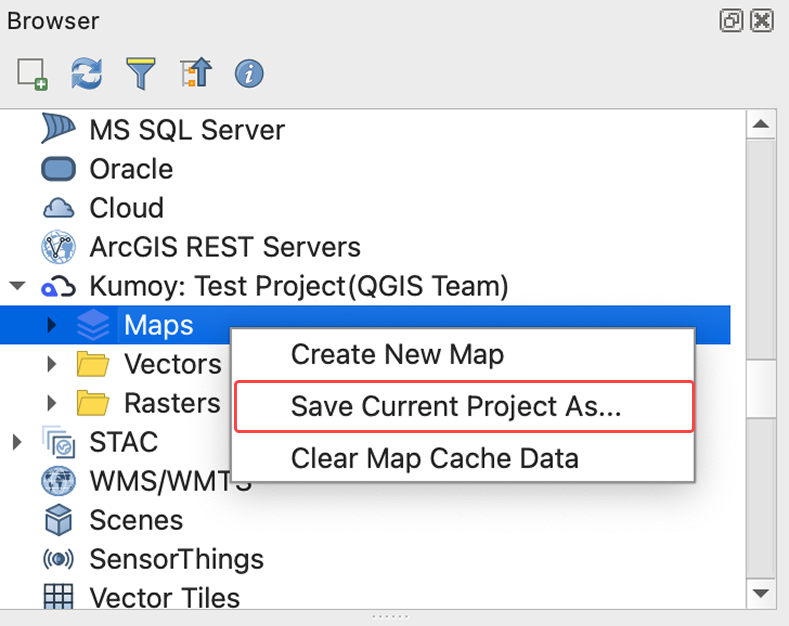
Right-click Maps in the Browser panel and select Save current project as.
-
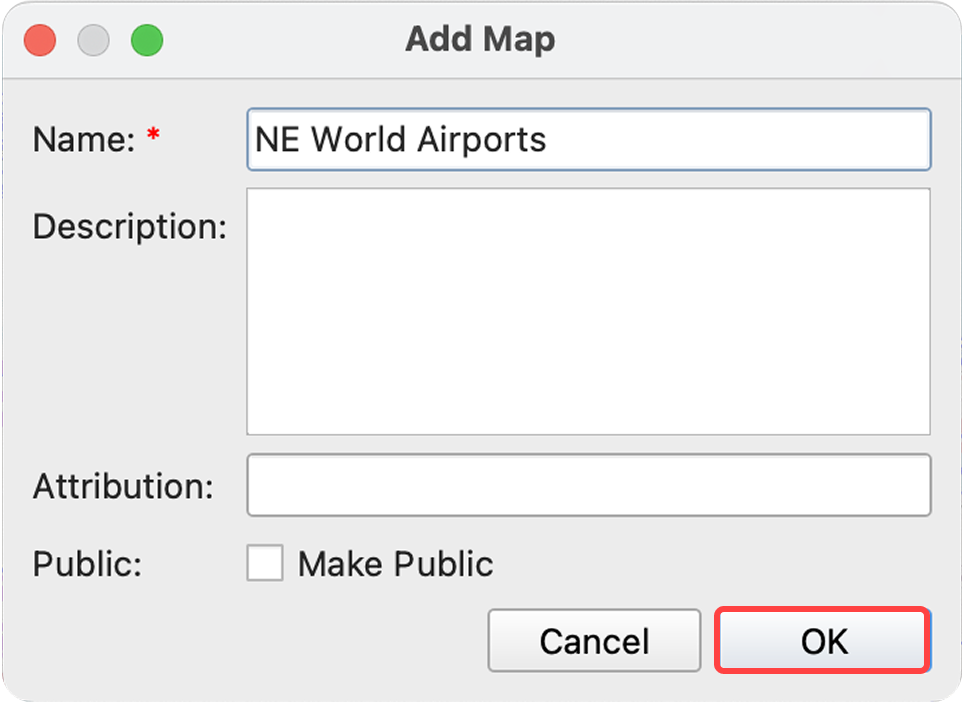
Set the map name and other details, then click OK.
-
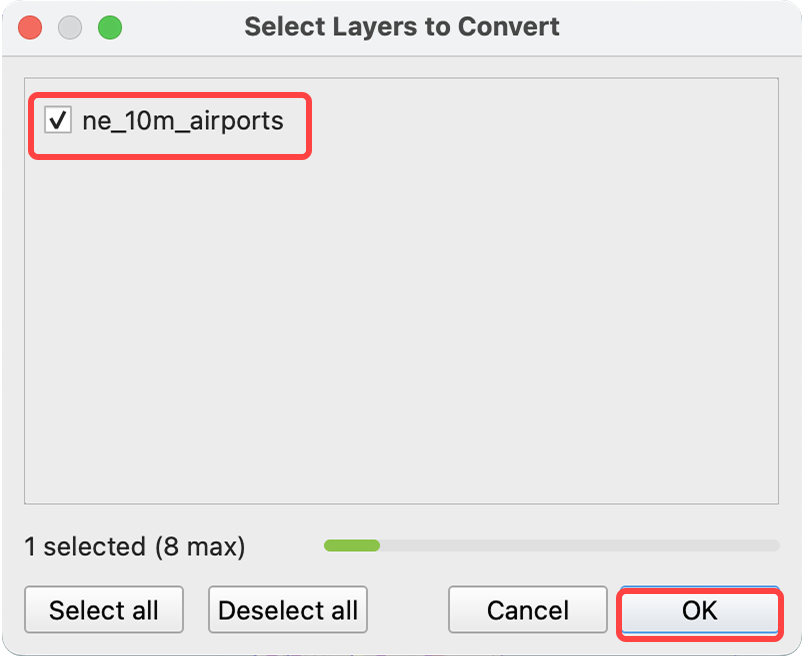
If the project contains local vector layers, check the layers you want to convert to Kumoy vectors and click OK.
-
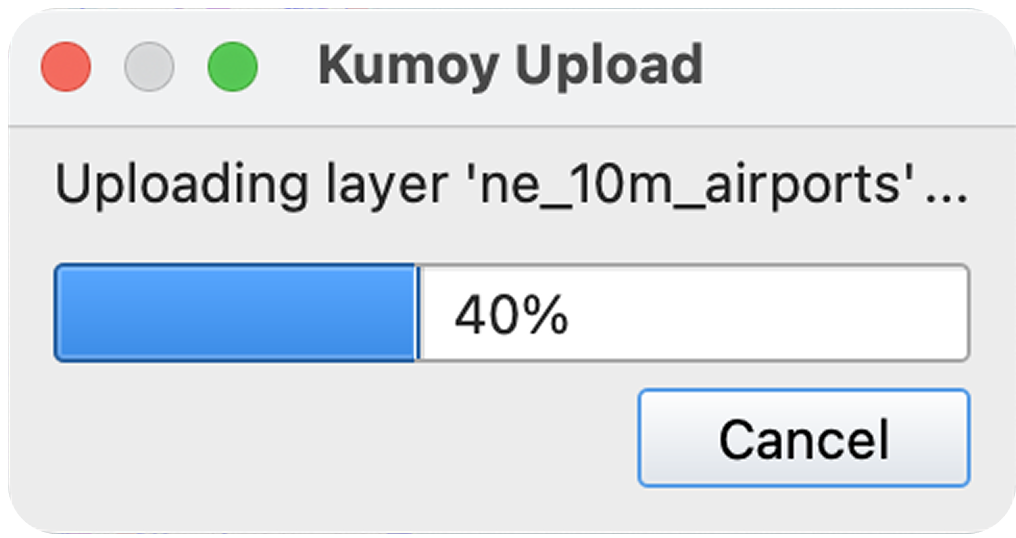
The upload to Kumoy begins.
-
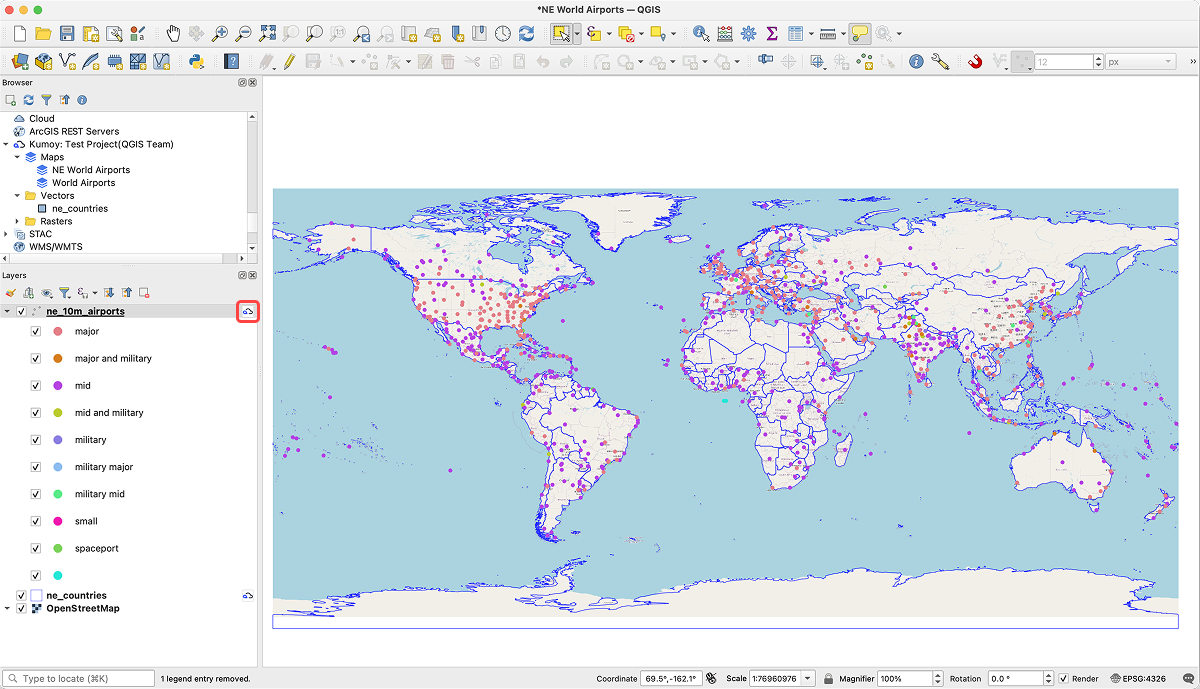
Once the upload is complete, the saved Kumoy project reloads. The Kumoy icon appears on the formerly local layers, confirming they have been converted to vectors.
ImportantYou can include local vector and raster layers in a Kumoy map, but they won't appear in the web map. Convert them to Kumoy vectors or rasters to display them on the web.
Last update: Oct 7, 2026 23:52:25