Edit Vector Features
Kumoy vectors support editing features and attribute fields using QGIS's standard editing tools. The steps below use a Kumoy point layer as an example and also explain how to add attribute fields.
Supported Editing Operations#
In QGIS, you can make the following edits to Kumoy vectors:
- Add, move, and delete features
- Edit feature attribute values
- Add and delete attribute fields
- Edit attribute values with the Field Calculator
Add Features#
You can add features to a Kumoy vector using the same workflow as for regular QGIS layers.
-
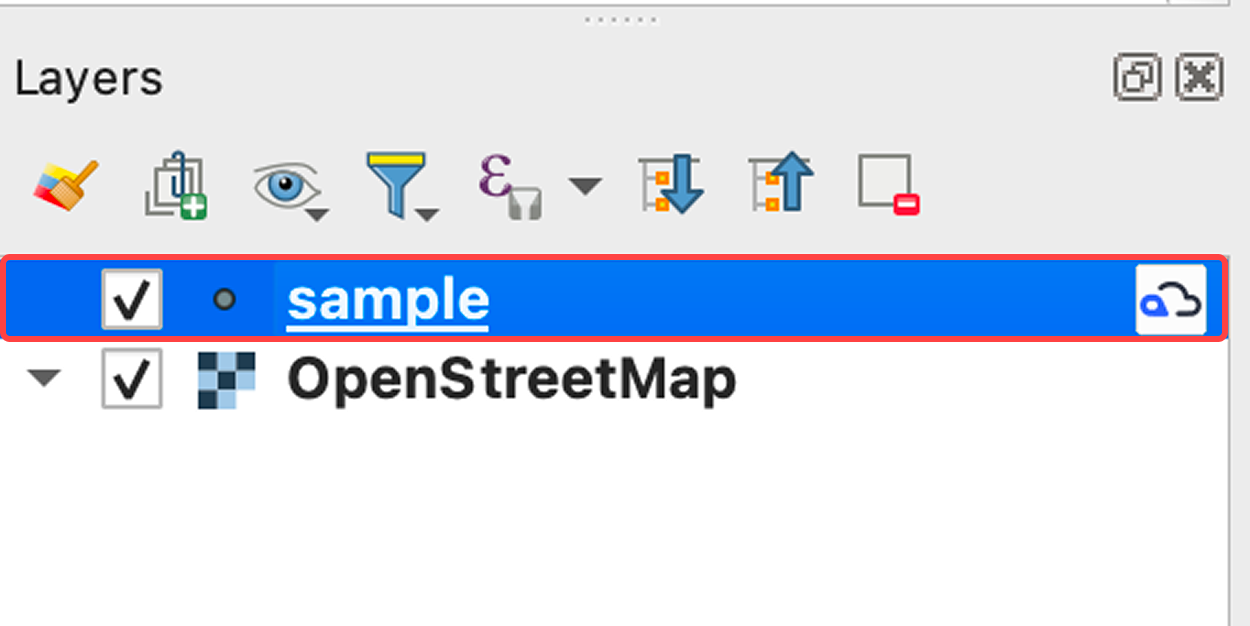
Select the Kumoy vector in the Layers panel.
-
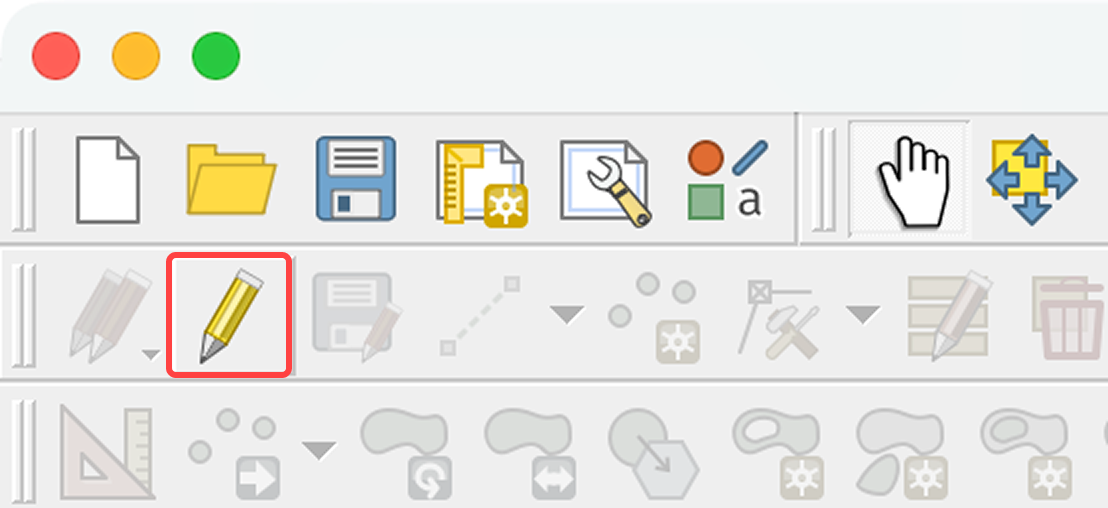
Click the Toggle Editing button.
-
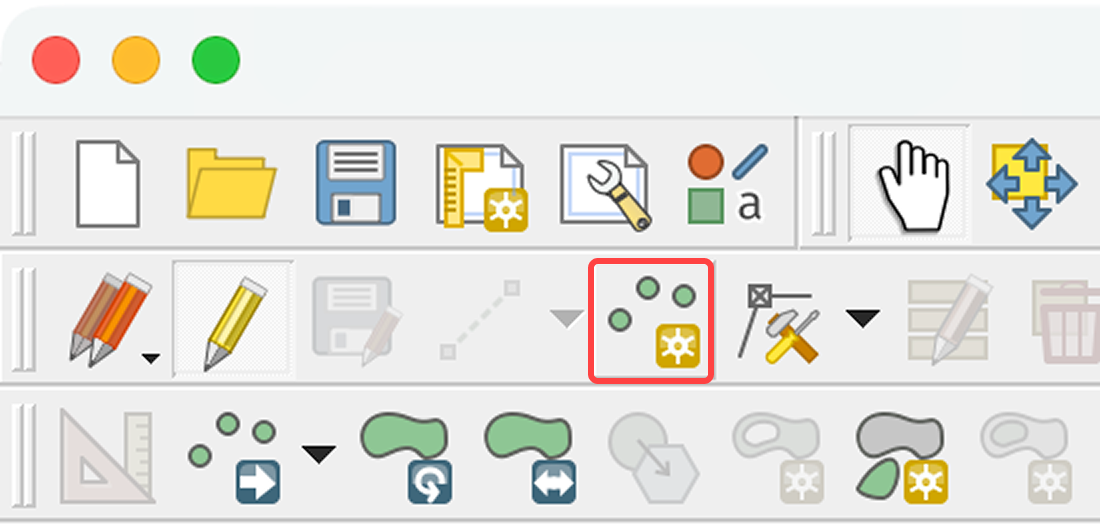
Click Add Point Feature.
-
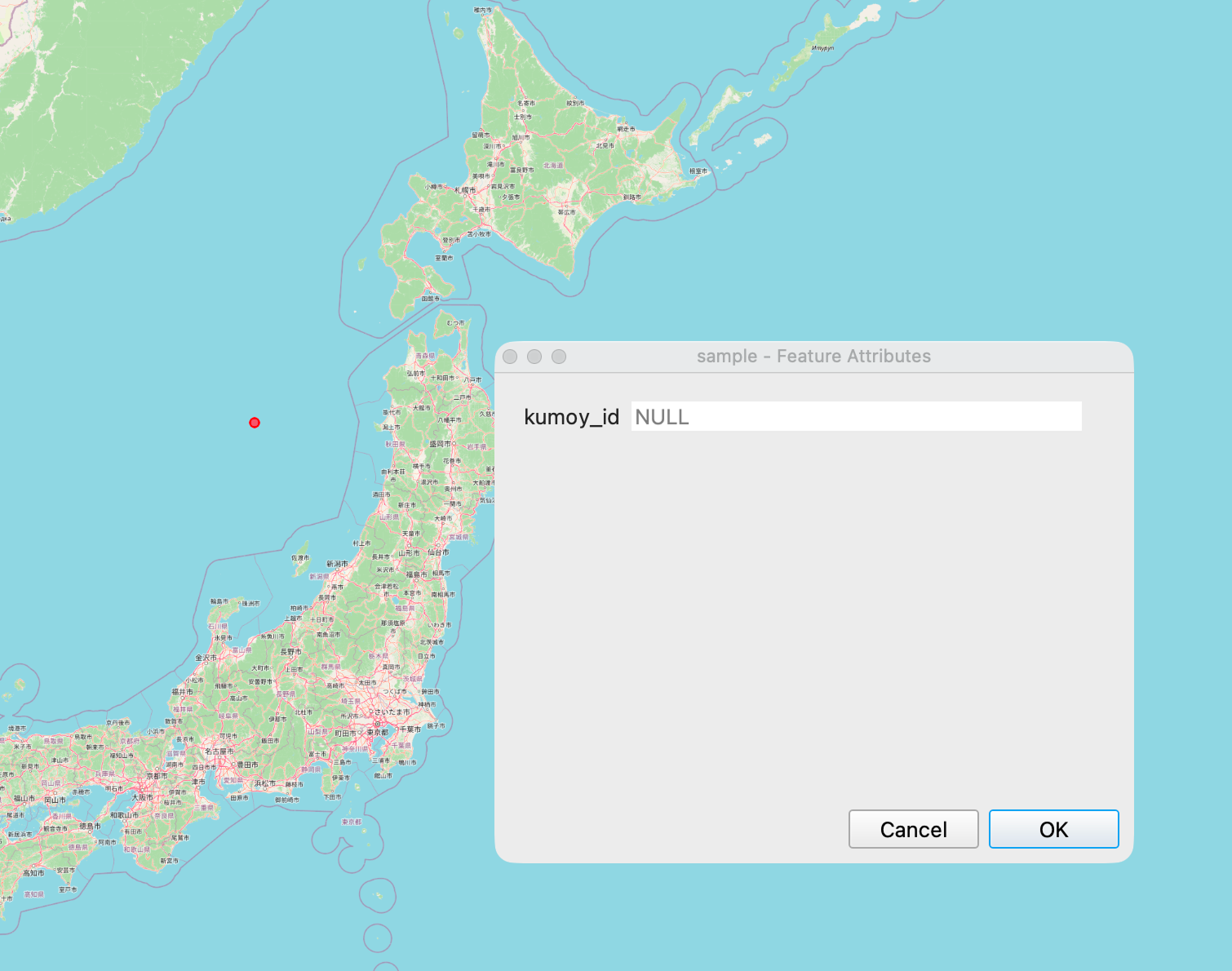
Click on the map canvas to add a feature and enter its attributes as needed.
-
When you are done adding features, click Toggle Editing to save.
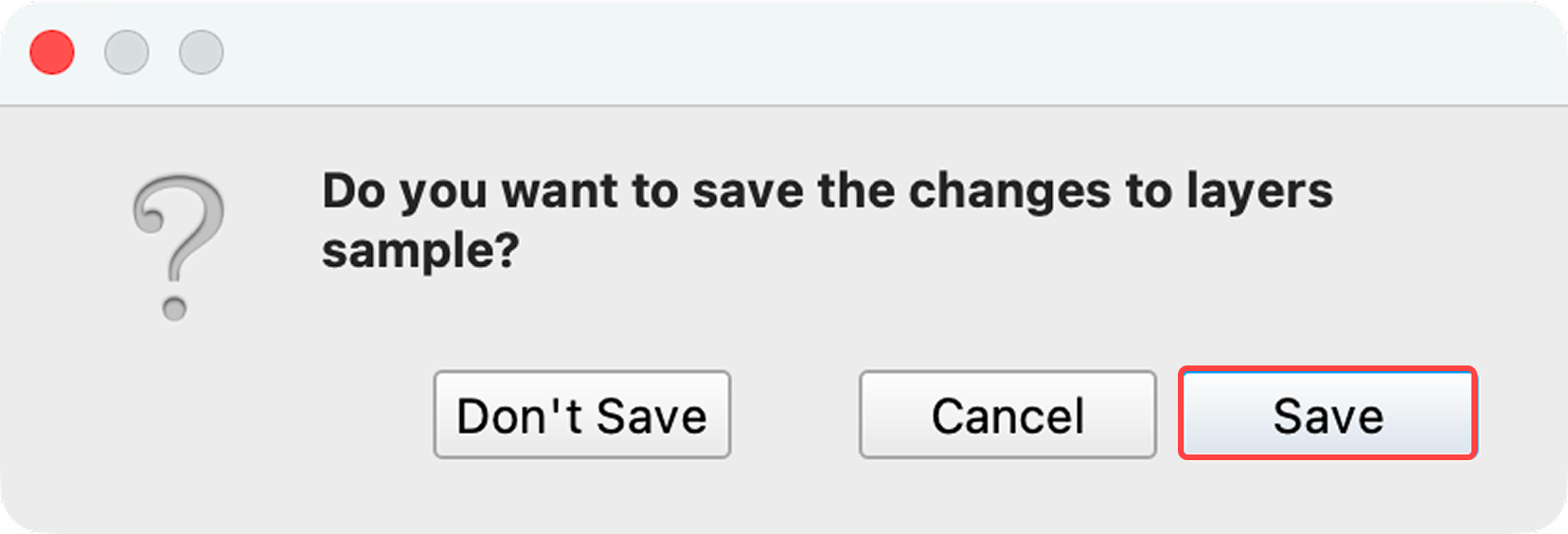
-
Once synced, the changes are saved to the cloud.
TipMoving and deleting features works exactly the same as with any QGIS vector layer. For detailed guidance, see the following article (in Japanese):
Add an Attribute Field#
Attribute fields cannot be added during vector creation, but can be added afterward using the standard QGIS workflow.
-
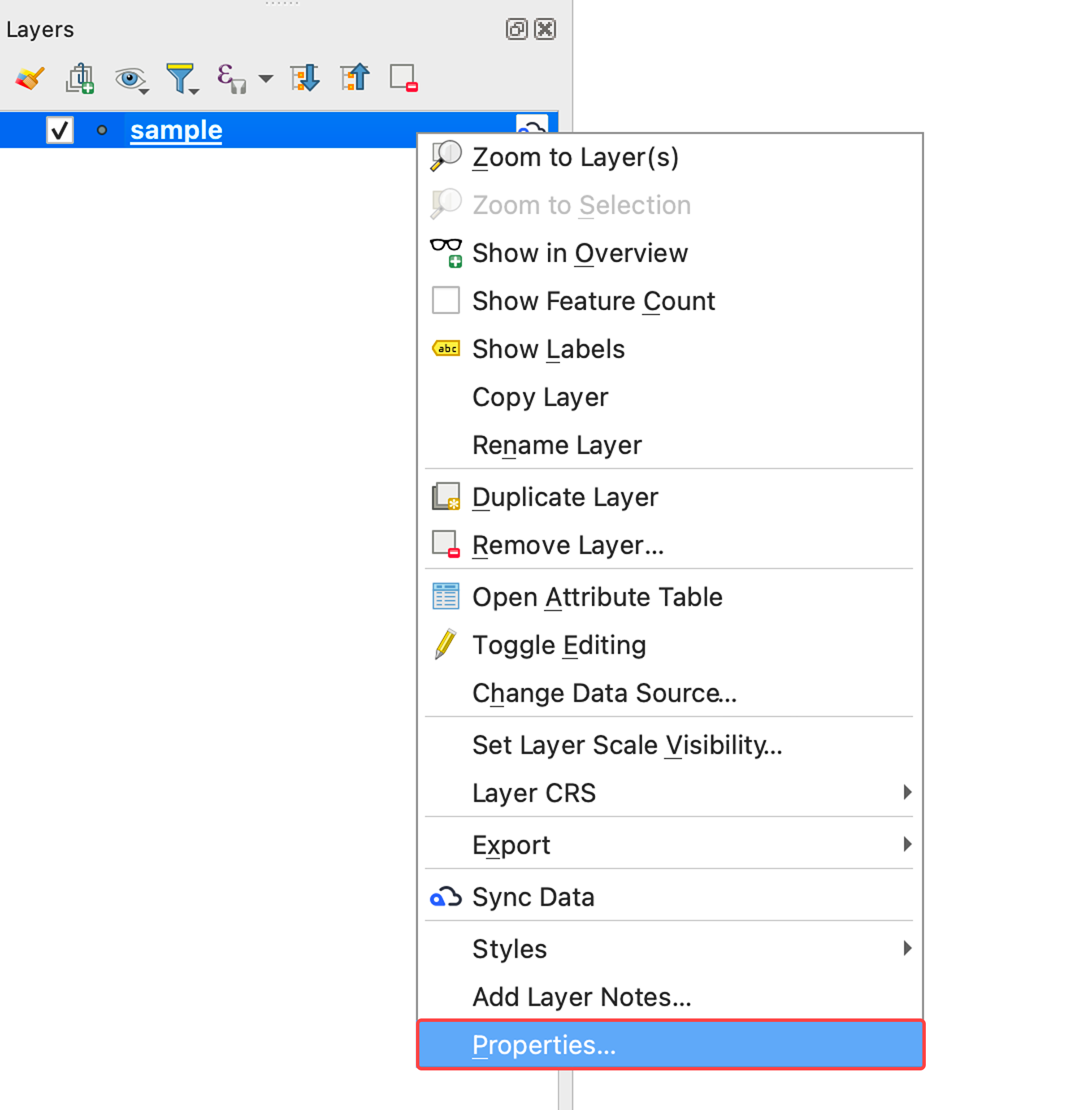
Right-click the Kumoy vector in the Layers panel and click Properties.
-
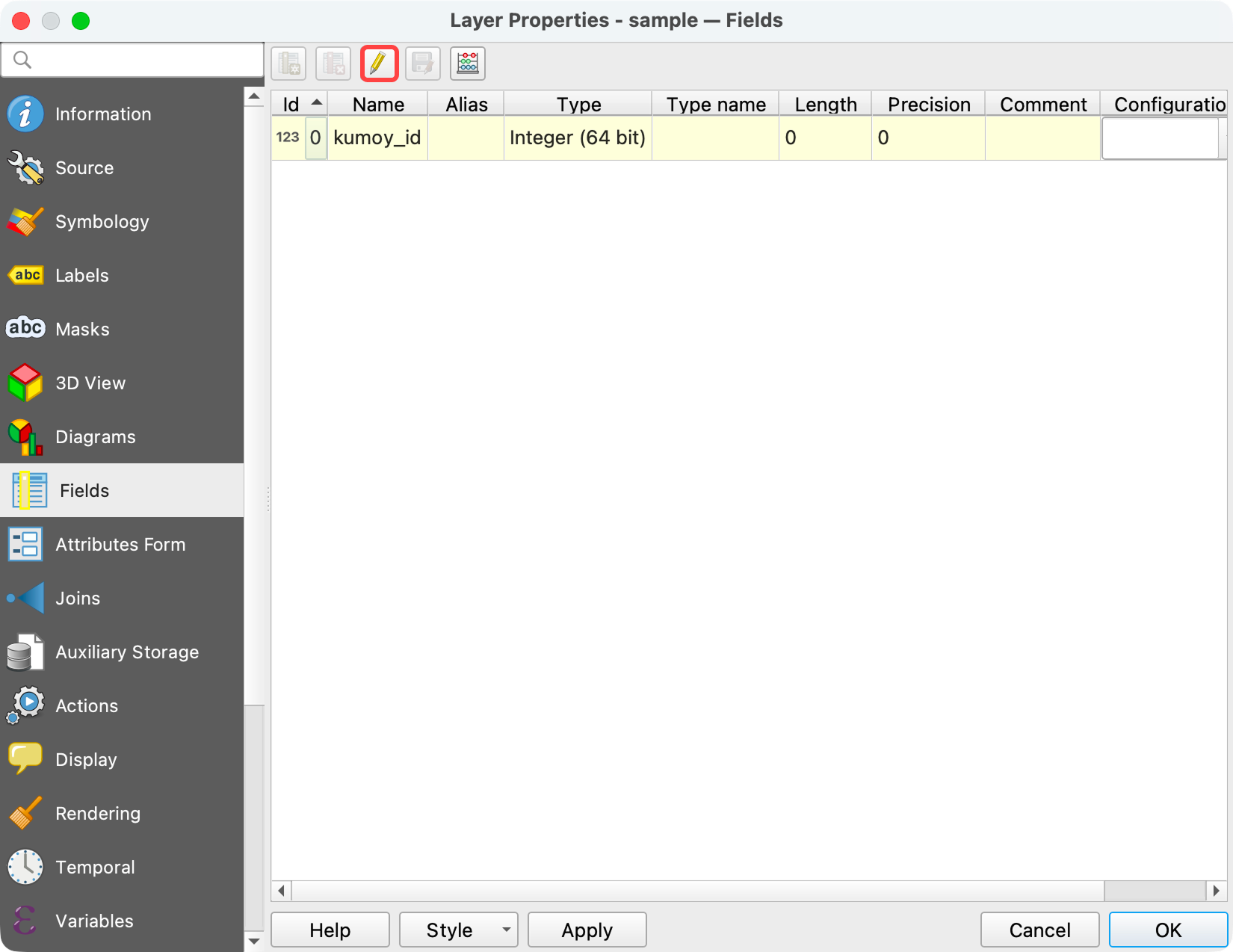
Select the Fields tab and click Toggle editing mode.
-
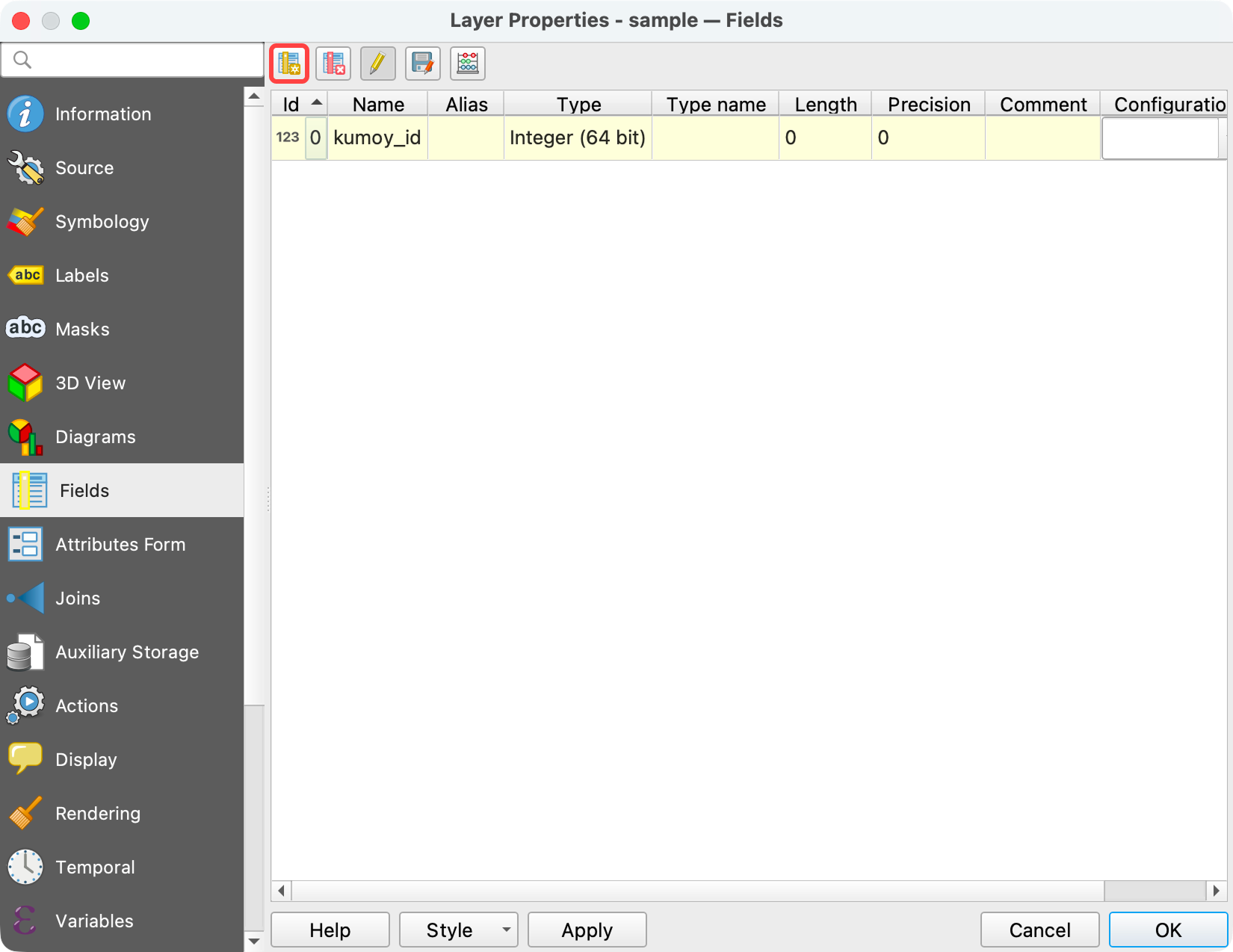
Click New field.
-
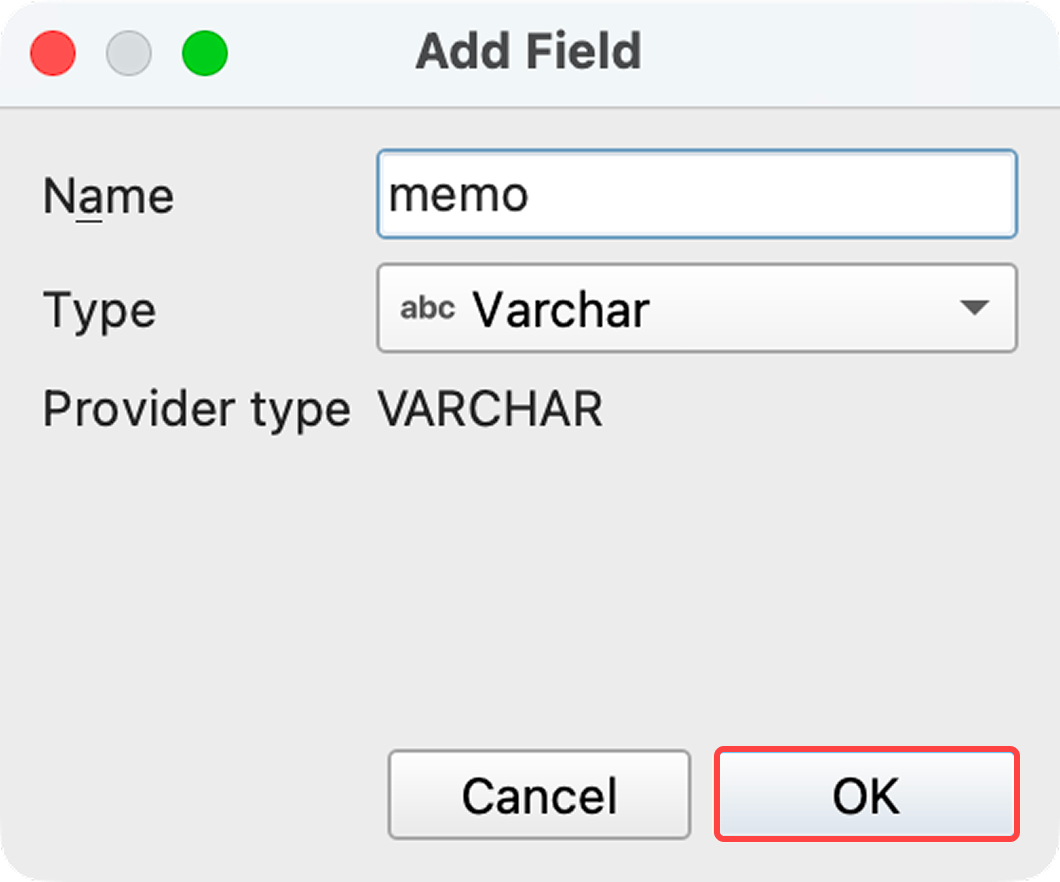
Enter the attribute name and type, then click OK.
-
When you are done adding attribute fields, click Toggle editing mode to save.
Rename an Attribute Field#
Kumoy vectors don't support renaming attribute fields through the standard QGIS workflow. To rename a field, use the Field Calculator to create a new field with the desired name, copy values from the existing field into it, then delete the original field.
Last update: Jul 21, 2026 07:40:43