Upload a Vector
You can upload existing vector data from QGIS to Kumoy in two ways:
- Use the Upload vector layer to Kumoy processing tool
- Convert a layer already loaded in QGIS directly to a Kumoy vector
Data Accuracy#
Kumoy optimizes your data for the web by converting it to a standard coordinate system (EPSG:4326 / WGS84). This is suitable for viewing and sharing maps.
If your work depends on extreme accuracy, we recommend verifying your data once it has been uploaded.
Layer Upload Limits#
Please note the following restrictions for layer uploads. If a dataset is too large or complex for these limits, an error message will appear.
| Item | Limit |
|---|---|
| Supported geometry | POINT / LINESTRING / POLYGON (multi-part geometries are converted to single-part) |
| Supported CRS | EPSG:4326 only (layers with other coordinate systems are automatically reprojected) |
| Supported attributes | Integer, float, string, and boolean only (columns of other types will be converted to string) |
| Max feature count | 1,000,000 |
| Max attribute count | 100 |
Upload Vector Layer to Kumoy#
Using the processing tool, you can upload a local vector layer to Kumoy.
-
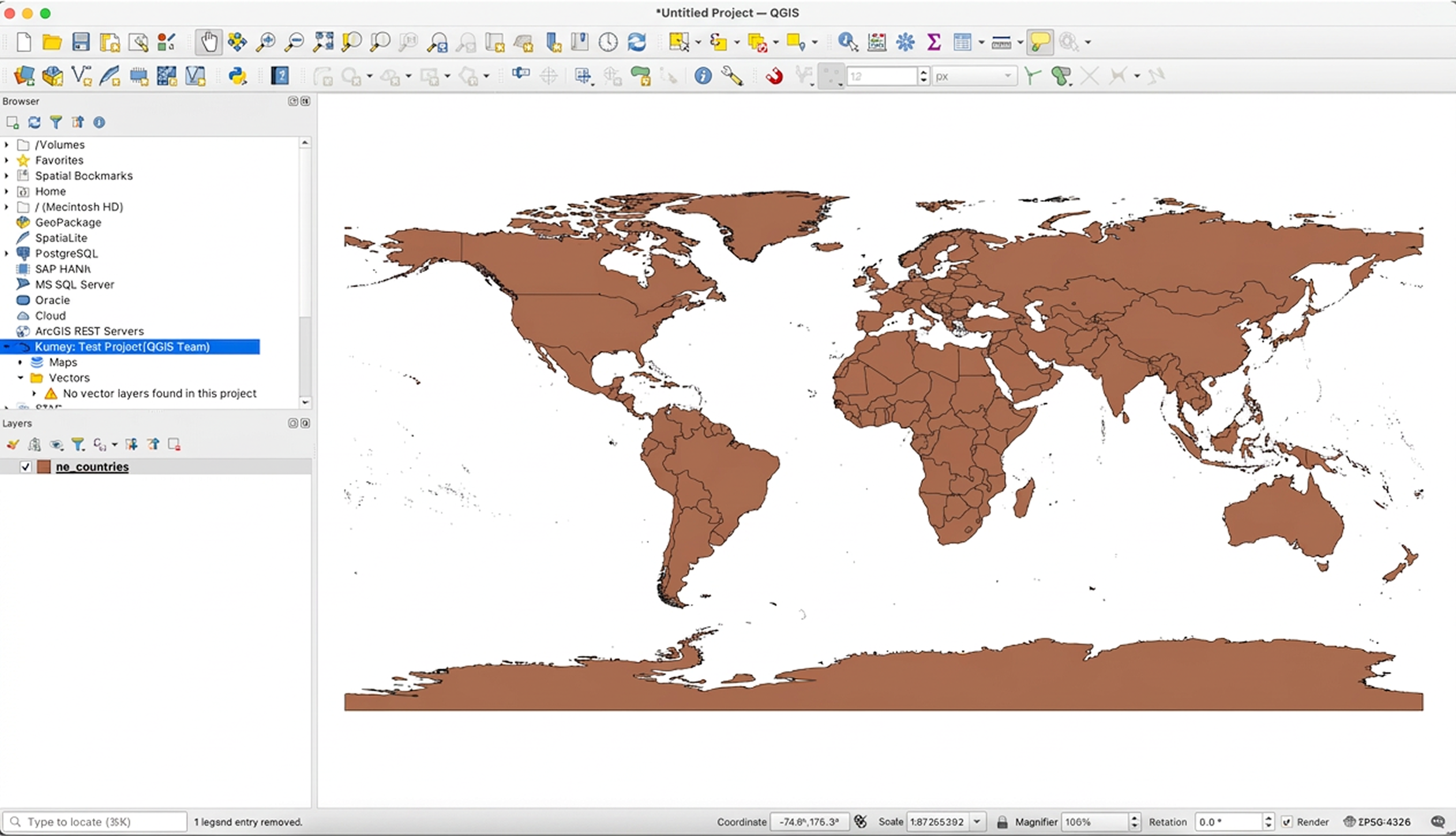
Add a vector layer to QGIS.
-
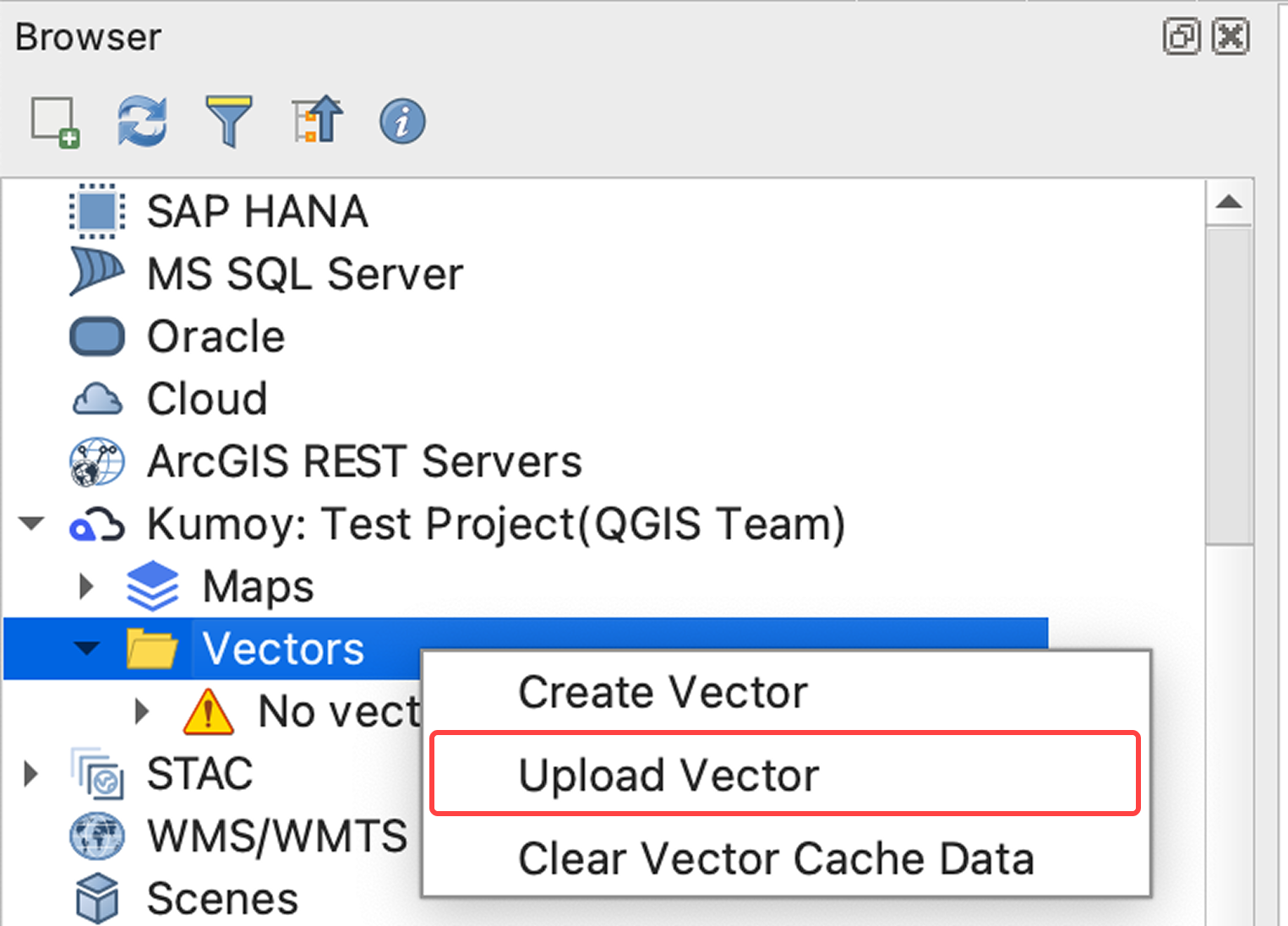
Right-click the vector in the Browser panel and select Upload.
-
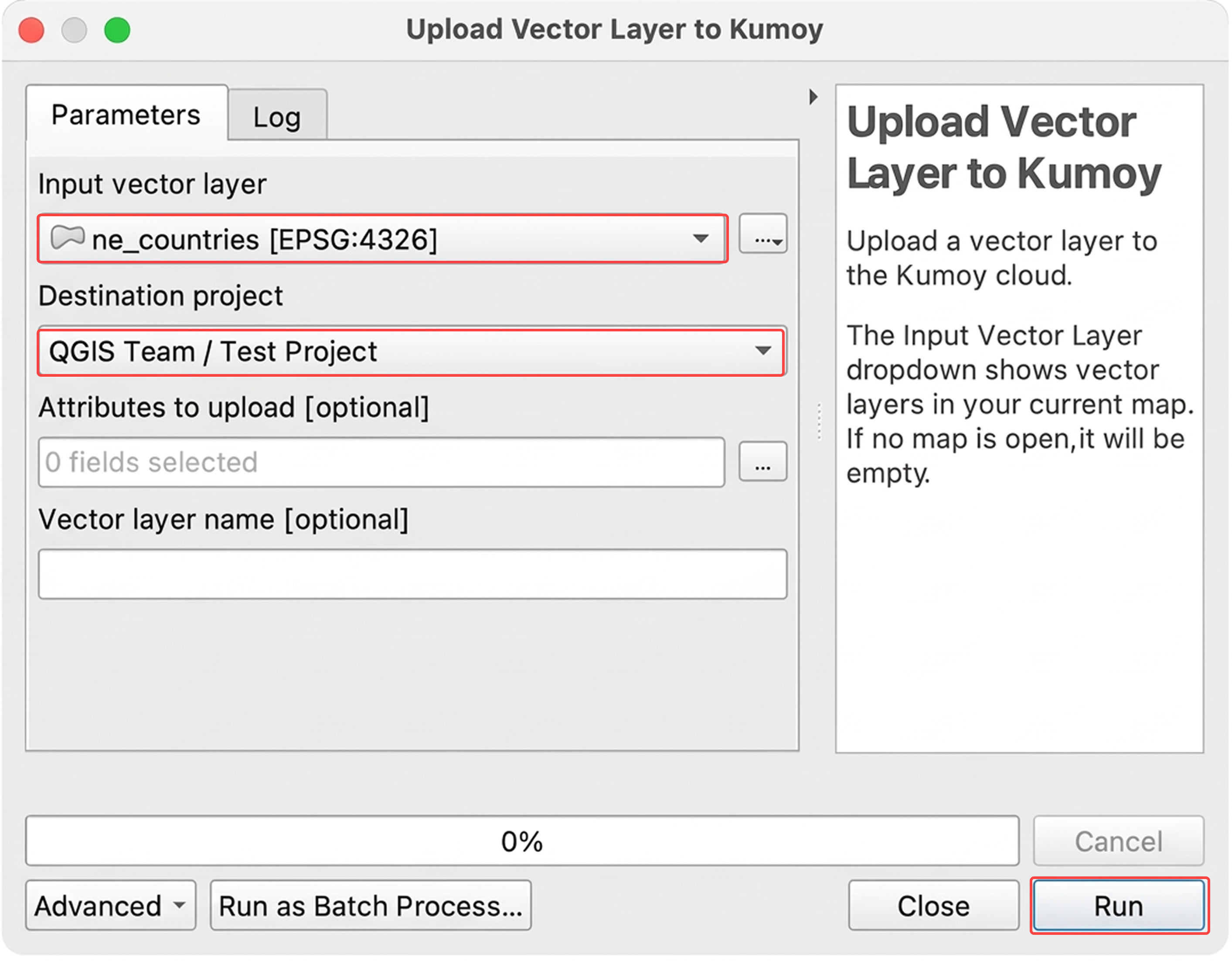
In the dialog, select the Input vector layer to upload and the Destination project, then click Run.
You can also select which attributes to include and rename the layer.
-
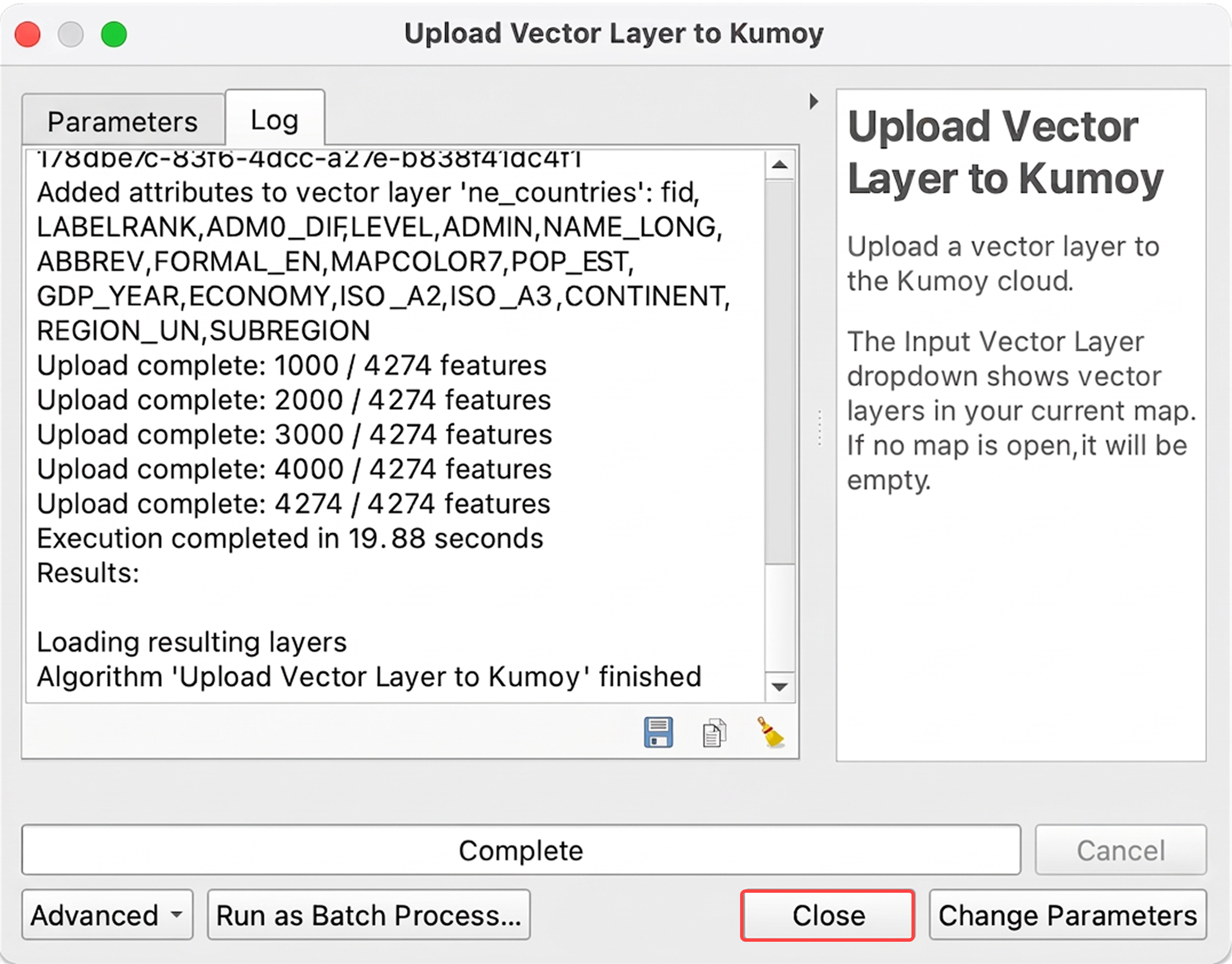
Once the upload is complete, click Close.
-
The uploaded layer will appear under Vectors in the Browser panel.
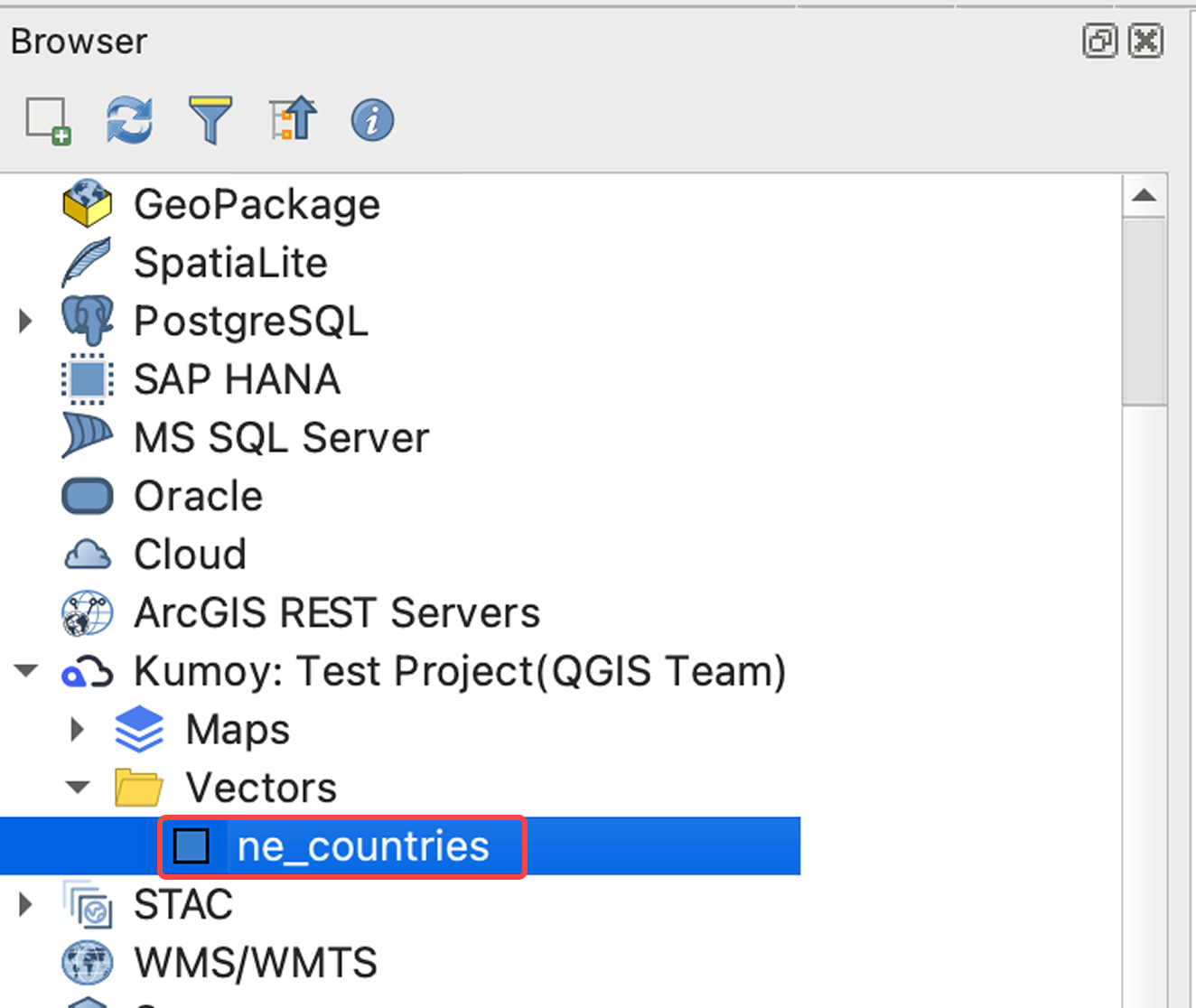
TipAfter an upload, the Browser panel usually refreshes automatically. If it doesn't, right-click Kumoy and select Refresh.
Add a Vector to QGIS#
An uploaded Kumoy vector can be added to QGIS.
-
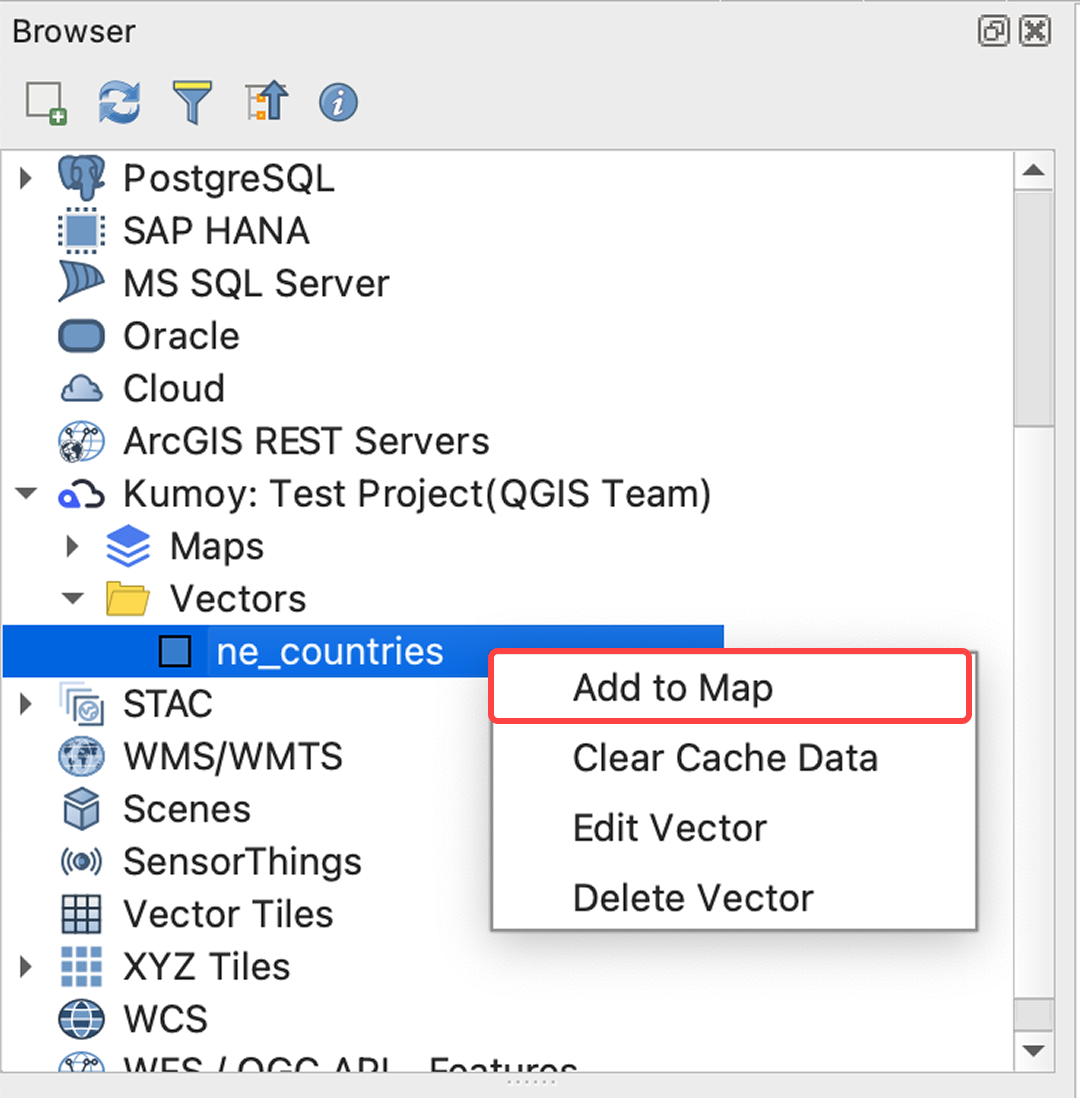
Right-click the data you want to add in QGIS and select Add to map. You can also double-click to add it.
-
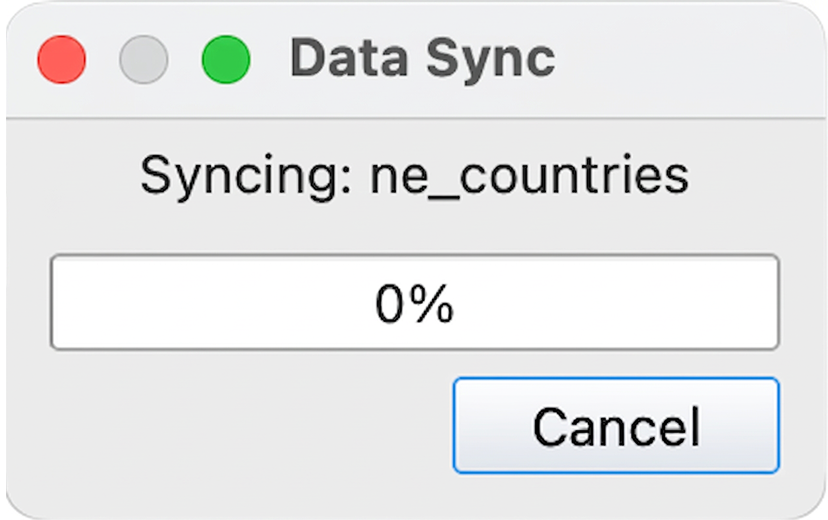
The first time you add a layer, Kumoy syncs it with the cloud. This may take a moment depending on the size of your data.
-
Once the sync is complete, the layer is added to QGIS.
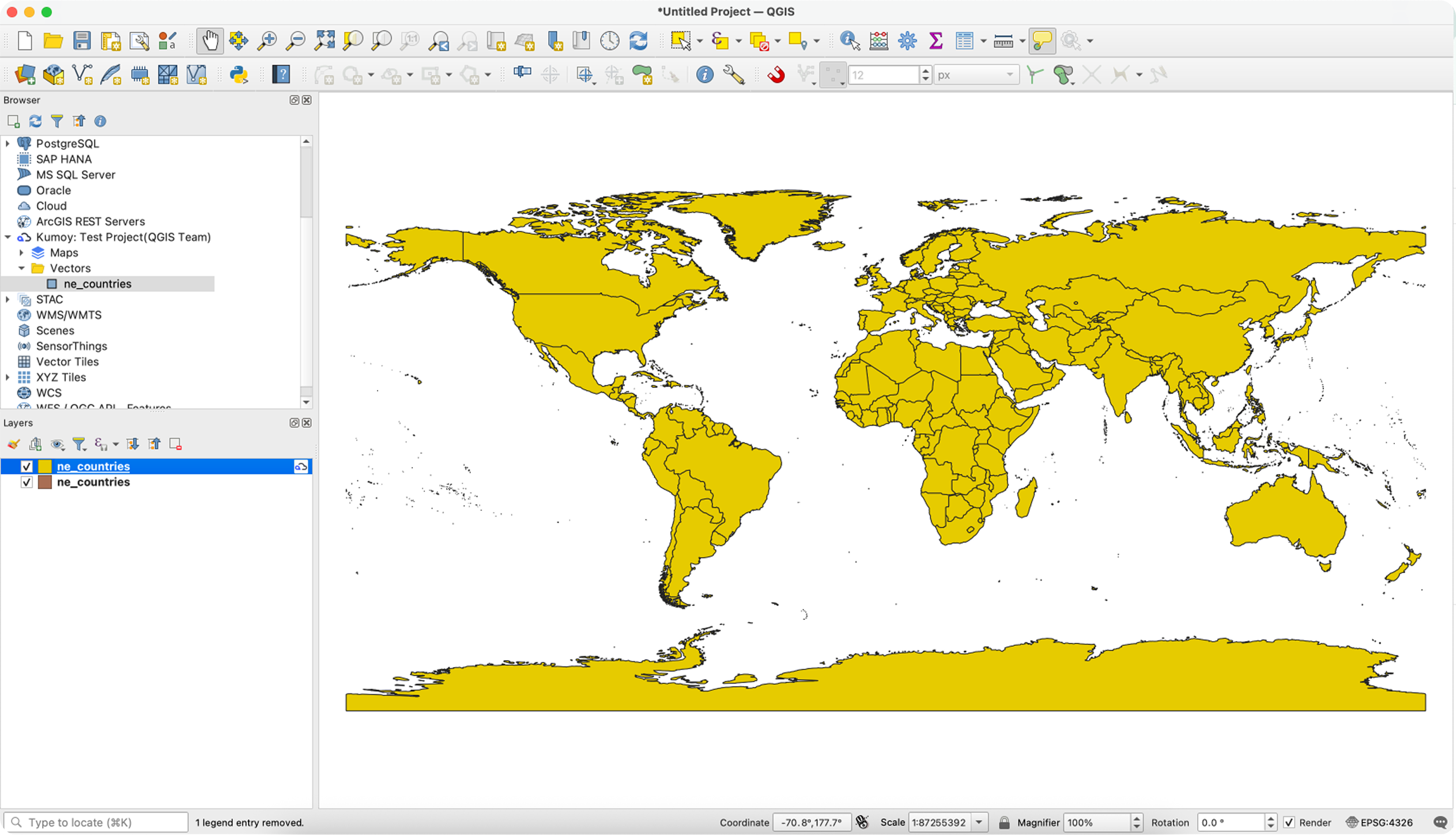
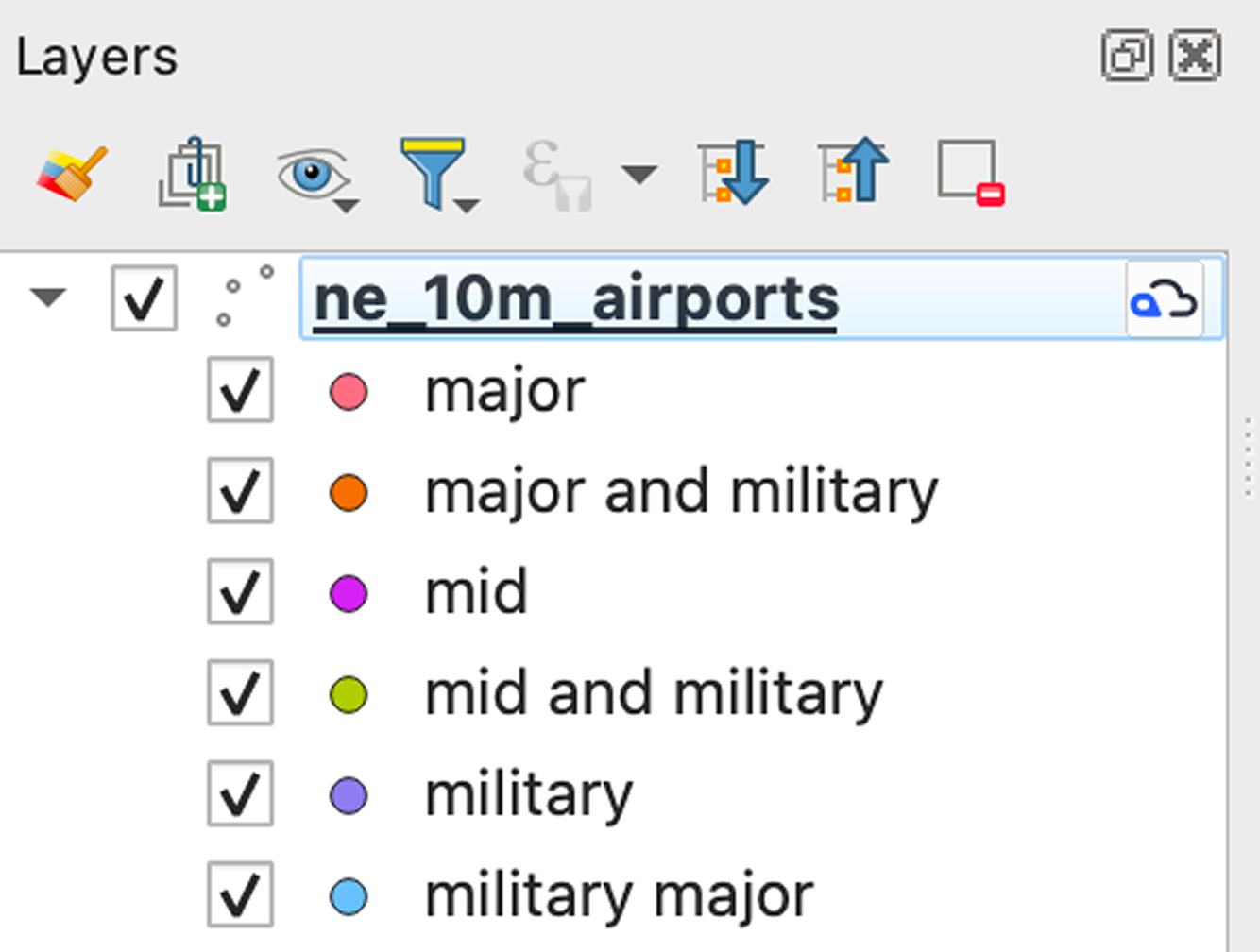
TipTo distinguish local vector layers from Kumoy layers, check whether the Kumoy icon is displayed in the Layers panel.
Convert to a Kumoy Vector#
Convert to Kumoy Vector lets you convert a local layer already added to QGIS directly into a Kumoy vector.
-
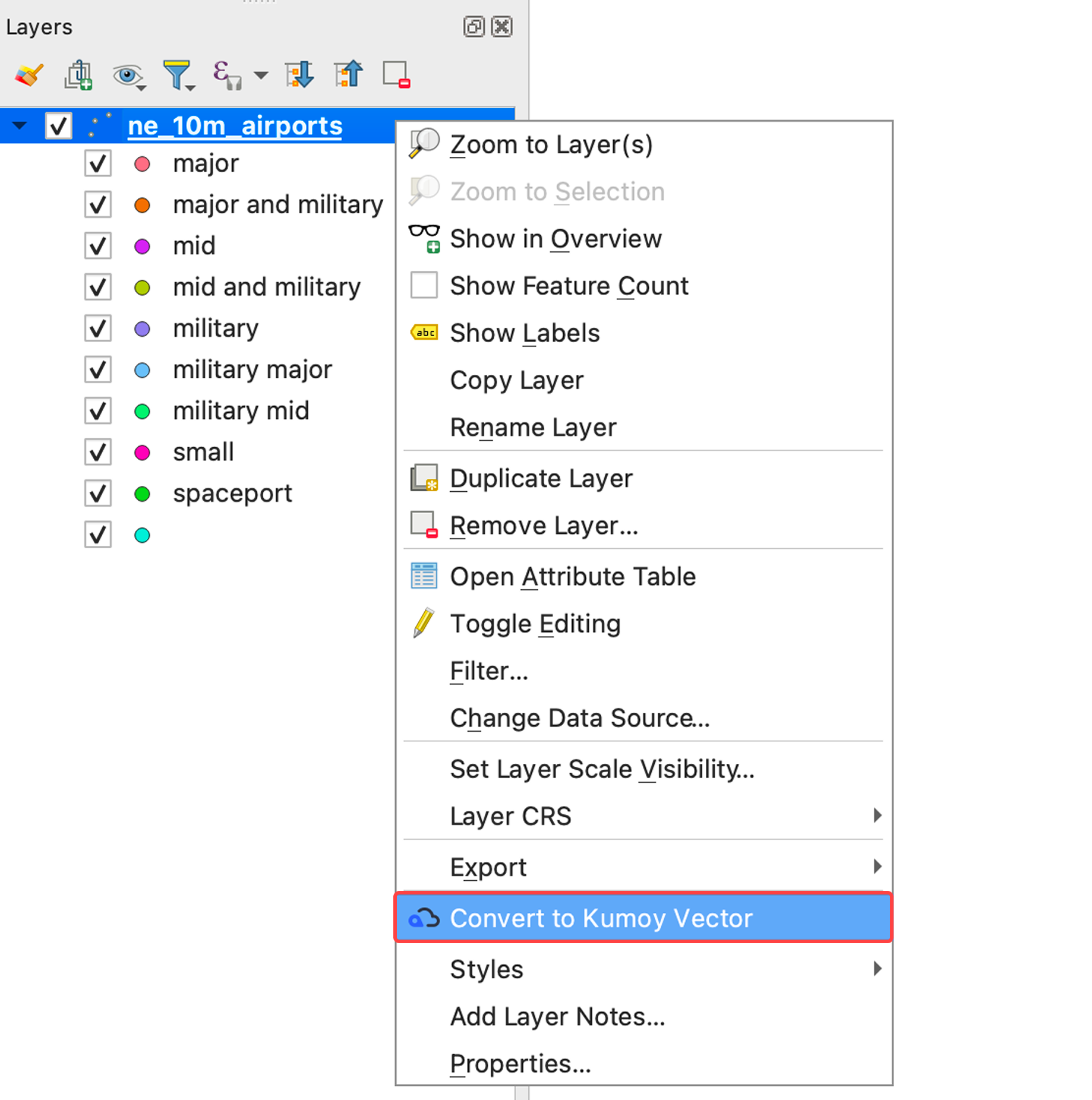
Right-click the layer you want to convert and click Convert to Kumoy Vector.
-
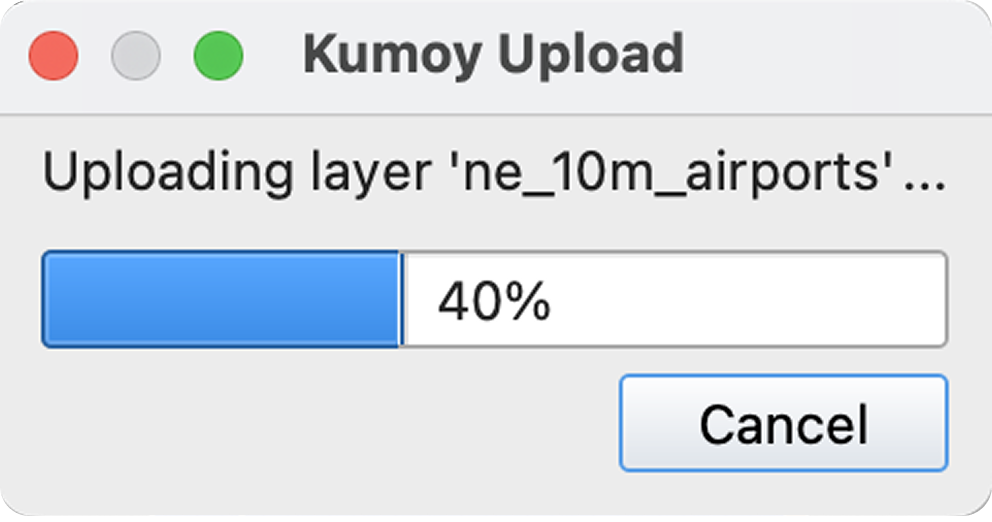
The upload process starts.
-
When the process is complete, the layer is converted to a Kumoy vector.
TipConverting to a Kumoy vector is the easiest way to upload your layers while keeping your QGIS styling.
Last update: Jul 21, 2026 07:40:43