Manage the Attribute Table and Filters
On the web, Kumoy provides an attribute table for vectors in both the vector viewer and the map viewer. This page explains the attribute table's display and layout options, as well as how to filter data from it.
NoteOn public maps, the attribute table is currently available only on the Enterprise plan.
Manage the Attribute Table#
Open the Attribute Table#
Use the attribute table button at the top right of the viewer to open and close the table.
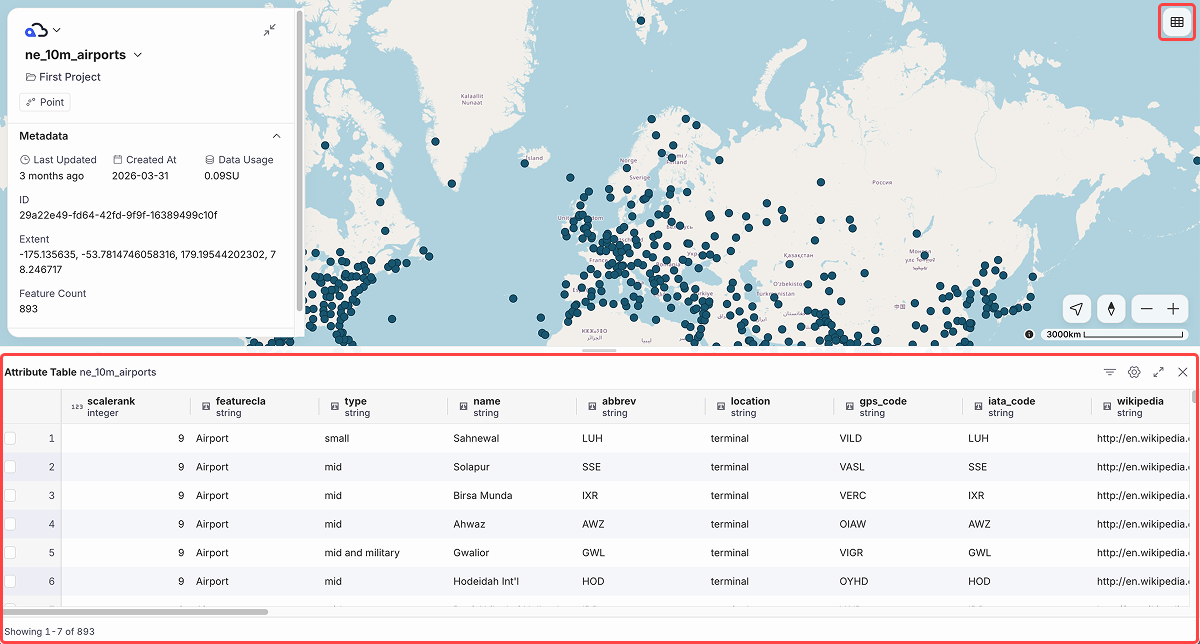
Choose Which Attributes to Display#
You can show only specific attributes. In the attribute table, click the gear icon at the top right, then check the attributes you want to display.
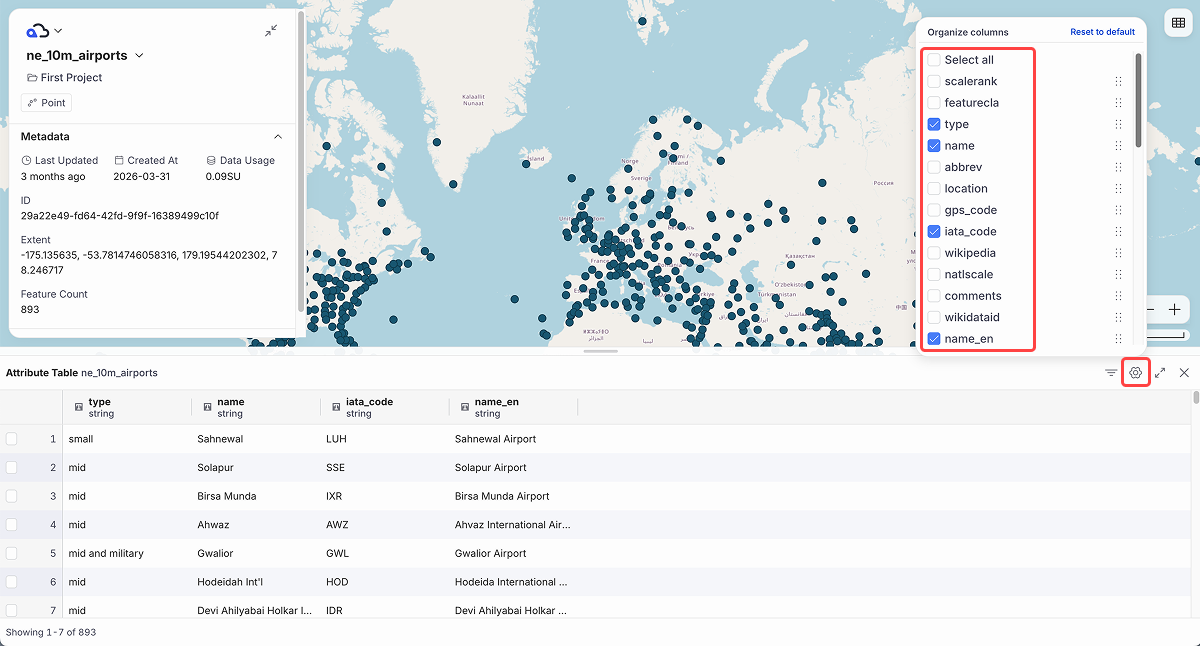
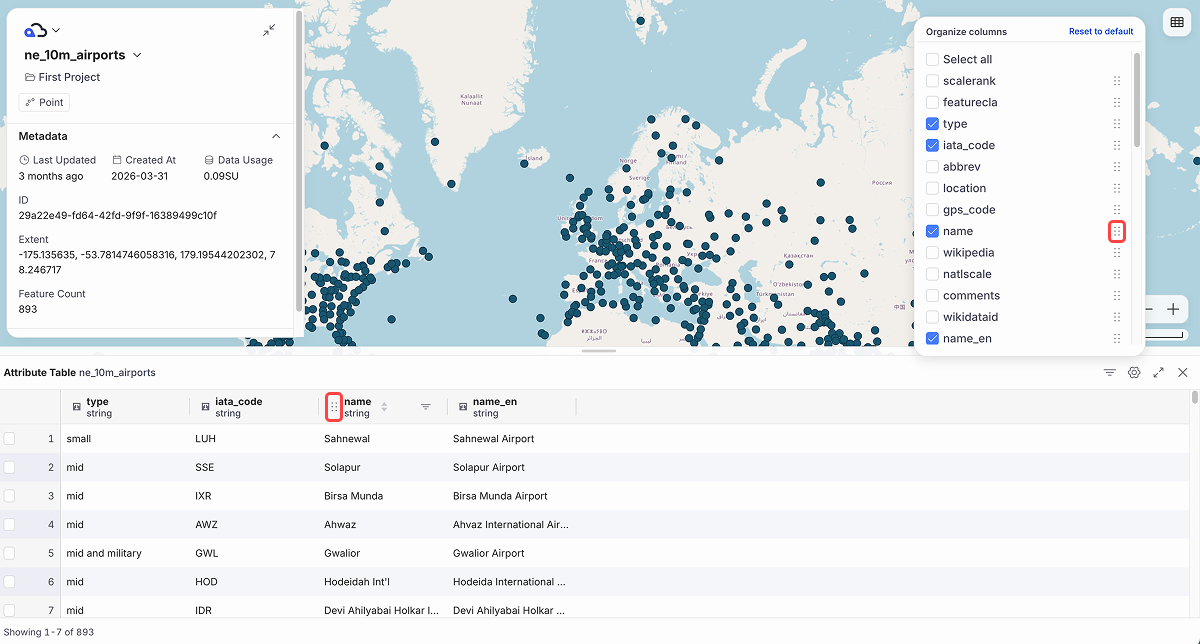
Change the Attribute Order#
You can change the order of the attributes by dragging the handle from an attribute header, or from the attribute list.
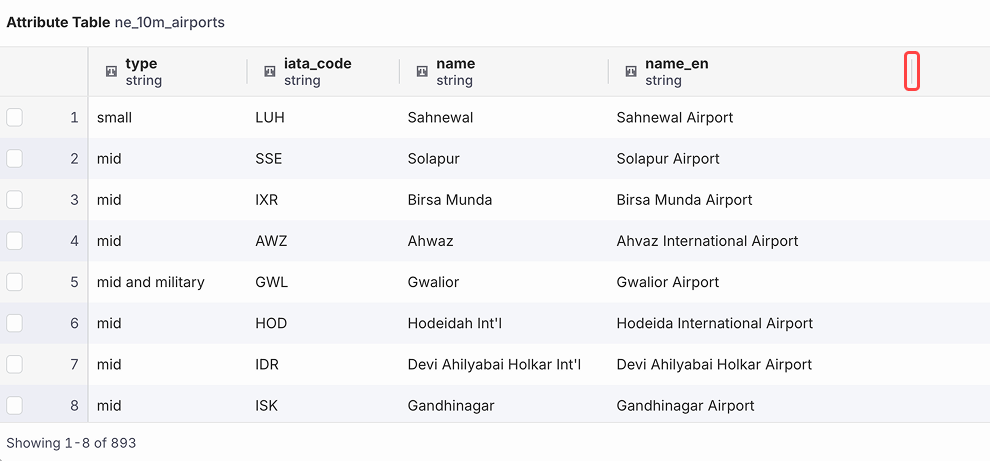
Adjust the Column Width#
You can adjust the column width by dragging the separator between columns.
Sort the Attribute Values#
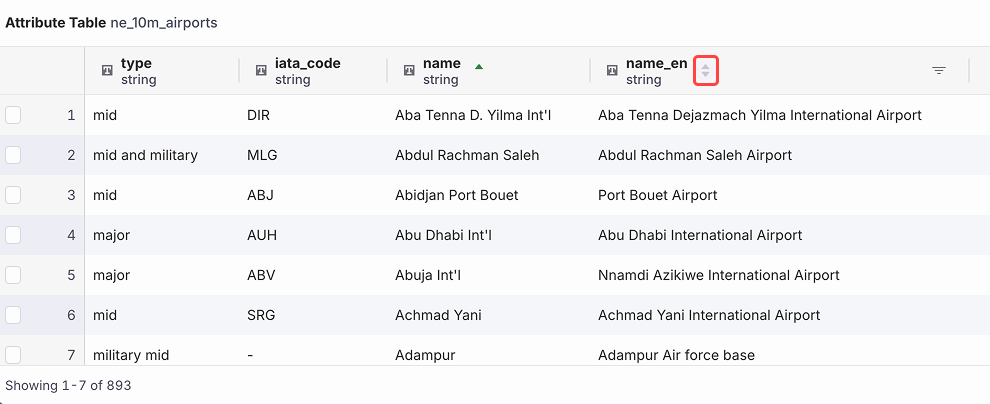
You can sort the values by clicking the arrow in an attribute header.
Browse Features Through the Attribute Table#
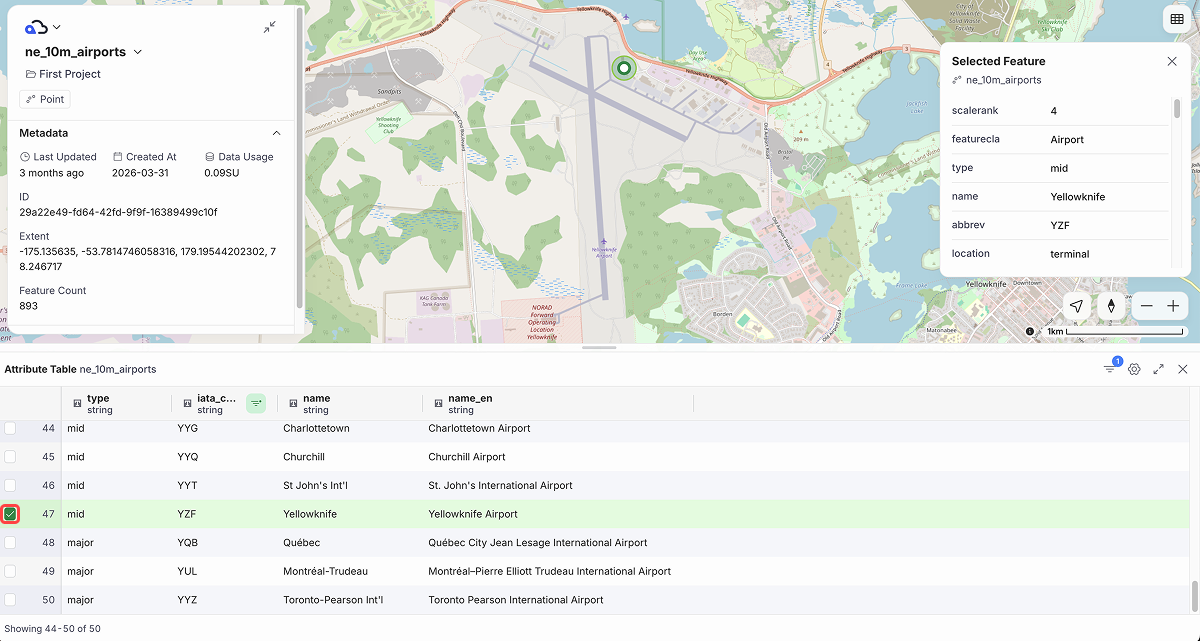
You can select a feature by clicking the checkbox on the left of its row. The map centers on the selected feature and shows the attribute form.
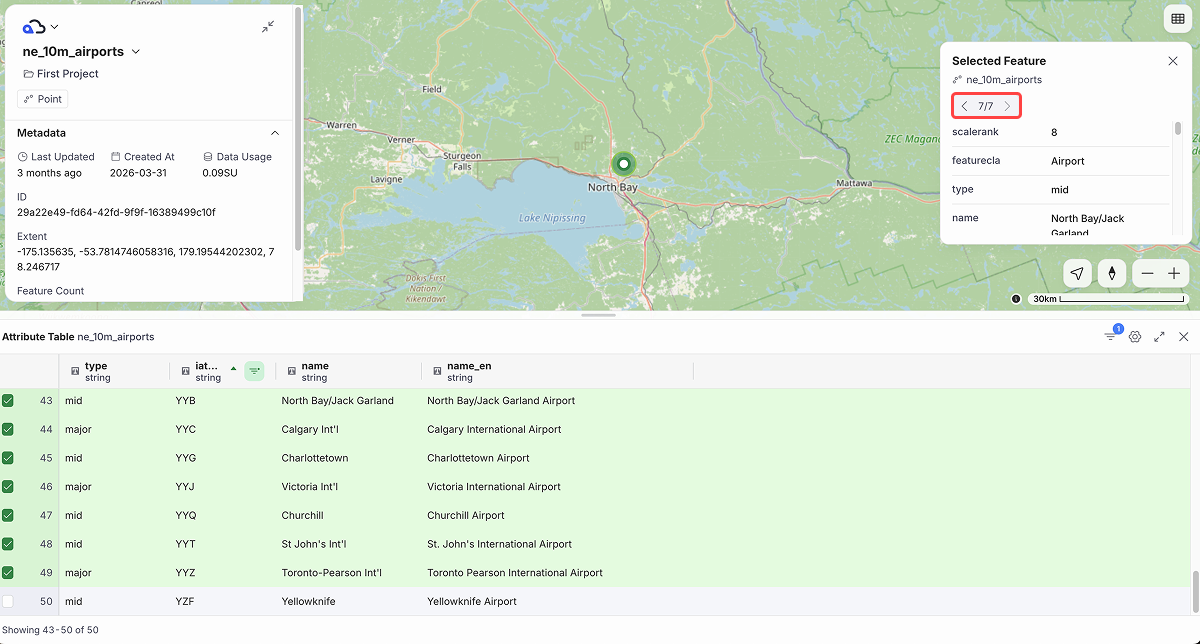
If you select multiple features, you can move between them with the arrows in the attribute form.
Manage Filters#
In the attribute table, you can filter the displayed features by attribute value.
NoteFilters are temporary and affect only the current view. They are not applied to public maps and are reset when you reload. For layer filters saved from QGIS in a web map, see View Maps on the Web.
Set a Filter#
-
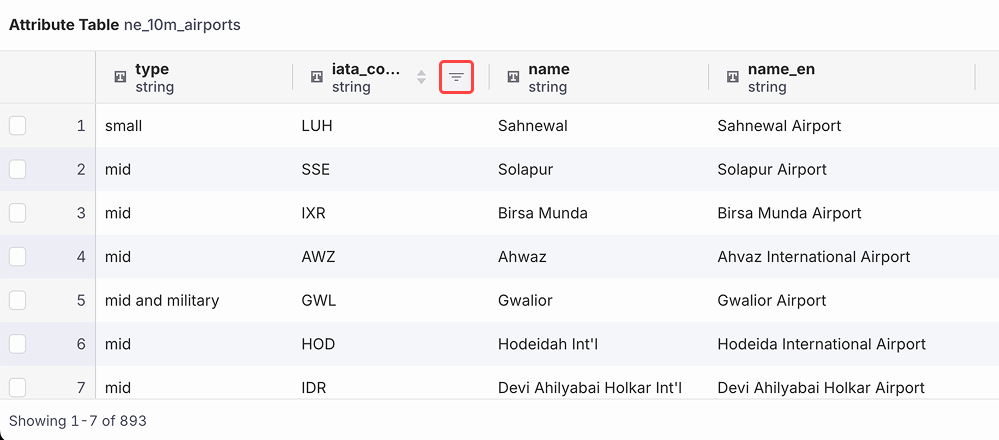
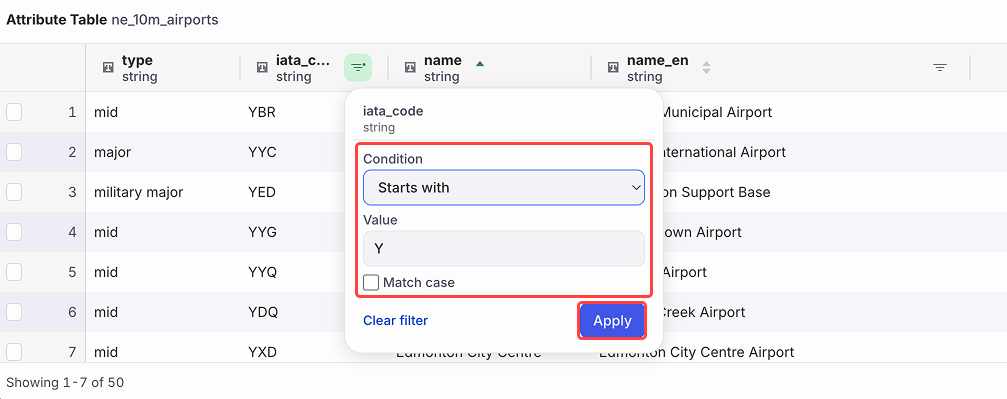
Click the filter button in the target attribute header.
-
Set the filter condition, and click Apply.
-
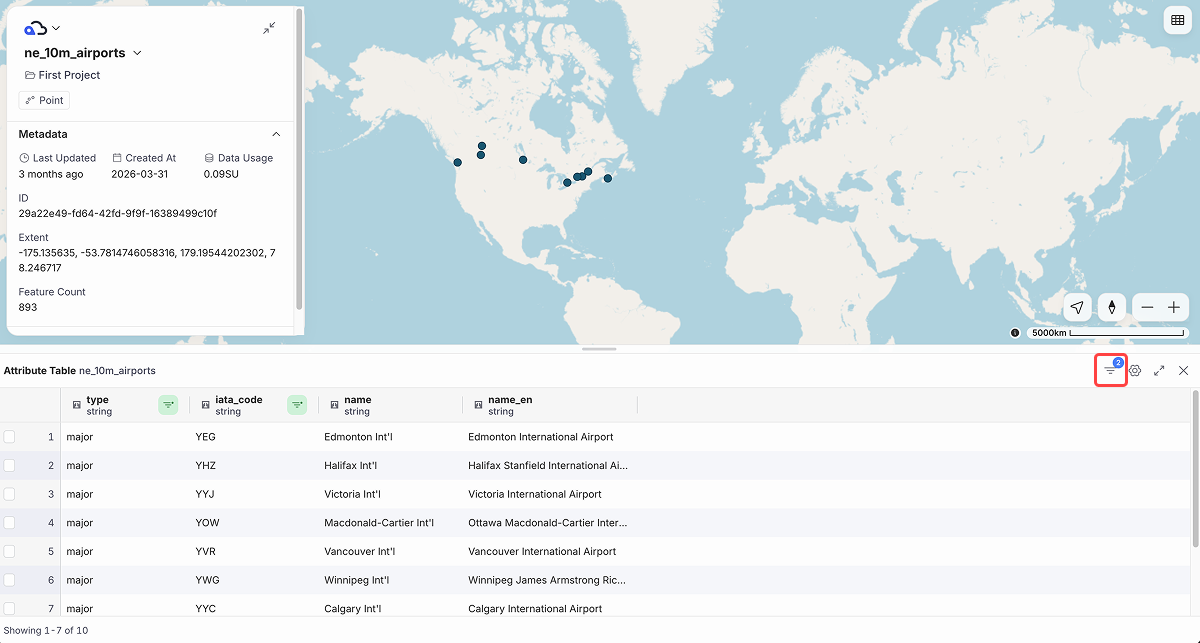
Once the filter is applied, the map and the attribute table show only the features that match the filter condition.
Clear Filters#
-
Click the filter button at the top right of the attribute table.
-
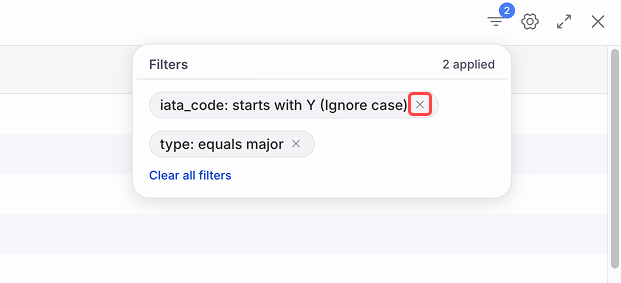
Click the cross next to the filter you want to remove.
-
You can also remove every filter at once by clicking Clear all filters.
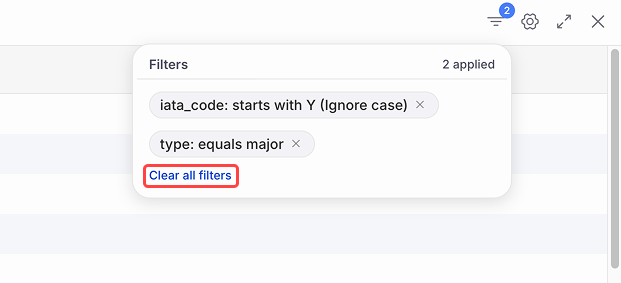
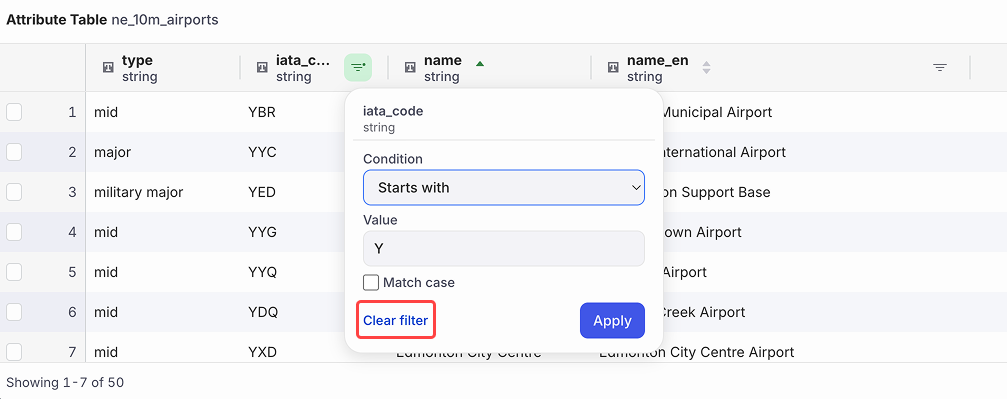
NoteYou can also clear a single filter directly from its attribute header: click the filter button in the header, then click Clear filter.
Last update: Jul 17, 2026 03:17:35