Edit Vector Features on the Web
On the Team plan and above, Kumoy lets you edit vector features and attributes directly on the web. You can add features, adjust point locations, delete features, and update attribute values without opening QGIS.
NoteThis page mainly describes the workflow from the standalone vector map. The same editing features are also available from the web map view, and once a feature is selected, the attribute form behaves the same way in both places.
Editable Operations#
The operations available on the web depend on the layer type. Point layers support all editing operations. Line and polygon layers do not currently support creating new geometries or editing positions on the web.
| Operation | Supported layers |
|---|---|
| Add a feature | Point layers only |
| Edit feature position | Point layers only |
| Delete a feature | All layers |
| Edit attributes | All layers |
Add a Feature#
Add a new feature to a point layer.
NoteAdding features is only supported for point layers.
-
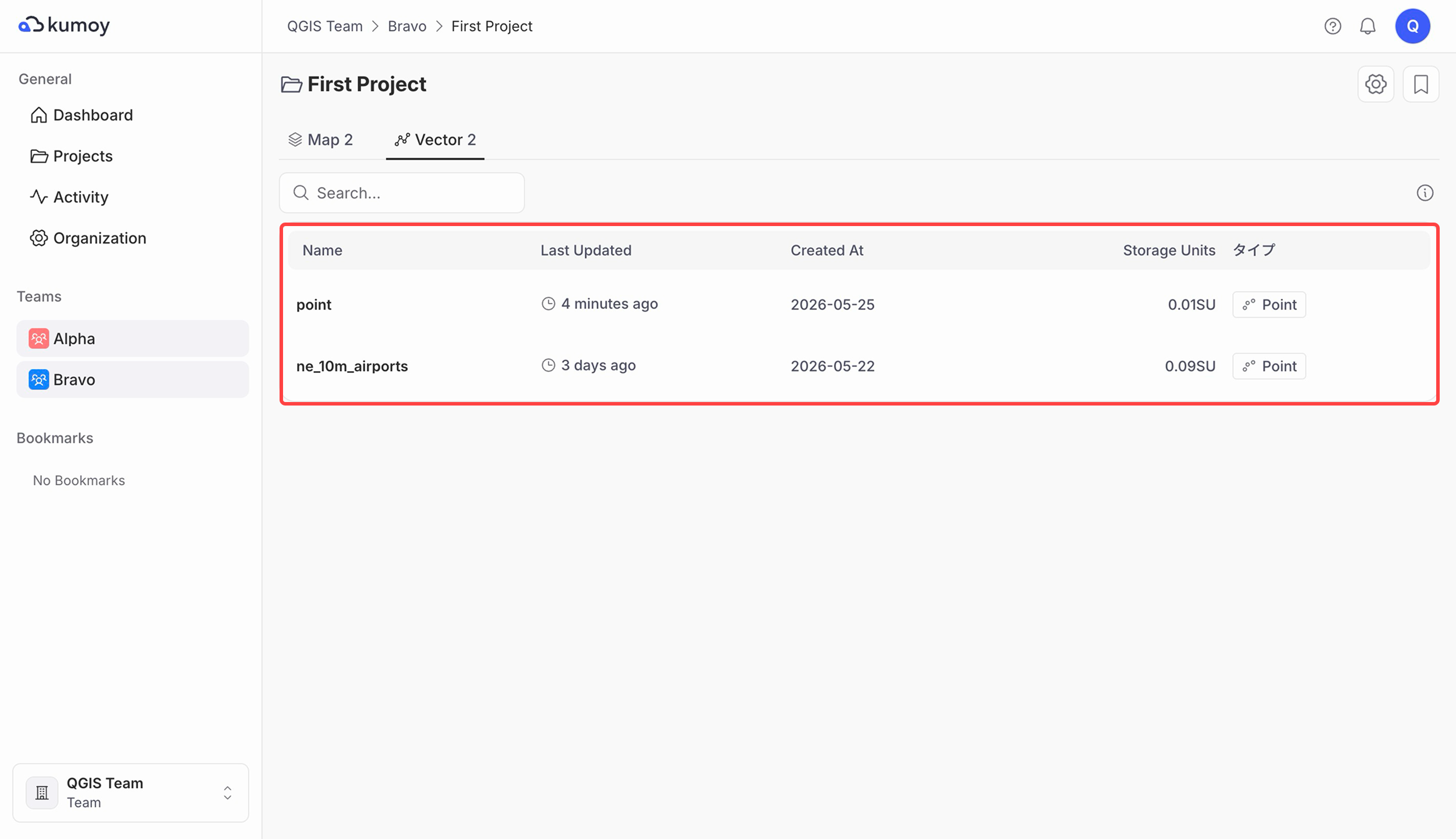
Open the vector you want to edit from the project.
-
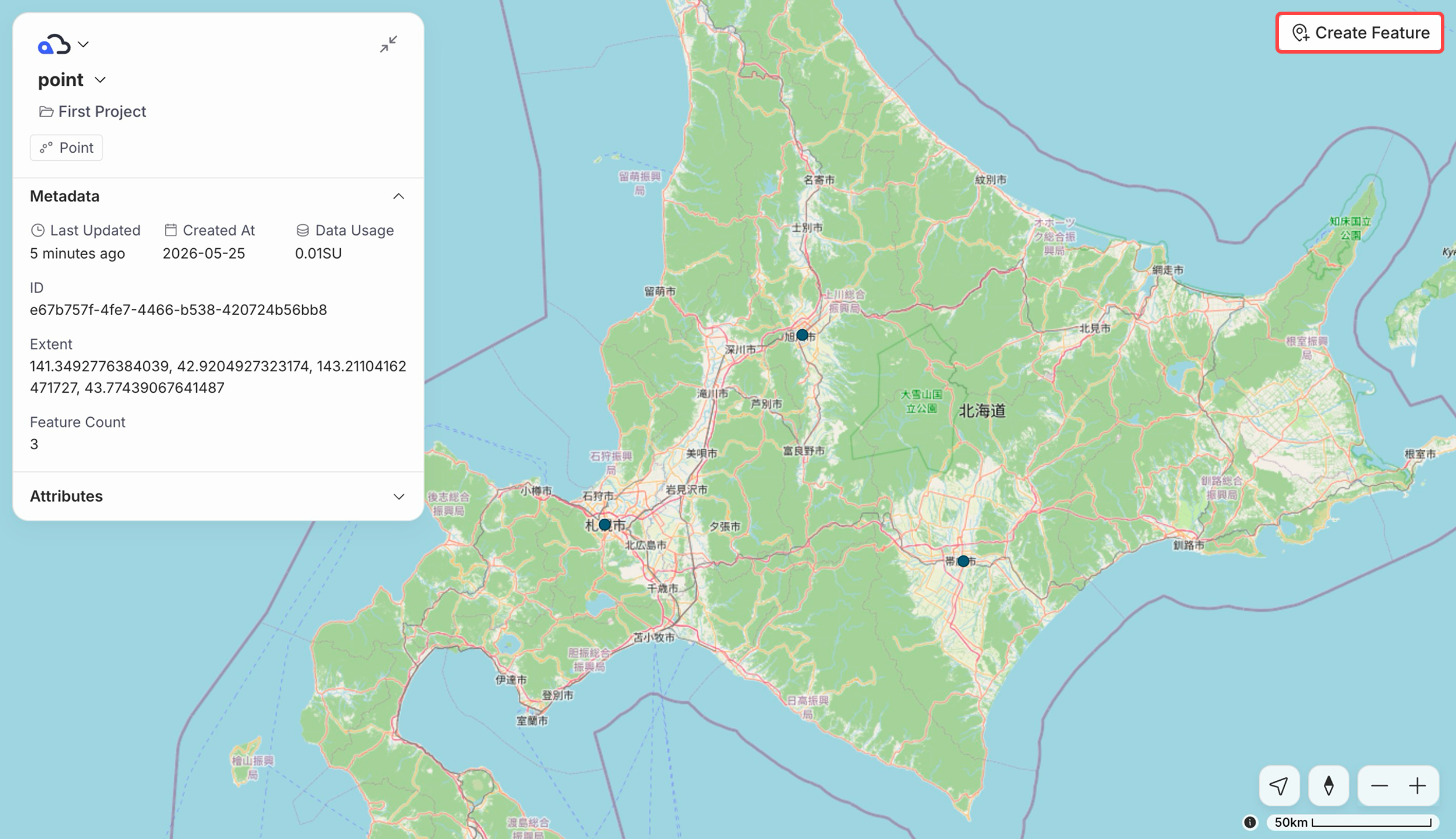
Click Create Feature at the top right.
-
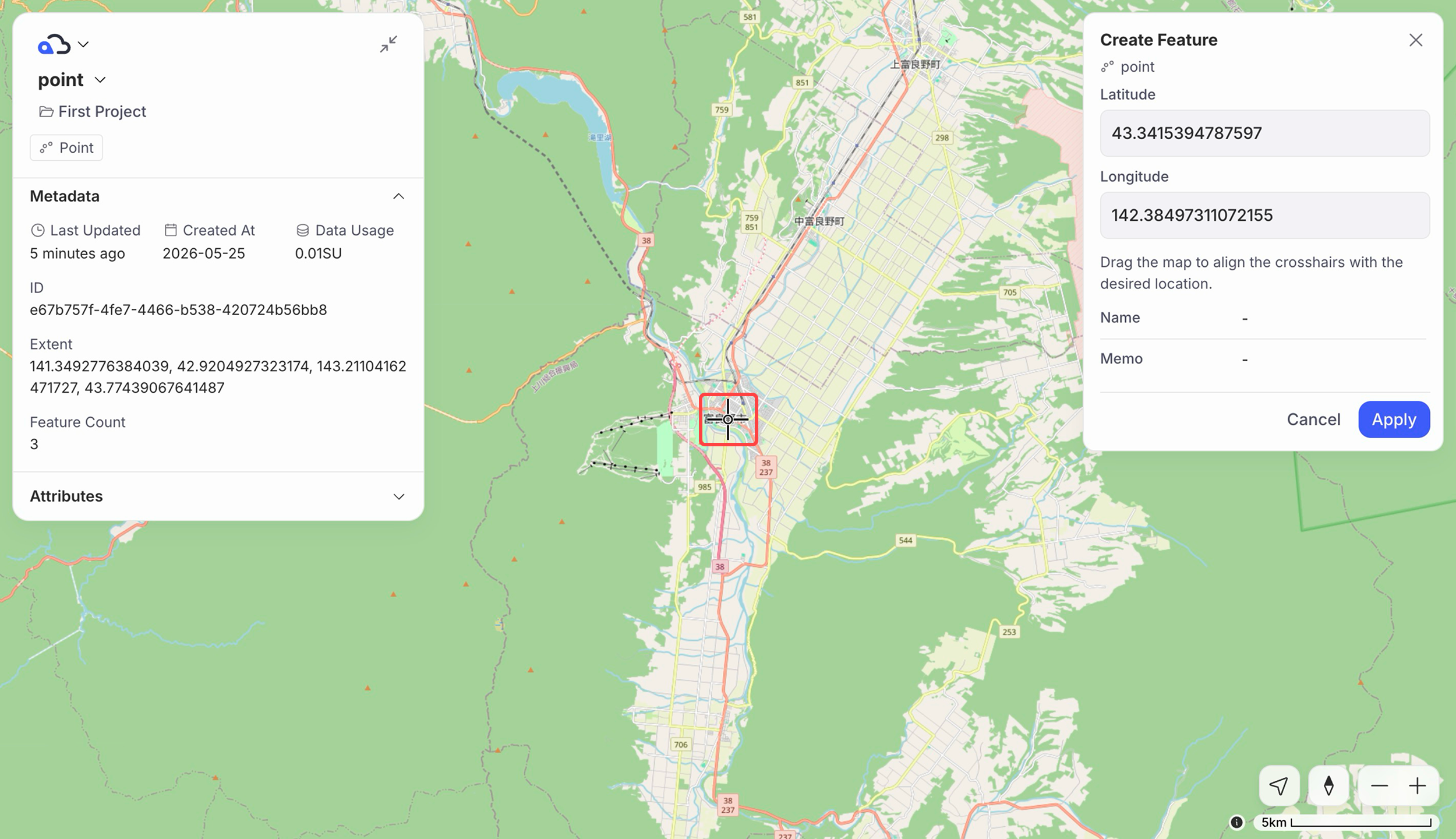
Drag the map until the crosshair at the center of the screen is aligned with the target location.
-
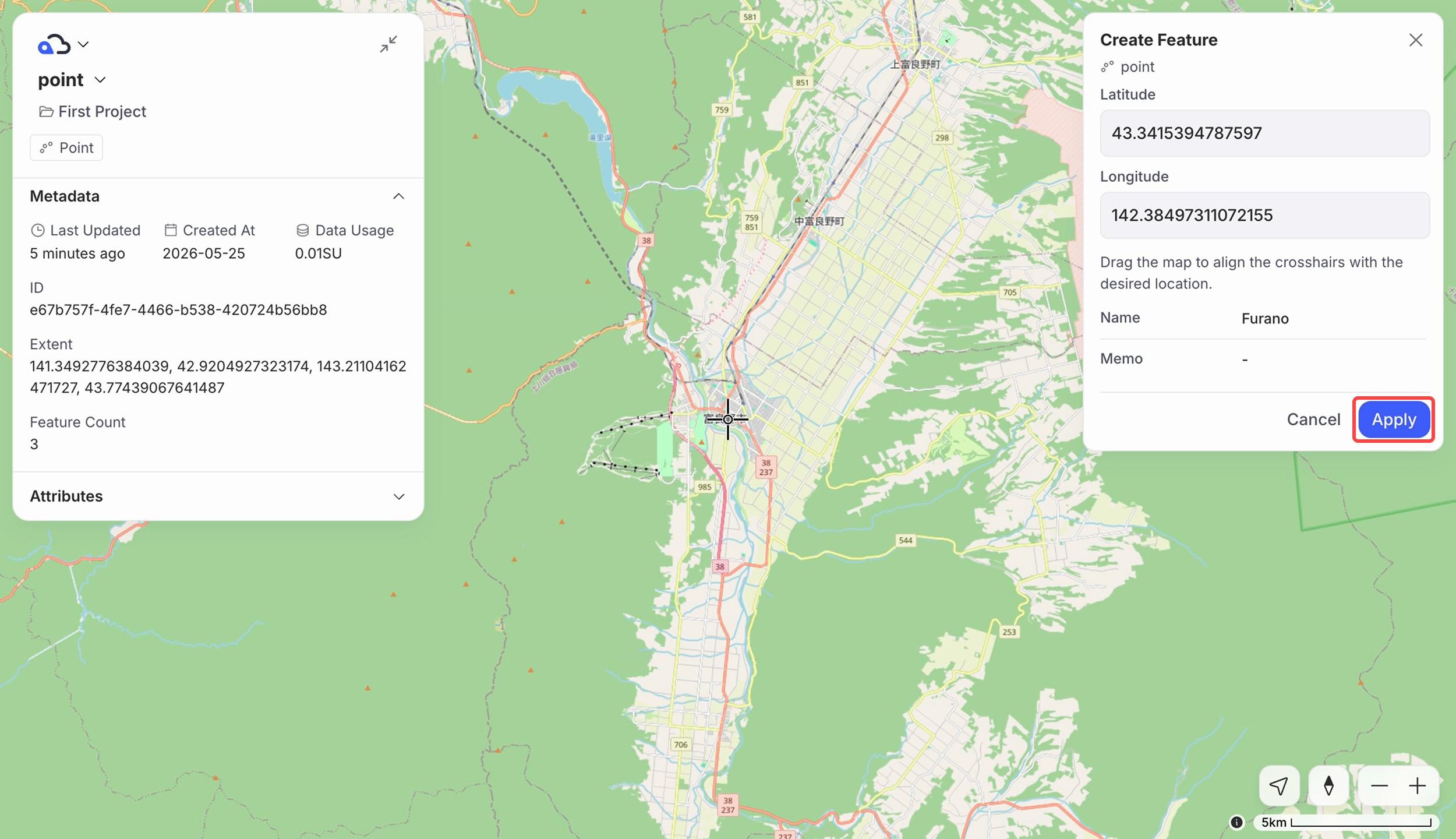
Enter values in the attribute form, then click Apply.
-
The new feature is added.
Delete a Feature#
Delete the selected feature. Feature deletion is available for all layers.
ImportantDeleted features cannot be restored. Before deleting, make sure you have selected the correct feature.
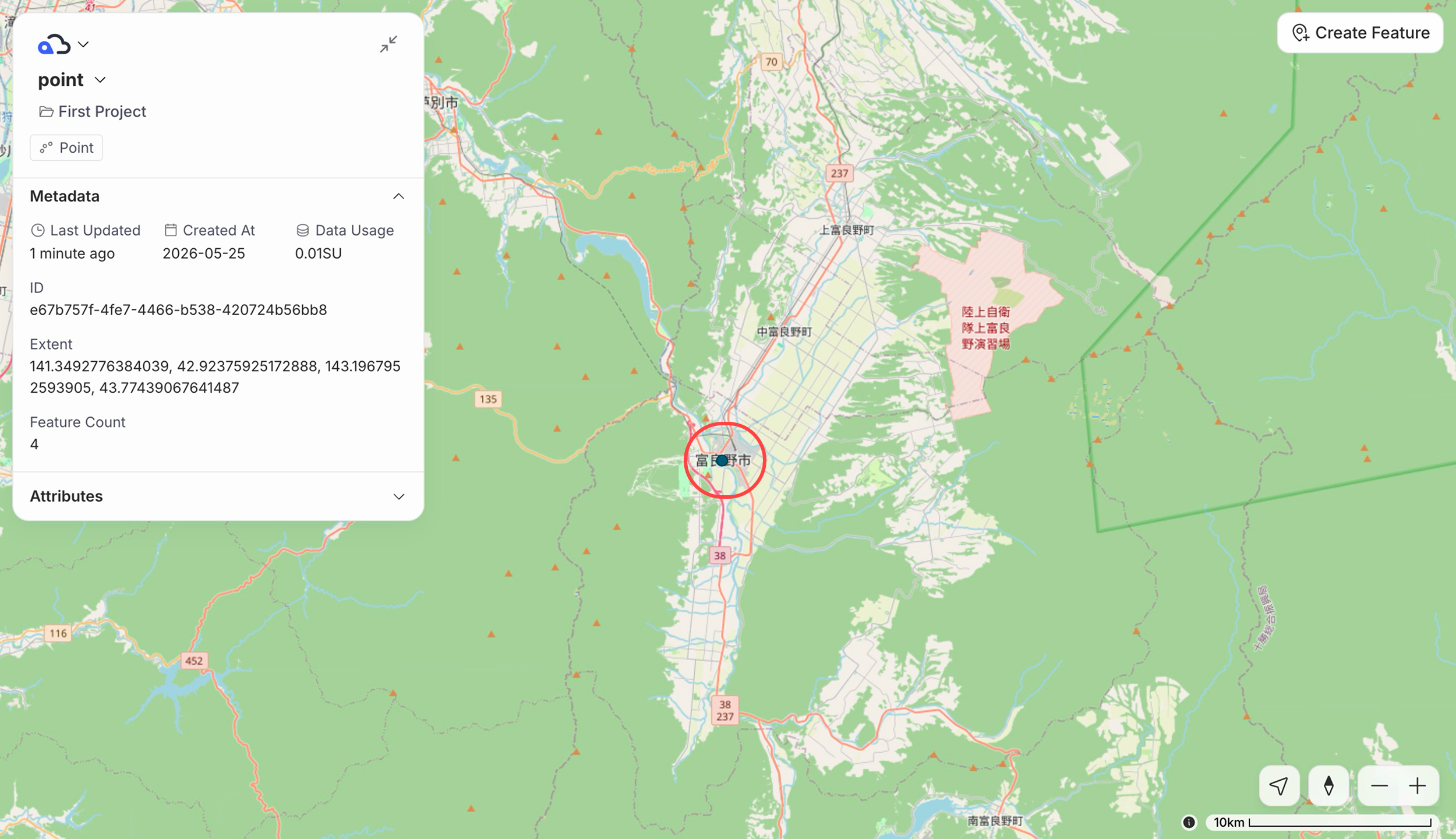
-
Select the feature you want to delete.
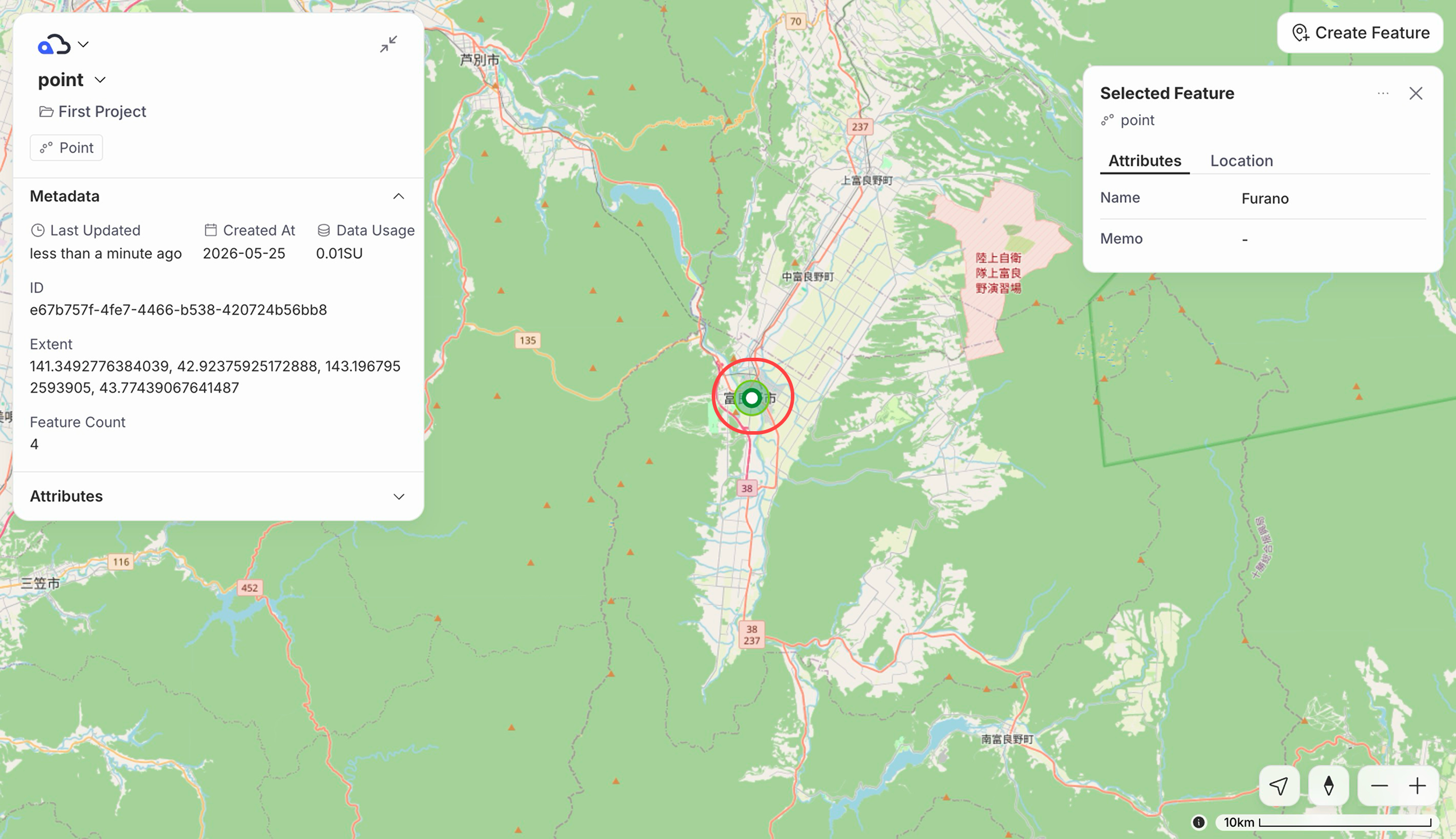
-
Click ⋯ in the attribute form, then click Delete feature.
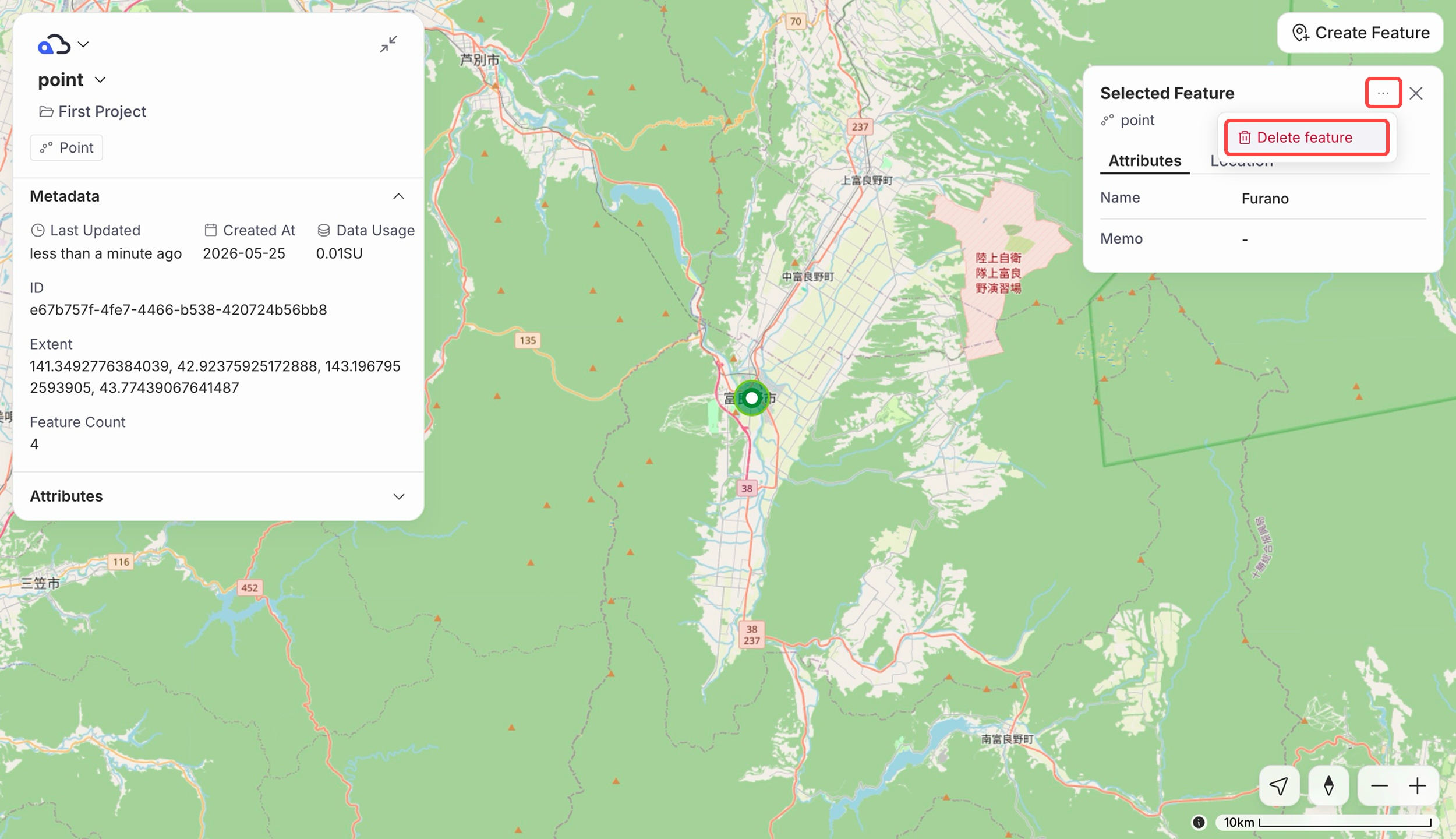
-
Review the confirmation message and click Delete.
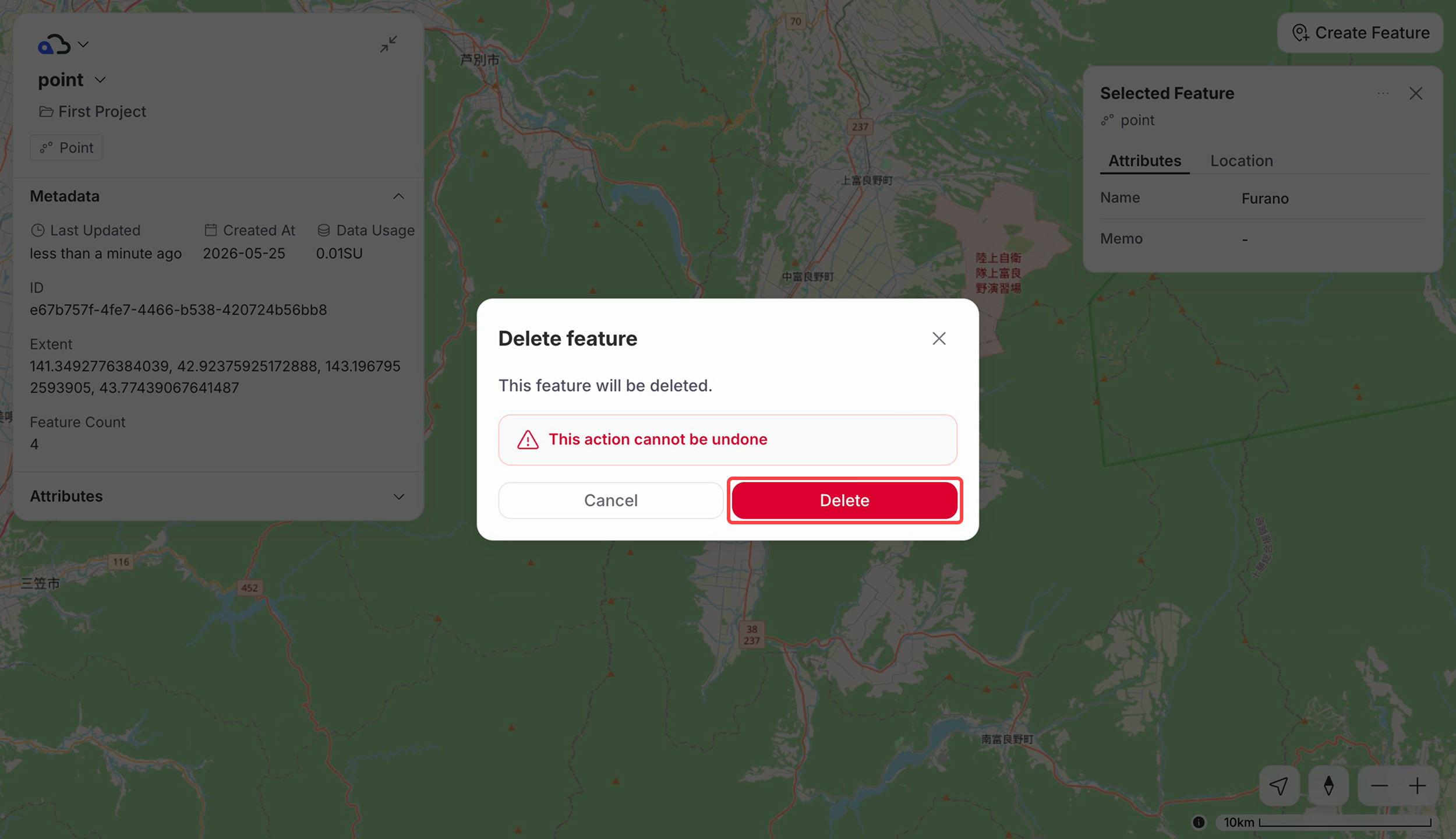
-
The feature is removed from the map.
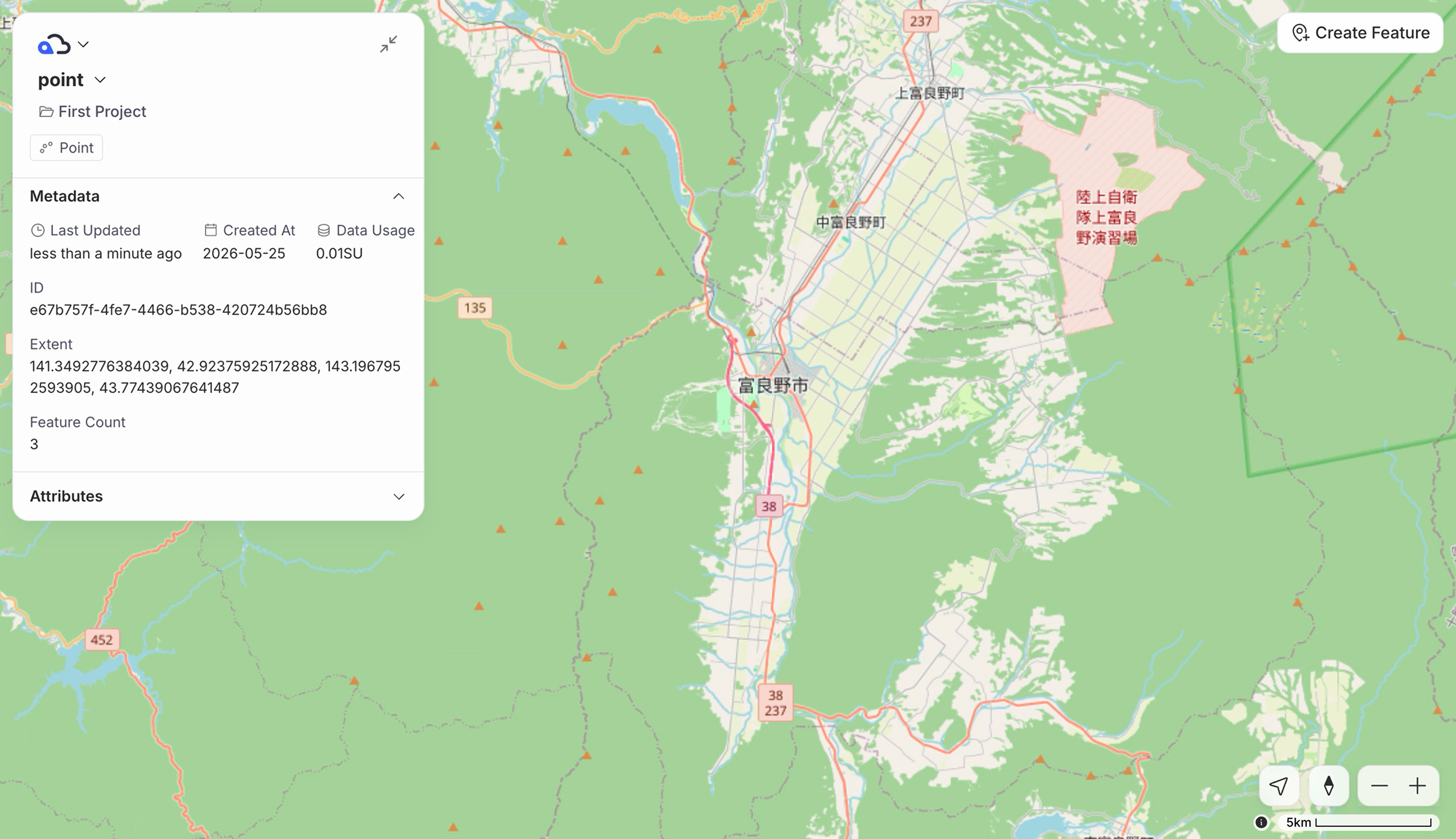
Edit a Feature's Position#
Edit the position of an existing point feature.
NotePosition editing is only supported for point layers.
-
Select the feature whose position you want to edit.
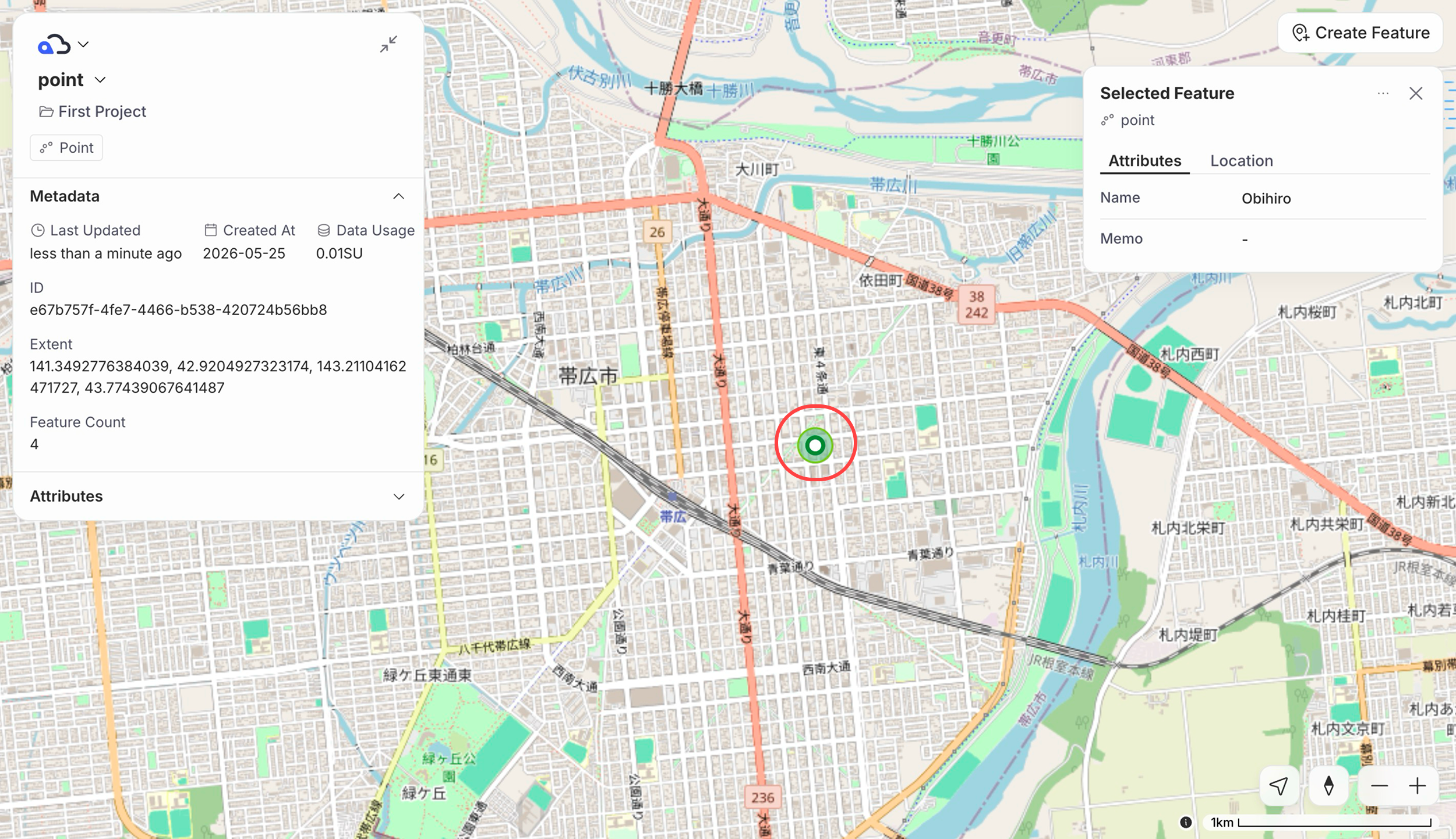
-
In the attribute form, click the Location tab, then click Edit on Map.
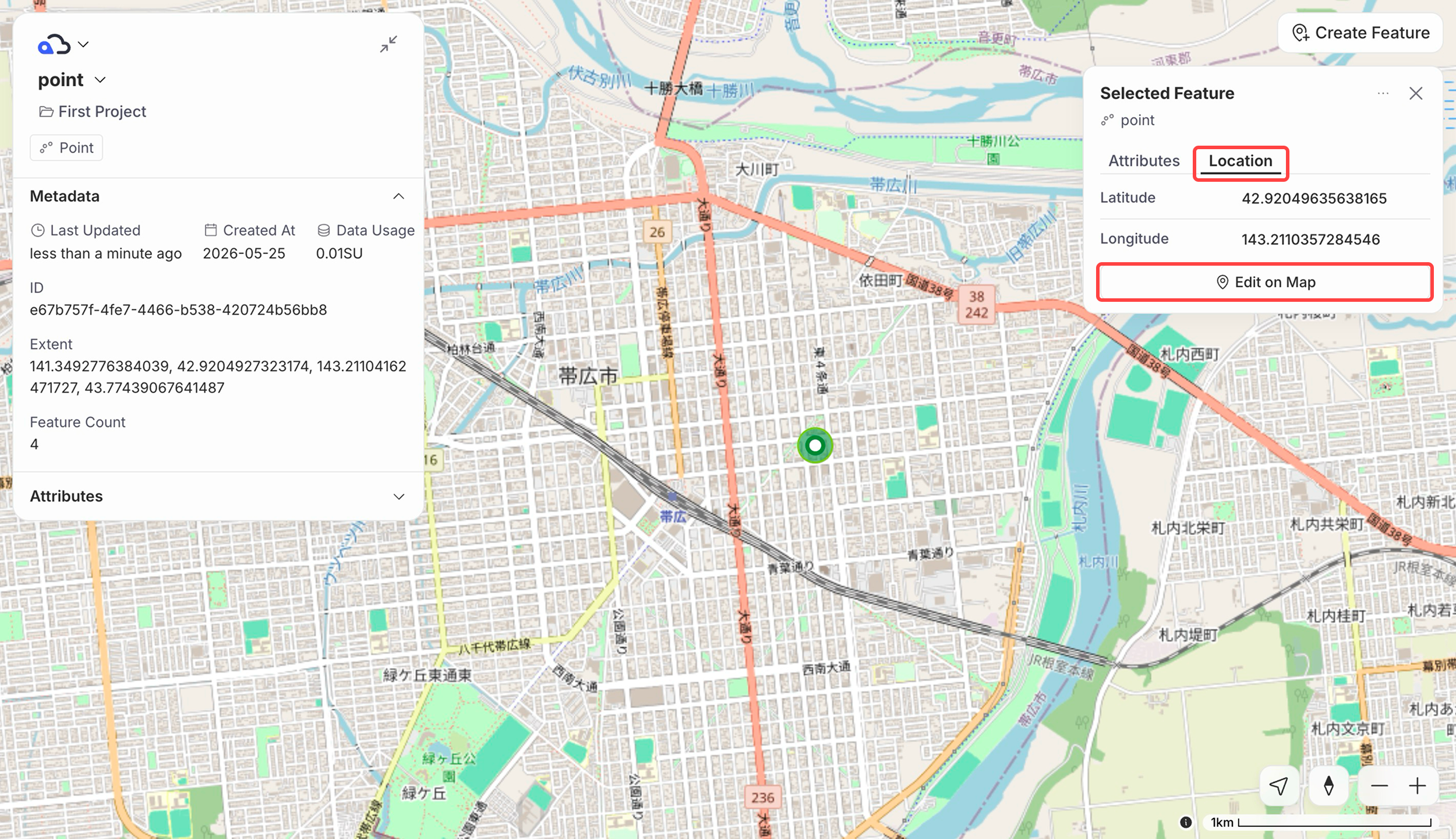
-
Drag the map until the crosshair at the center of the screen is aligned with the new location, then click Apply.
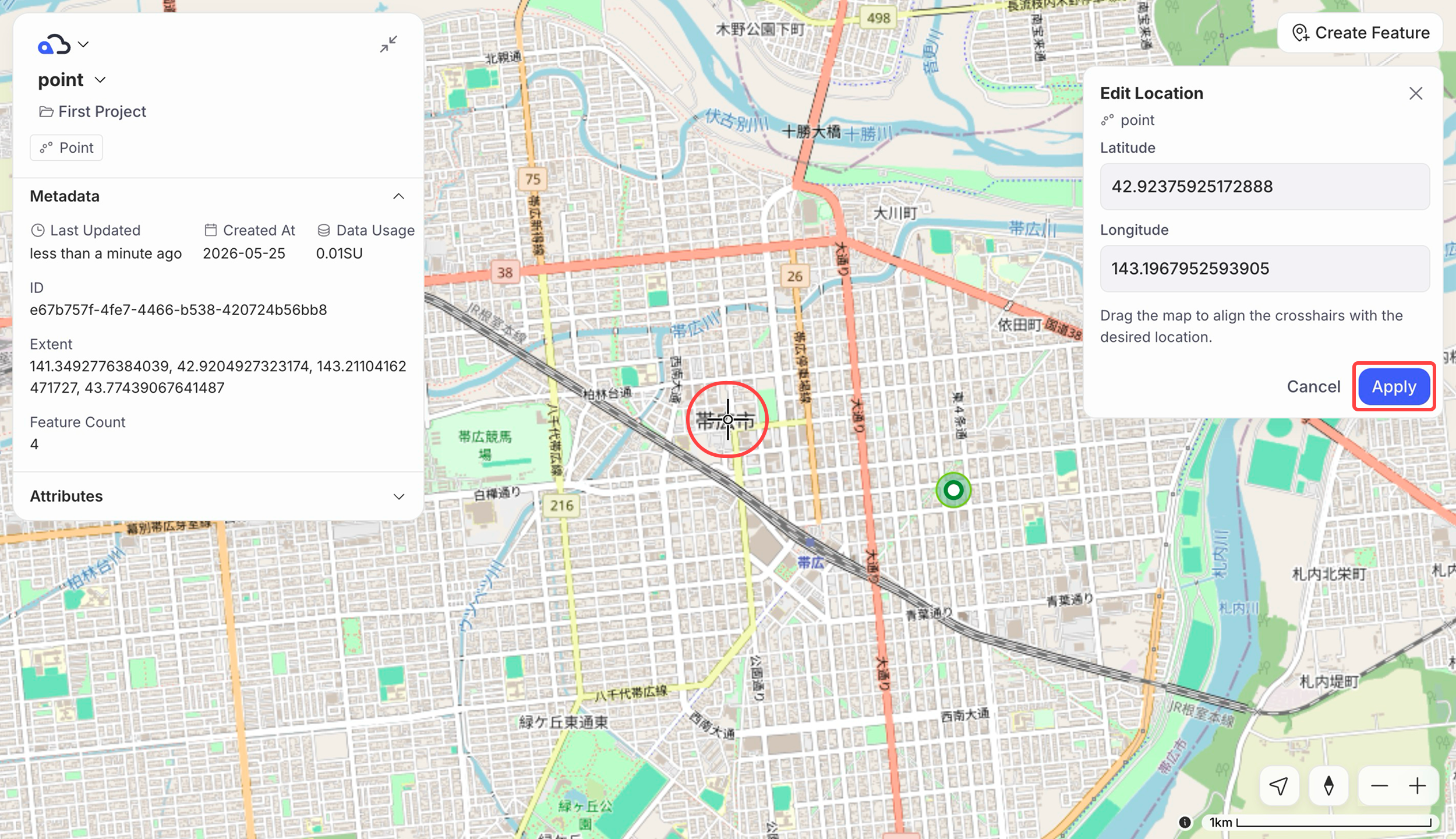
-
The feature's position is updated.
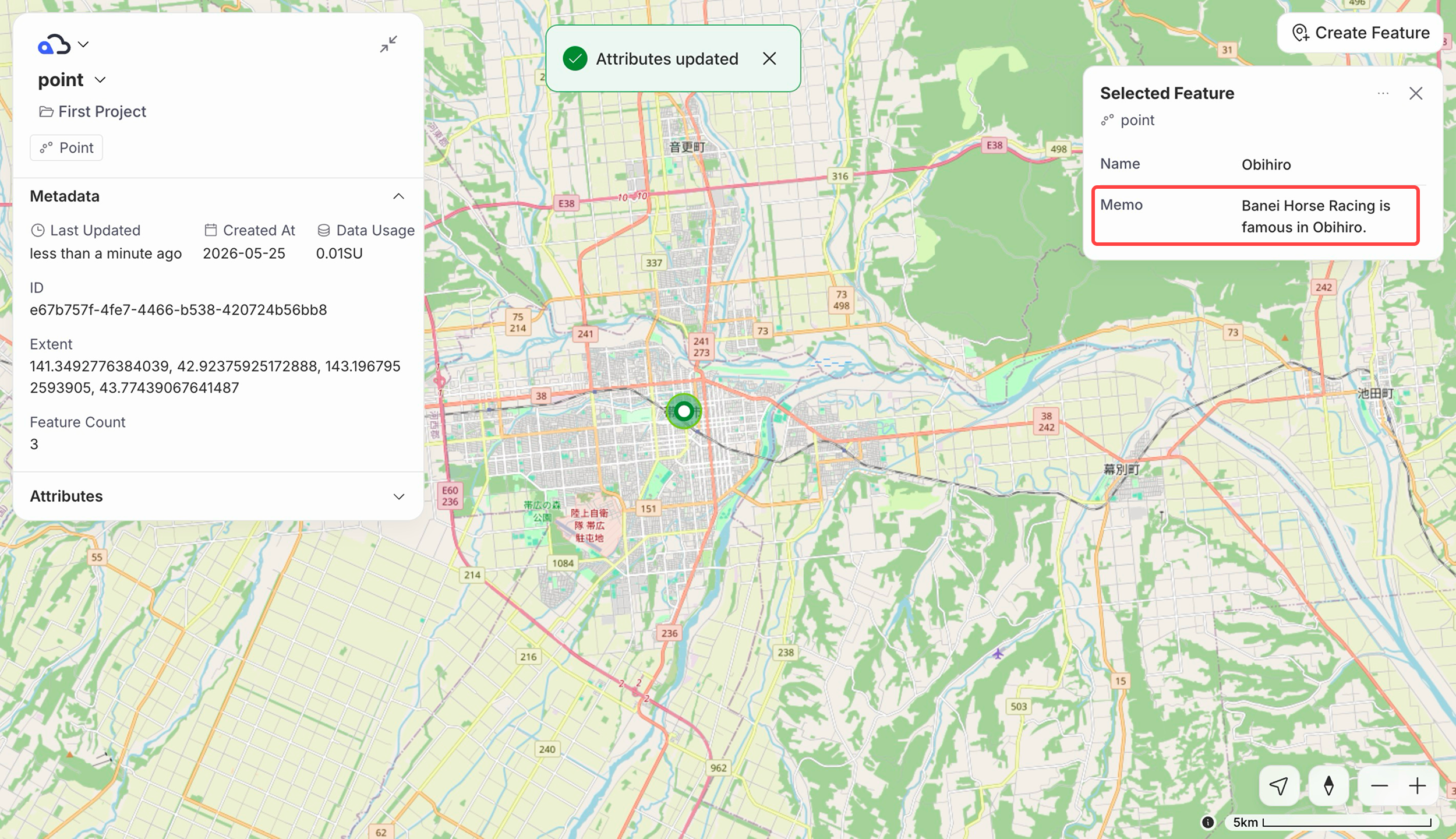
Edit Attributes#
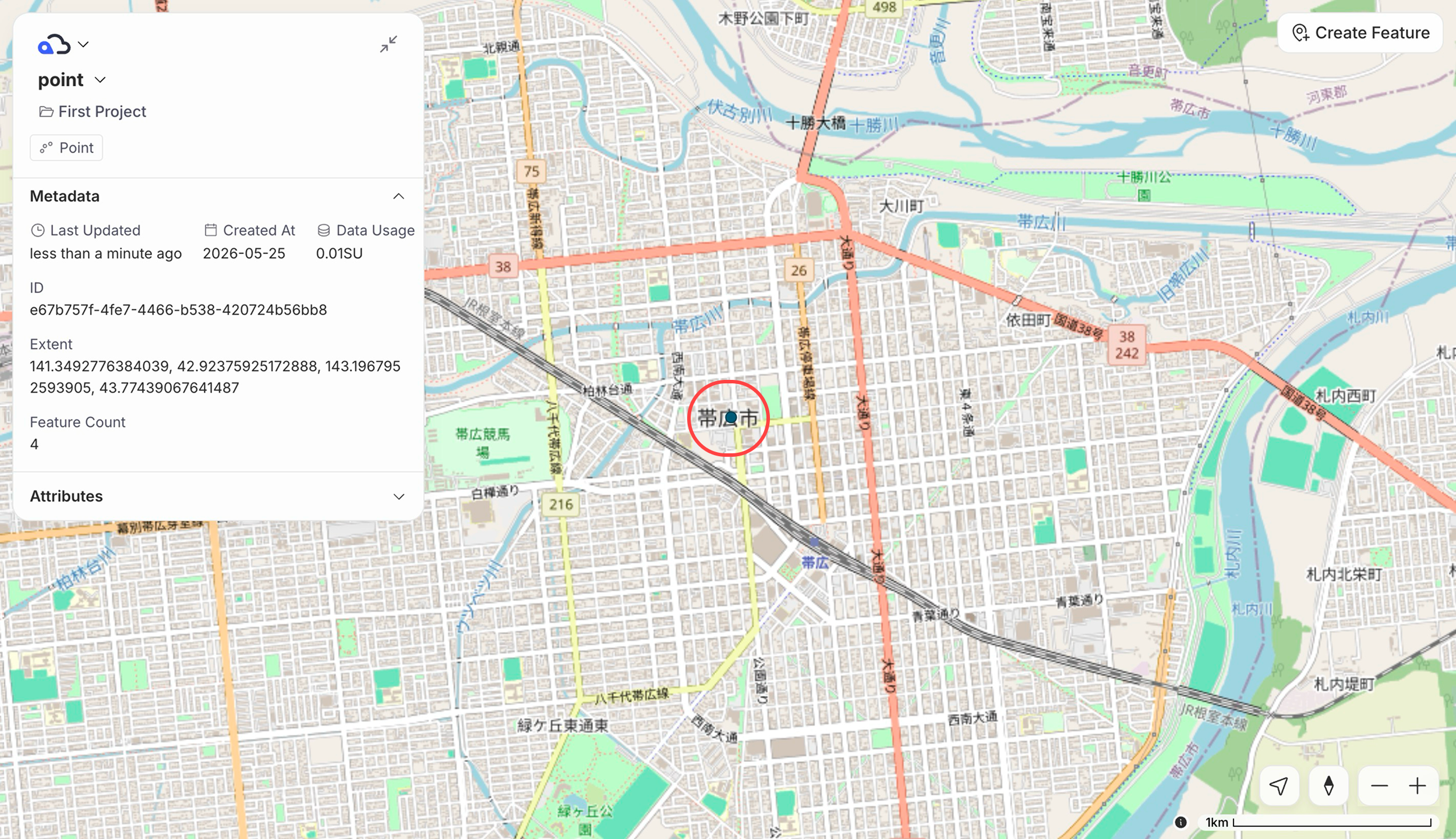
Change a feature's attribute values. Attribute editing is available for all layers, including point, line, and polygon layers.
-
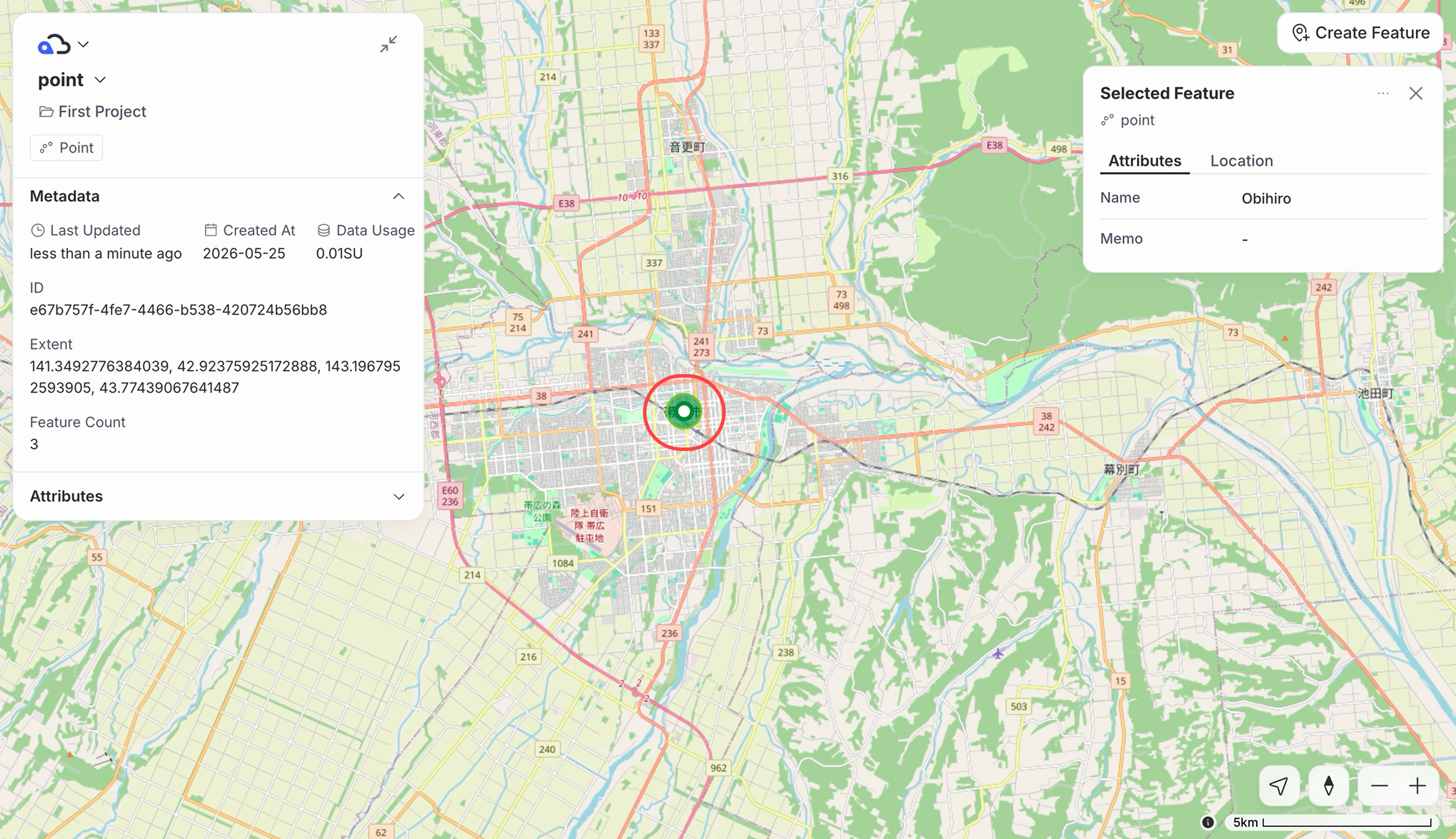
Select the feature whose attributes you want to edit.
-
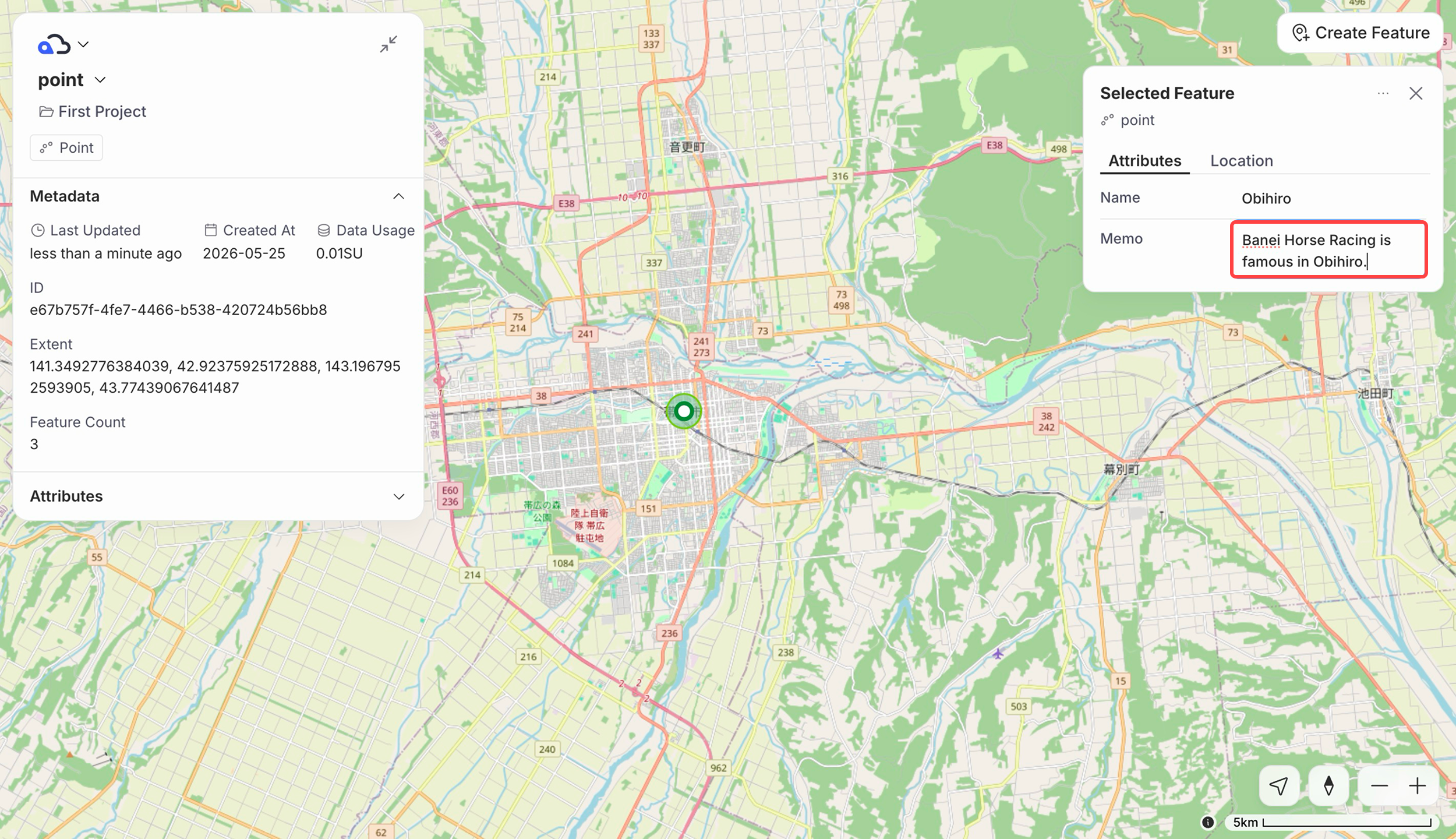
In the attribute form, click the value you want to change and enter the new value.
-
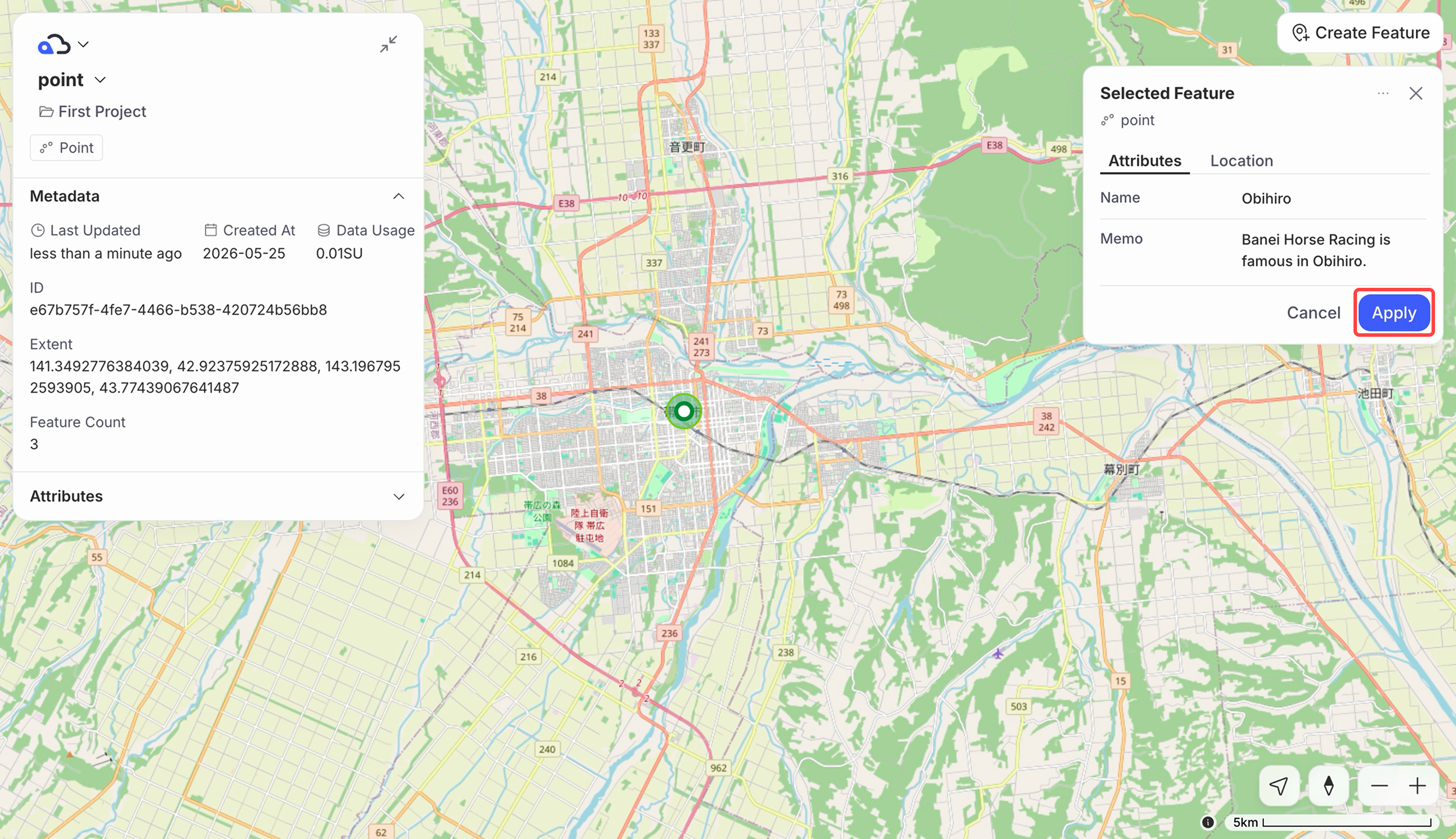
Once you have made your changes, click Apply.
-
The feature's attributes are updated.
Notes#
- Web feature editing is available on the Team plan and above.
- You can make edits from either the web map screen or the standalone vector map screen.
- Undo and redo are not currently supported. Confirm your edits before saving.
- If multiple users edit the same feature simultaneously, the most recently saved edit will take precedence.
Last update: Jul 21, 2026 07:40:43