Load, Save, and Delete Maps
From the Browser panel, you can load any map saved in Kumoy. You can save changes to a loaded map using the standard QGIS save workflow.
Load a Map#
-
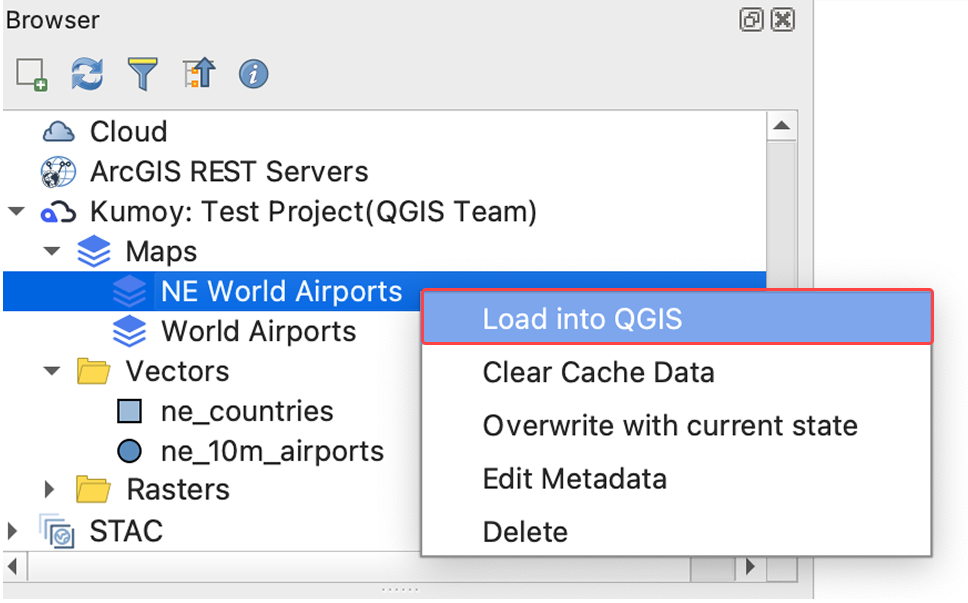
In the Browser panel, right-click the map you want to load and select Load into QGIS. You can also double-click the map name to load it.
-
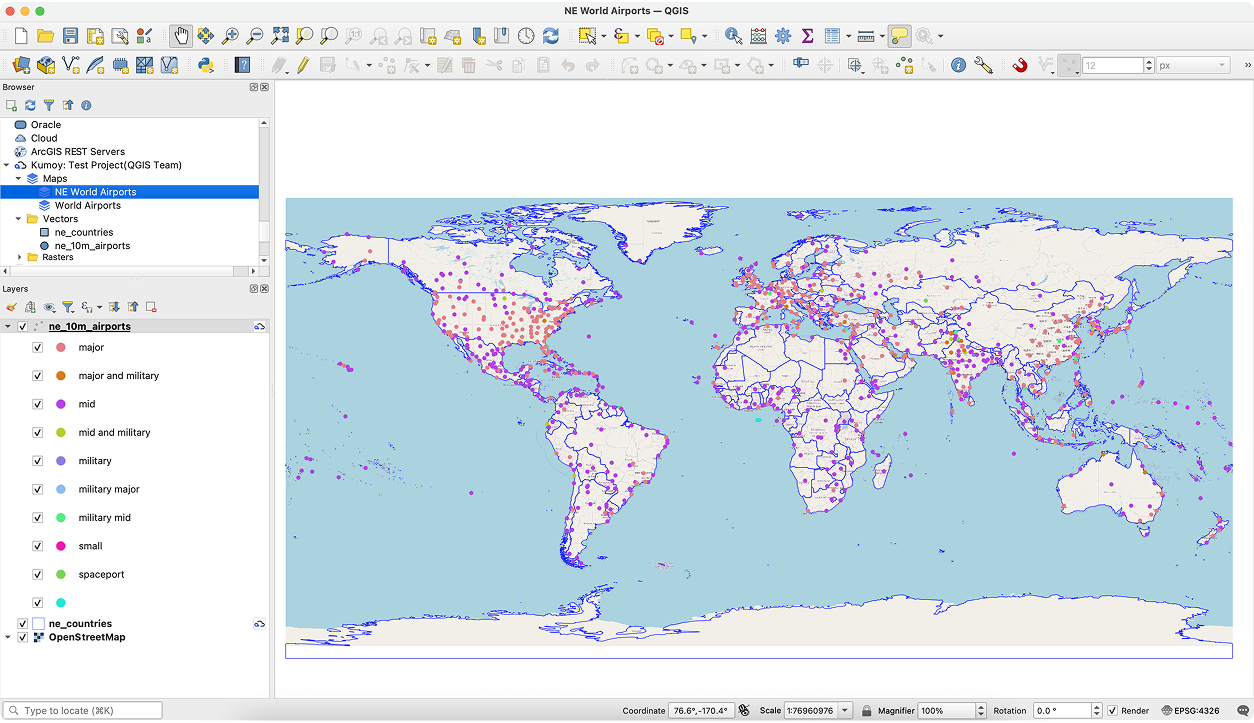
The map opens in QGIS.
Save a Map#
After adding new layers or changing styles in a Kumoy map, you can save the changes as follows.
-
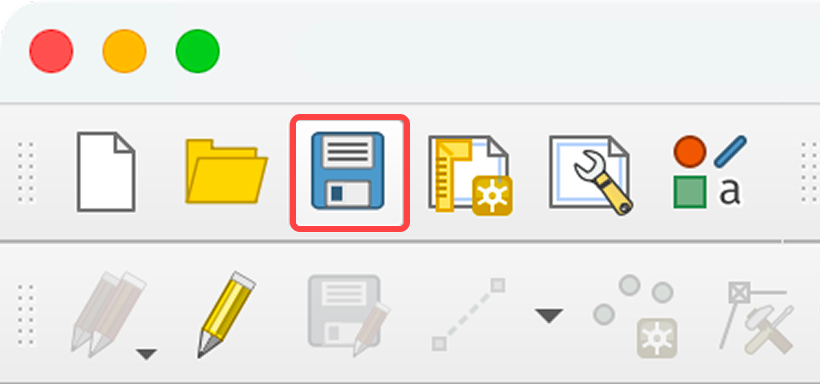
Click Save Project in the toolbar.
-
The changes are saved to Kumoy.
Delete a Map#
CautionDeleted maps cannot be restored. Double-check before you proceed.
-
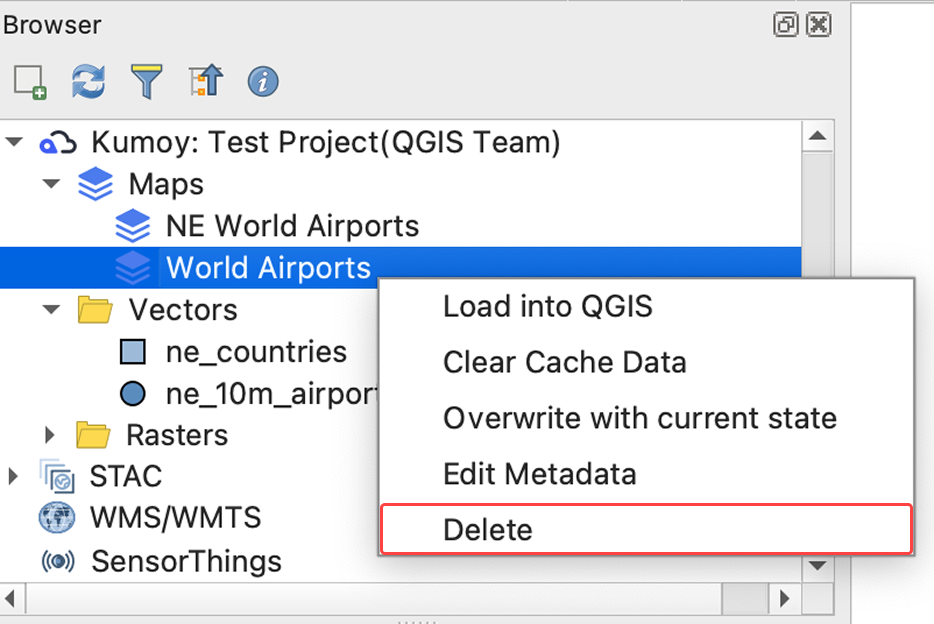
Under Kumoy in the Browser panel, right-click the map you want to delete and select Delete.
-
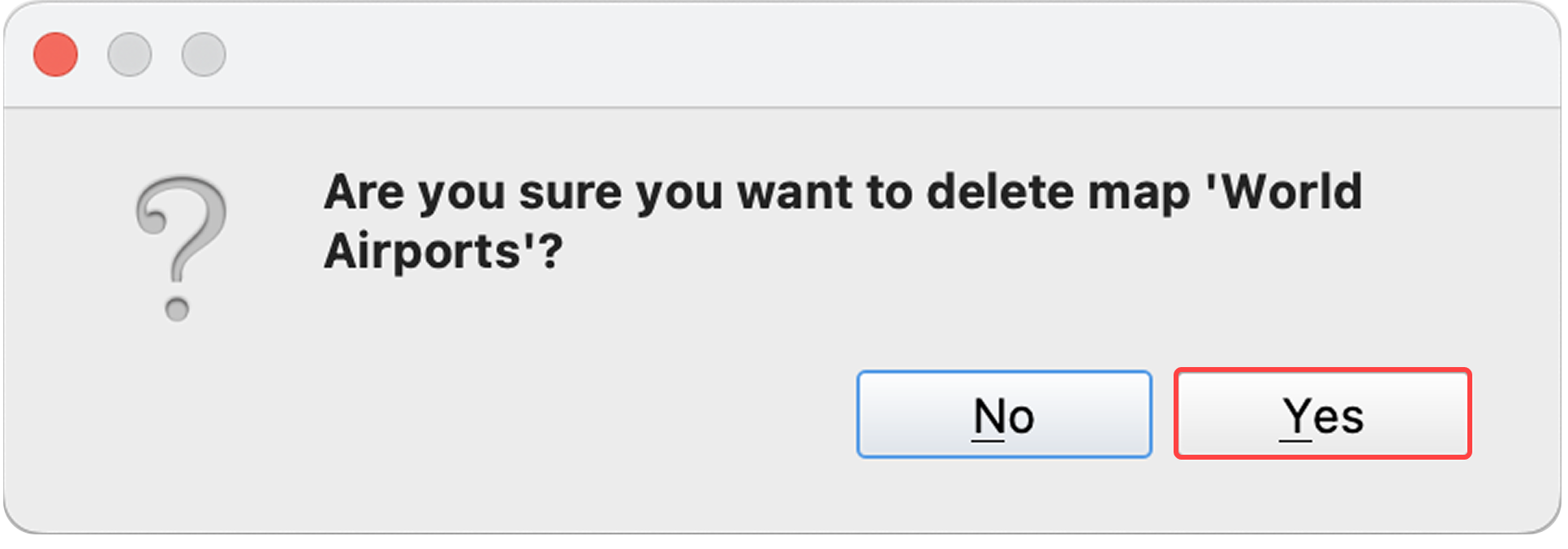
When the message "Are you sure you want to delete the map?" appears, click Yes.
-
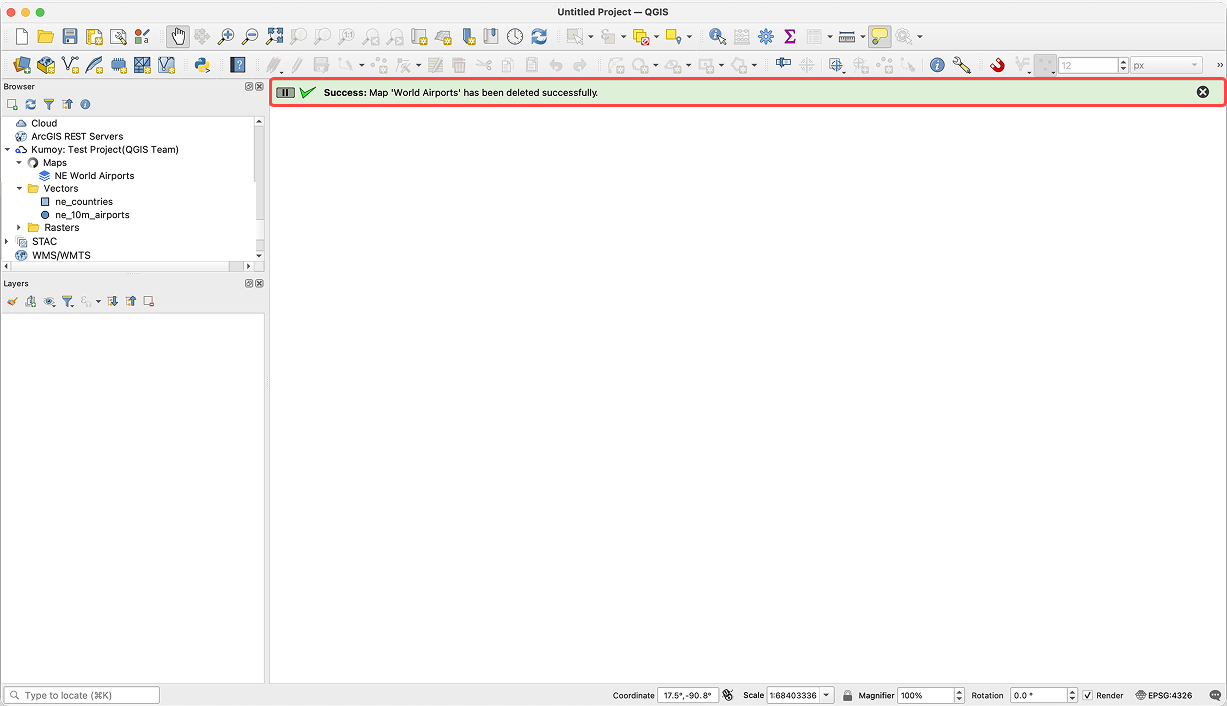
"Map deleted successfully." appears in the message bar, and the map disappears from the Browser panel.
Last update: Oct 7, 2026 23:52:25