Create Your First Map
This guide walks you through saving a QGIS project as a Kumoy map and viewing it on the web.
Save the Current Project to Kumoy#
If you haven't created or selected an organization and project yet, complete that step first at Select an Organization and Project in QGIS.
-
In QGIS, create a map using local vector layers, XYZ Tiles, and other data.
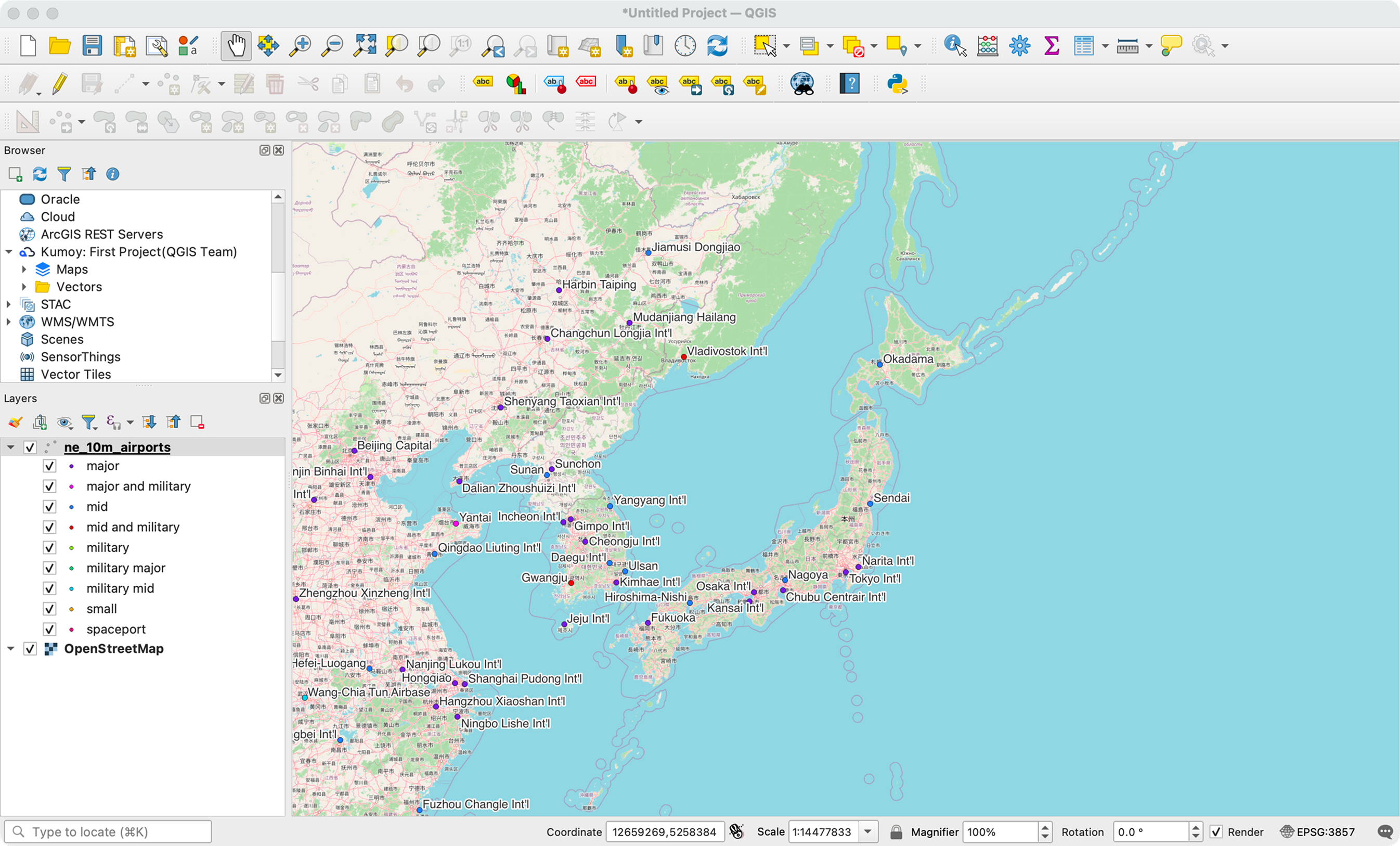
-
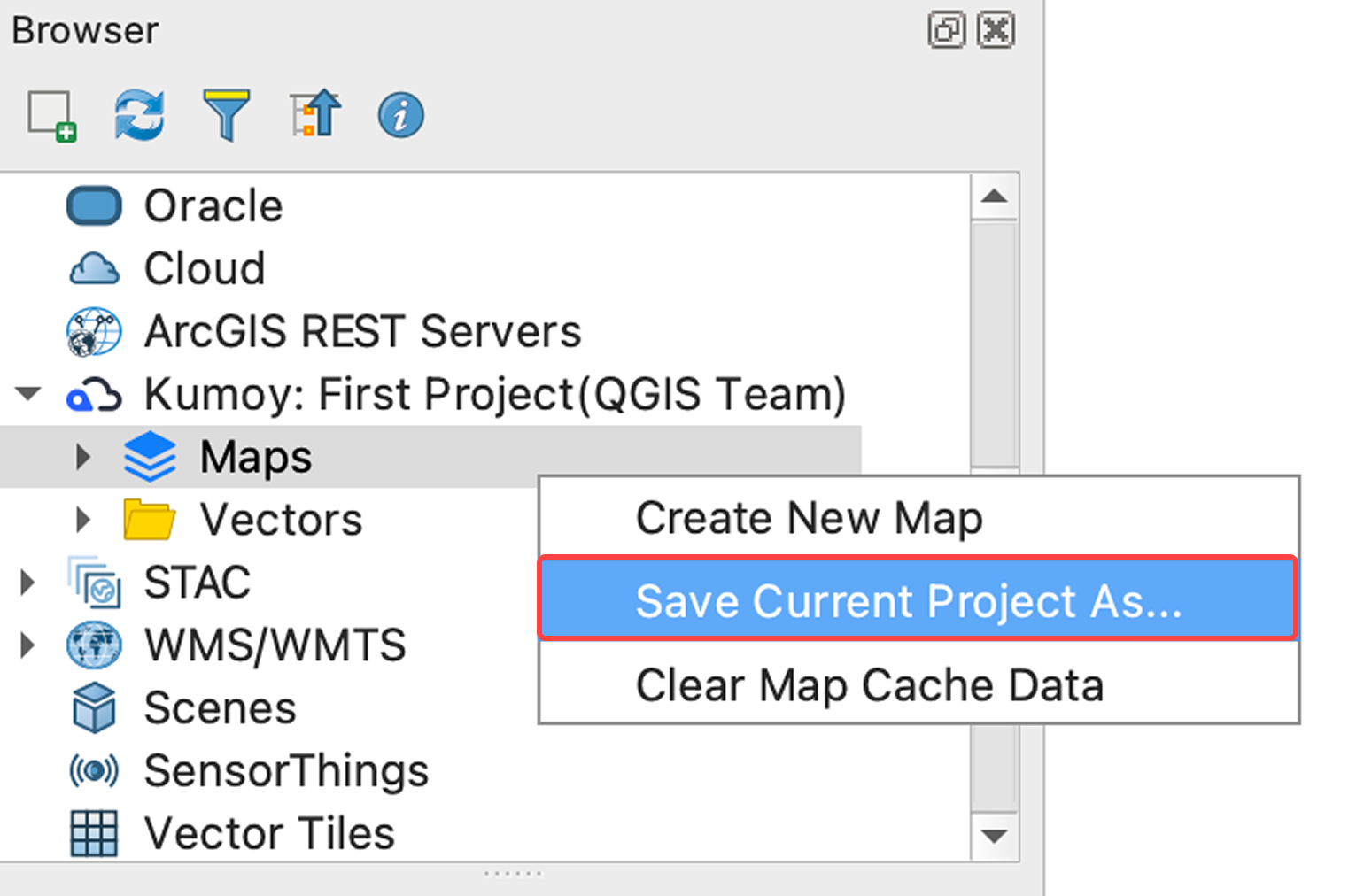
Right-click Maps in the Browser panel and select Save current project as....
-
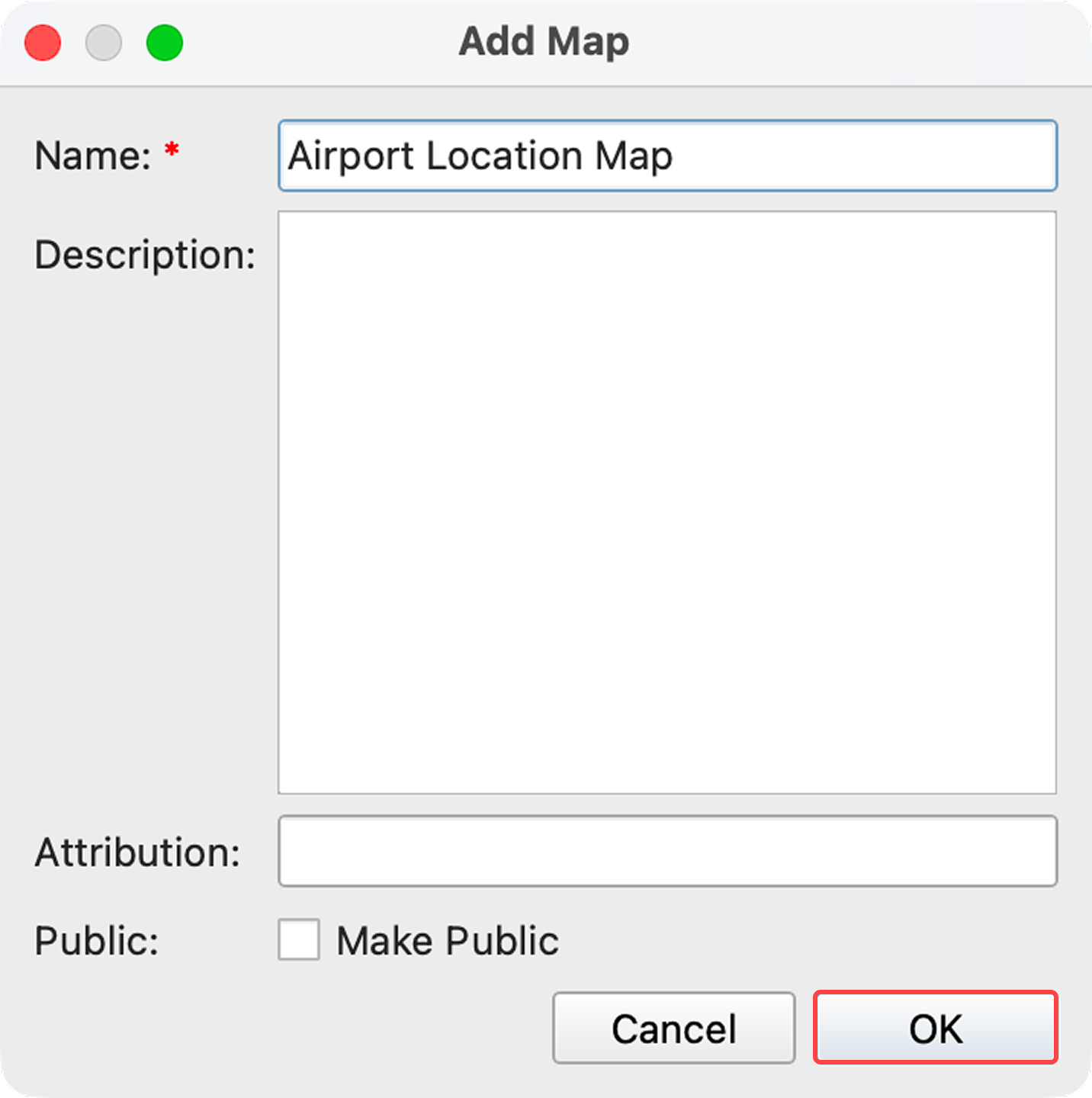
Enter the map name and other details, then click OK.
-
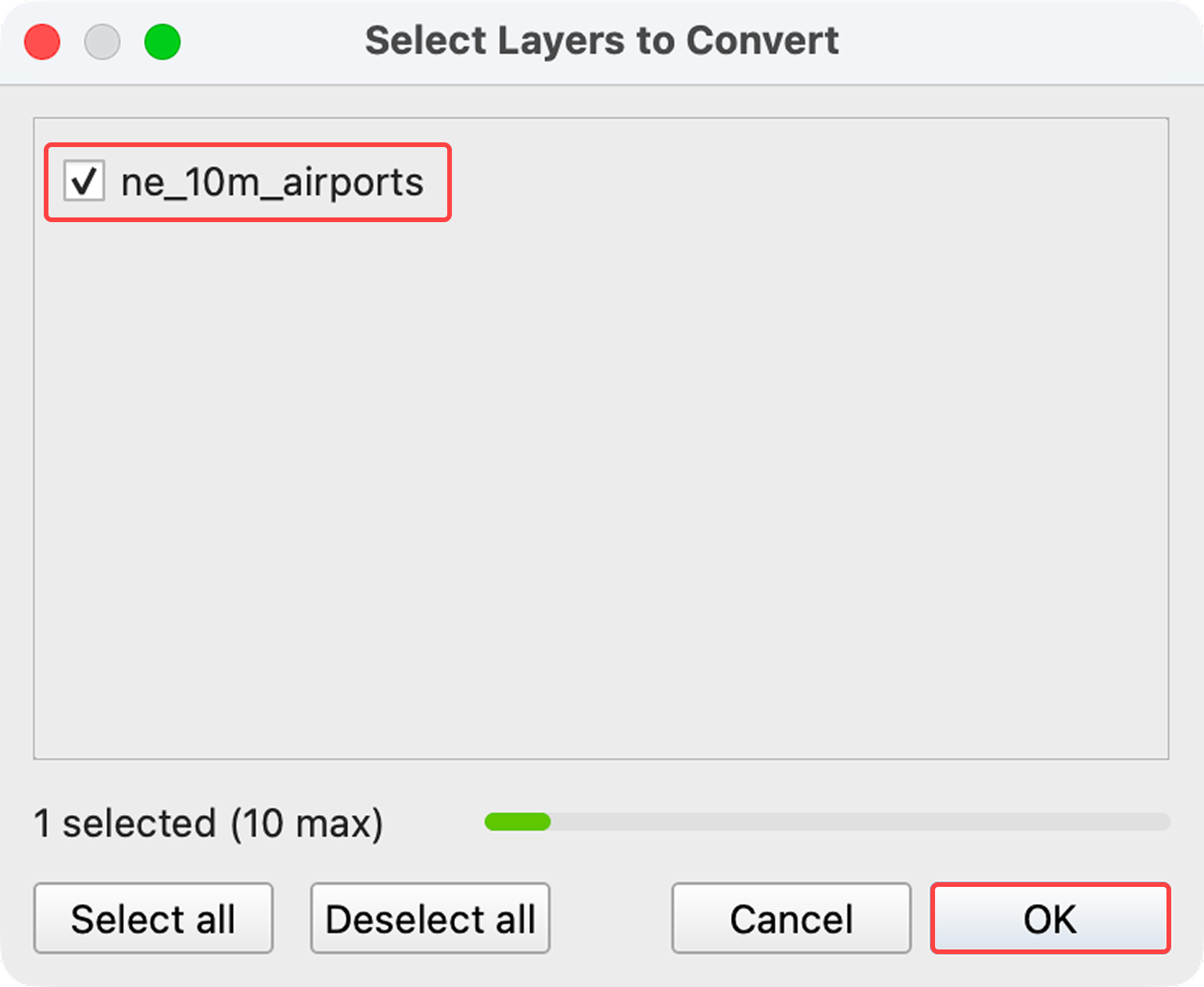
Check the layers you want to convert to Kumoy vectors, then click OK.
-
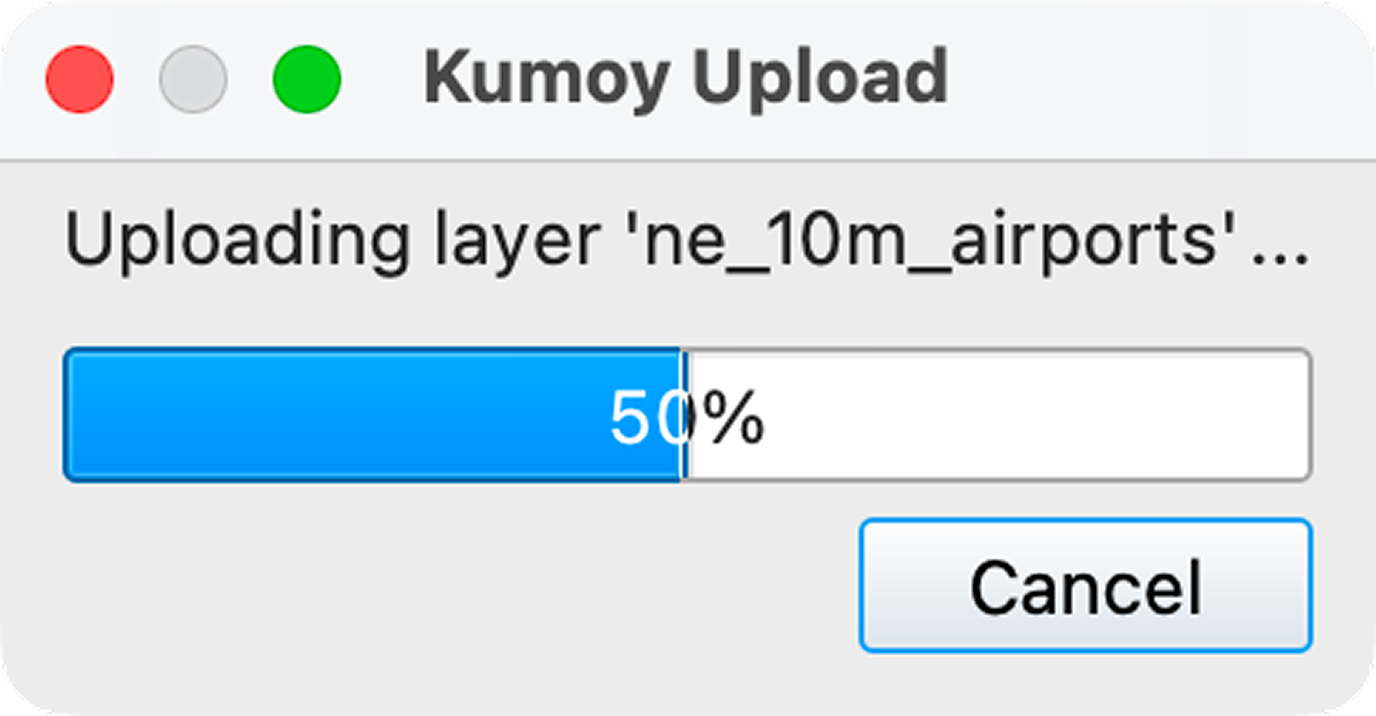
The upload to Kumoy begins.
-
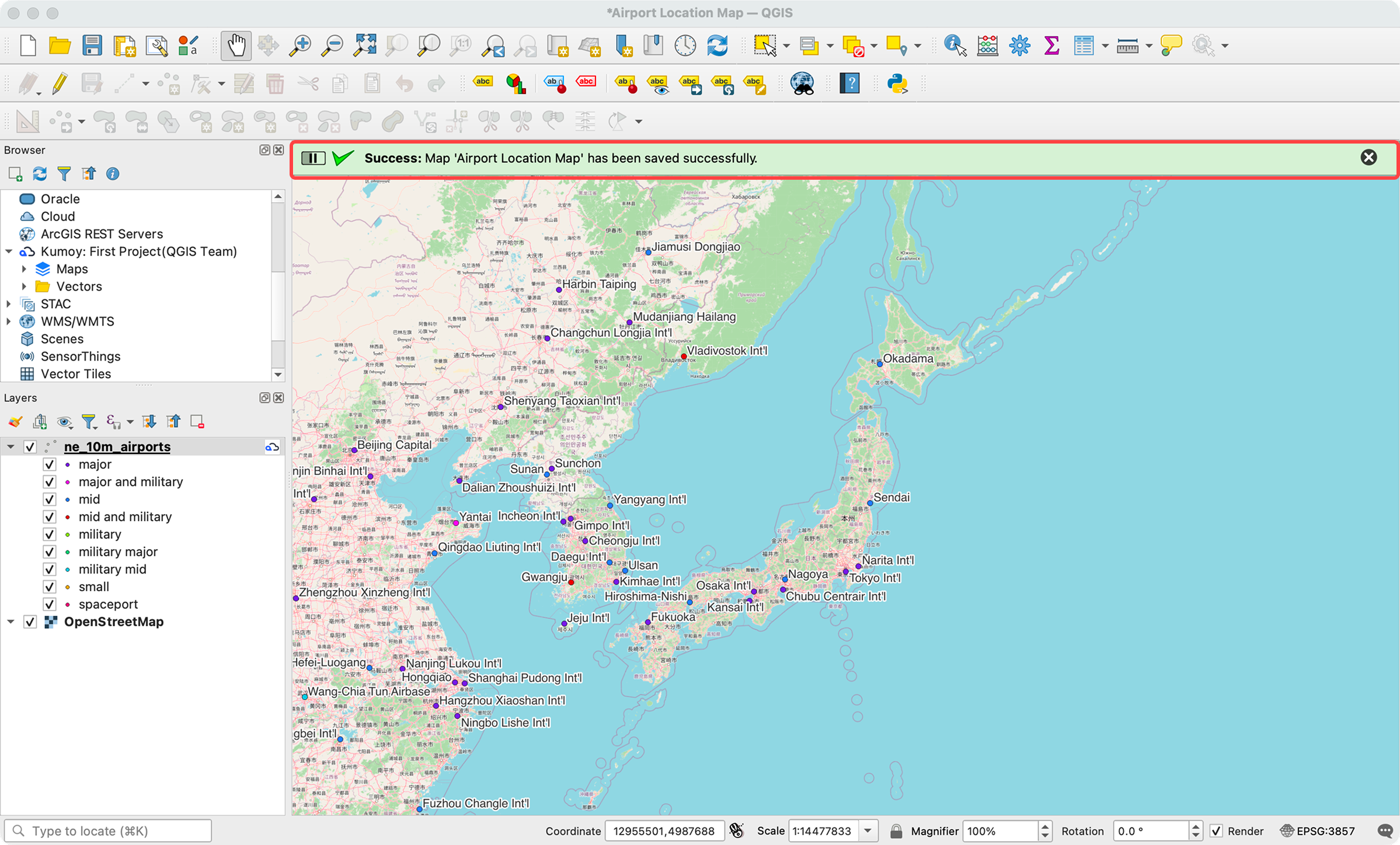
Once the upload is complete, the project reloads and opens the map saved to Kumoy. Kumoy layers appear with a distinct icon in the Layers panel.
View the Map on the Web#
With your map saved to Kumoy, let's visualize it in the browser.
-
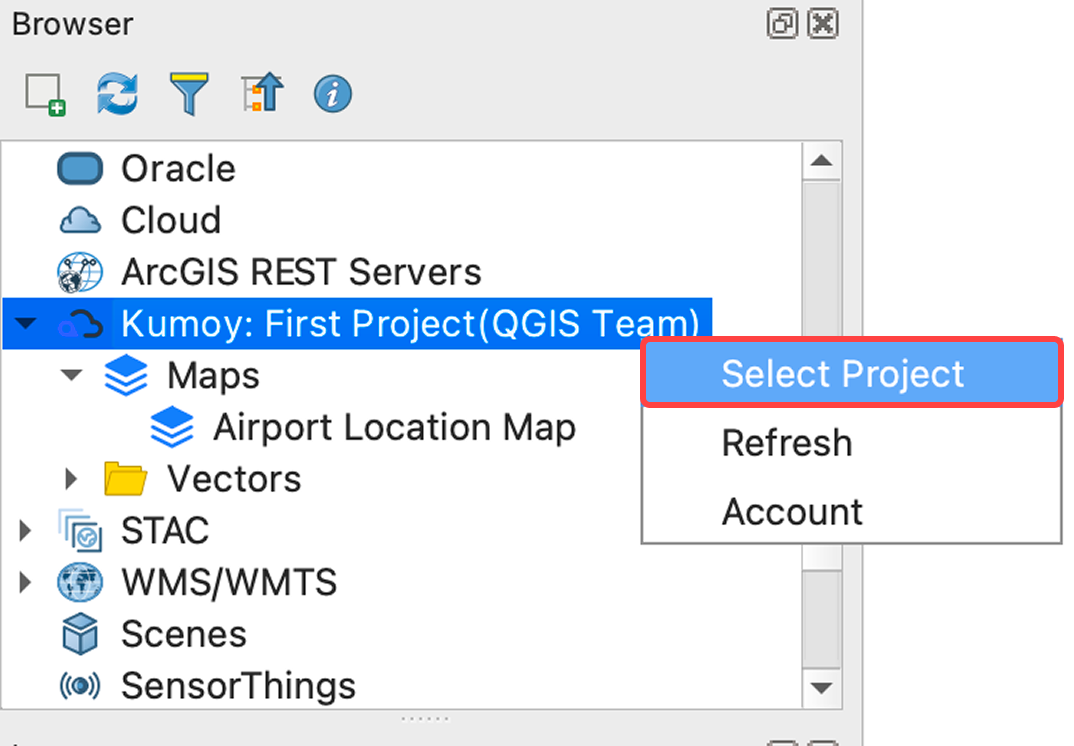
Right-click Kumoy in the Browser panel and click Select Project.
-
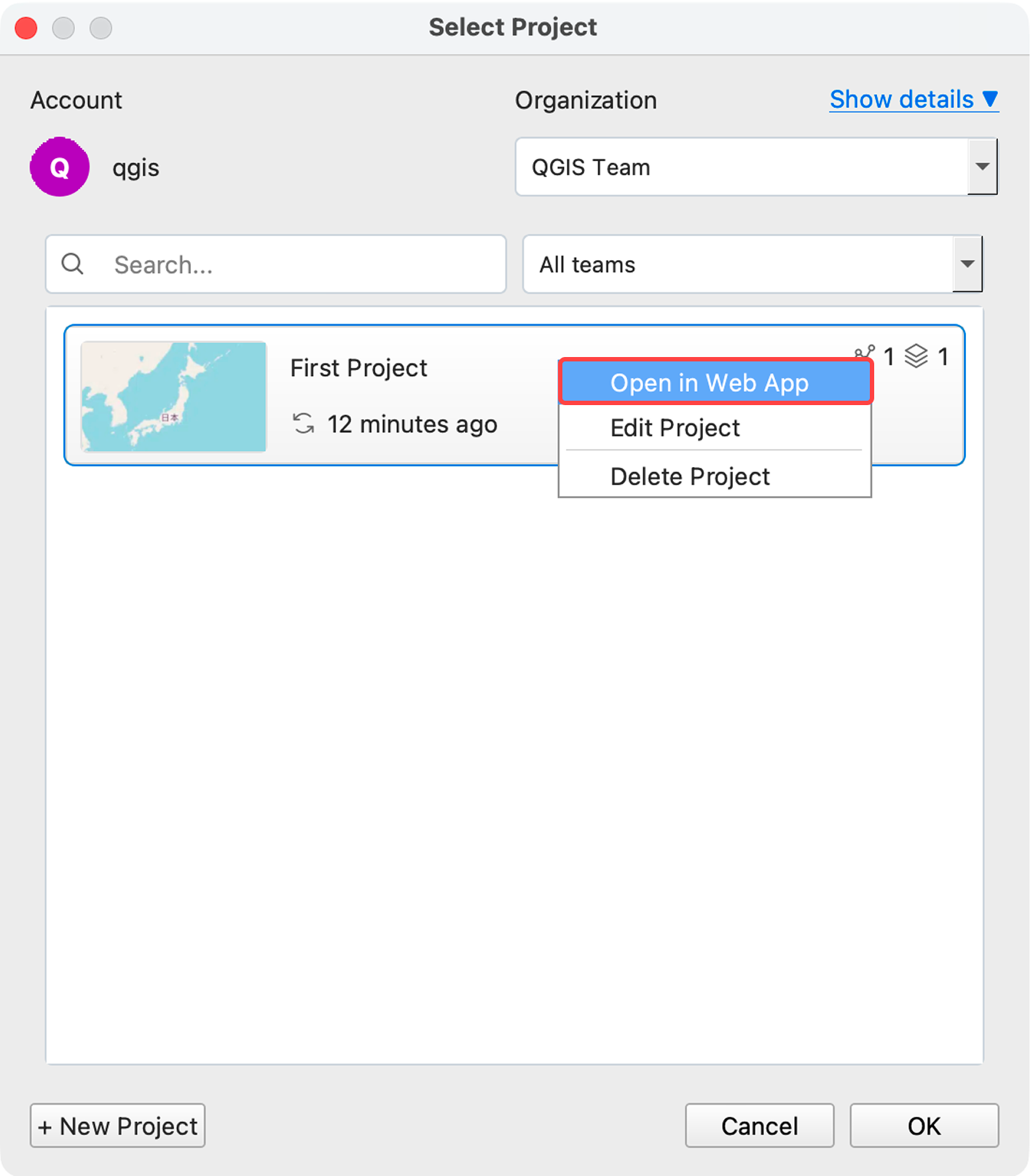
Right-click the target project in the project list and click Open in Web App.
-
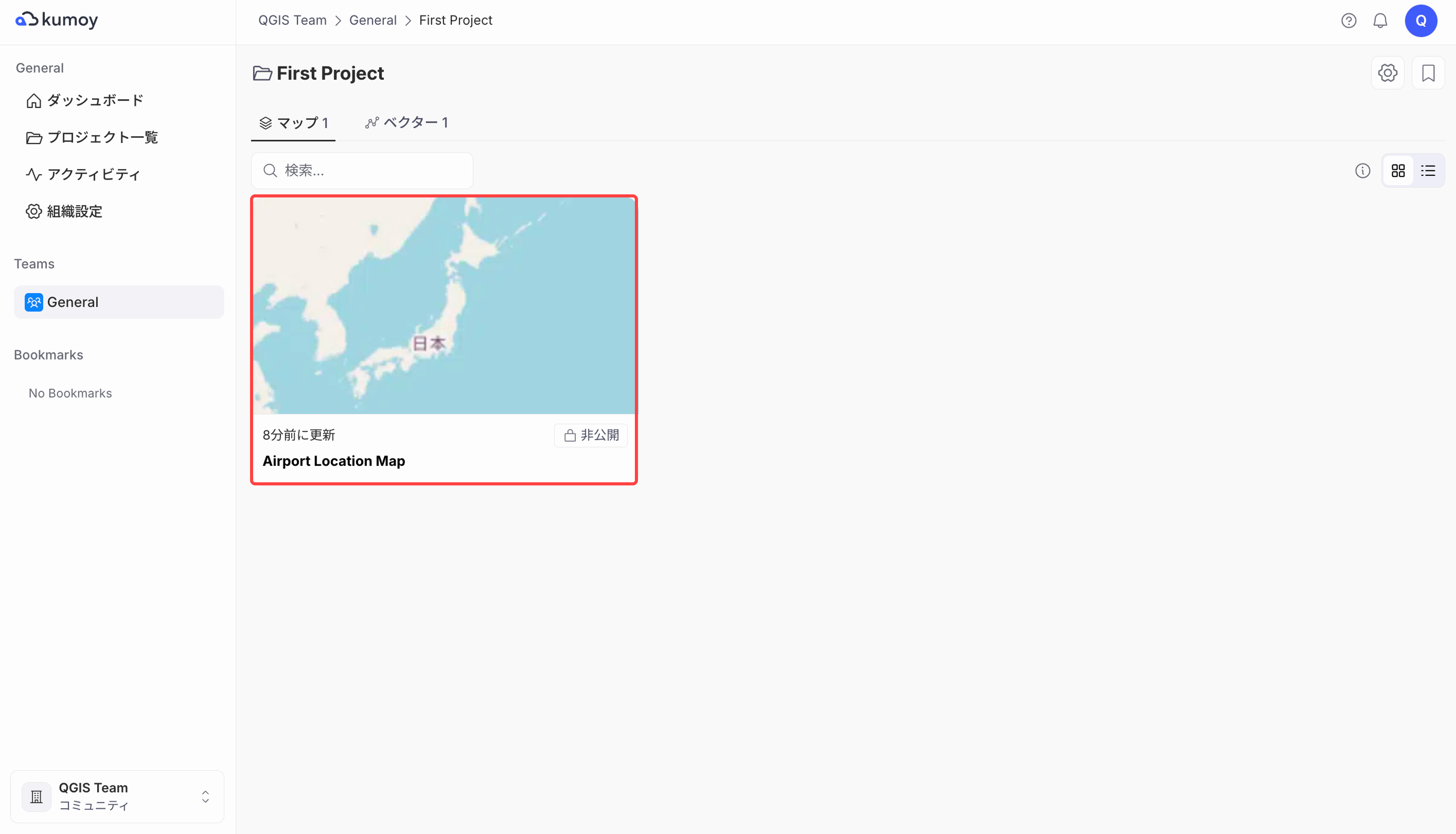
The project opens in your browser. Click on the target map.
-
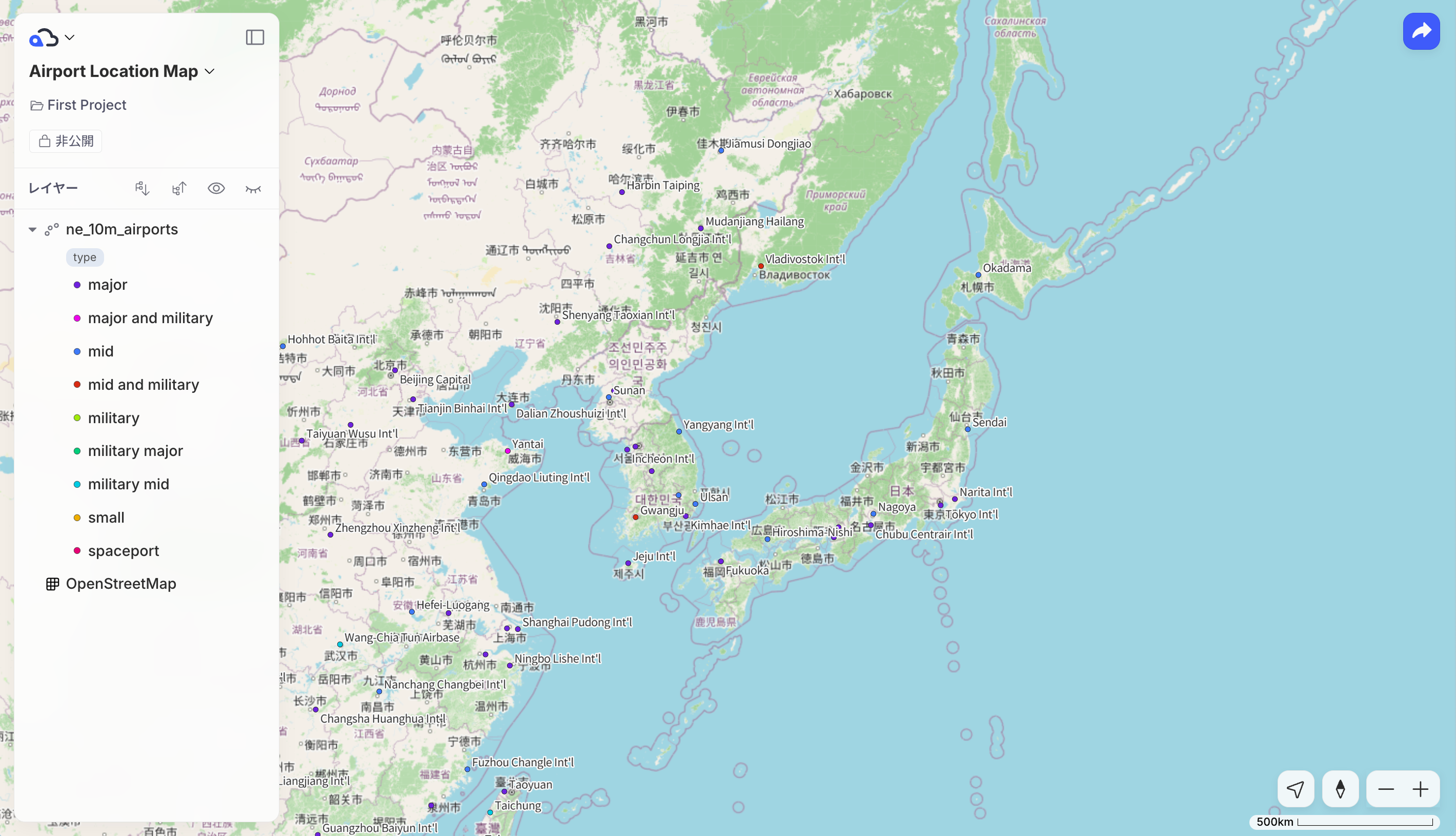
The map is displayed on the web.
Learn More About Kumoy#
You have now completed the core getting-started flow: creating a map in QGIS, saving it to Kumoy, and viewing it on the web.
From here, explore the features that match your workflow:
- To understand how projects and data are structured, see Organization & Project.
- To create and edit vectors, or upload vector and raster data, see Vectors and Rasters.
- To learn more about viewing and publishing maps on the web, see Map.
- If you're working with a team, Team Use covers permissions and team management.
For a full overview, browse the documentation index to find the pages most relevant to you.
Last update: Oct 7, 2026 23:52:25