Review & Update Billing and Payment Method
This page explains how to review and update your contract details, payment methods, and billing history from the billing page and subscription management page.
The billing page shows your current plan and storage usage. On the subscription management page, you can download invoices and manage your credit cards.
Check Current Plan and Usage#
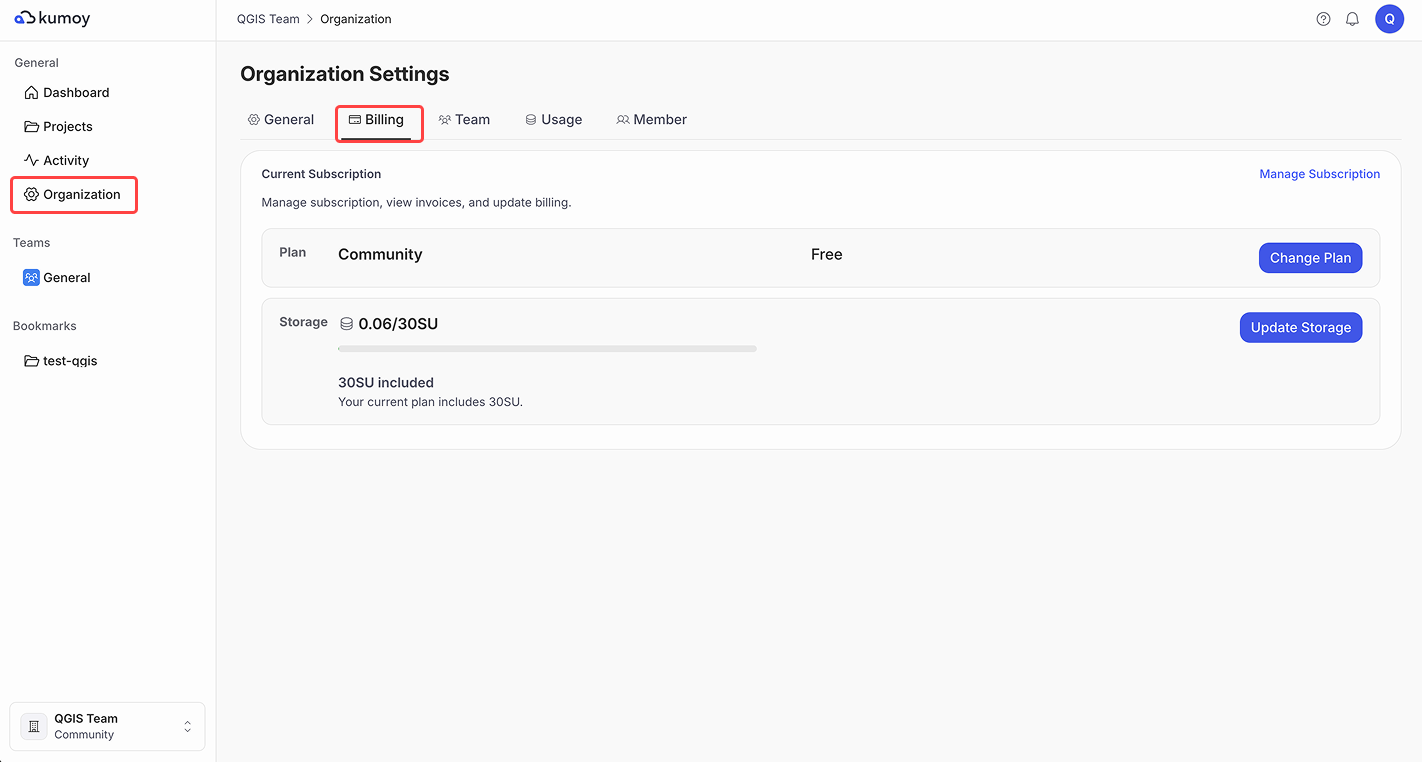
You can check your current plan and storage usage from the billing page.
-
Log in to Kumoy.
-
Open the Organization Settings tab and select the Billing sub-tab. Review your current plan and storage usage on the billing page.
Manage Your Subscription#
You can download invoices and receipts, and add or update credit card information from the subscription management page.
-
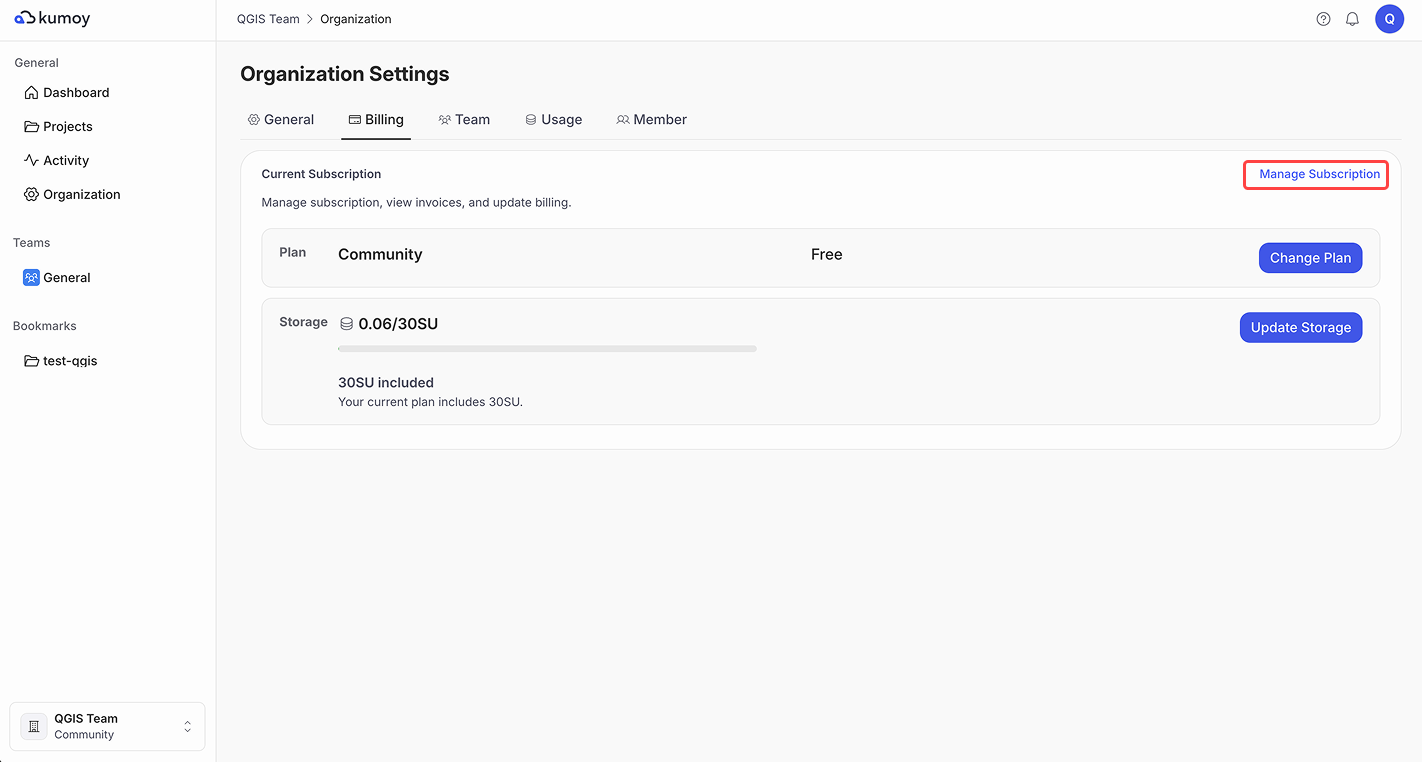
On the billing page, click Manage subscription.
-
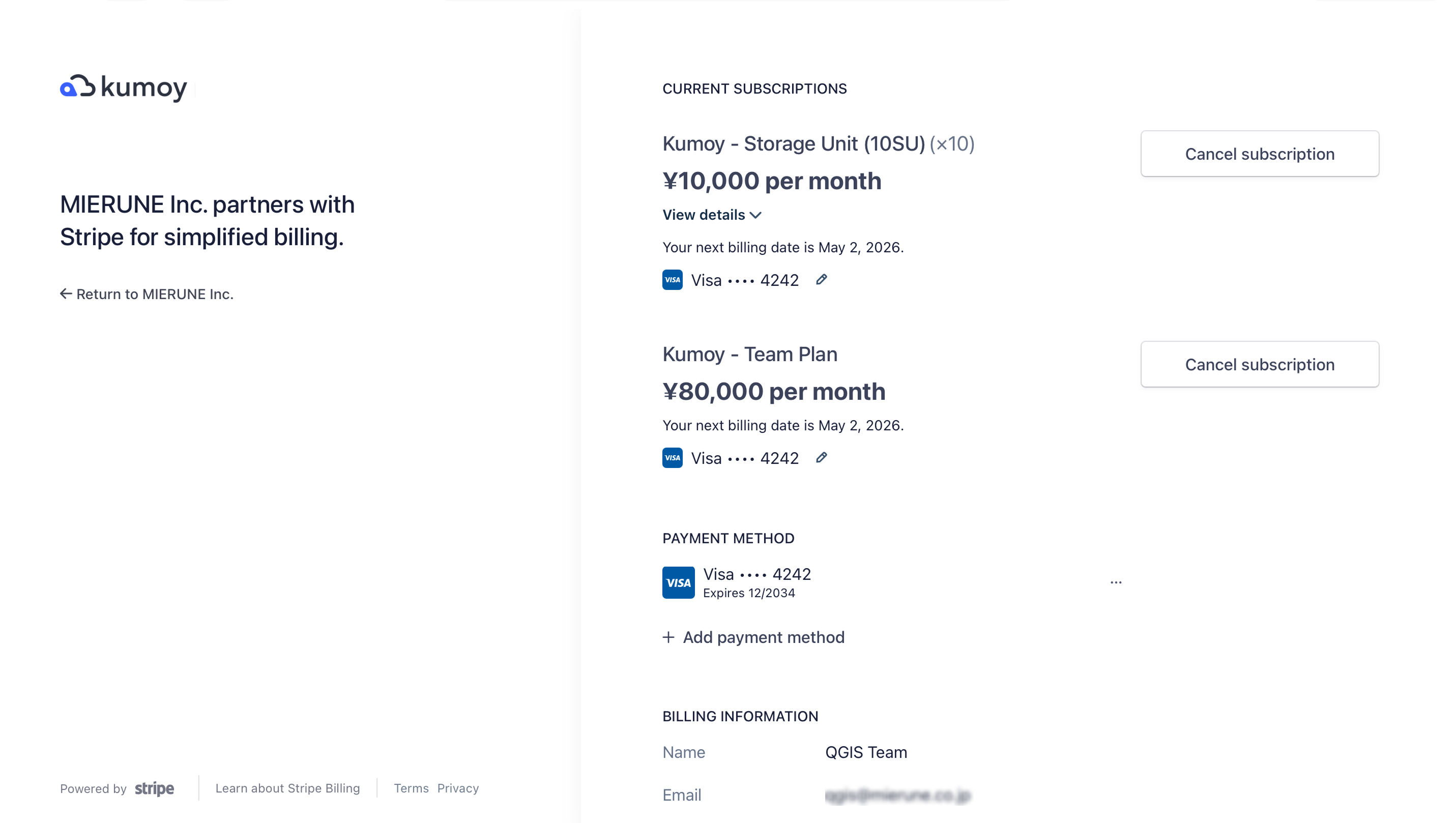
The subscription management page opens. Here you can check the current plan, storage capacity, payment methods, billing information, and billing history.
Download Invoices and Receipts#
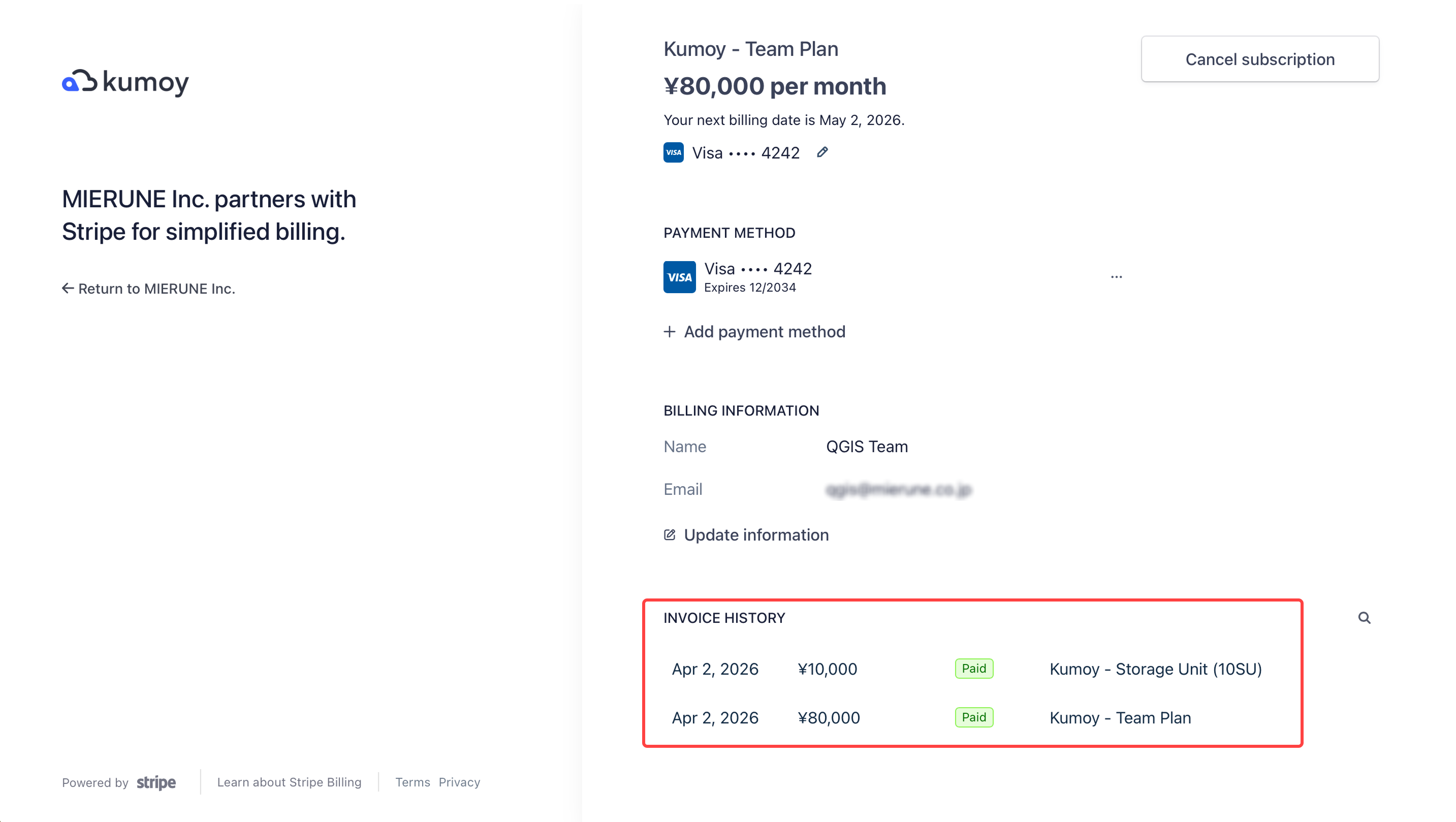
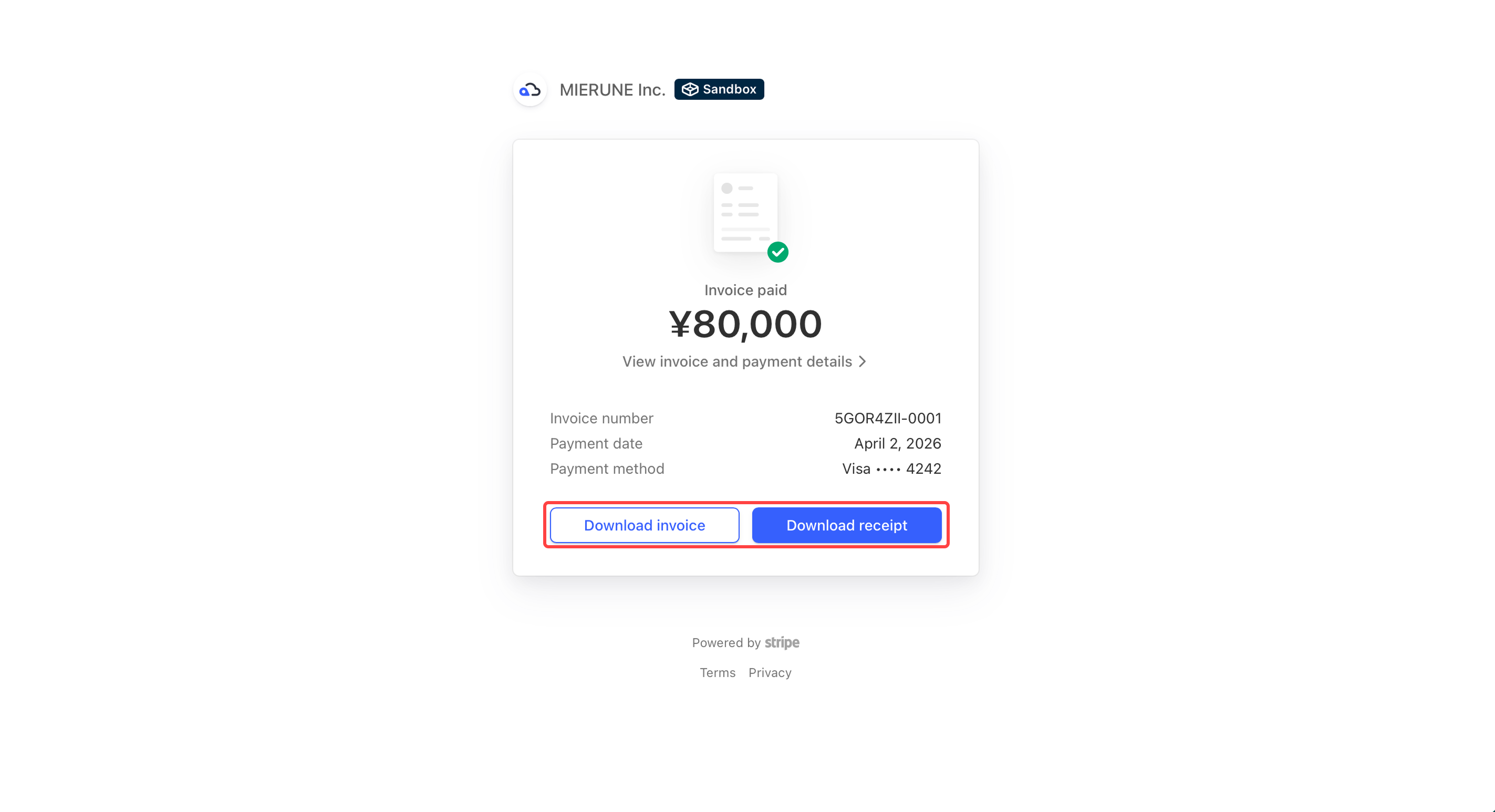
You can download invoices and receipts from the billing history on the subscription management page.
-
On the billing page, click Manage subscription.
-
On the subscription management page, open the billing history and click the billing entry you want.
-
From the screen that appears, download the invoice or receipt.
Add or Update Credit Card#
You can add or update credit card information from the subscription management page.
ImportantKumoy's online payments support credit card payments only.
-
On the billing page, click Manage subscription.
-
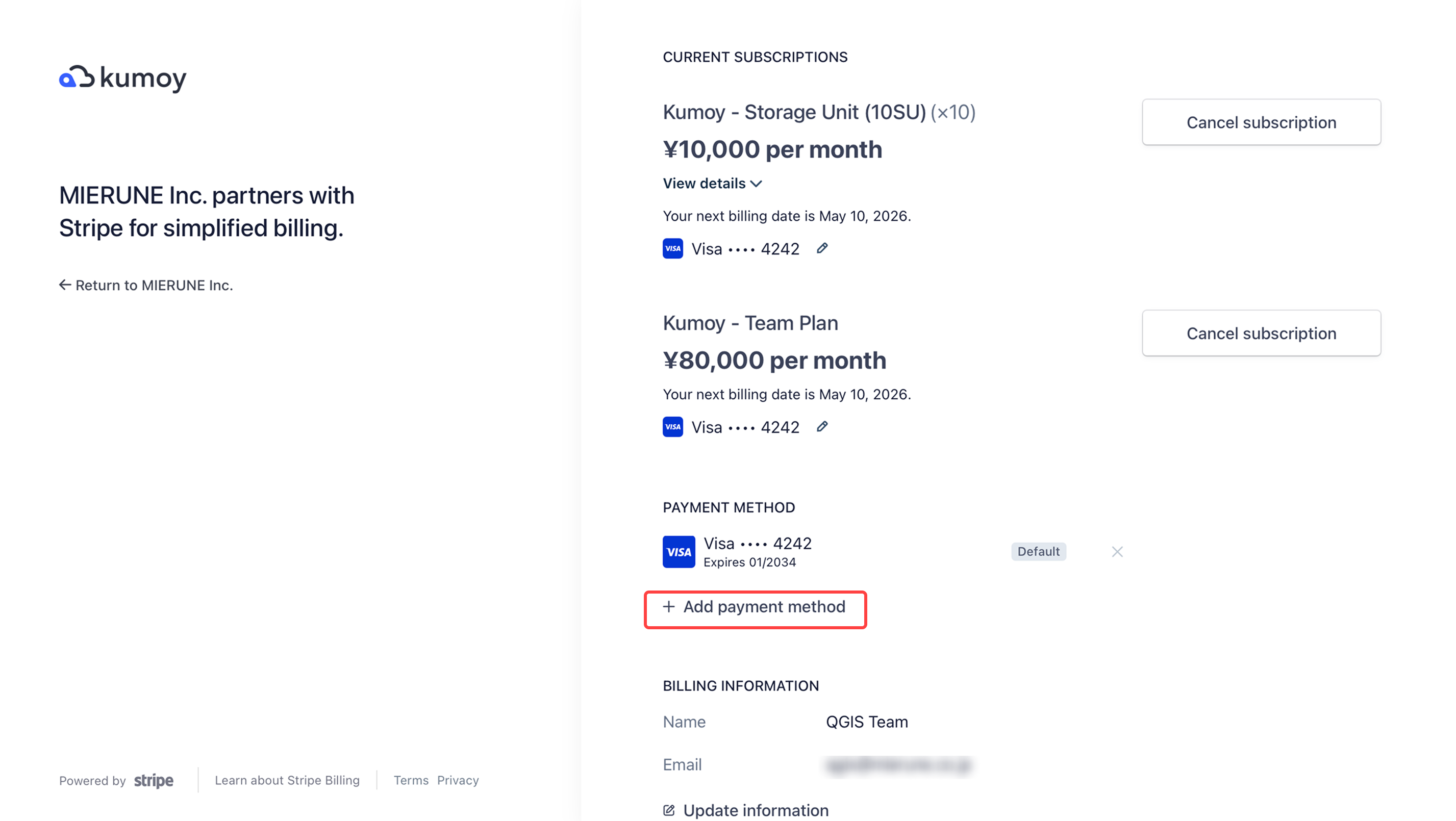
On the subscription management page, click Add payment method.
-
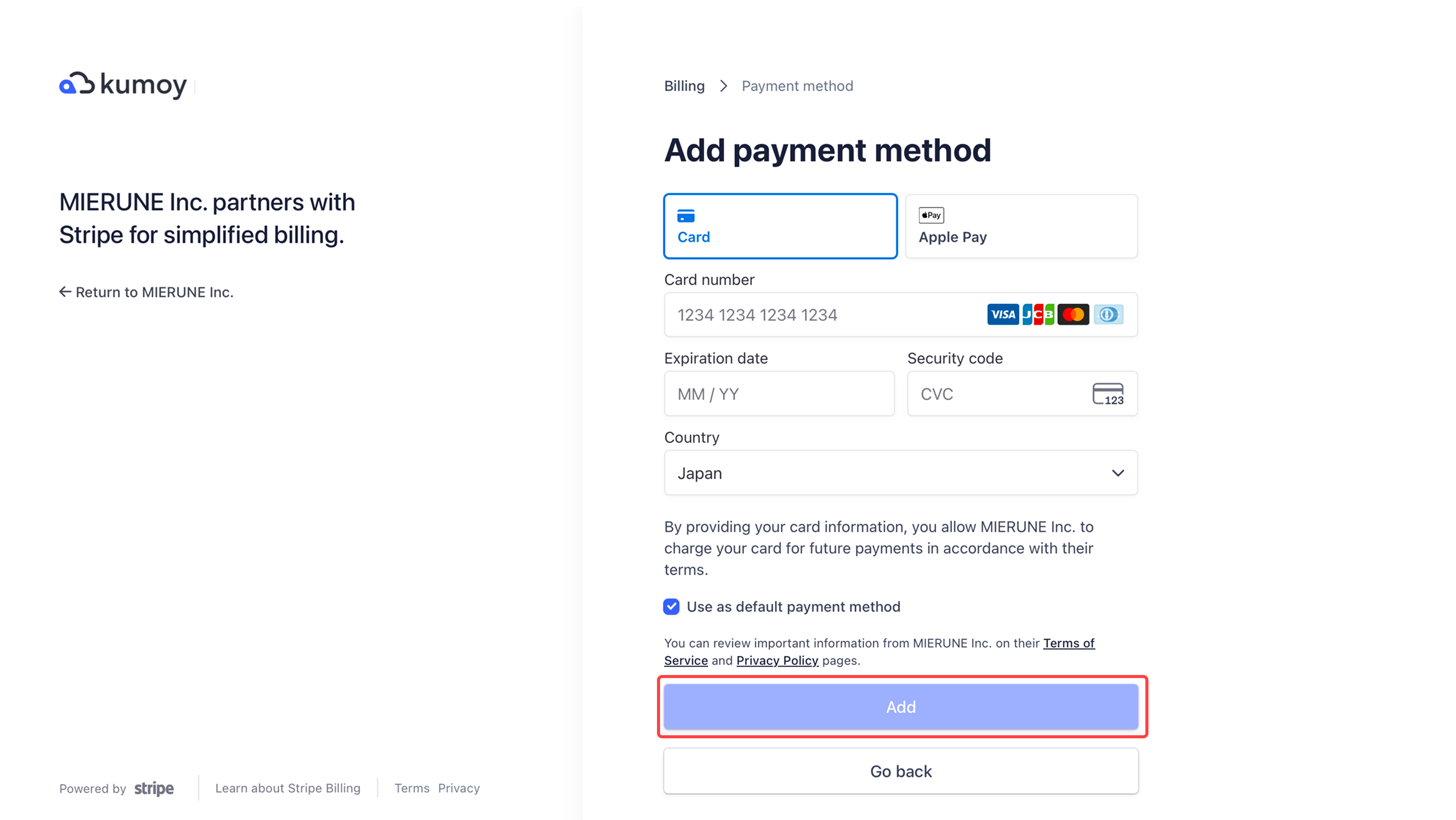
Next, enter your credit card details. If needed, check Set as default payment method before saving.
-
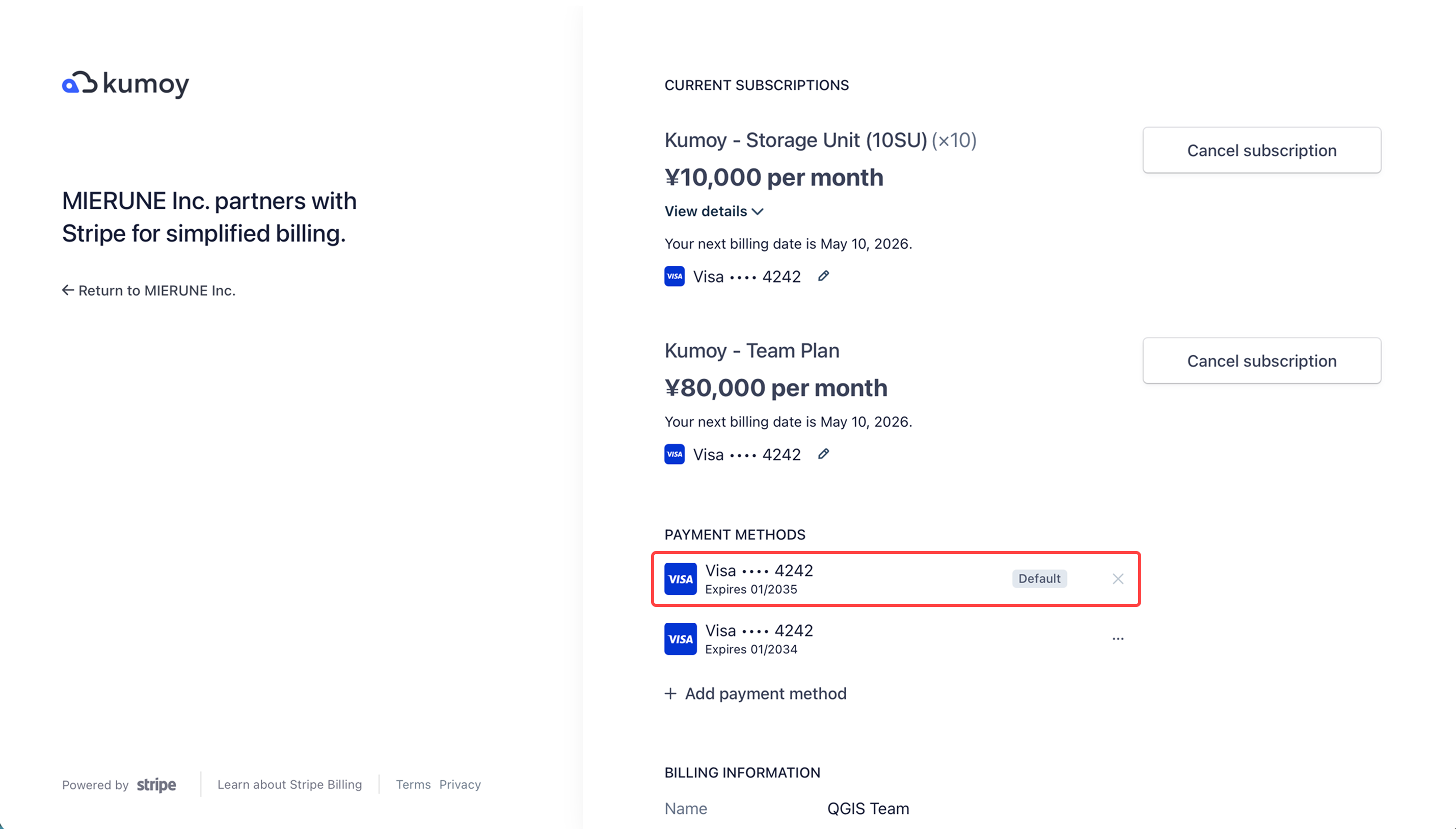
After saving, the new credit card is added as a payment method.
-
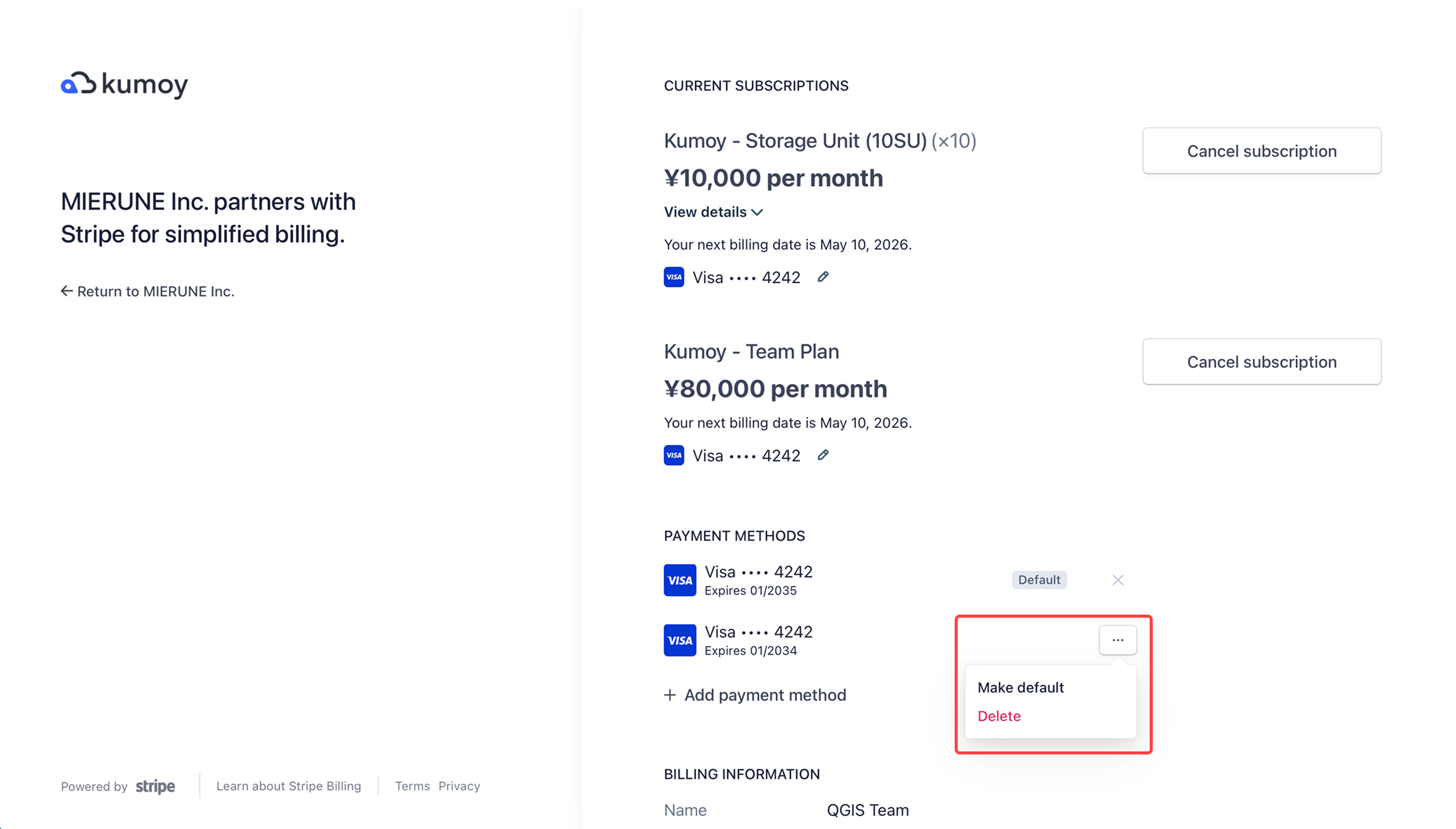
To make it your default card, open the ••• menu next to the card and click Make default.
Update Billing Information#
You can also update your billing information from the subscription management page.
-
On the billing page, click Manage subscription.
-
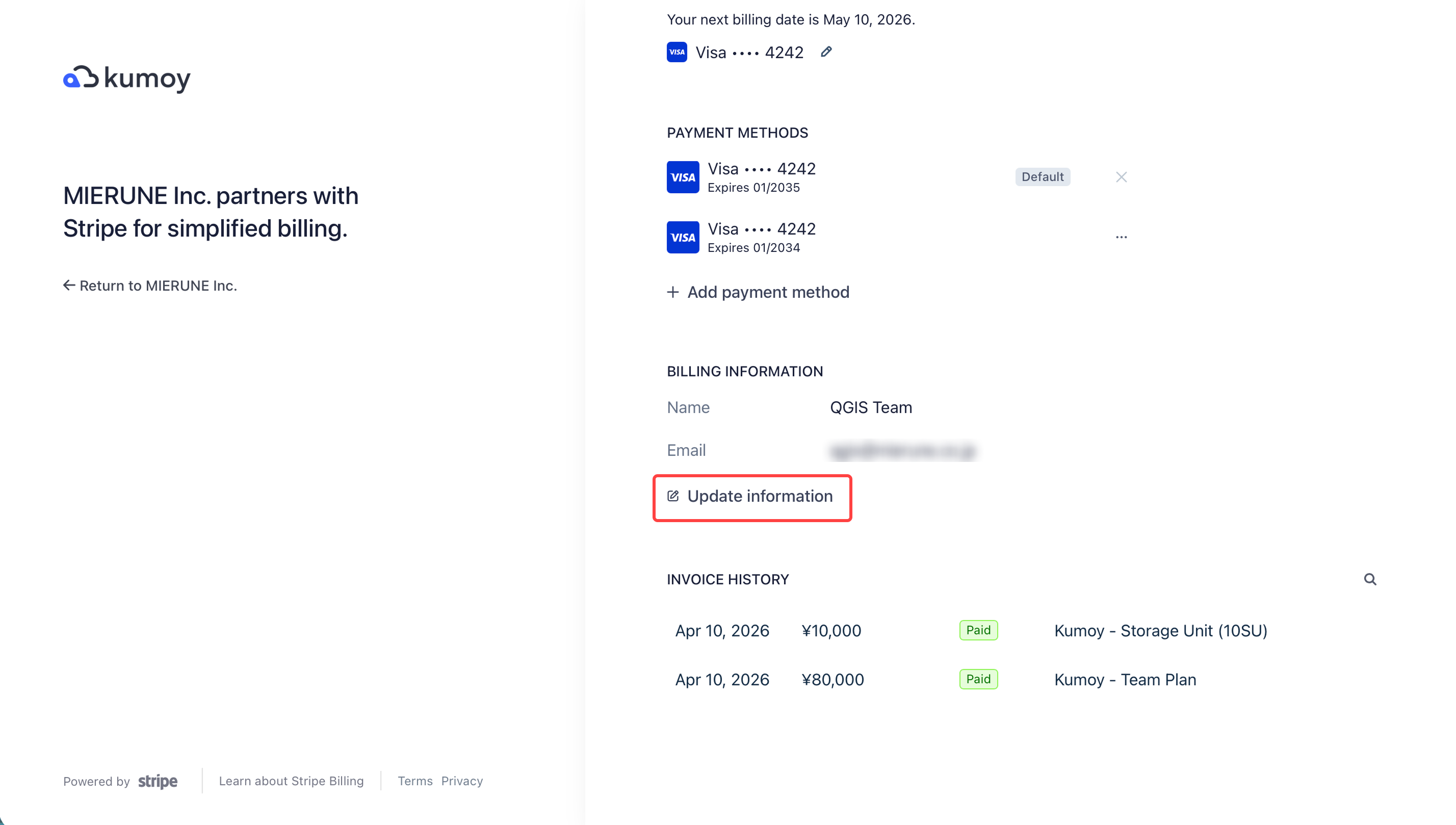
On the subscription management page, click Update information.
-
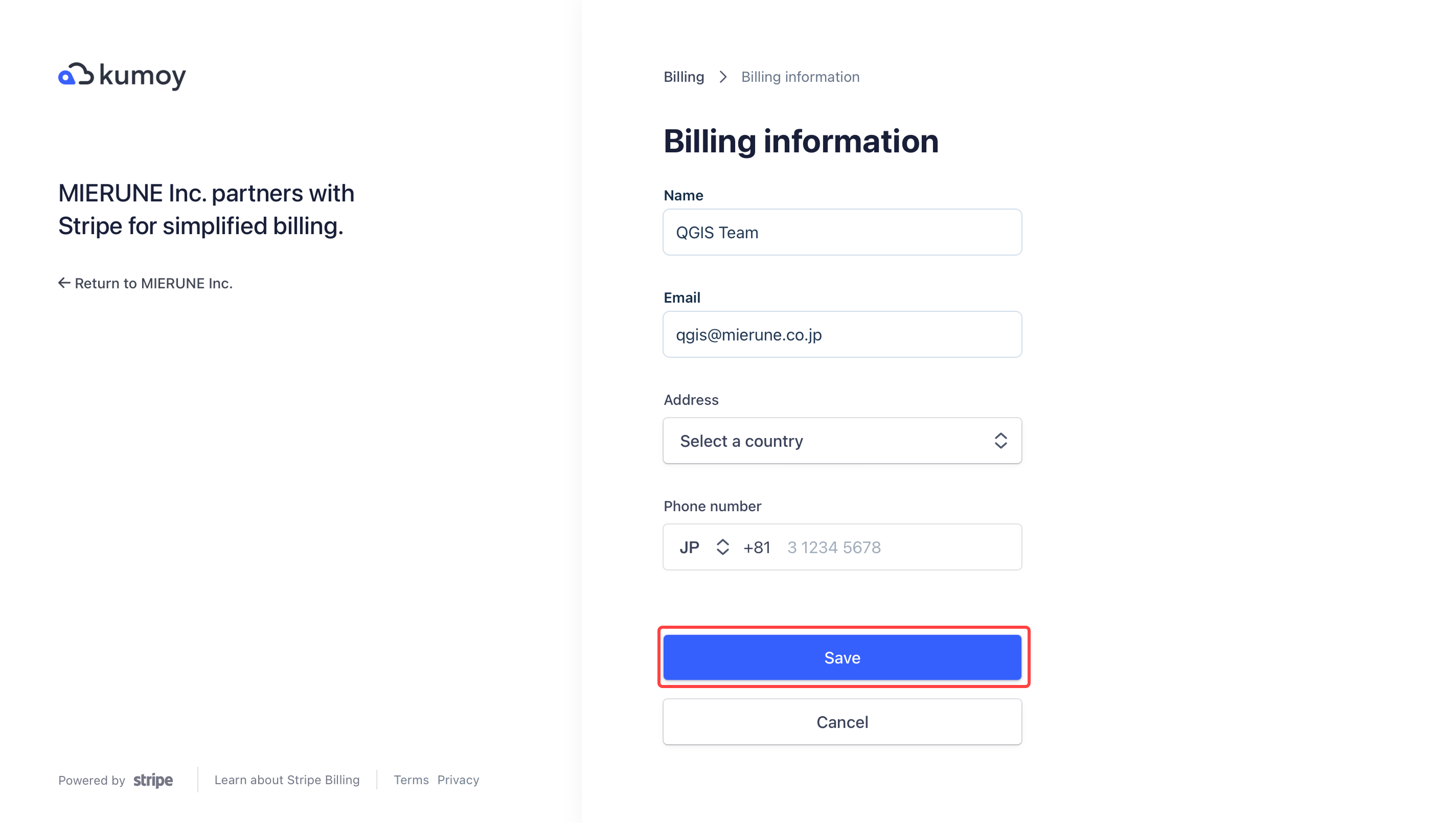
Next, enter and save details such as name, email address, postal address, and phone number.
Last update: Oct 7, 2026 23:52:25