Update Plan & Add-ons
This page explains how to change your plan, add storage, and add editor seats from the billing page.
All new accounts start on the free Community plan. If you need advanced features, higher capacity, or more editor seats, follow the steps below to update your subscription at any time.
Before You Start#
- Plan, storage, and editor seat updates are applied at the organization level.
- Paid plans support monthly and annual billing.
- Storage and editor seat add-ons are monthly only.
- See Plan Limits for limit values and Usage and Capacity Management for usage details.
- See Seats and Roles for the difference between Editor and Viewer seats.
Payment Methods#
Kumoy supports credit card payments.
Invoice-based payment is available for annual Corporate plan and above contracts only. To request it, contact us.
Change Your Plan#
To change your plan, go to the billing page. The steps below use upgrading from the Community plan to the Business plan as an example.
-
Log in to Kumoy.
-
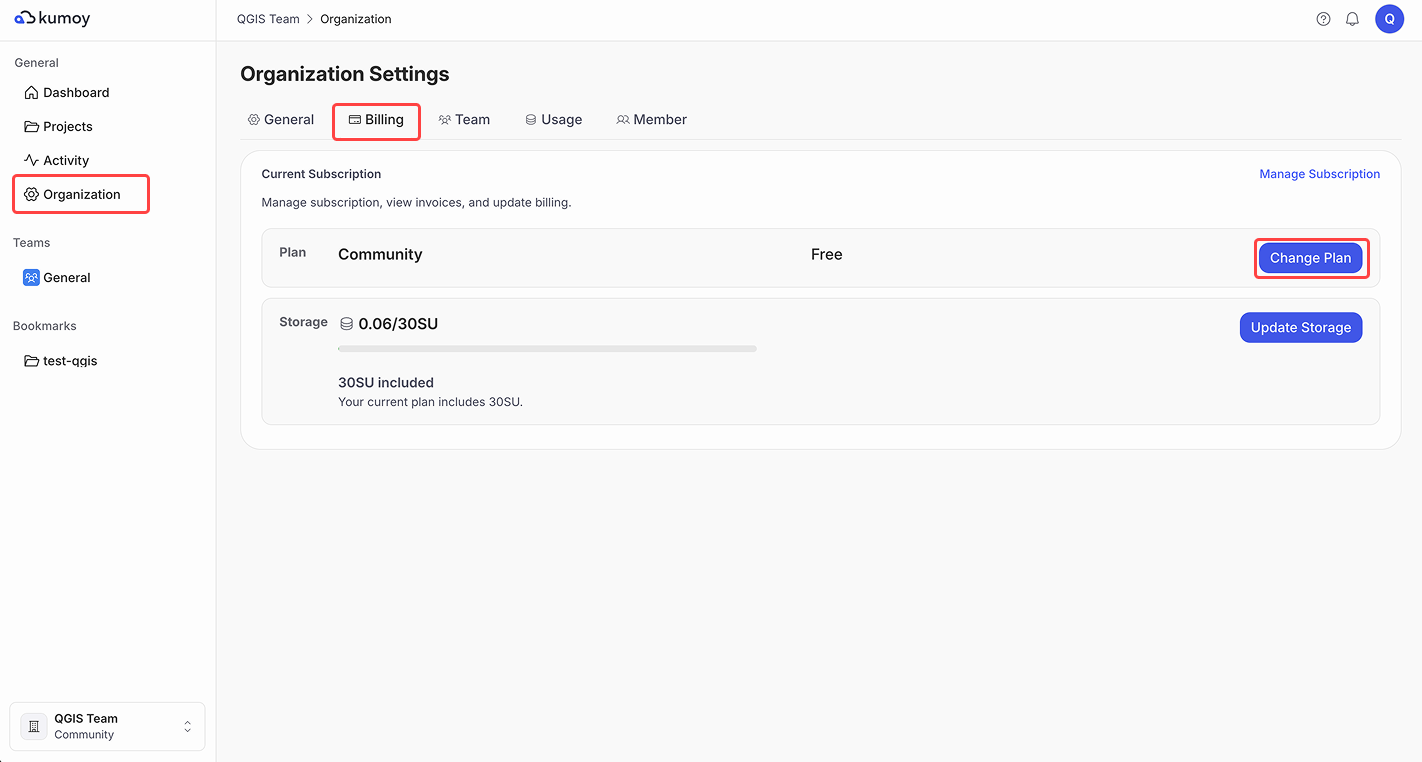
Open the Organization Settings tab, select the Billing sub-tab, and click Change plan.
-
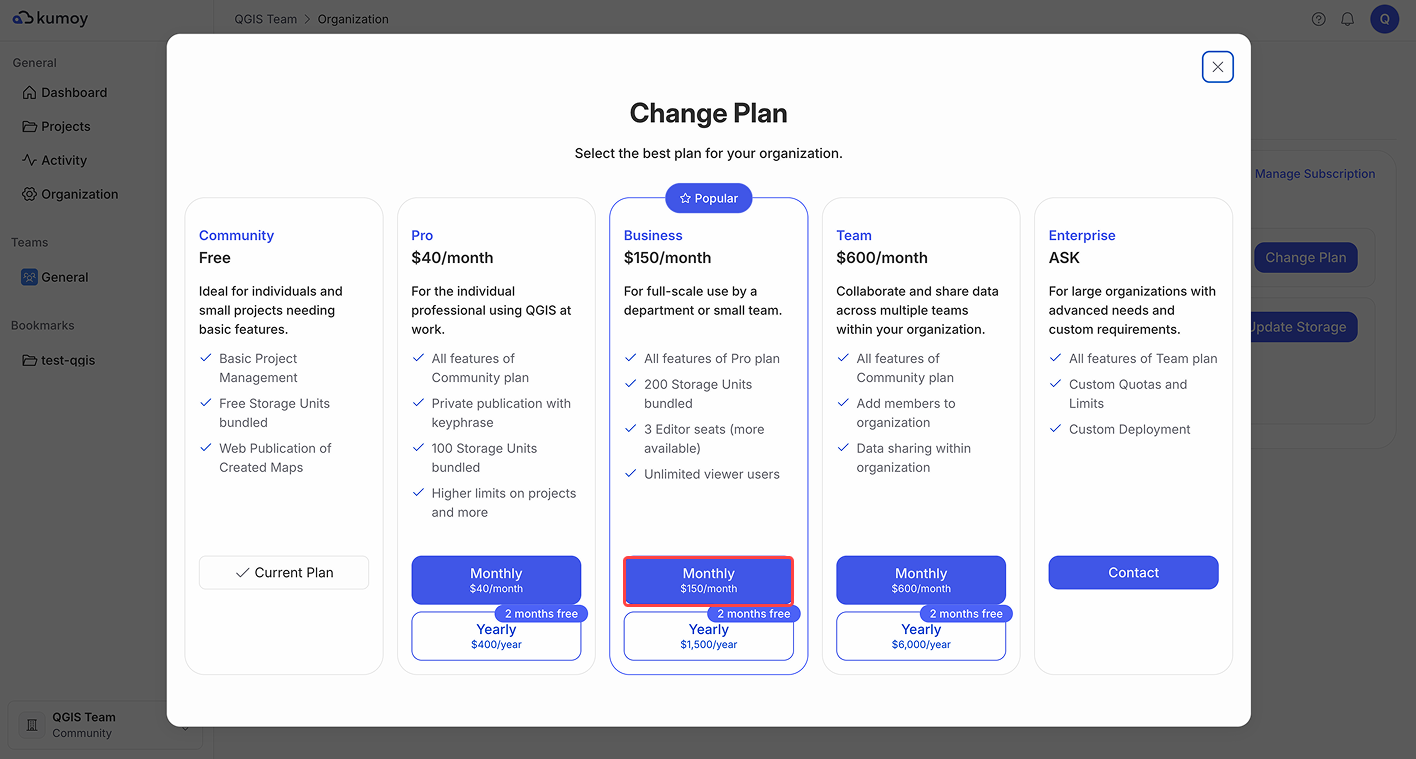
When the plan change screen appears, select the plan you want.
-
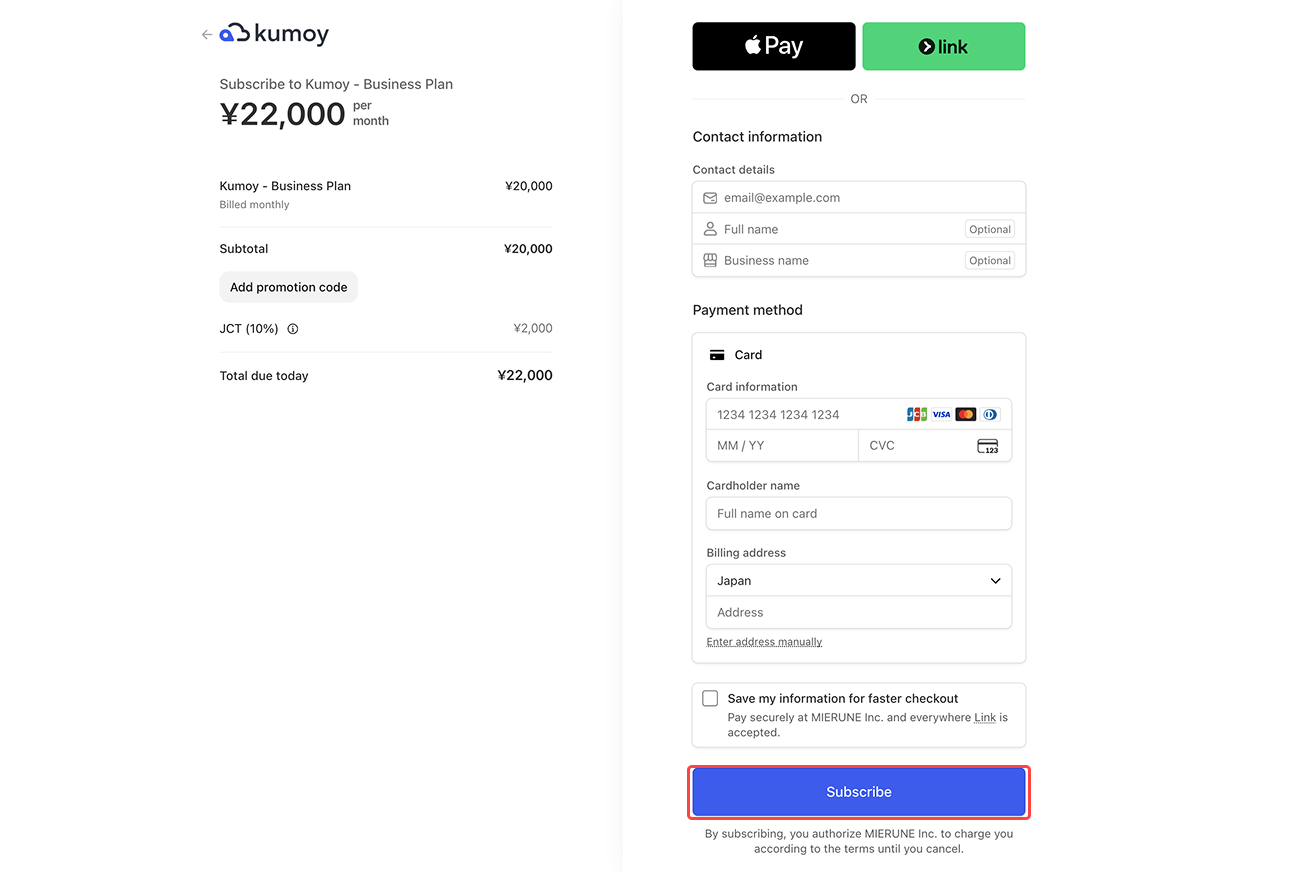
Follow the on-screen instructions, fill in the required information such as contact details and payment method, then click Subscribe.
-
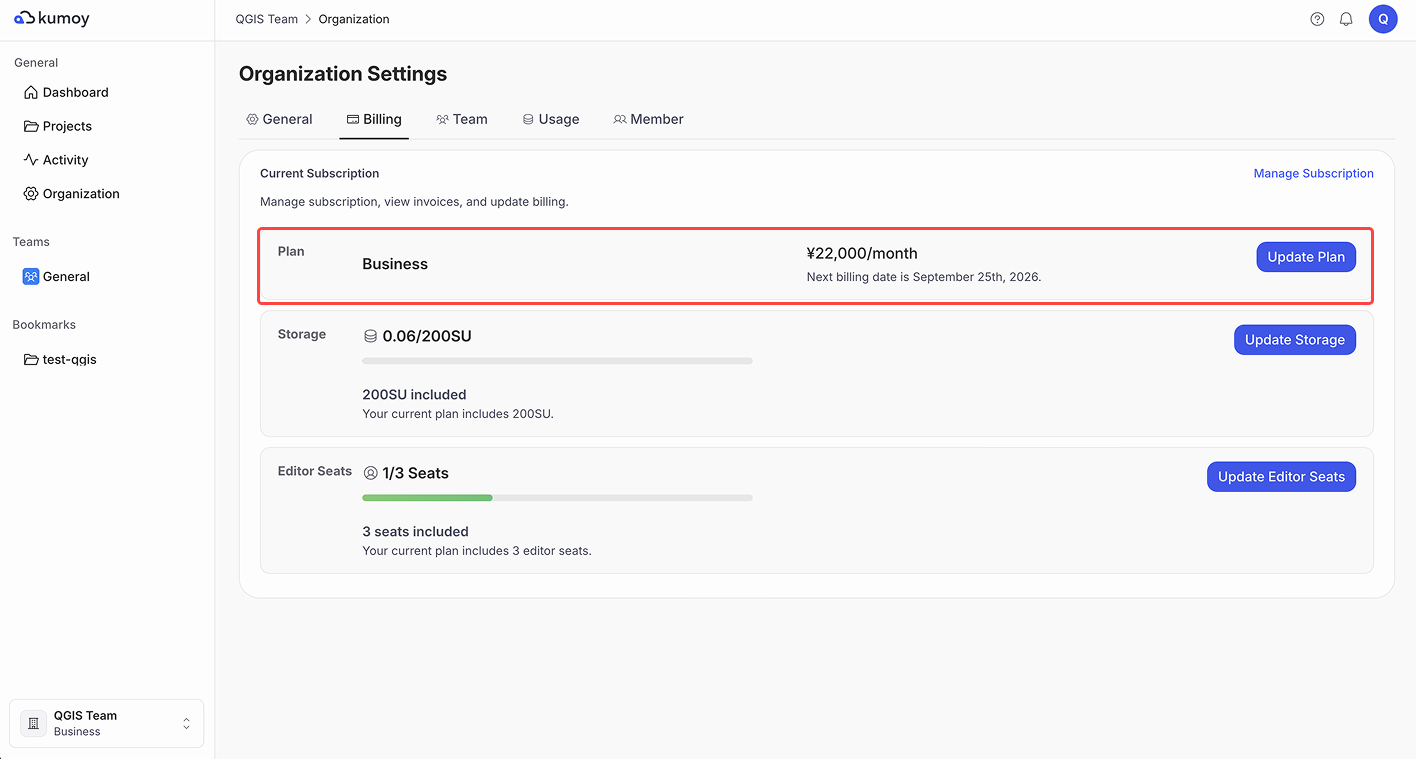
When the purchase is complete, you return to the billing page. Check that your plan has been updated.
Add Editor Seats#
ImportantEditor seats can only be added on the Business plan.
To add editor seats, use Update Editor Seats on the billing page.
-
Log in to Kumoy.
-
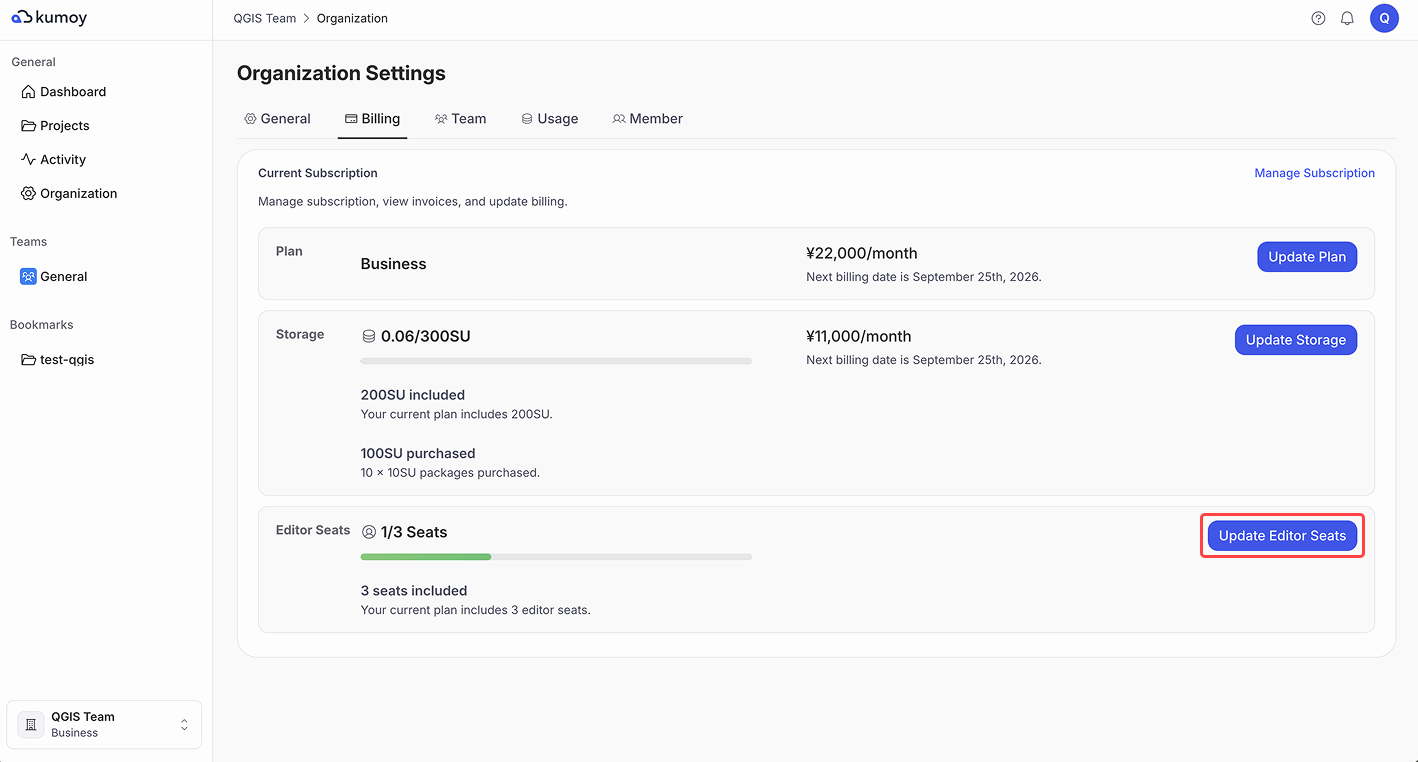
Open the Organization Settings tab, select the Billing sub-tab, and click Update Editor Seats.
-
When the editor seats update screen appears, click the Quantity dropdown, set the number of editor seats, then click Update.
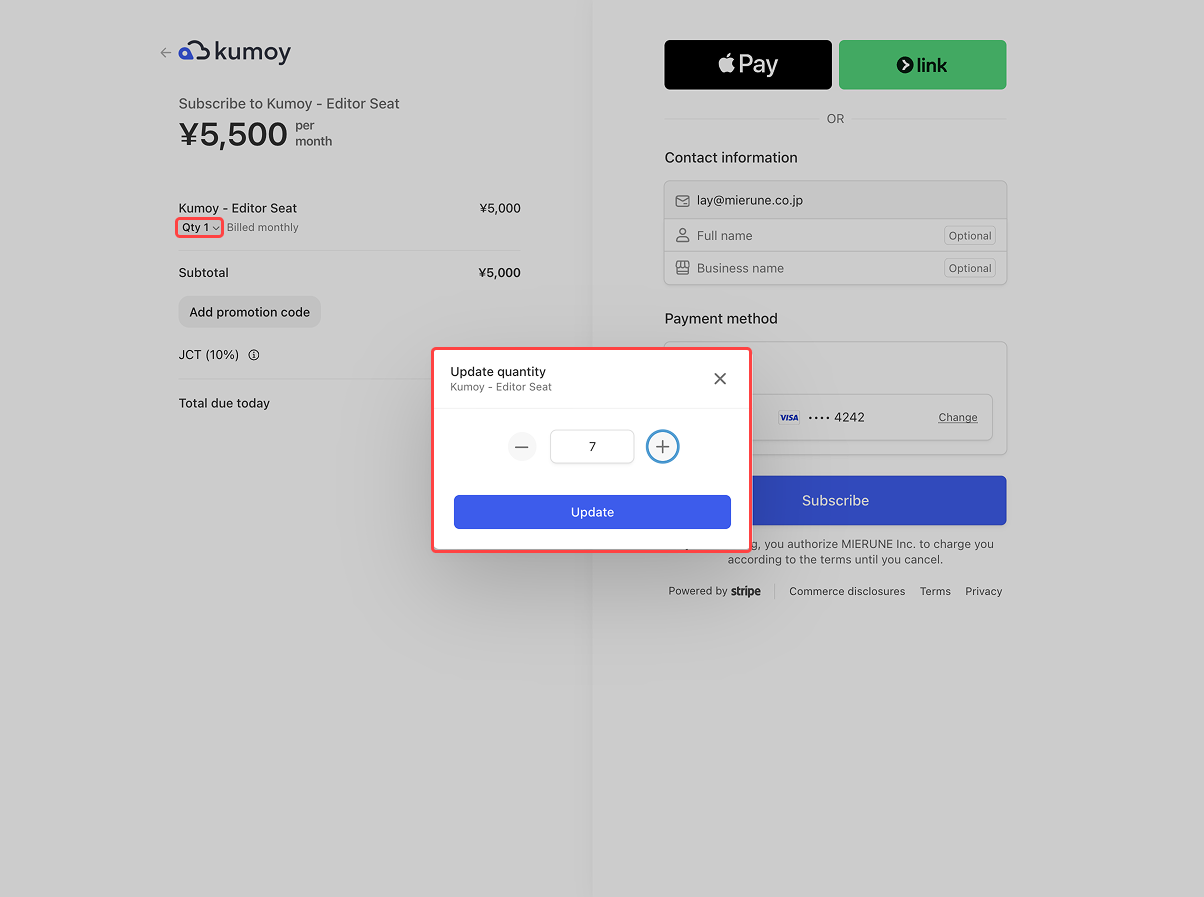
ImportantThe Business plan includes 3 Editor seats. You can add seats until the organization has a total of 20 Editors.
-
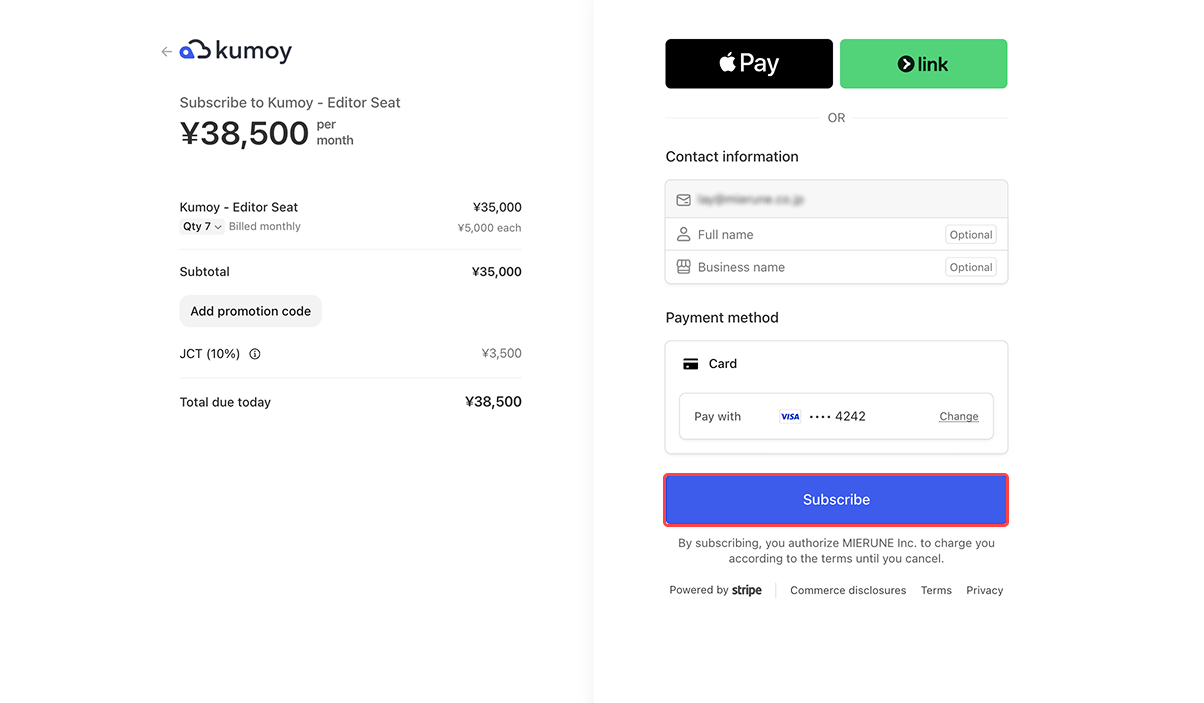
Follow the on-screen instructions, review your billing details and payment method, then complete the purchase.
-
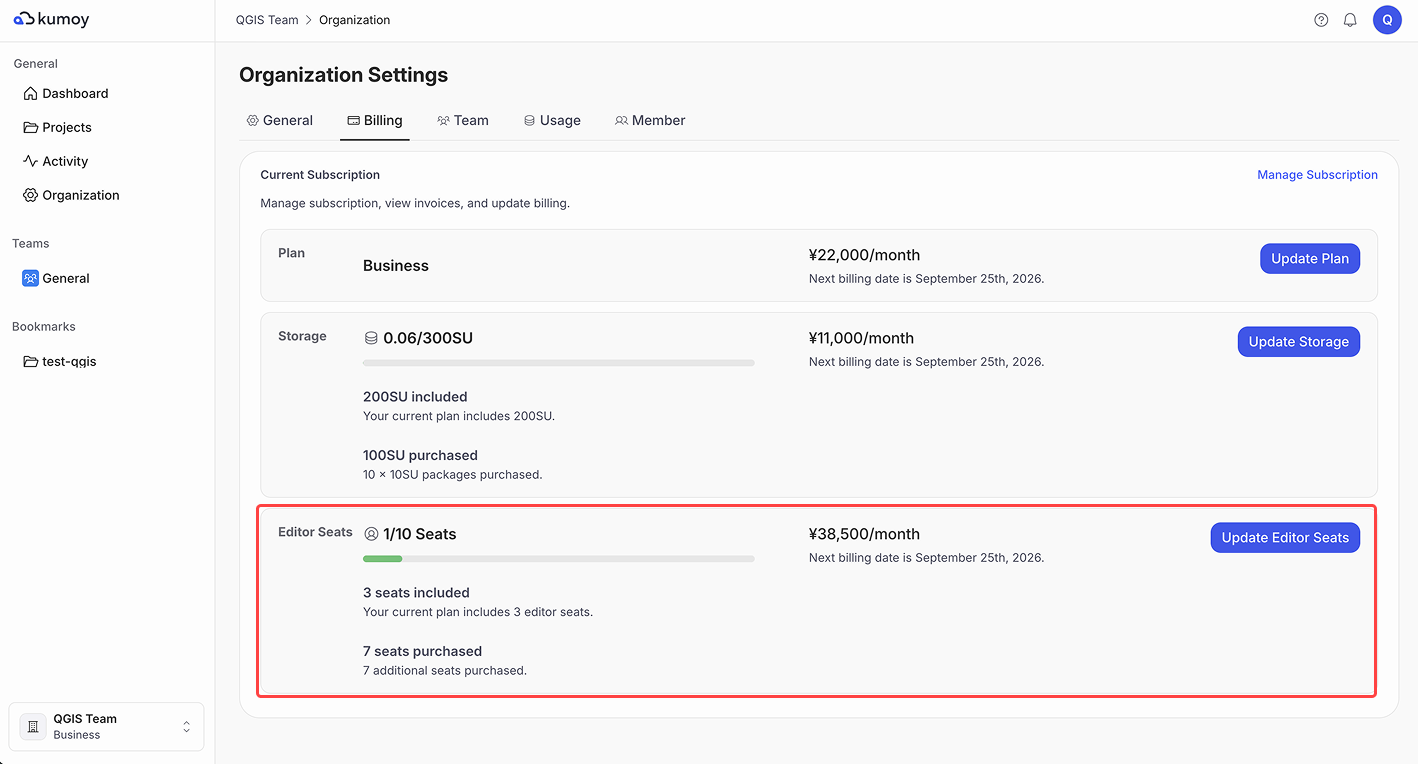
When the purchase is complete, you return to the billing page. Check the updated number of editor seats.
Add Storage#
To add storage capacity, use Update storage on the billing page.
-
Log in to Kumoy.
-
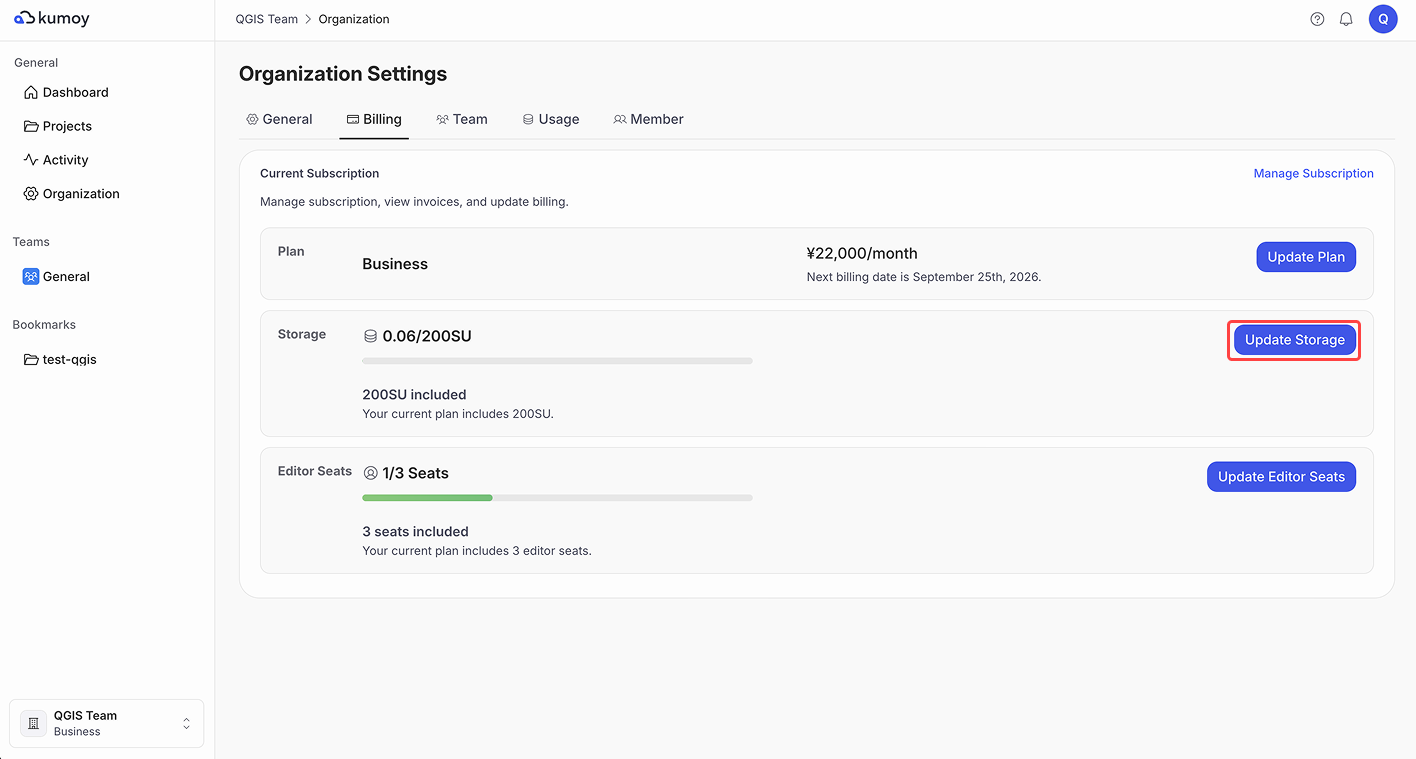
Open the Organization Settings tab, select the Billing sub-tab, and click Update storage.
-
When the storage update screen appears, click the Quantity dropdown and select the desired capacity.
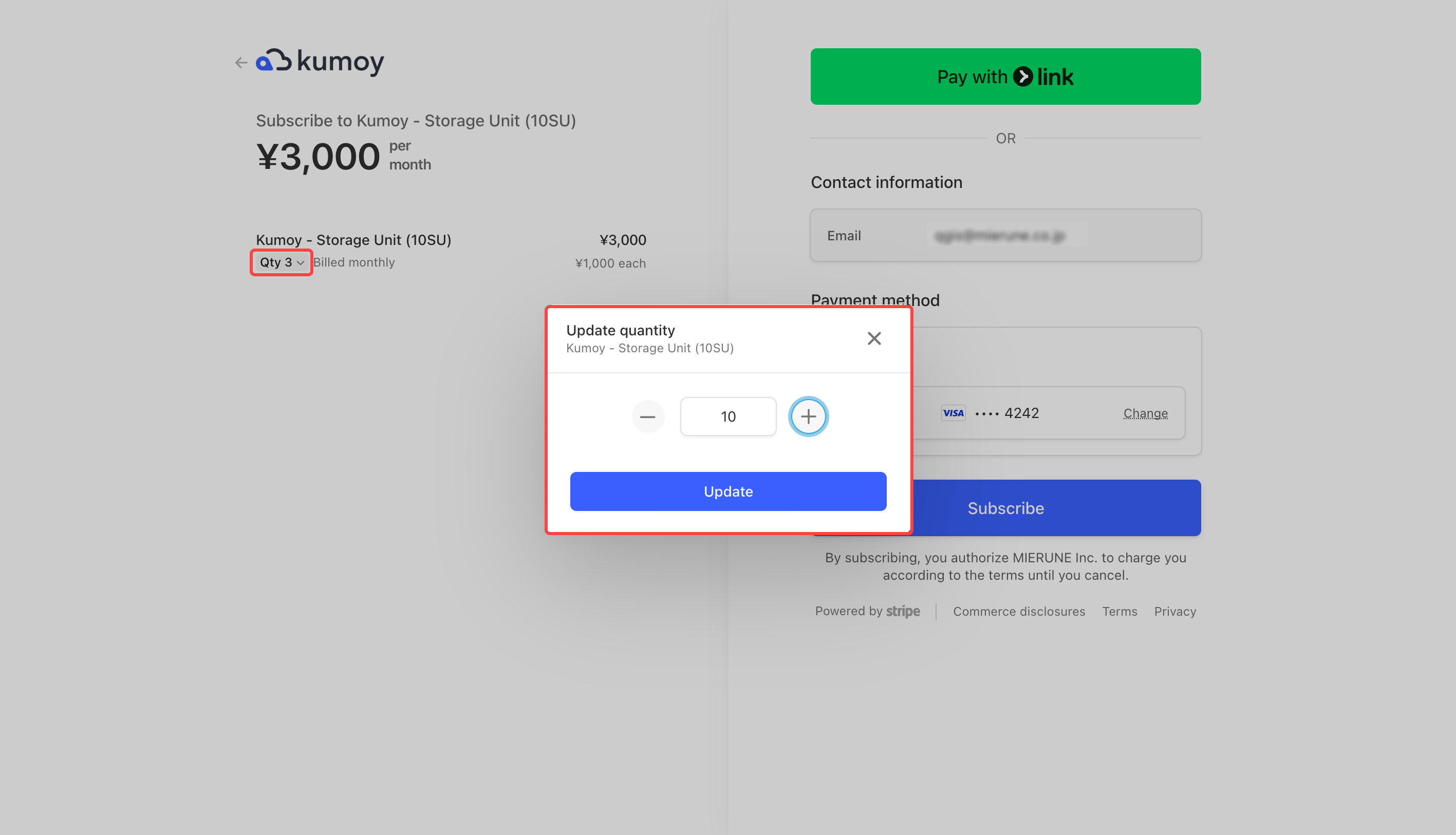
ImportantThe minimum purchase is 30 SU. Additional units can be added in increments of 10 SU.
-
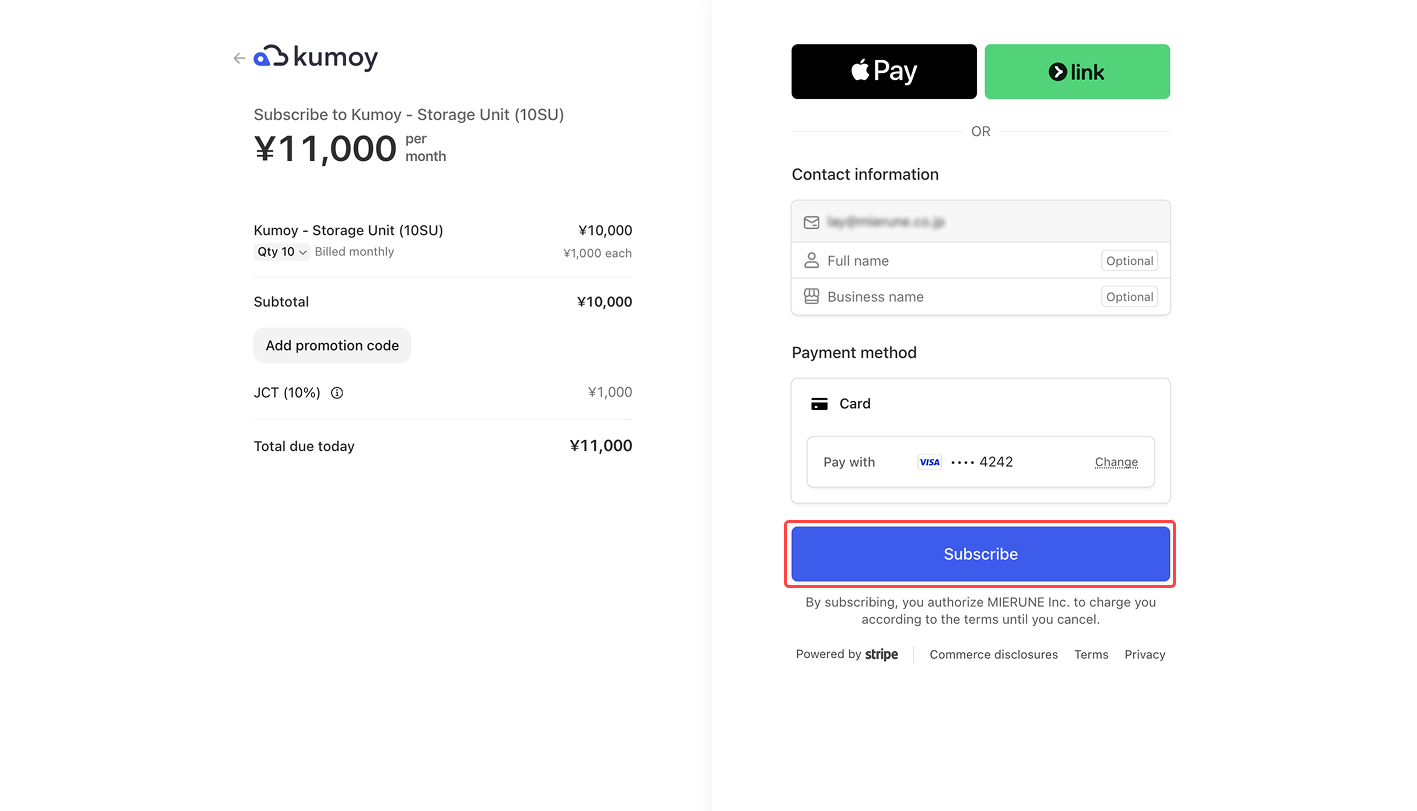
Follow the on-screen instructions, review your billing details and payment method, then complete the purchase.
-
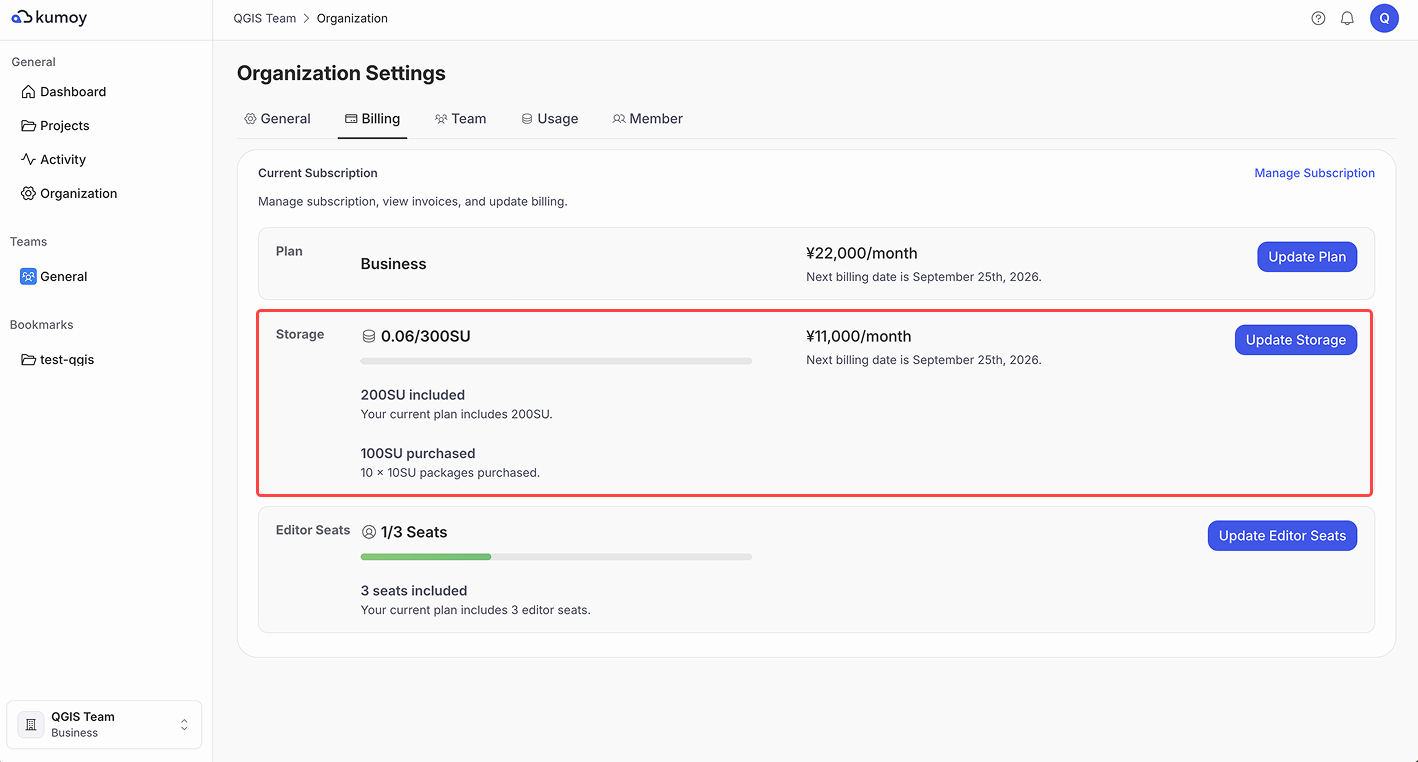
When the purchase is complete, you return to the billing page. Check the updated storage capacity.
Billing Flow for Add-ons#
Your Business plan fee and add-on fees are billed separately. You can expand your storage or editor seats at any time; these additions are prorated based on the remaining days in your current billing cycle.
Billing example#
The example below assumes a Business plan subscription starting April 1, purchasing 30 SU on April 15, and adding a further 10 SU on April 20 (totaling 40 SU). The Business plan includes 200 SU as standard.
- April 1: Business plan starts (200 SU included as base storage).
- April 15: Purchase 30 SU add-on.
- April 20: Purchase an additional 10 SU
Total Capacity: 240 SU (200 base + 40)
Billing Flow#
-
April 1: Pay the base contract fee for the Business plan from April 1 to April 30.
-
April 15: Pay one month of the 30 SU fee (April 15 to May 15).
-
April 20: Pay the prorated fee for the additional 10 SU (April 20 to May 15).
-
May 15: Pay one month of the 40 SU fee (May 15 to June 15).
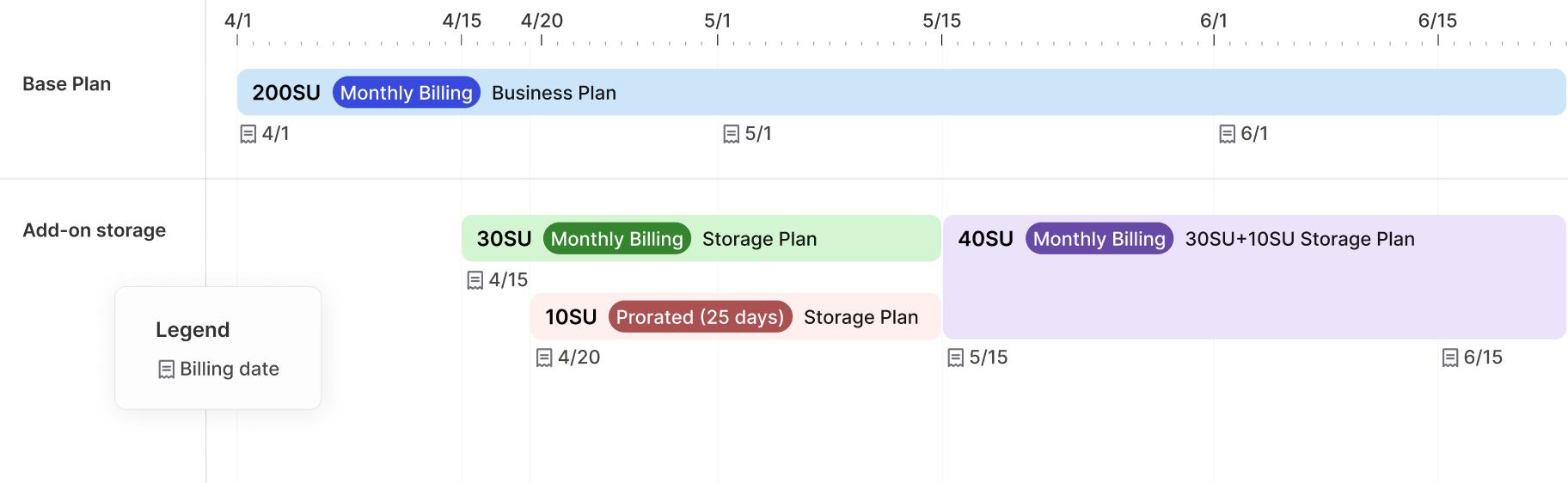
ImportantFrom May 15 onward, the charges for the 40 SU are consolidated into a single bill.
Last update: Oct 7, 2026 23:52:25