Publish a Map on the Web
This page explains how to make a map publicly accessible and generate a shareable link.
On the Pro plan and above, you can also set a keyphrase, so that the URL alone is not enough to view the map.
Publish a Map on the Web#
-
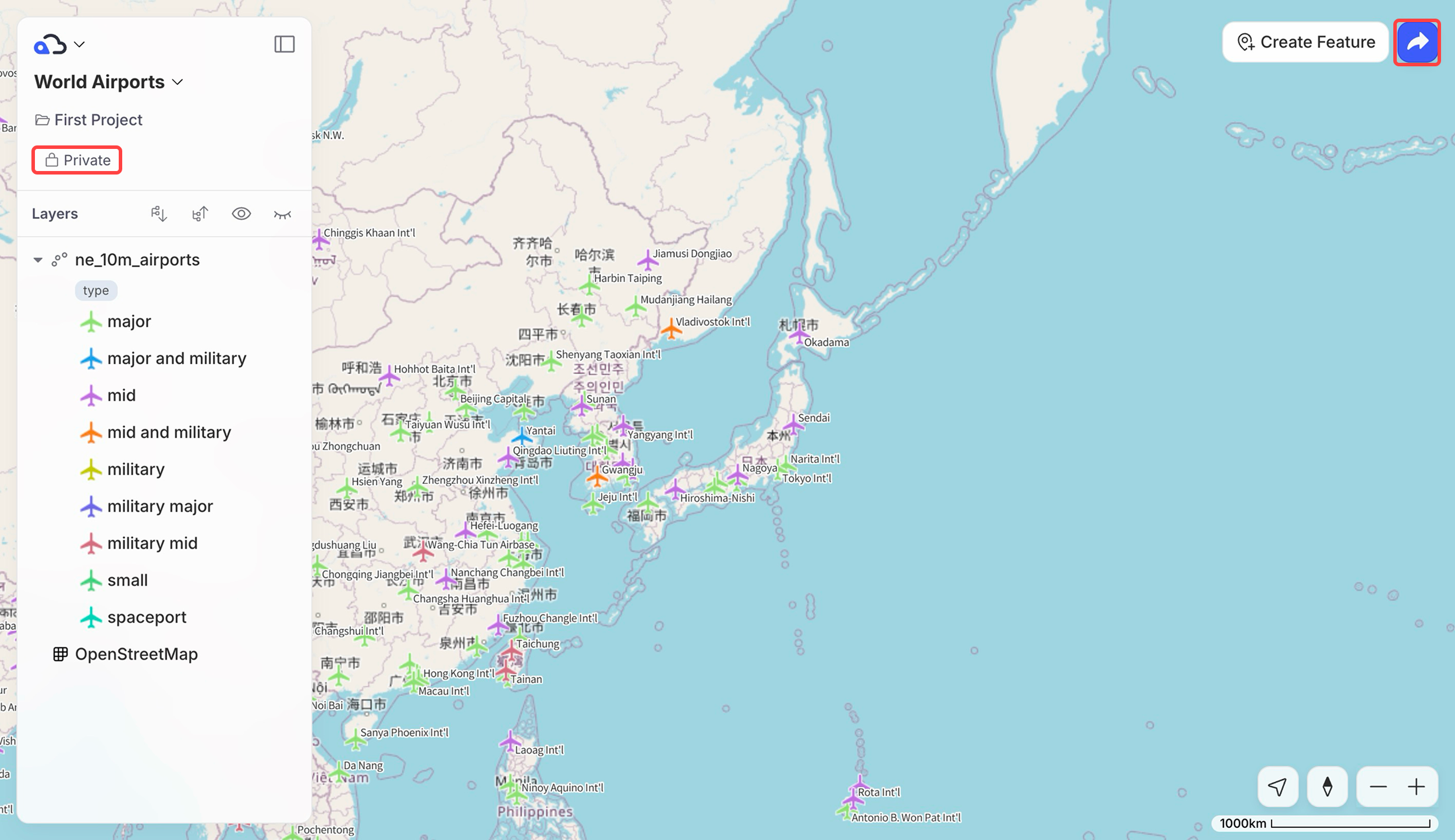
On the map page you want to publish, click the Public / Private button in the left sidebar, or click the Share button in the top right to open the sharing settings dialog.
-
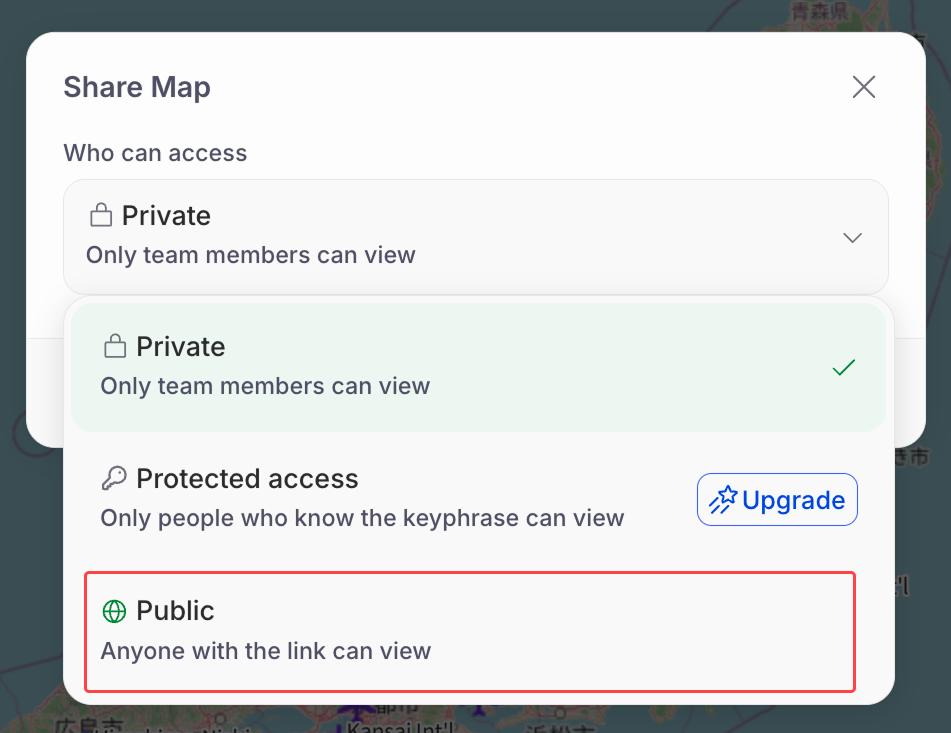
Open the Who can access dropdown and select Public to make the shareable link available to copy.
-
Copy the public URL to share it.
Publish a Map with a Keyphrase#
ImportantKeyphrases are available on the Pro plan and above. See Update Plan & Add-ons to upgrade.
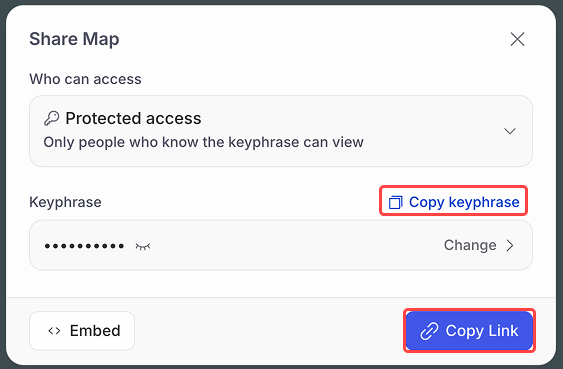
You can restrict a published map with a keyphrase by using Protected access. Once a keyphrase is set, only those who know both the share URL and the keyphrase can view the map.
-
Open the map page you want to publish.
-
Click the Public / Private button in the left sidebar, or click the Share button at the top right to open the sharing settings dialog.
-
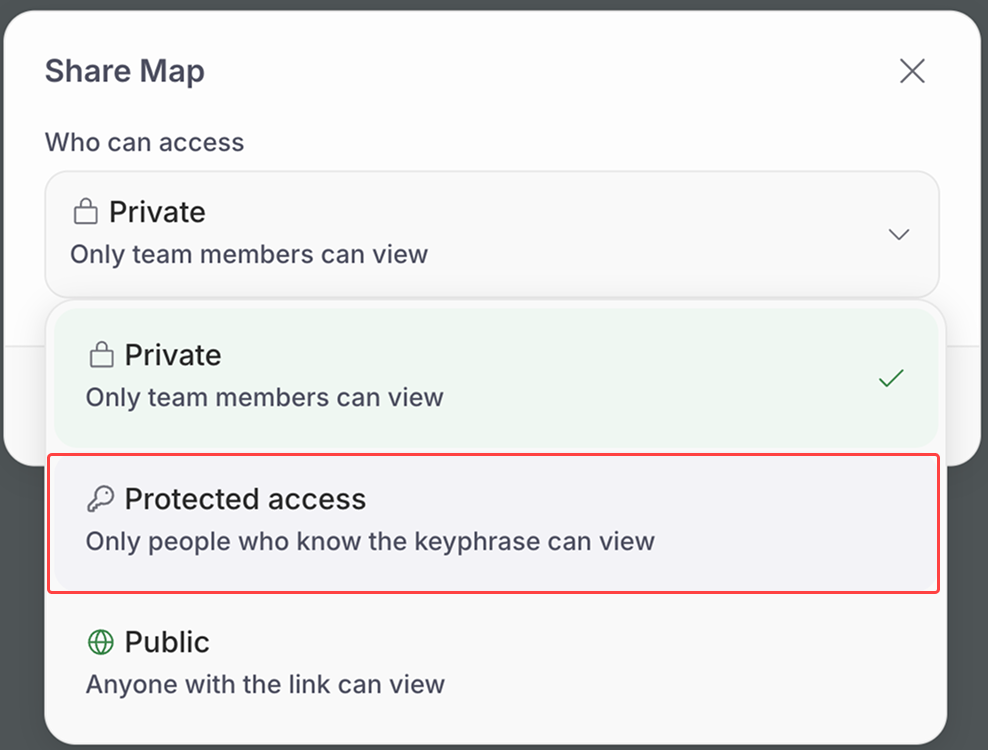
In the Share Map dialog, open the Who can access dropdown and select Protected access.
-
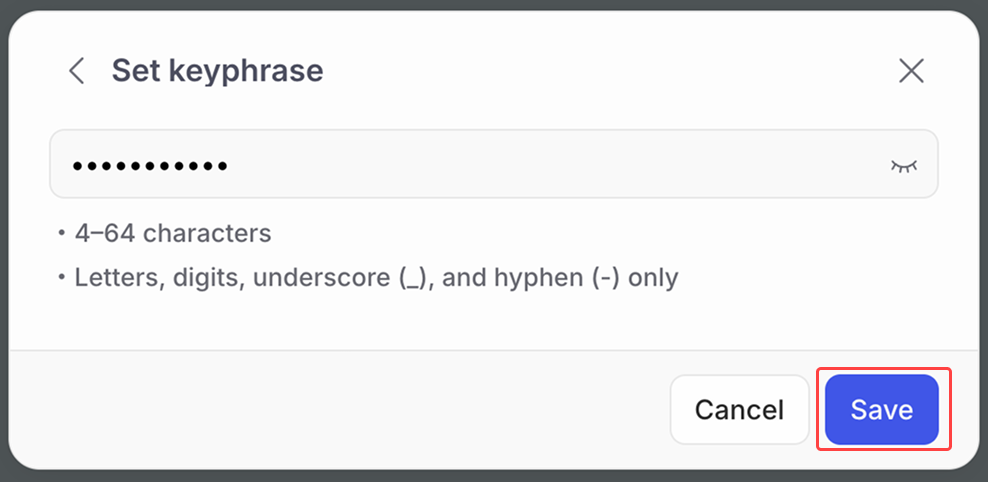
On the Set keyphrase screen, enter a keyphrase between 4 and 64 characters long, using only letters, numbers, underscores, or hyphens, then click Save.
-
Once the keyphrase is set, use Copy Link and Copy keyphrase to share both the URL and the keyphrase with your viewers.
View a Map with a Keyphrase#
To view a map published with a keyphrase, you need both the share URL and the keyphrase.
-
Open the shared URL.
-
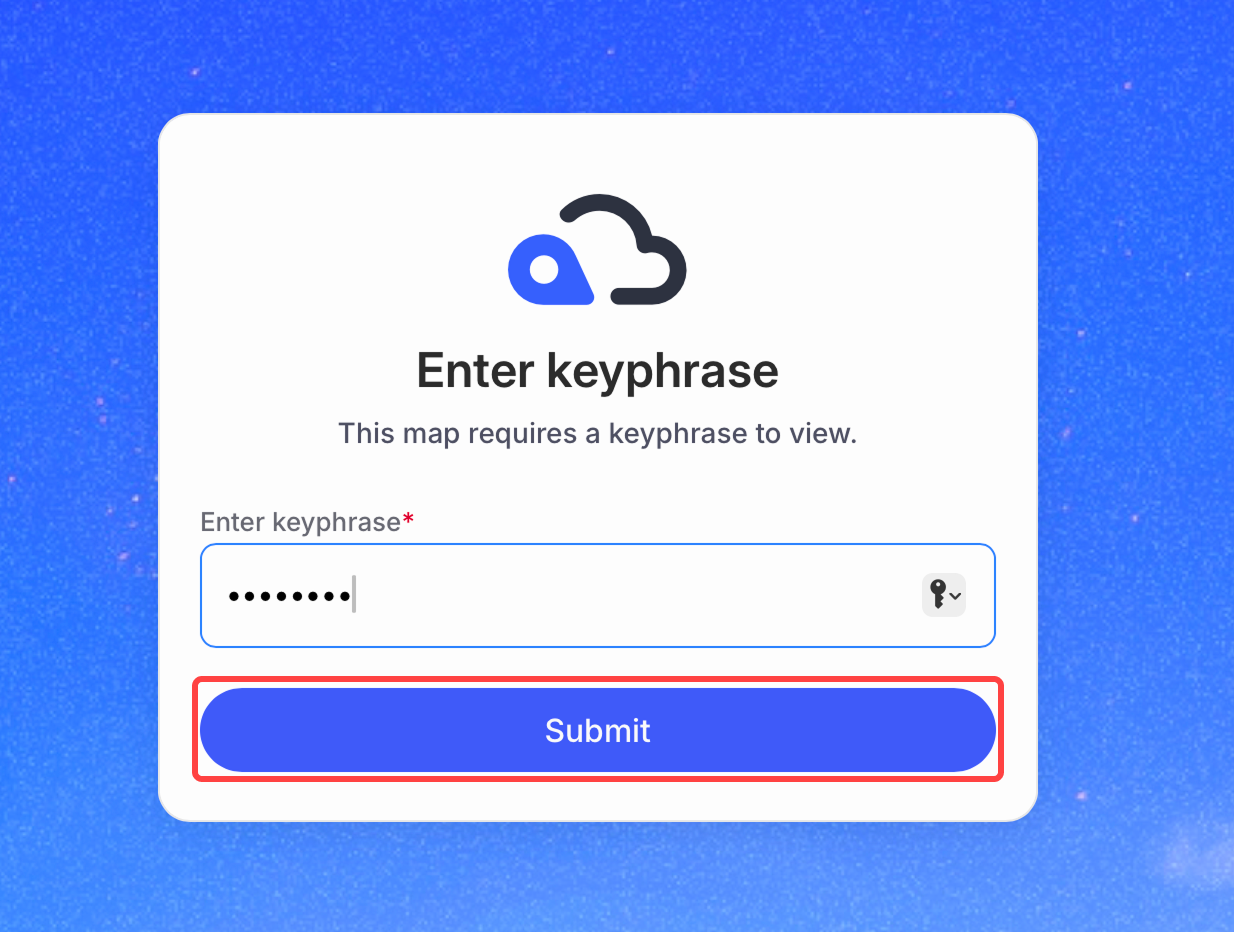
When prompted, enter the keyphrase and click Submit.
-
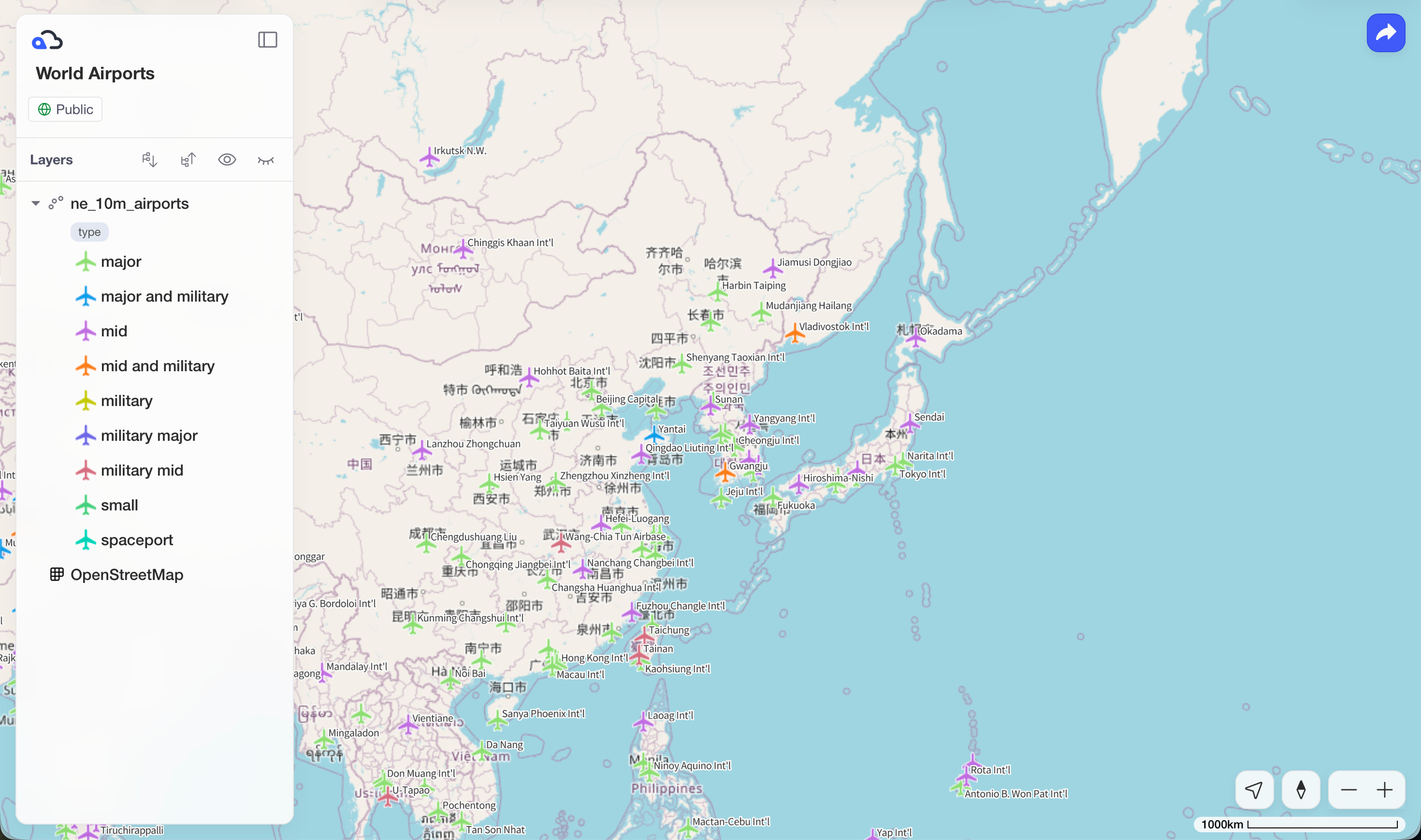
If the keyphrase is correct, the map opens.
Embed a Map in a Web Page#
You can embed a published map into your own website or blog. The map must be set to Public before it can be embedded.
-
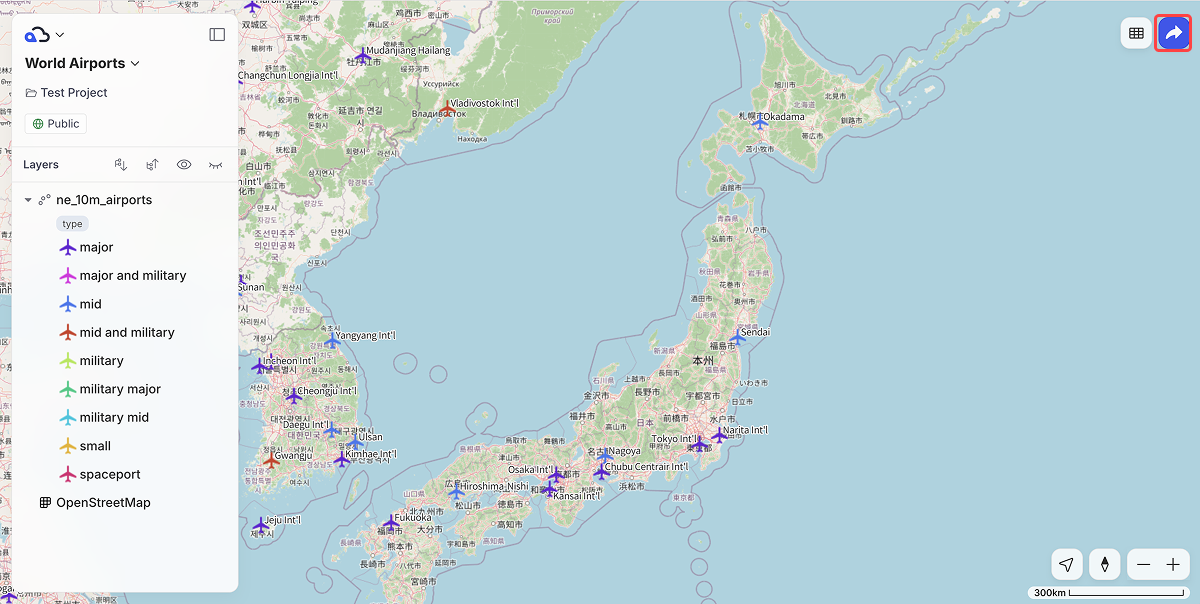
On the map page, click the Share button in the top right to open the sharing settings dialog.
-
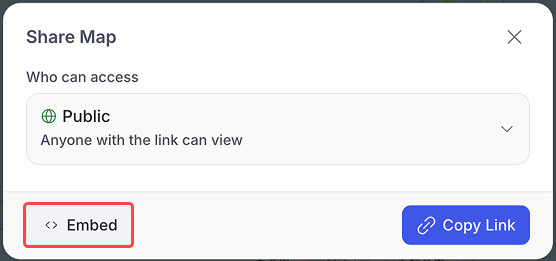
In the Share Map dialog, click Embed.
-
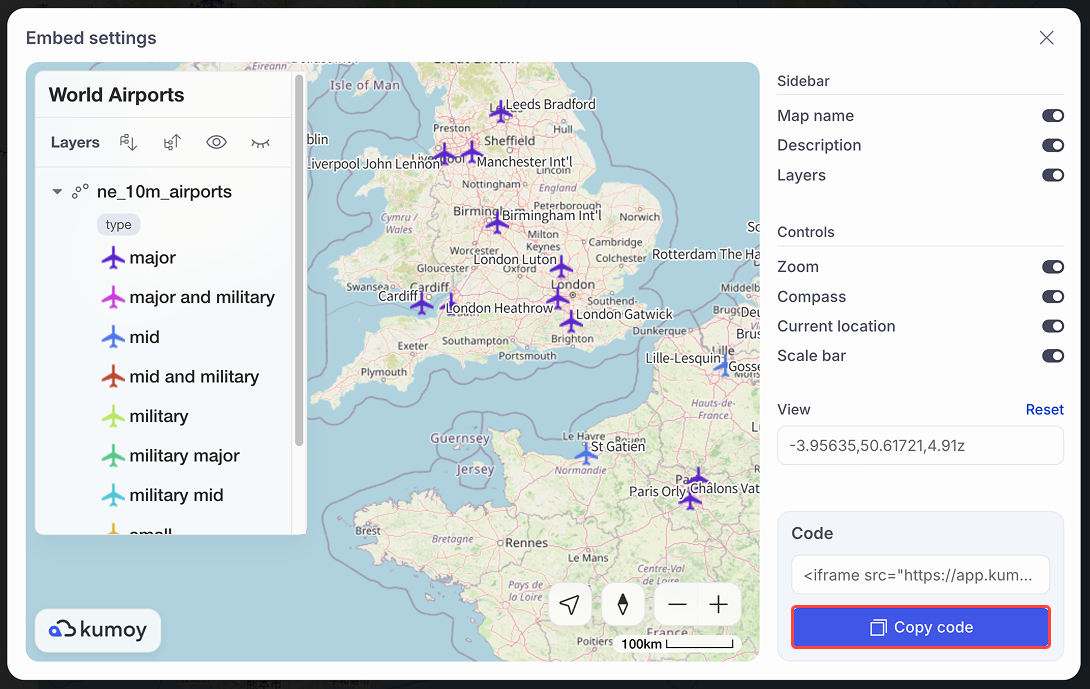
In Embed settings, choose which display options to show, then click Copy code.
-
Paste the copied code into your HTML file where you want the map to appear.
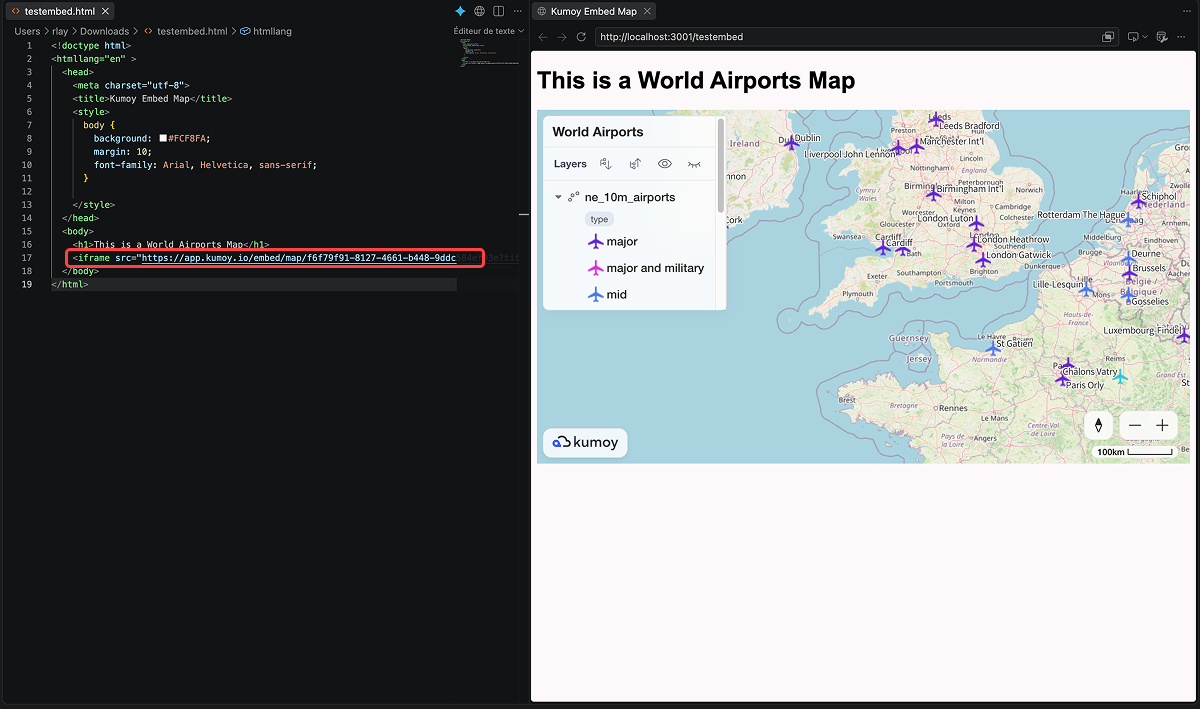
NoteThe embedded map preview works when the page is served by a web server (local or remote), not when the HTML file is opened directly.
Last update: Oct 7, 2026 23:52:25